Try a new front door, shutters and windows on your own house
Upload one photo of the front of your house and try a door color, shutters, new window frames or darker trim. The siding, the roof and the garden stay as they are — only the part you pick changes.
- 2 credits
- per design
- 6 free credits
- after sign-in, no card
- Under a minute
- per result
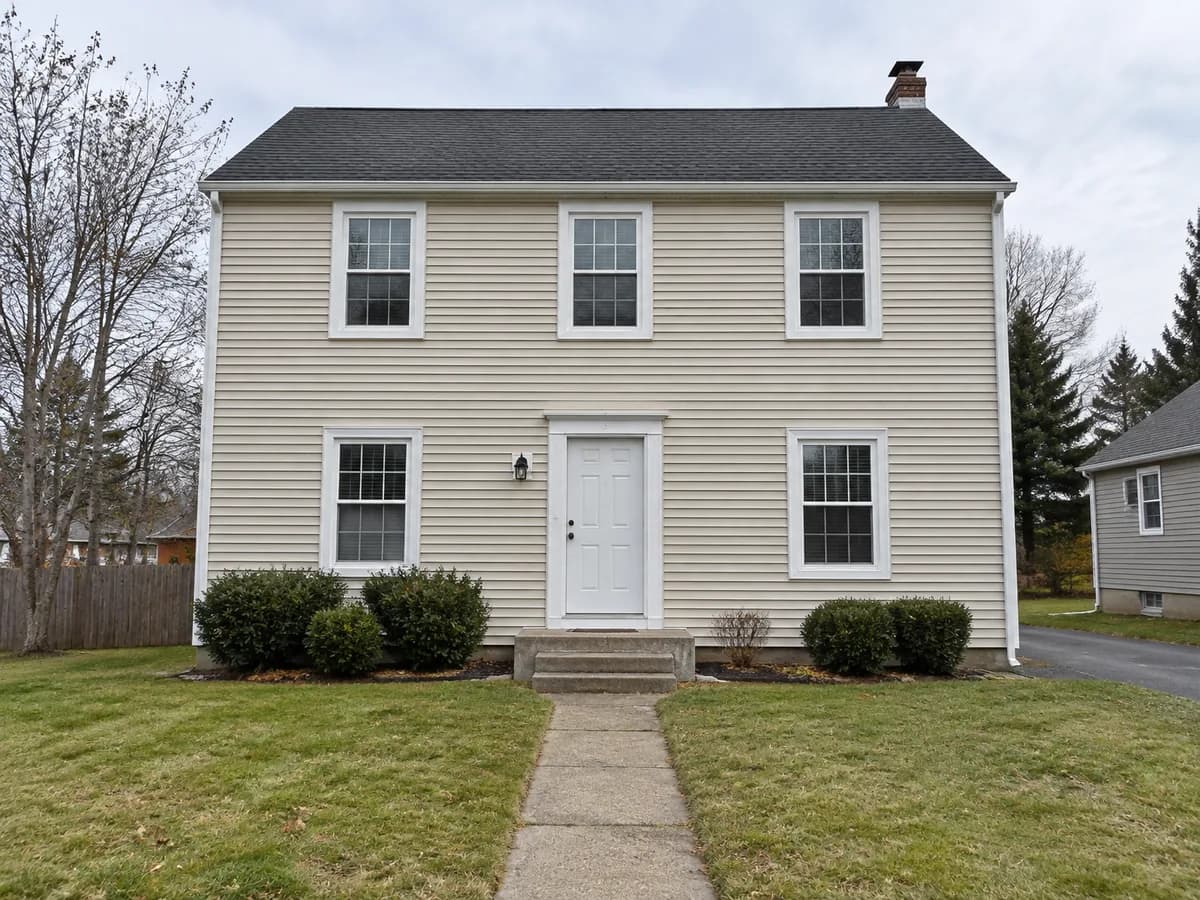
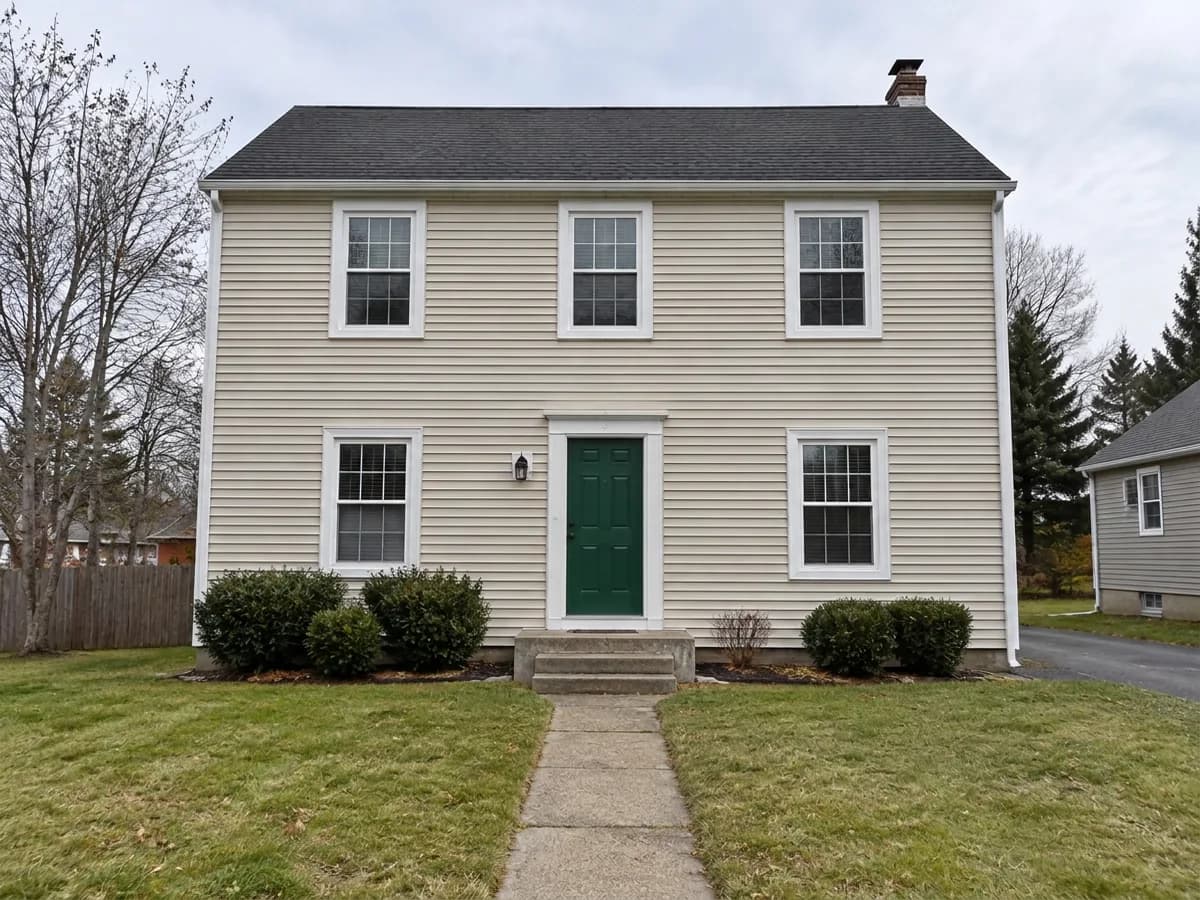
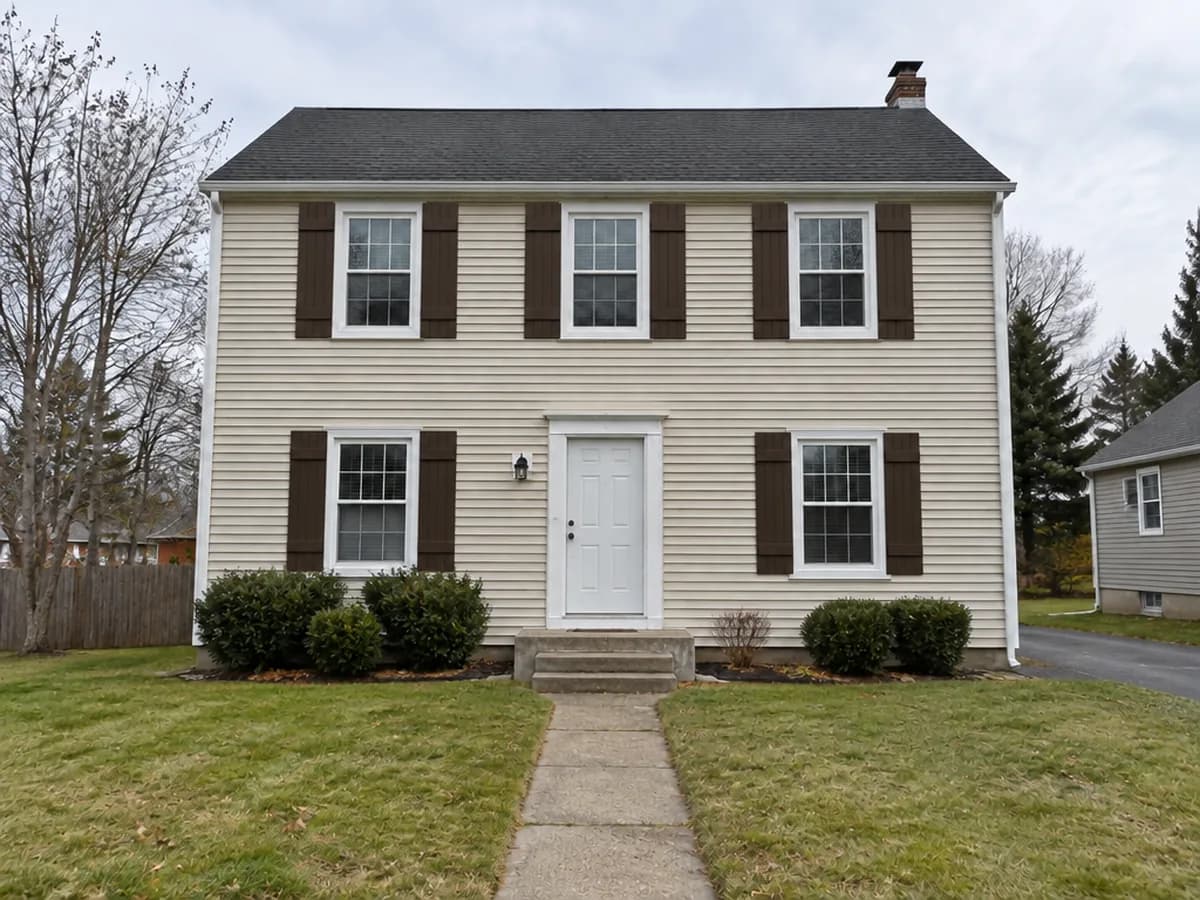
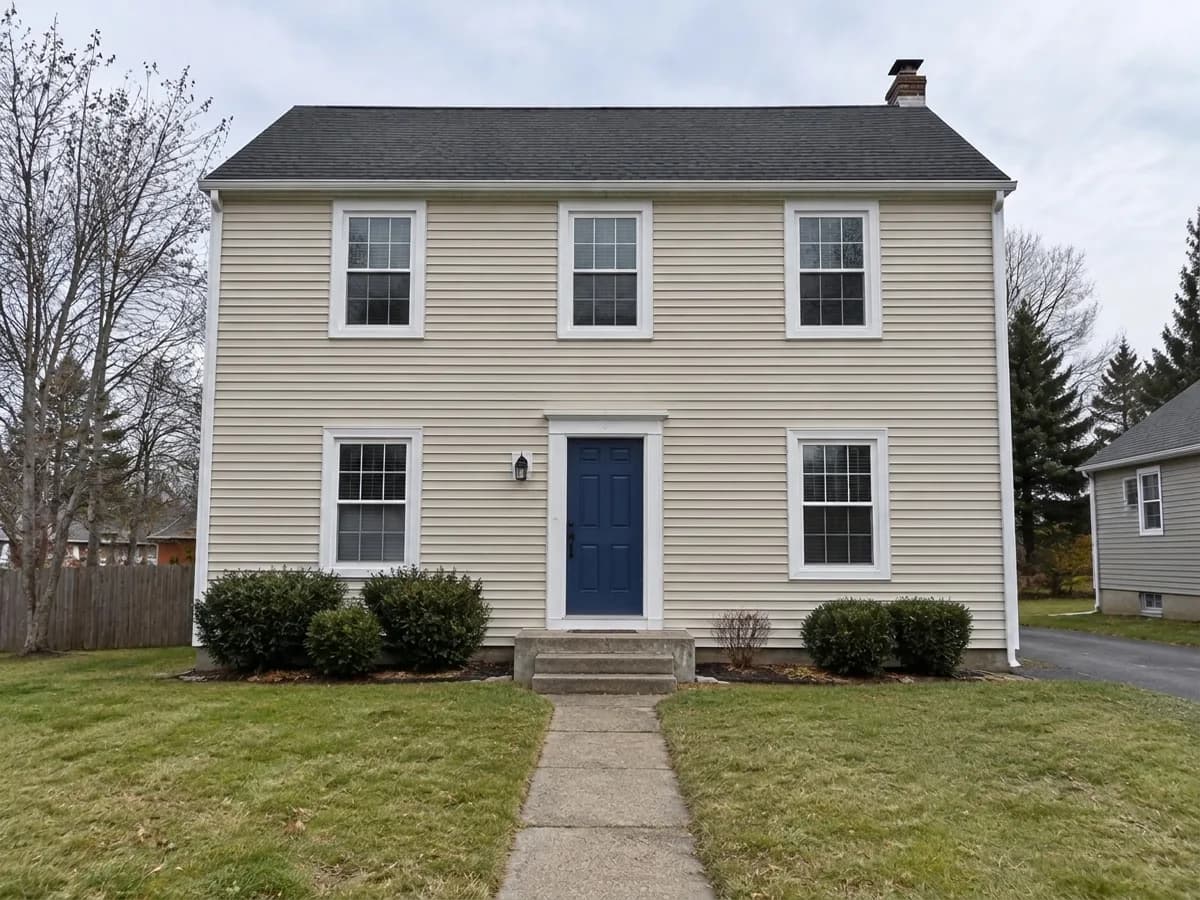
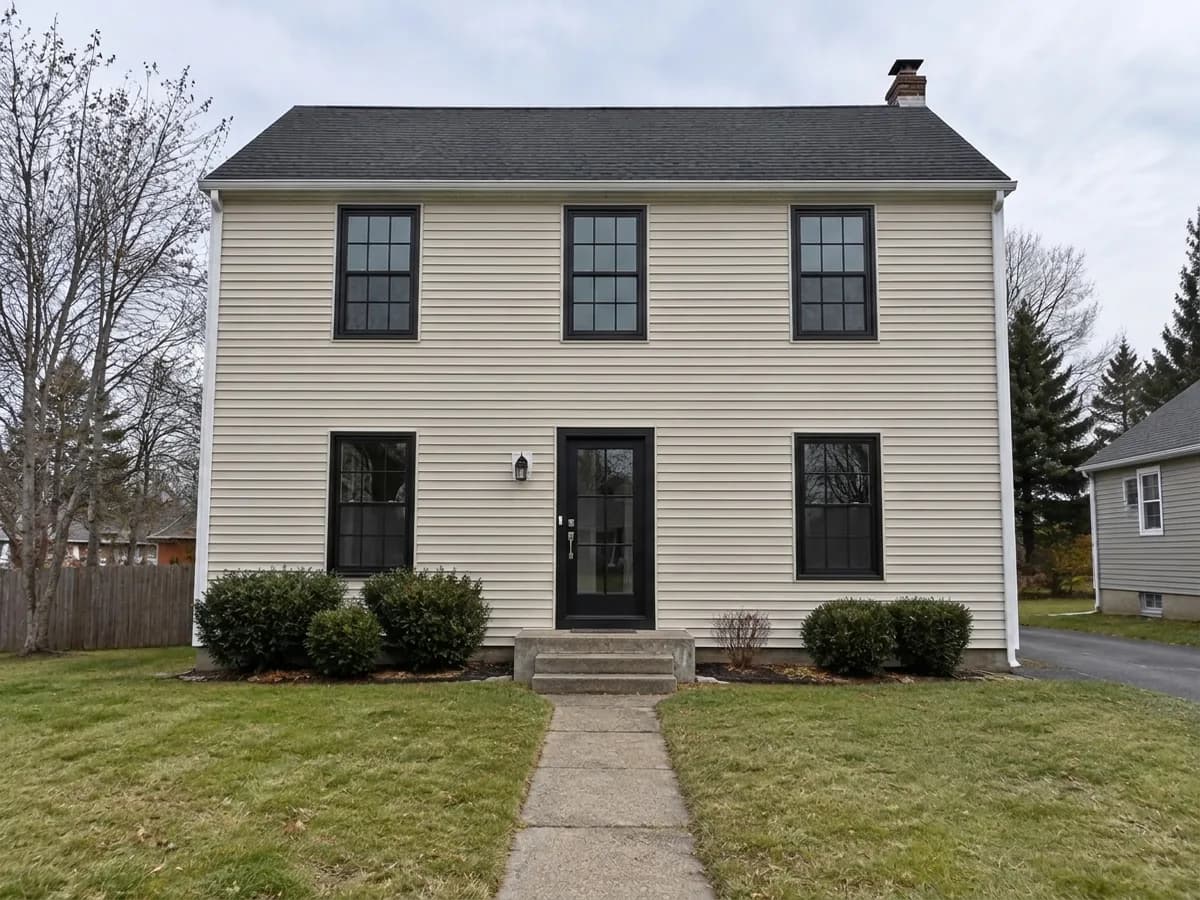
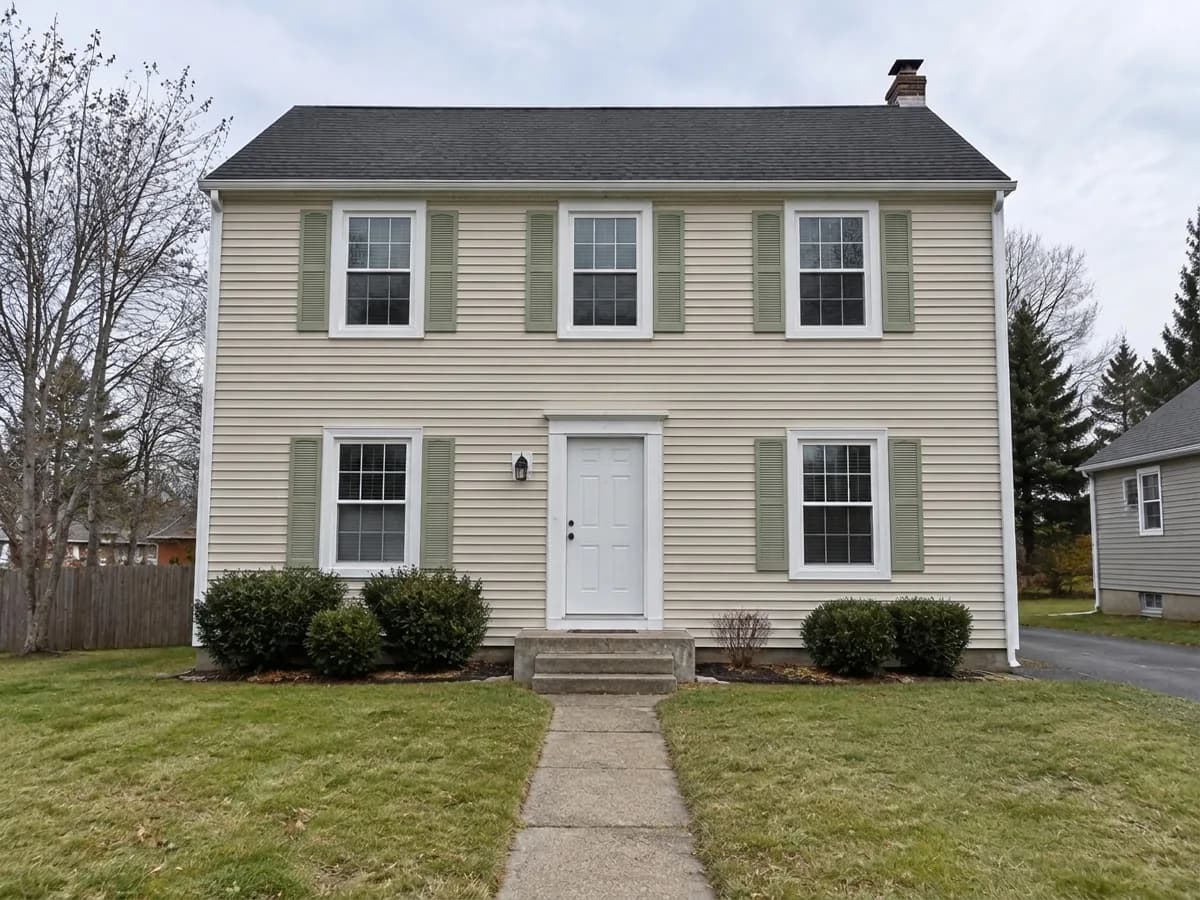
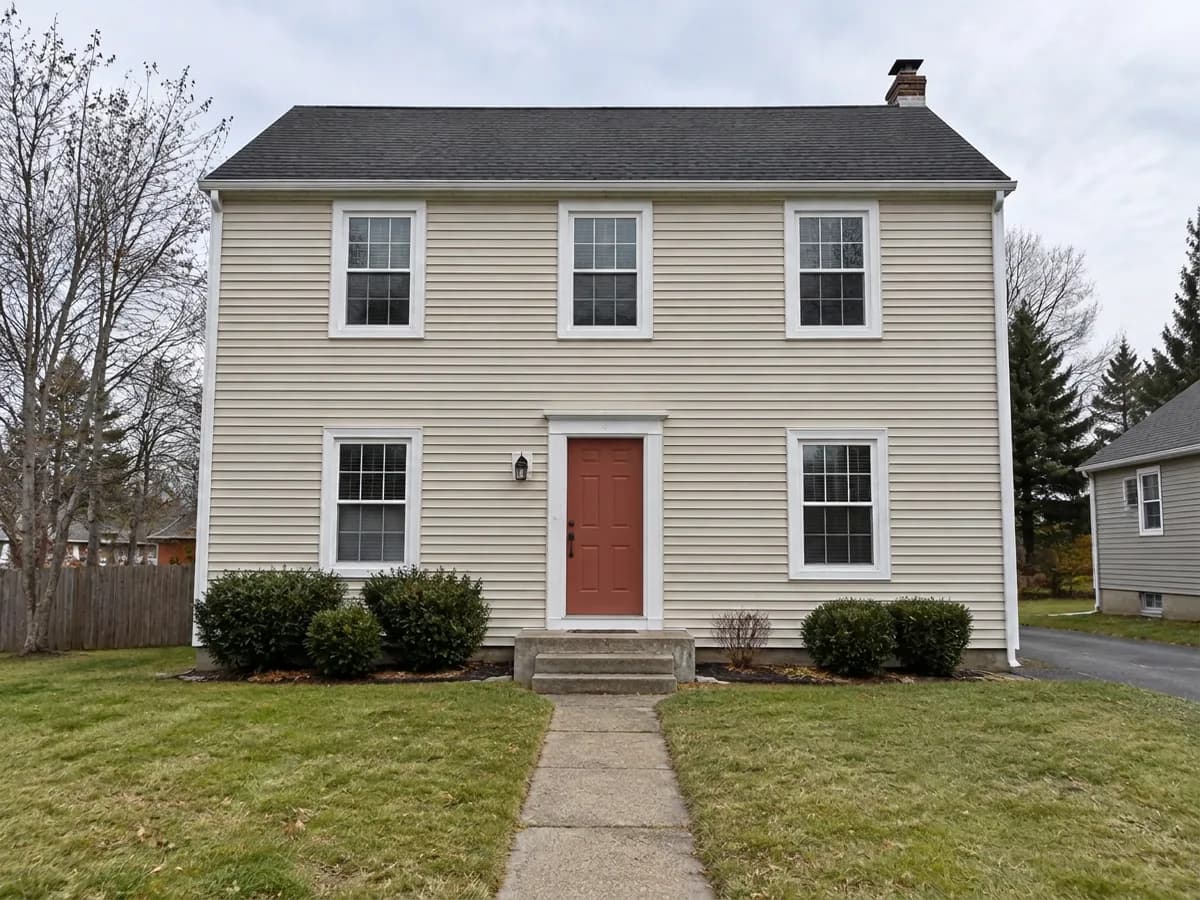
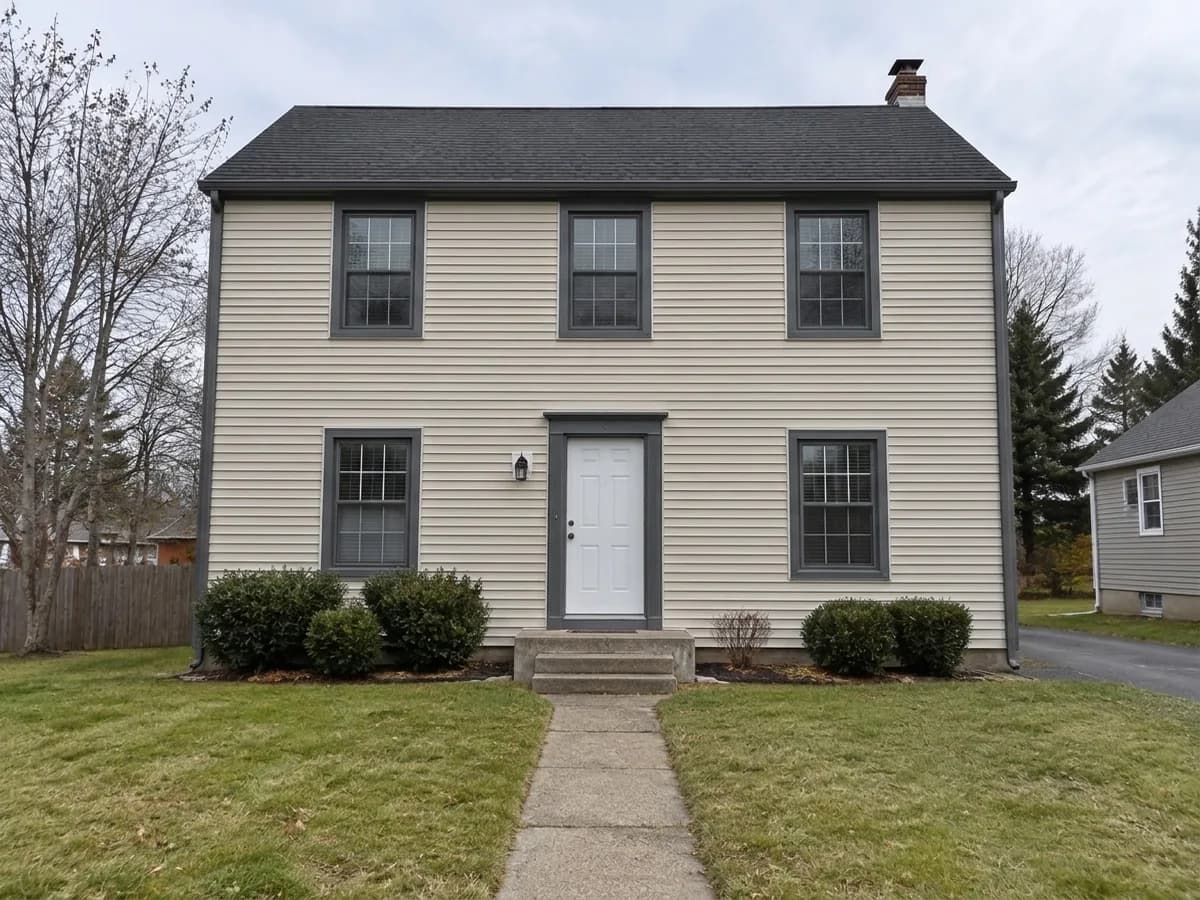
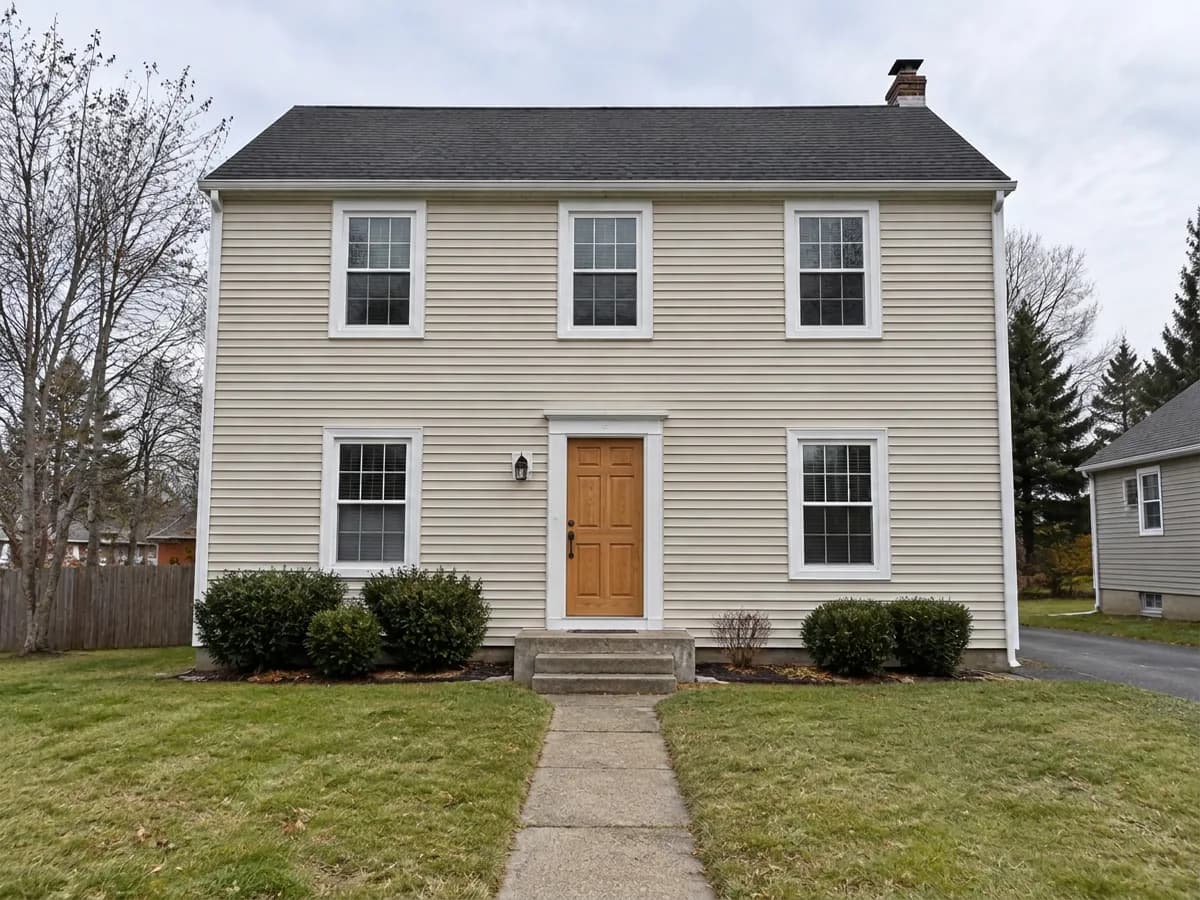
Same photo · one change at a time
Stays as in your photo
- Siding and wall color
- Roof
- Window and door positions
- Garden and path
- Camera angle
One photo, three steps
- 1
Photograph the front of the house
A daytime photo, taken straight on, with the door and the windows clearly visible. A phone photo is enough.
- Front door colorFinishDeep greenBlackNavy blueBrick redNatural wood2
Pick “Front door color” and a finish
The Studio opens with the “Front door color” task already chosen. Pick a finish or type your own. Shutters, frames and trim are tasks of their own: add them next to it, or start from a card on this page.
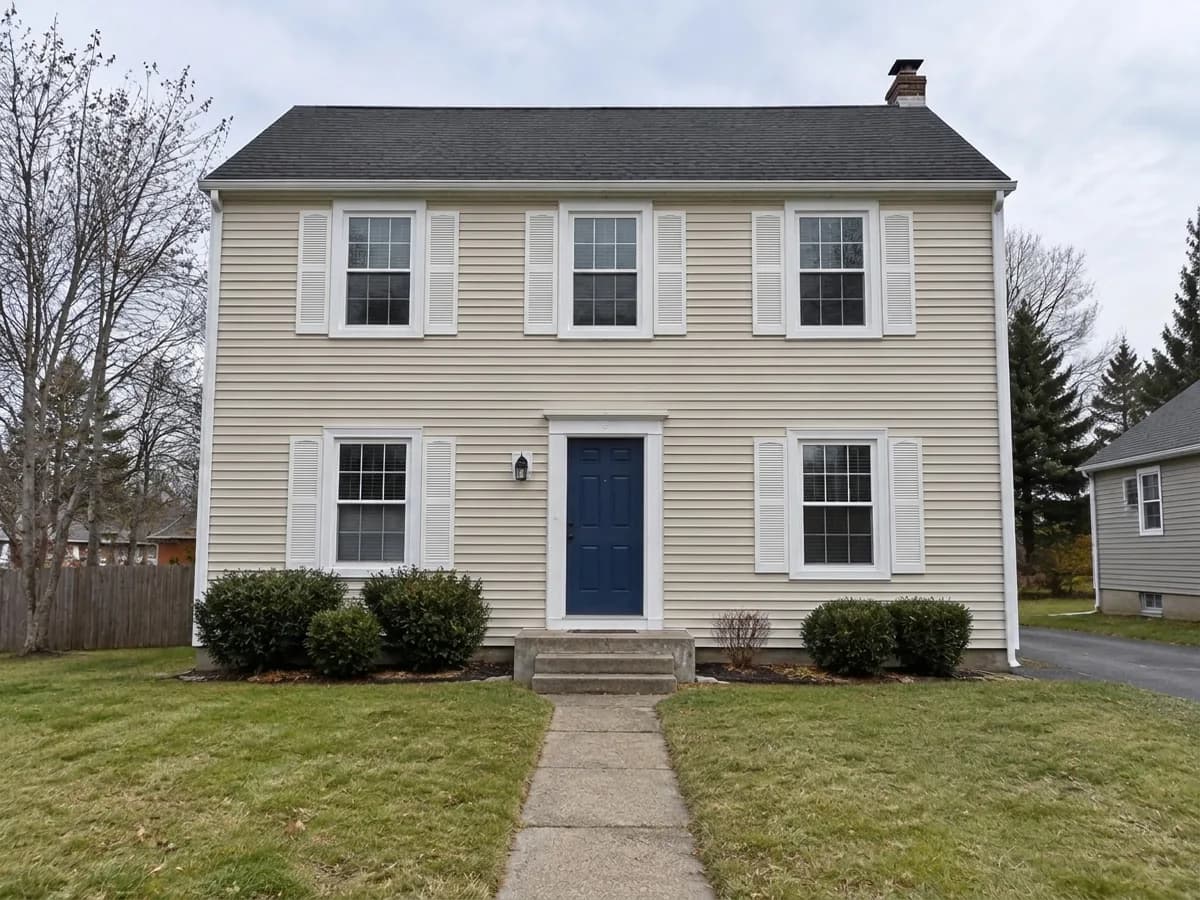 AfterBefore3
Compare and try the next one
Drag the before/after slider, then try another door or add shutters on the same photo. Each design costs 2 credits.
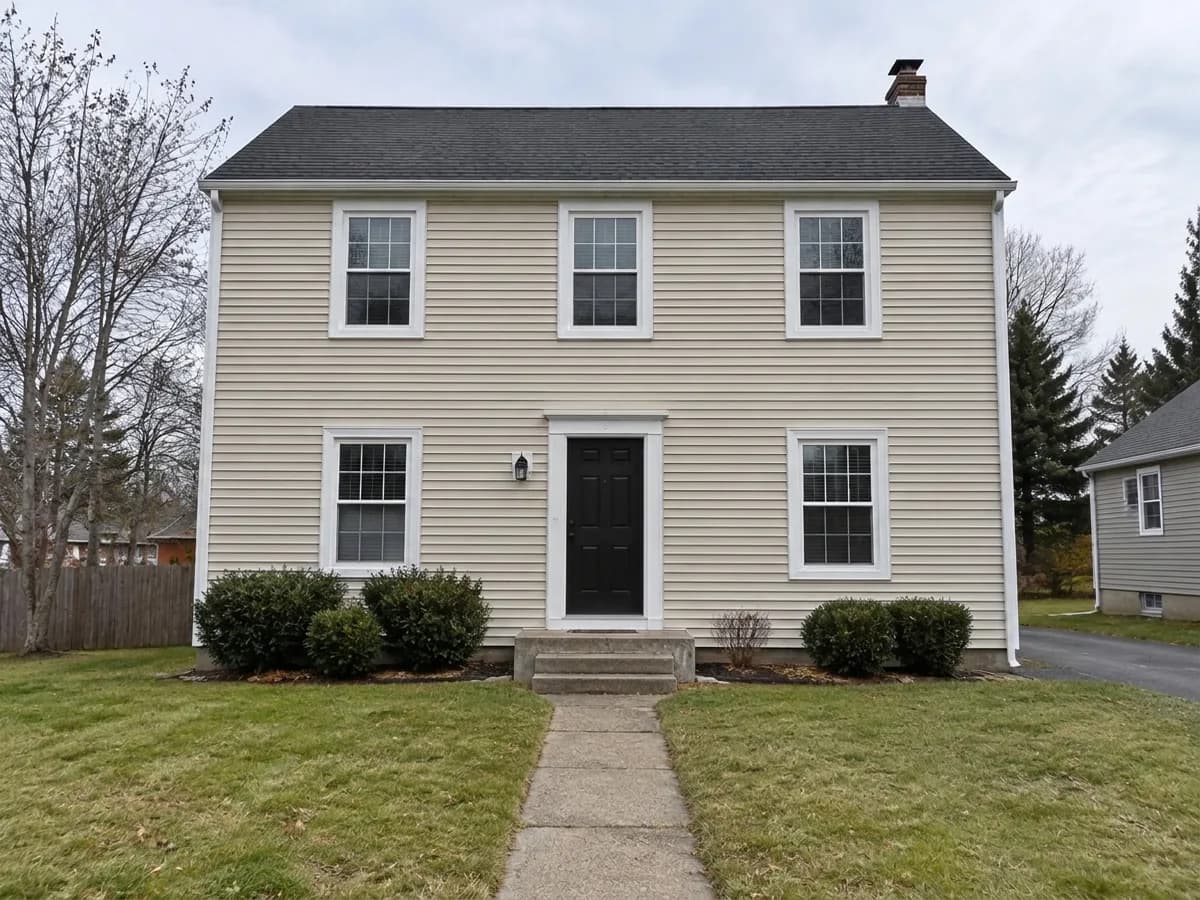
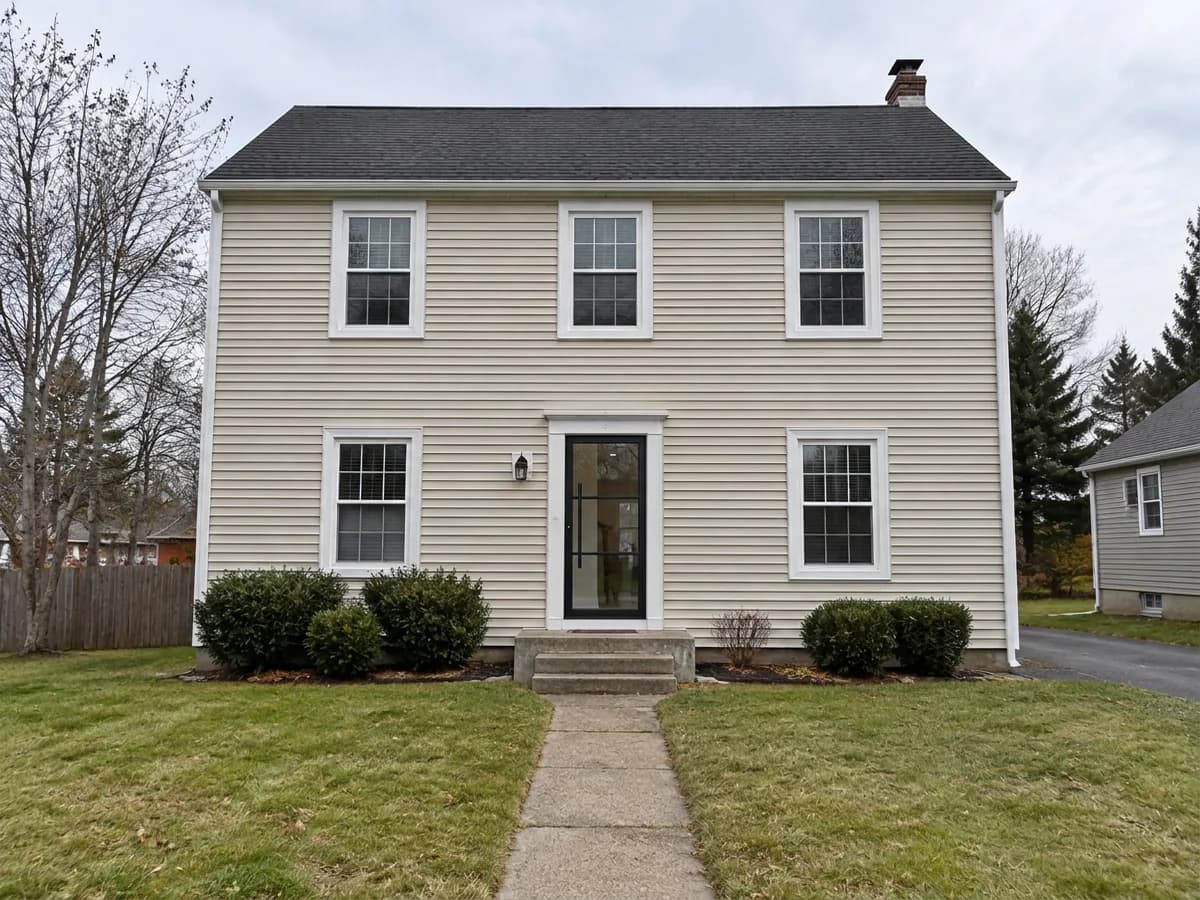
Every door on the same house
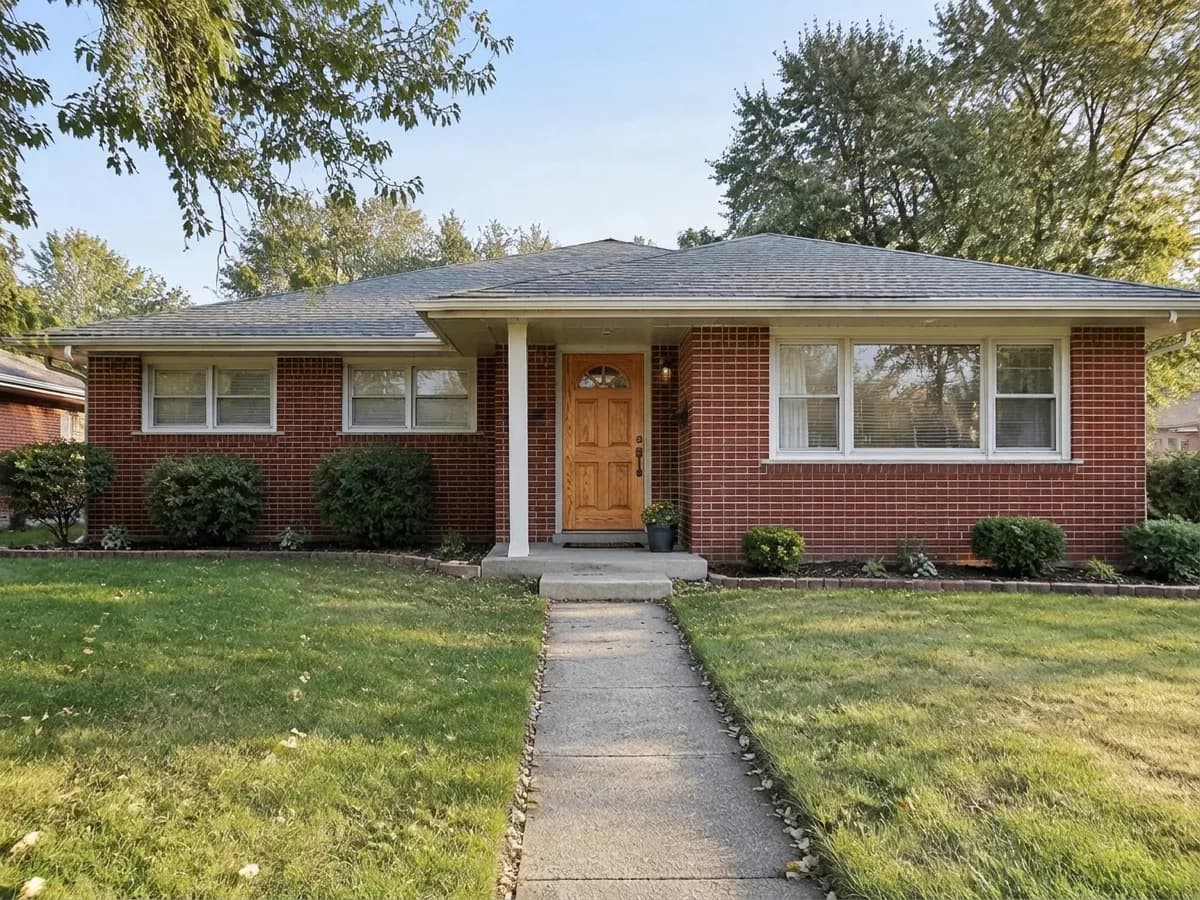
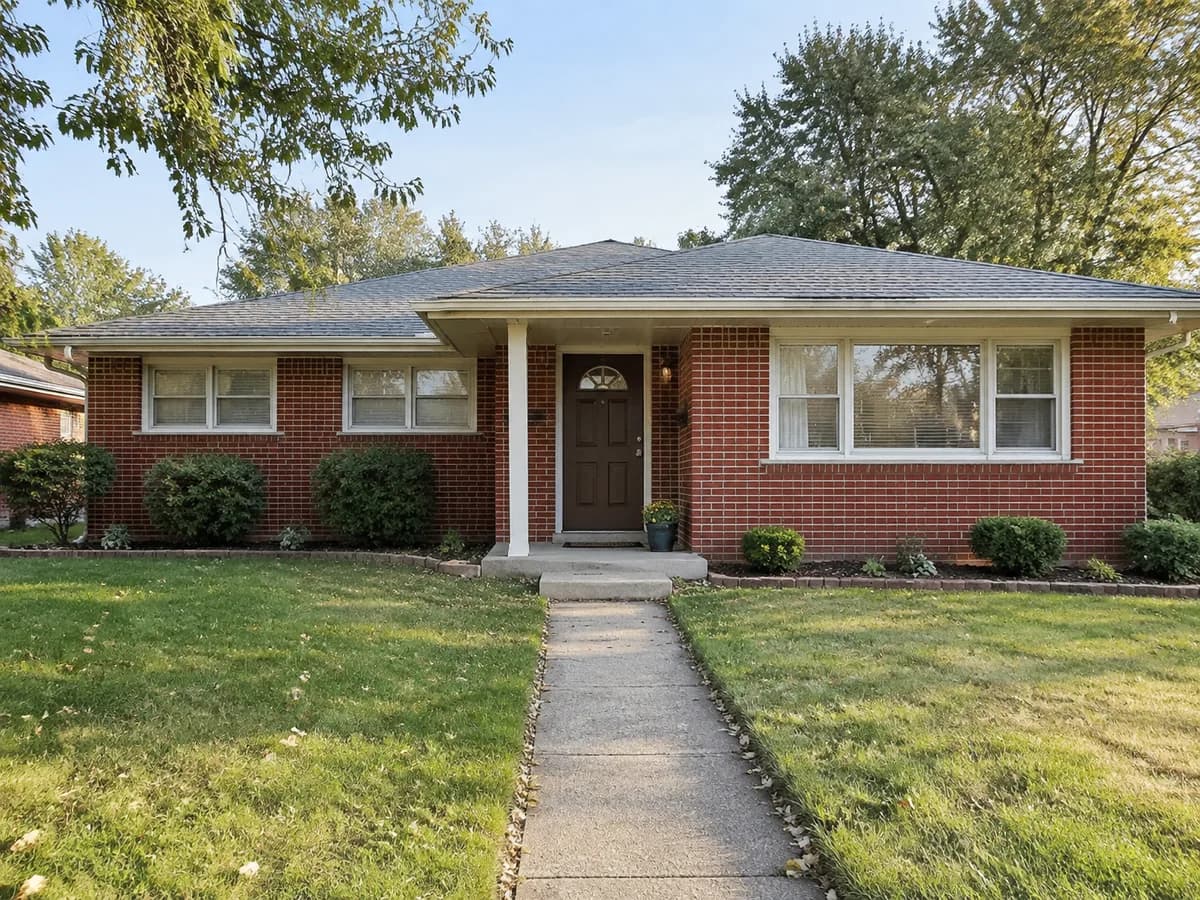
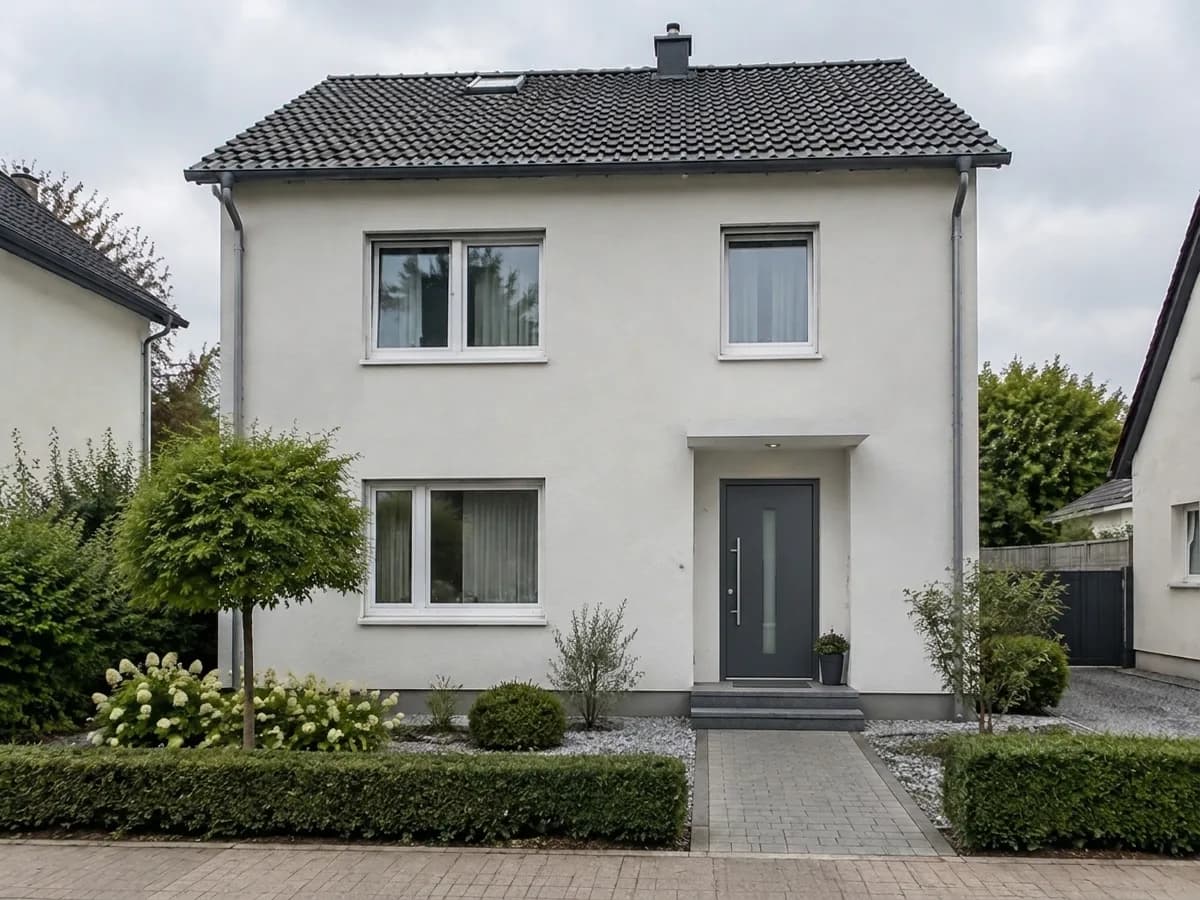
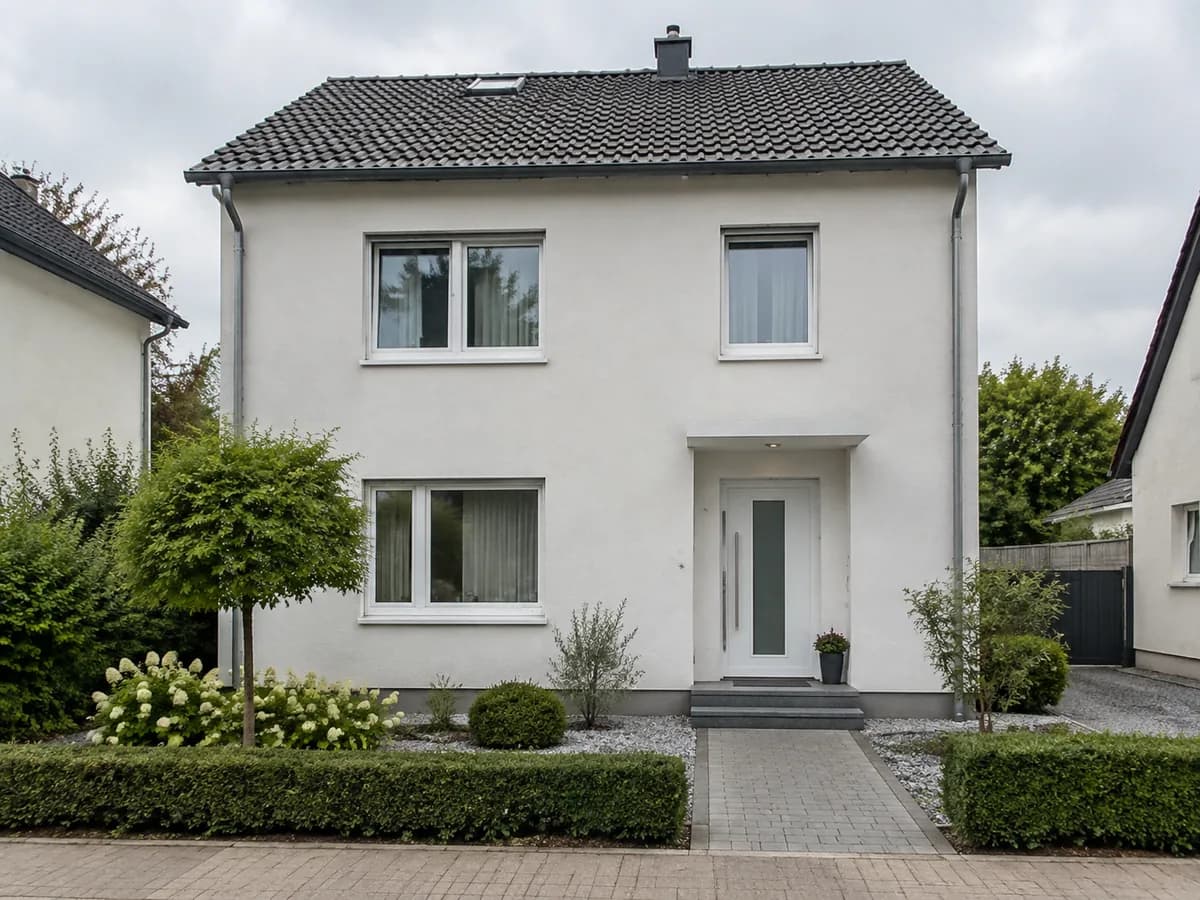
All six results were made in the GenRoom Studio from one photo with the “Front door color” task. Nothing else was edited.




The rest of the front, one task at a time
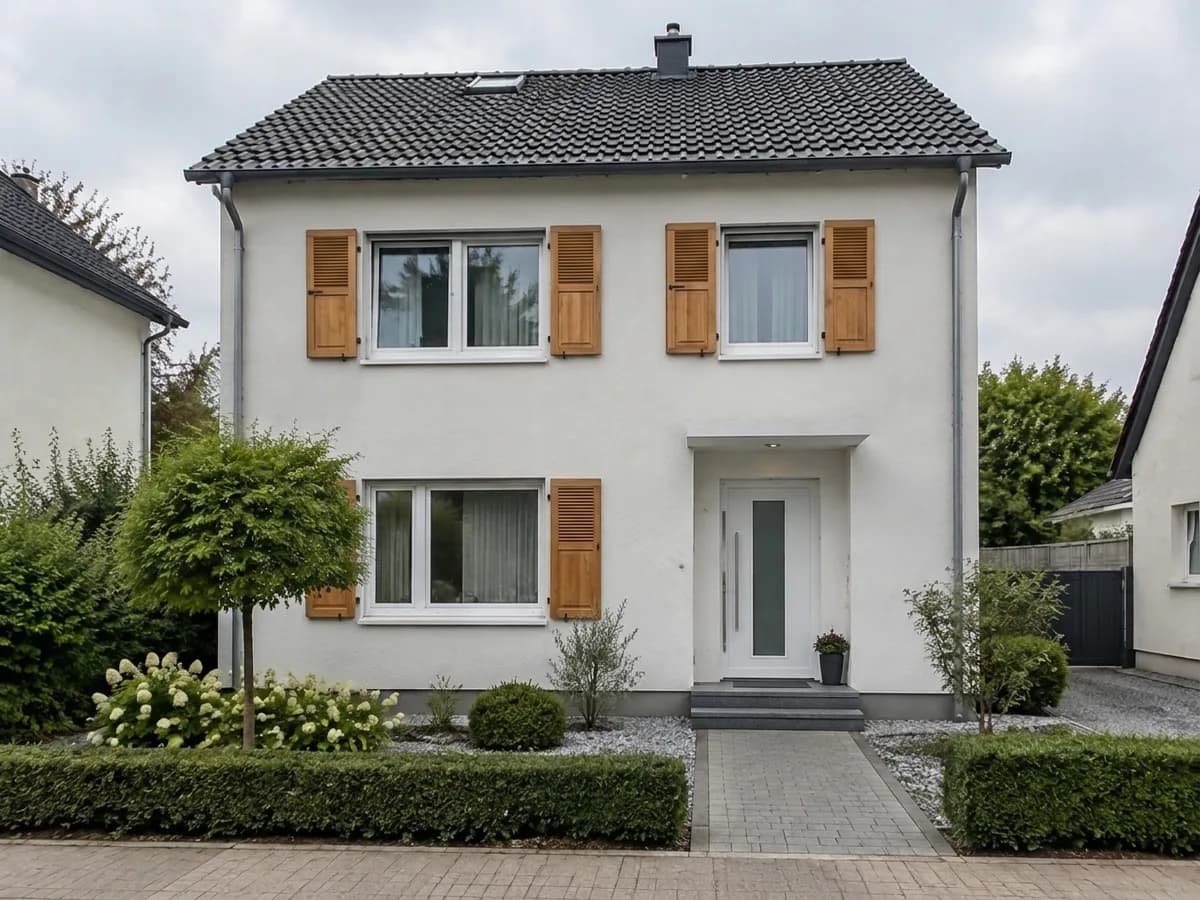
The same photo with “Shutters”, “Windows & front door” and “Trim & window frames”. Each card opens its own task with the same value.



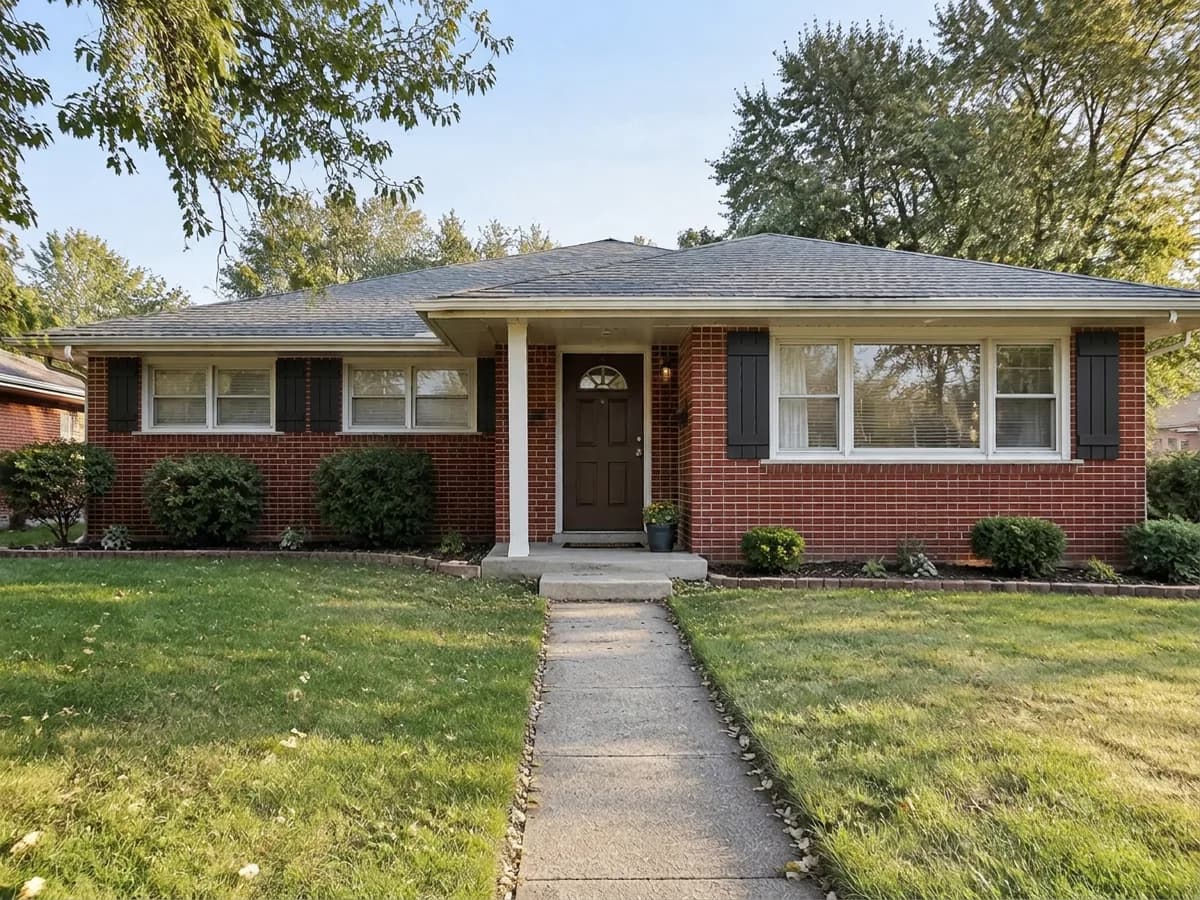
Two changes in one design
A navy door and white louvered shutters in one result: pick “Front door color”, then add “Shutters” next to it before you press “Create design”.
Front door color + Shutters
Different houses, the same rule
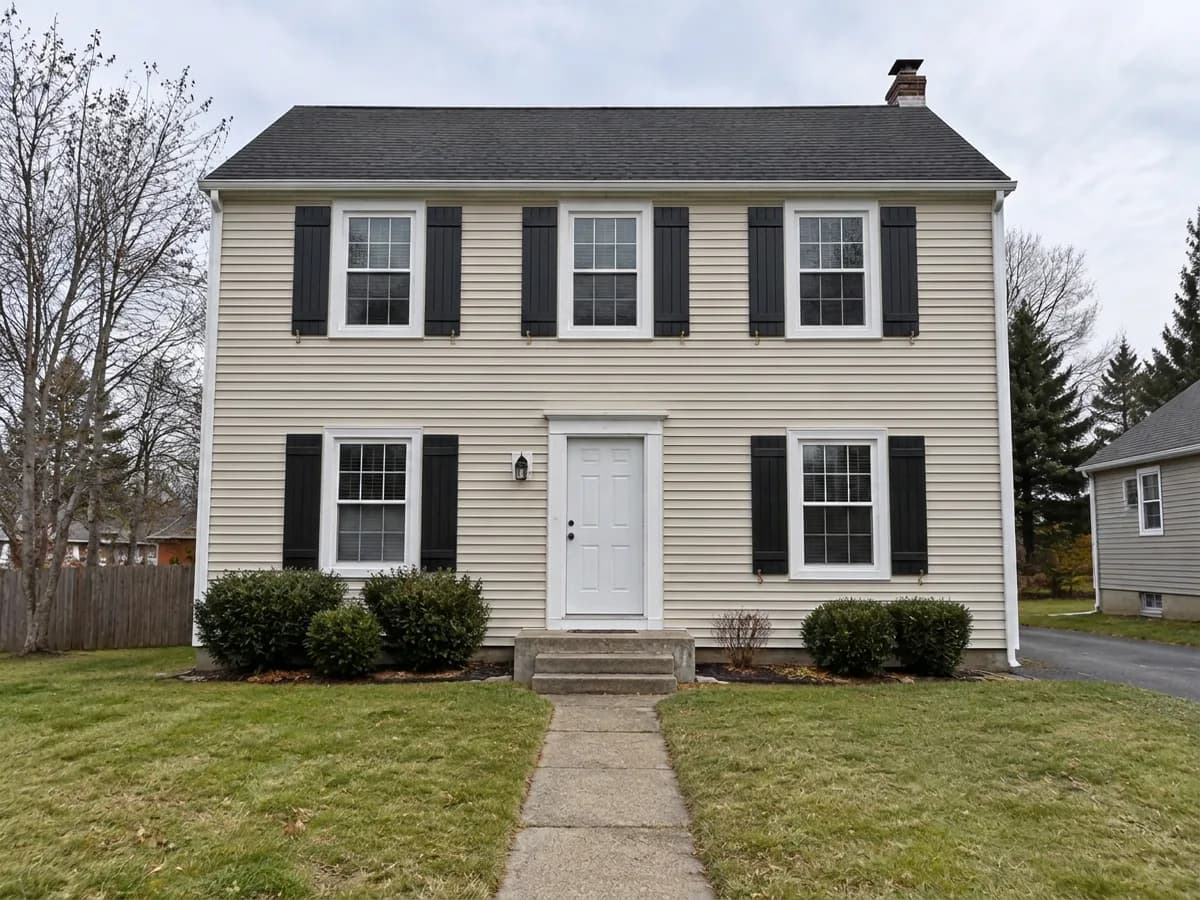
A brick ranch and a white rendered family house: the door or the shutters change, the rest stays where it was.
Add a new window or door
The ready tasks never add or move an opening — they change the door, frames, shutters and trim exactly where they are. To see a new window, write it in your own words in the brief.
“Add one more window on the ground floor between the left window and the front door, matching the other windows”
A new opening is a change to the wall, so the model may nudge the windows next to it. Treat the picture as an idea, and check it with a builder.
Try my own words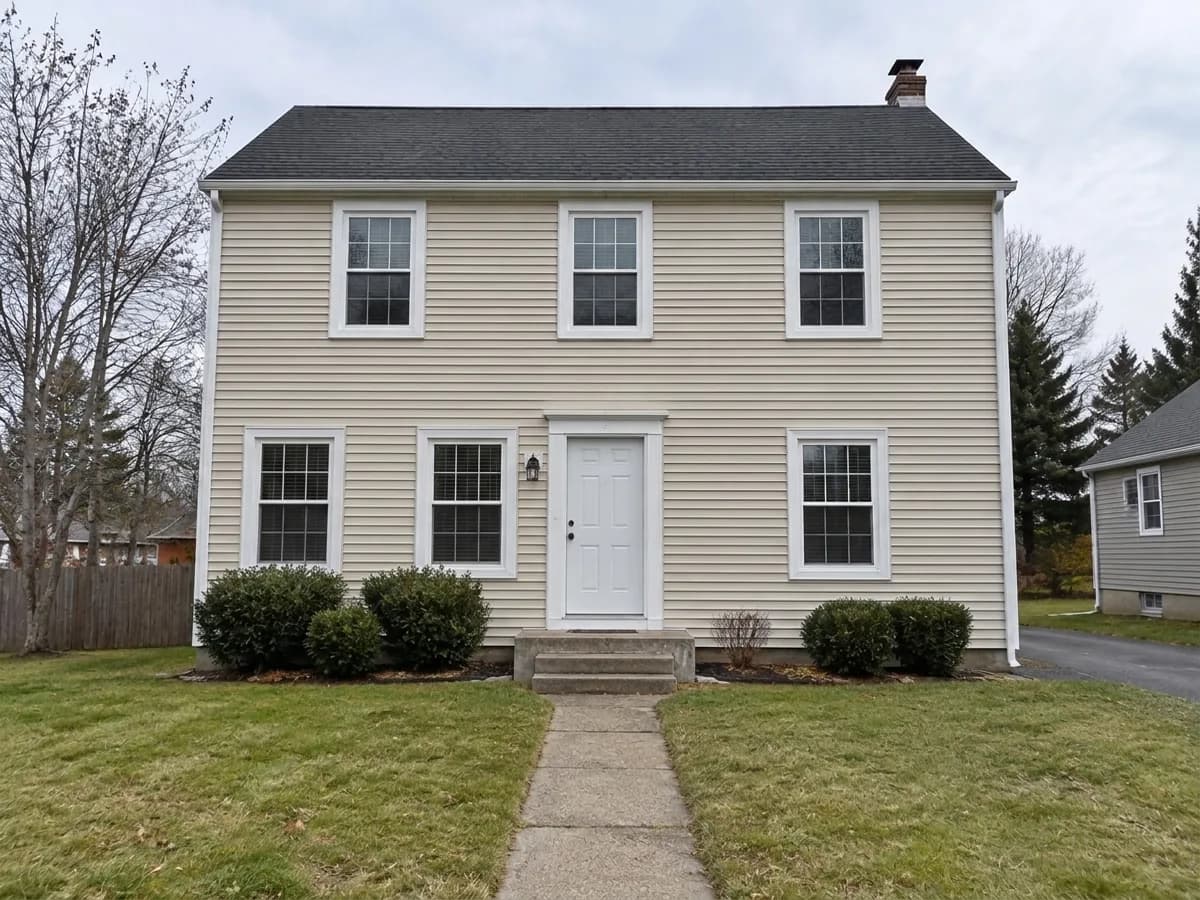
Here: the request above in the brief, no ready task. The neighbouring window moved slightly to the left.
Front door & window visualizer FAQ
What the tool changes, what it keeps and what it costs.
- You sign in with Google or e-mail — no card — and get 6 free credits, enough for 3 designs. Each design costs 2 credits. Free results carry a small genroom.io watermark; one-time credit packs remove it. There is no subscription.
- No. “Front door color” changes only the door. “Shutters” adds shutters sized to the windows, and “Trim & window frames” repaints the trim. The one exception is “Windows & front door”: it renews the window frames and the front door together, as its name says.
- Yes. Type it into the “Finish” field instead of picking a ready one — a color name, a brand color or a HEX/RAL code, for example “Tricorn Black” or “RAL 6005 moss green”. The result is a close visual match, not a color-calibrated sample.
- Yes, that is what the “Shutters” task does: it adds them to the windows and sizes them to each opening. Pick white louvered, black board-and-batten, natural wood or sage green, or describe your own, for example “dark brown board and batten shutters”.
- Yes. Tasks combine: choose “Front door color”, add “Shutters” and “Trim & window frames” next to it, and press “Create design” once. For comparing options, one change per design is easier to judge.
- Not with the ready tasks — they keep every opening where it is. Write the new opening in your own words in the brief; the Studio will draw it, but the walls around it may shift slightly. Use it as an idea, not as a plan.
- Daylight, taken straight on from the path or the street, with the door and windows clearly visible and not hidden by trees or a storm door. A phone photo is fine.
- It is a visual preview of the color, the style and how it sits with your house. It does not measure the opening or reproduce a manufacturer's model, so check sizes and samples with your door or window supplier before you order.
More tools for the outside of your house
The same photo can get new paint, siding, an entrance or an addition.
AI facade design
Redesign the whole facade in one of 15+ facade styles.
AI driveway & entrance design
Porch, gate, fence and driveway designed together with the door.
AI exterior design
Cladding, roof, windows and entrance redesigned together.
Exterior Paint Visualizer
Repaint the walls, trim or front door on a photo of your house.
AI Siding Visualizer
Try vinyl, brick, stone or wood cladding on your own house.
Home Addition Visualizer
See a second story, a garage or an extension on a photo of your house.
Your house with a new front door, in under a minute
Upload a photo of the front and try the first door. 6 free credits after sign-in — that is 3 designs.
Try a new door on my house