Try a new backsplash on your own kitchen photo
Upload one photo of your kitchen and see subway tile, zellige, herringbone, a hexagon mosaic or a quartzite slab behind your counters — or a new countertop on top of them. The cabinets, appliances and window stay exactly where they are.
- 2 credits
- per design
- 6 free credits
- after sign-in, no card
- Under a minute
- per result
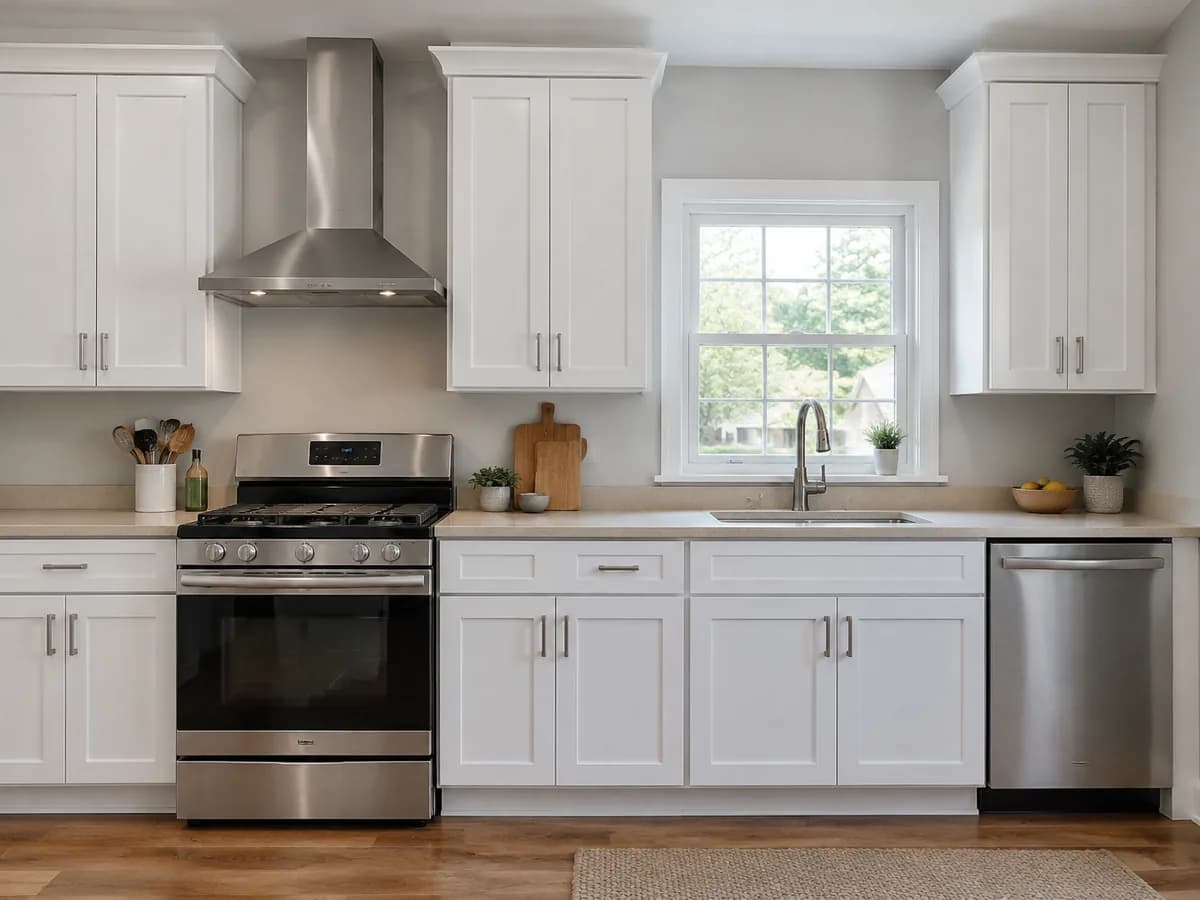
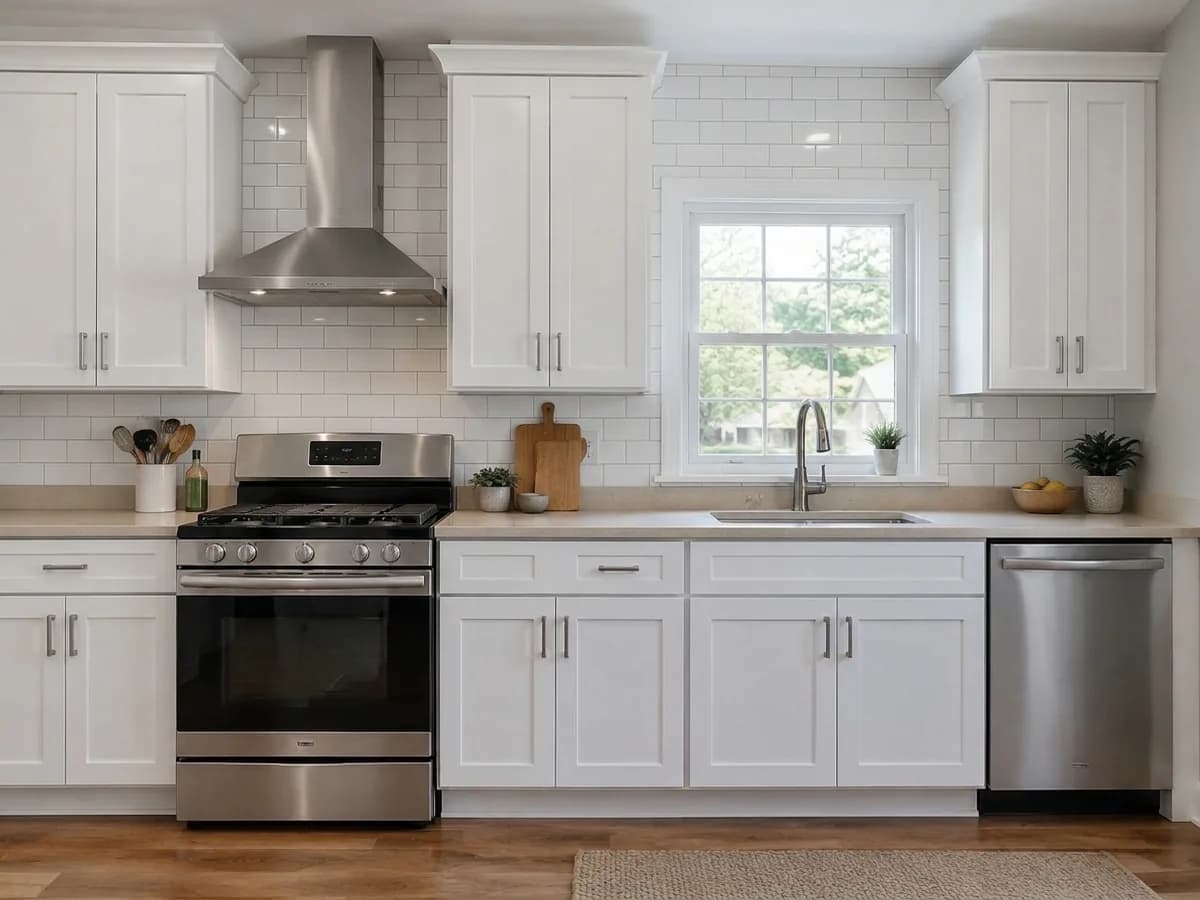
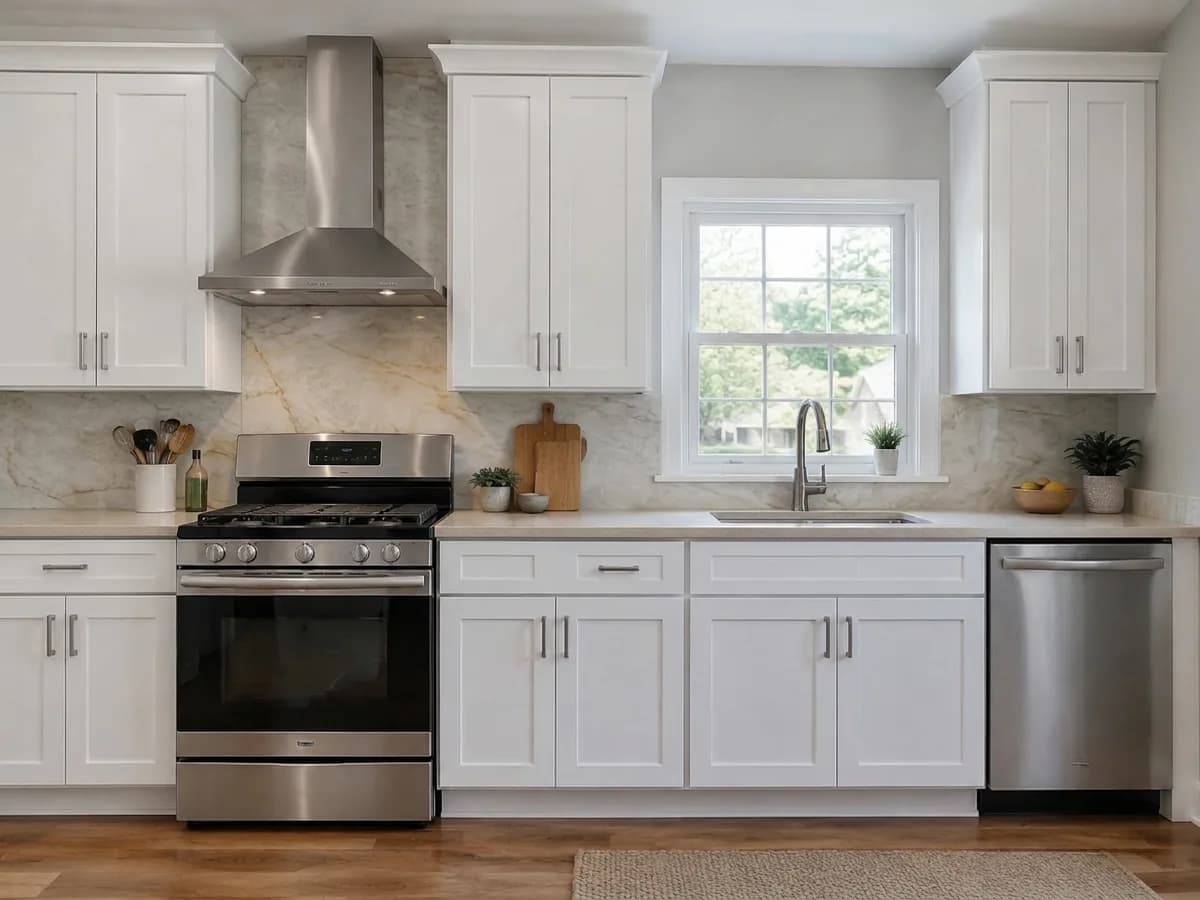
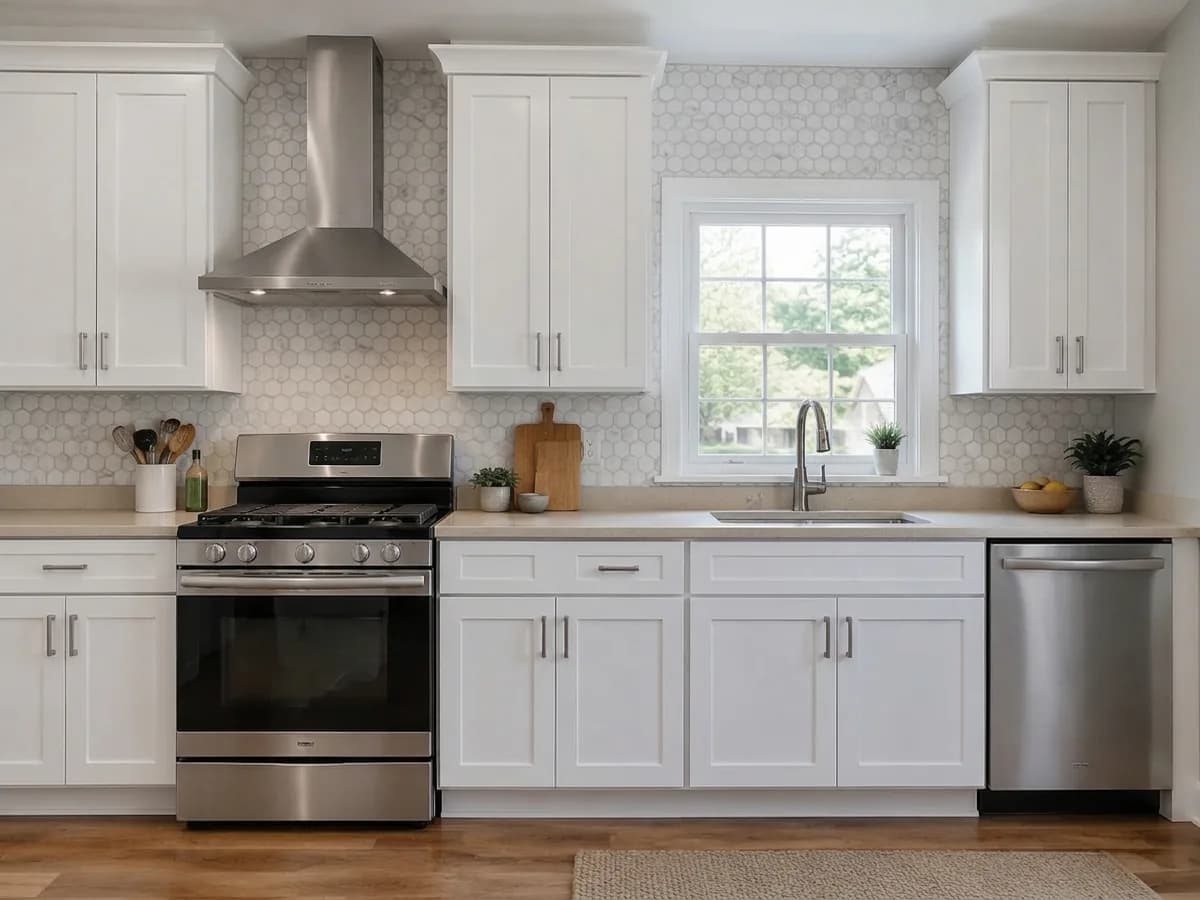
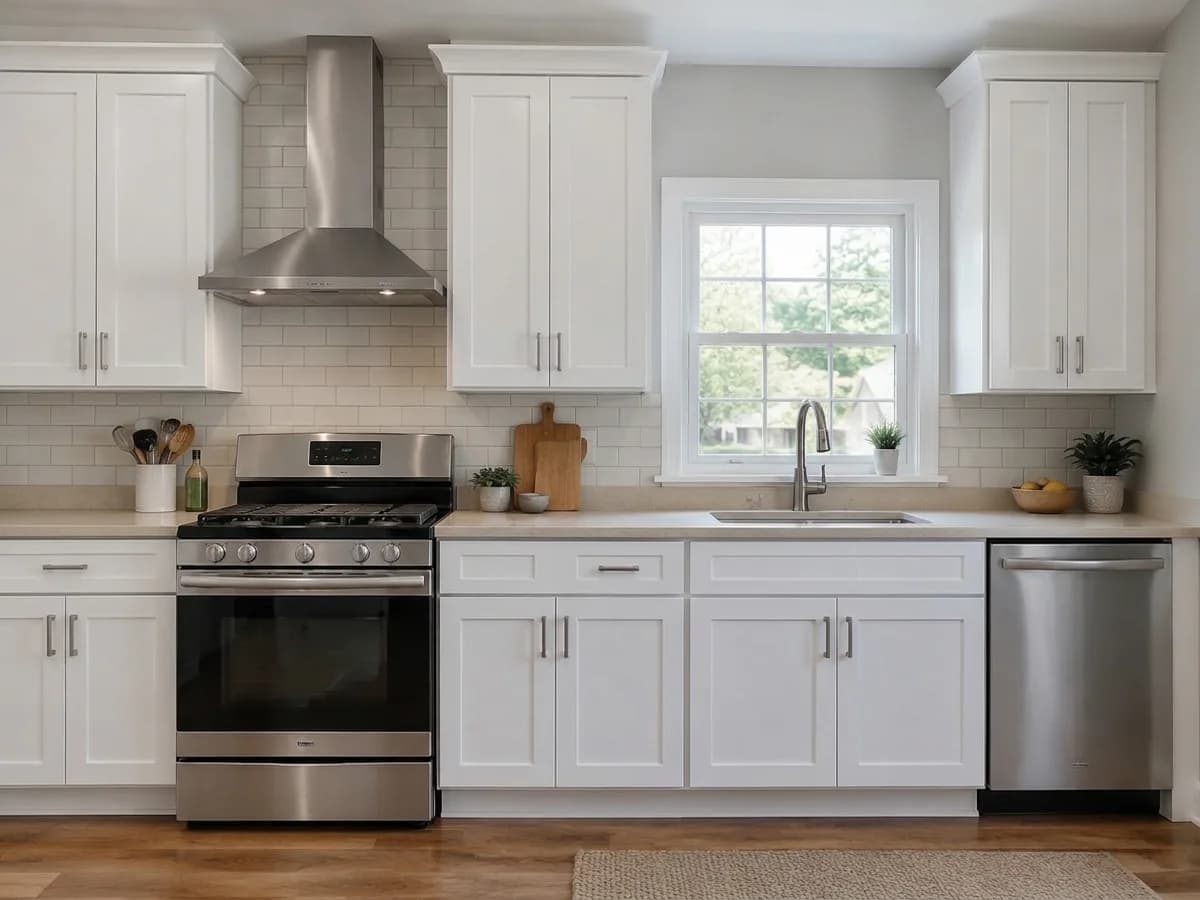
Same photo · only the backsplash changes
- Sage herringbone
- White subway tile
- Taj Mahal quartzite slab
- Zellige
- Marble hexagon mosaic
- Light matte tile
- Sage herringbone
- White subway tile
- Taj Mahal quartzite slab
- Zellige
- Marble hexagon mosaic
- Light matte tile
Stays as in your photo
- Cabinets and handles
- Appliances and sink
- Window and walls
- Floor
- Camera angle
One photo, three steps
- 1
Photograph the cabinet wall
A daytime photo of the wall with the counters, taken as straight on as you can. A phone photo is enough.
- BacksplashSubway tilesZelligeLight matte tilesCountertopWhite marbleBlack graniteSolid oak2
“Backsplash” or “Countertop”
The Studio opens with the “Backsplash” task already chosen. Pick a ready material or type your own, such as “Taj Mahal quartzite slab”. Add “Countertop” next to it to change both in one design.
 AfterBefore3
Compare and try the next one
Drag the before/after slider and try another tile or stone on the same photo. Each design costs 2 credits.

Every backsplash on the same wall
All six results were made in the GenRoom Studio from one photo with the “Backsplash” task. The cards send the same material to the Studio.
The same kitchen with a new countertop
Four results of the “Countertop” task on the same photo: only the worktop changes, the backsplash wall stays bare.
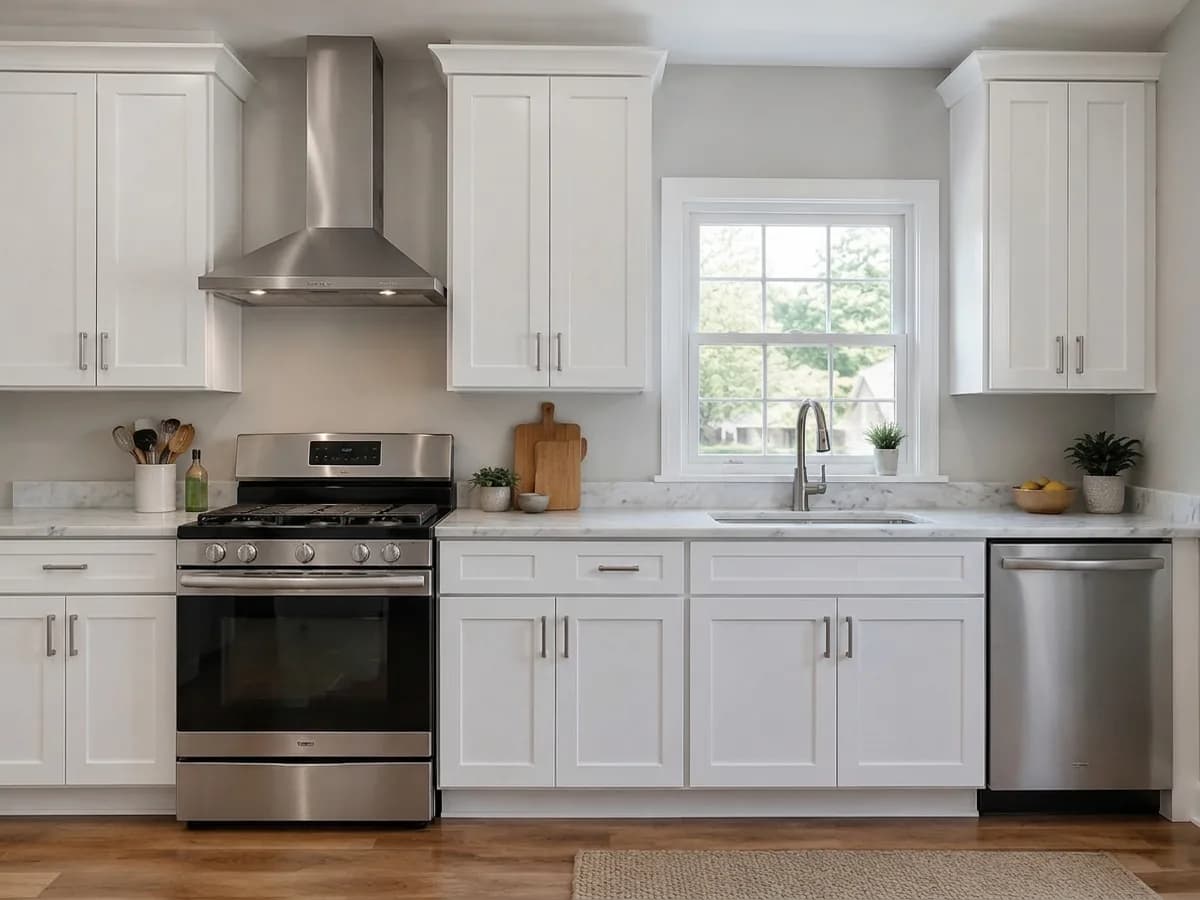
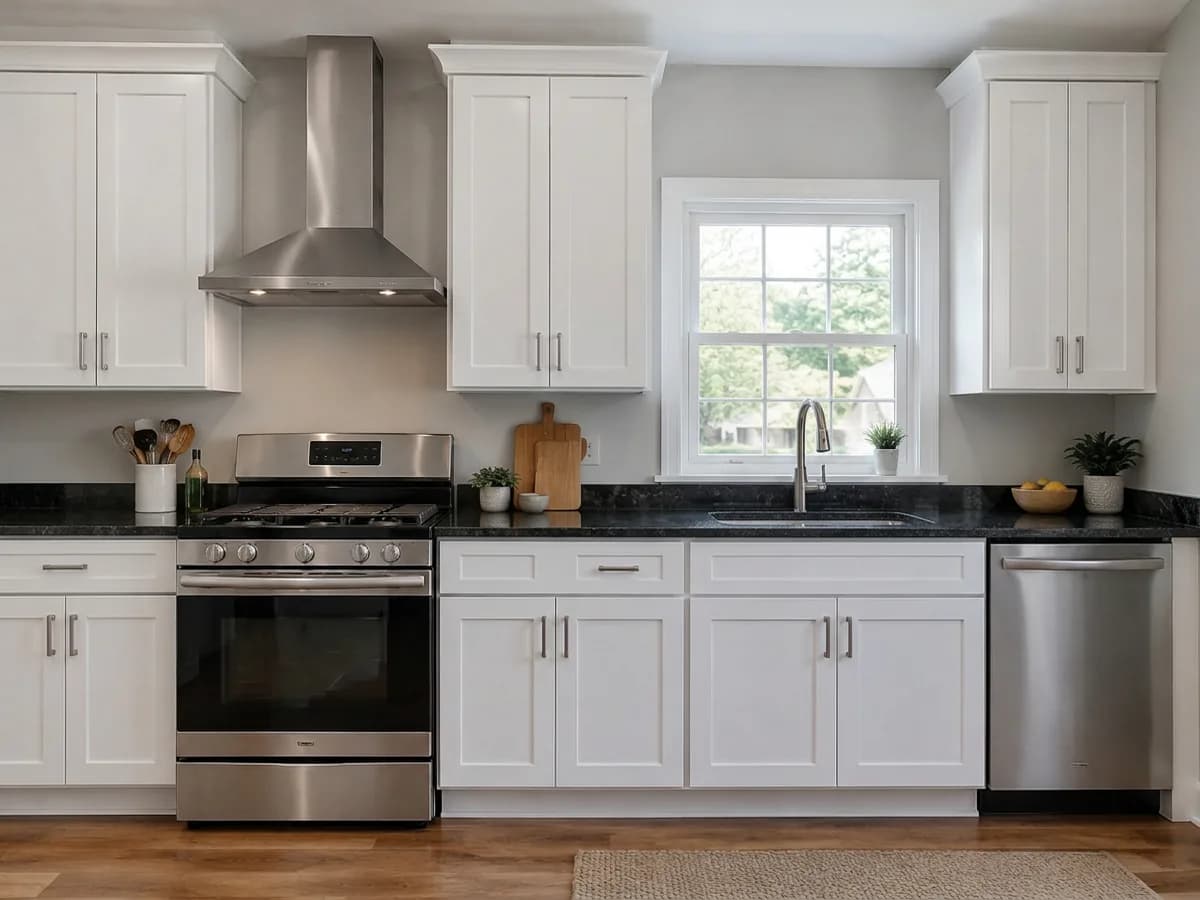
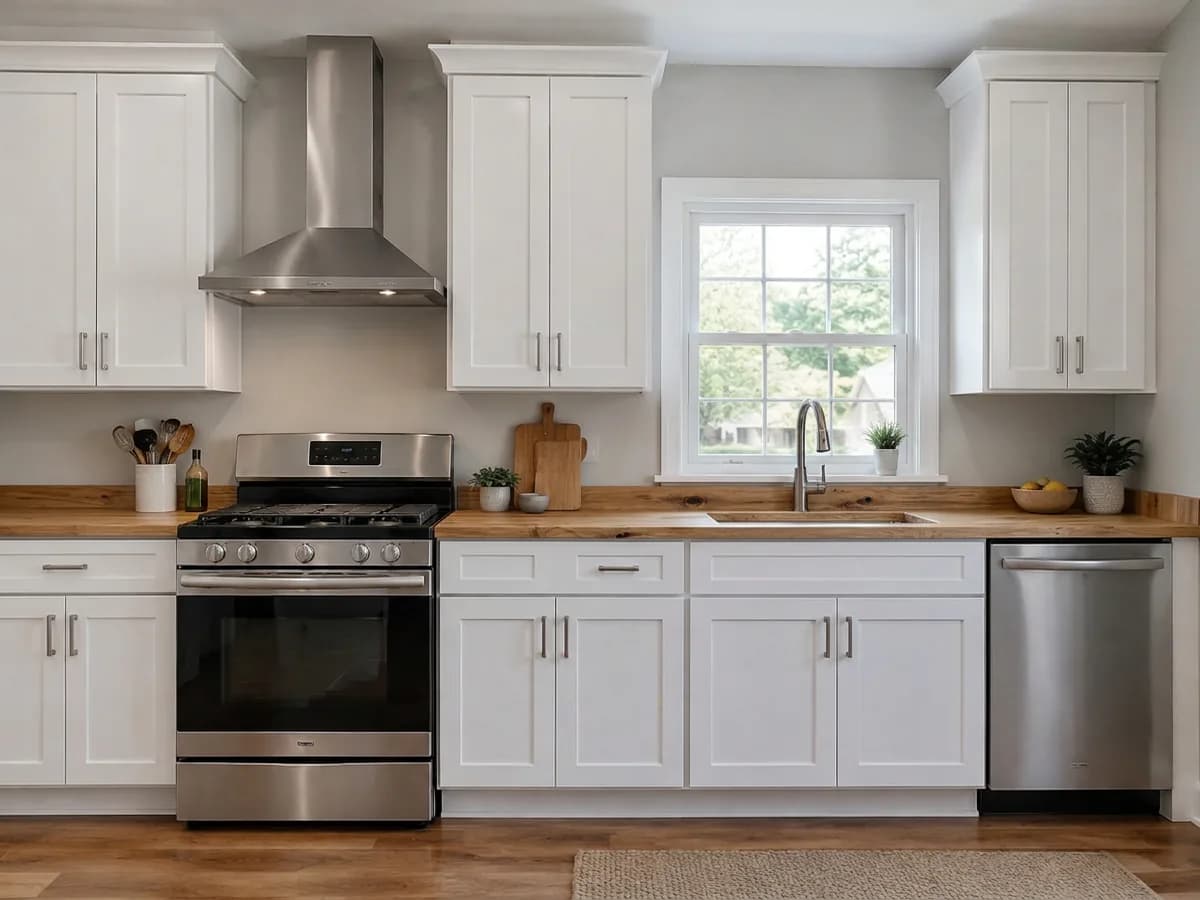
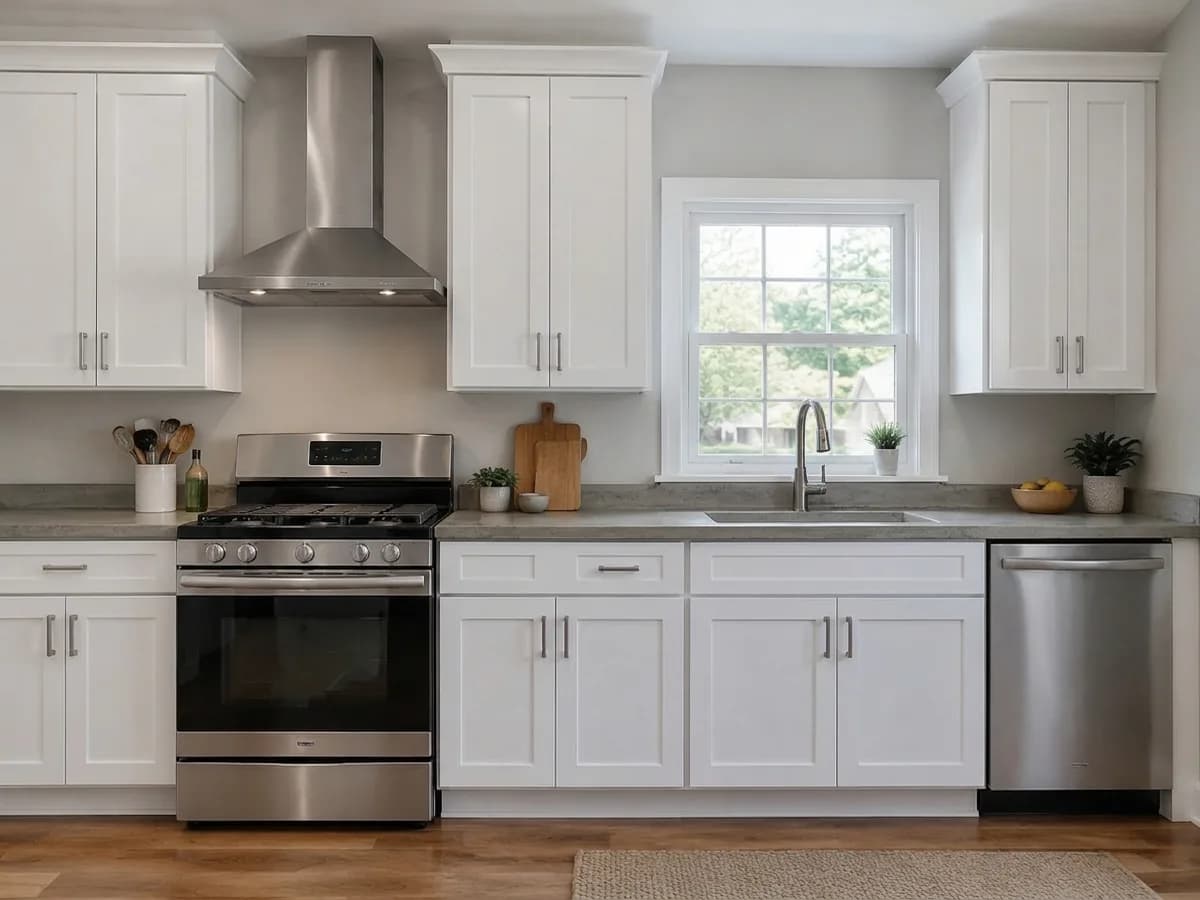
Change both in one design
A button on this page opens one task. To see a new backsplash and a new countertop together, add the second task in the same Studio form — the design then changes both.
- 1Open the Studio from a backsplash on this page — “Backsplash” comes already filled in.
- 2Add “Countertop” in the same form and pick a material, or write your own, for example “Taj Mahal quartzite”.
- 3Create the design. Cabinets, appliances and floor stay as they were.
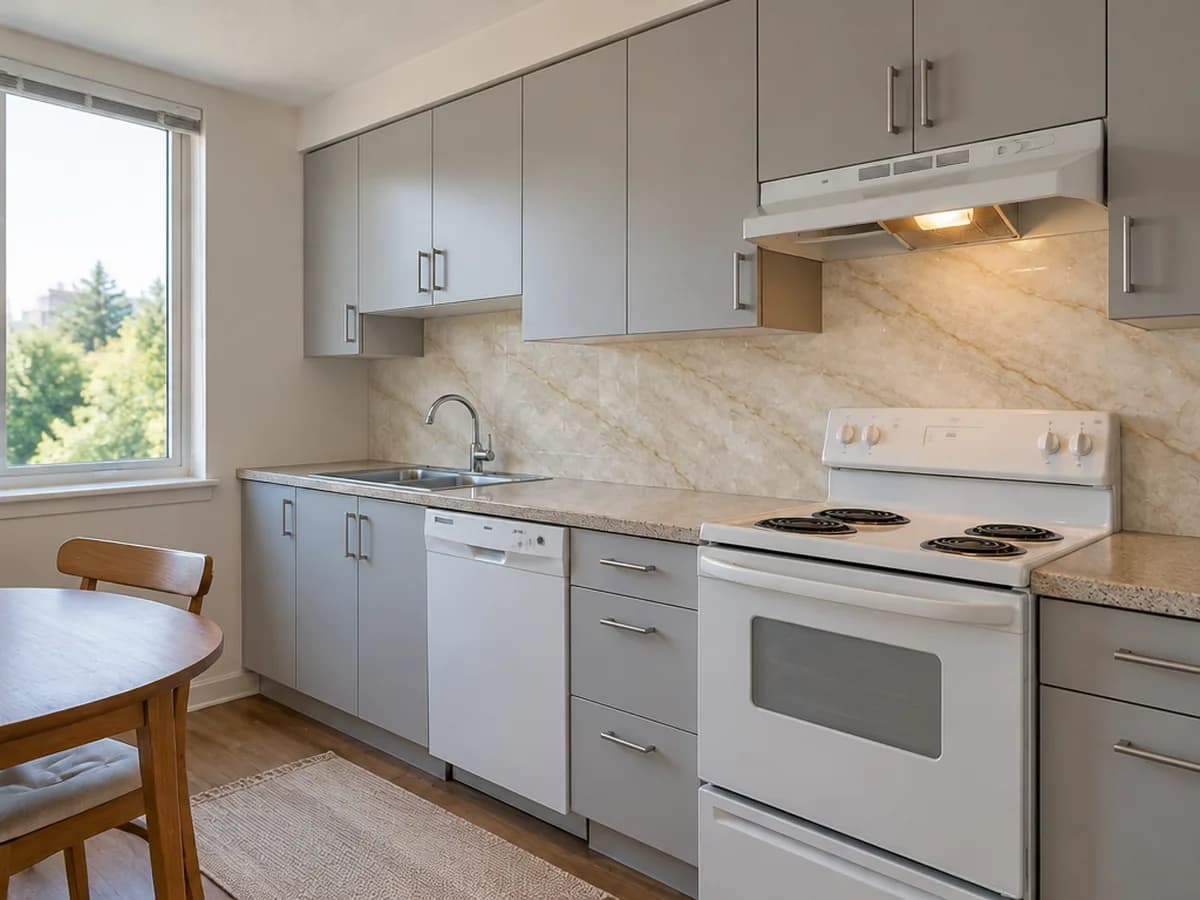
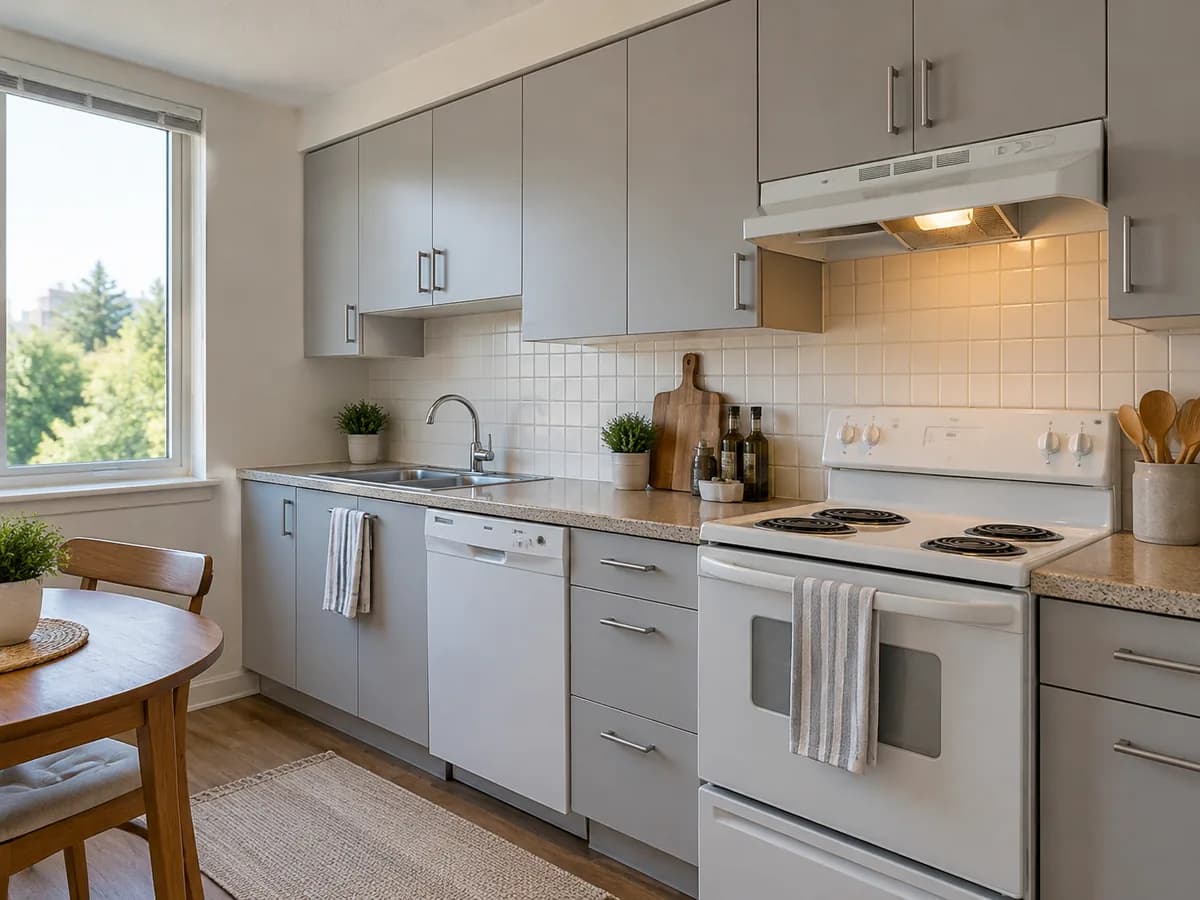
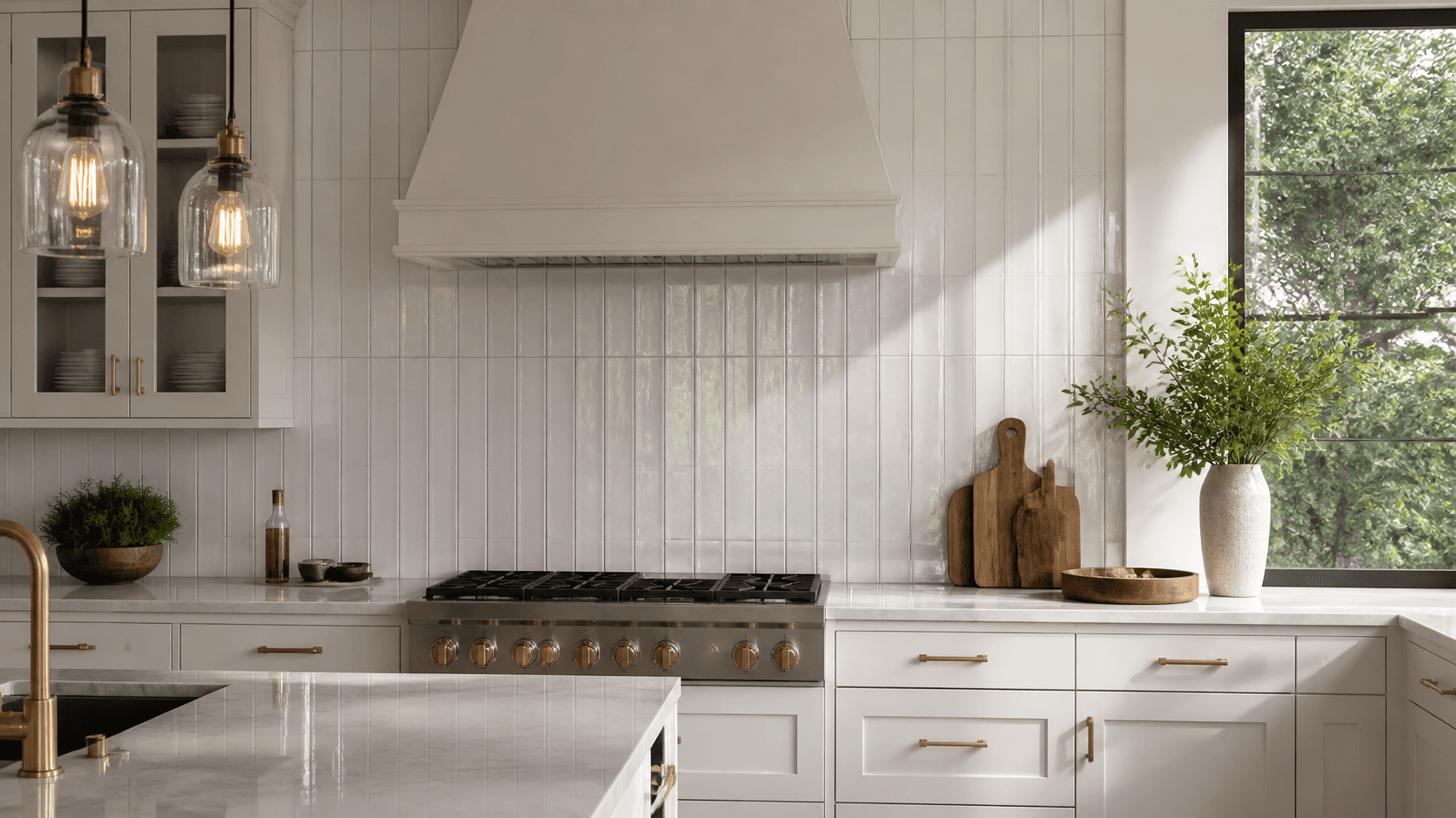
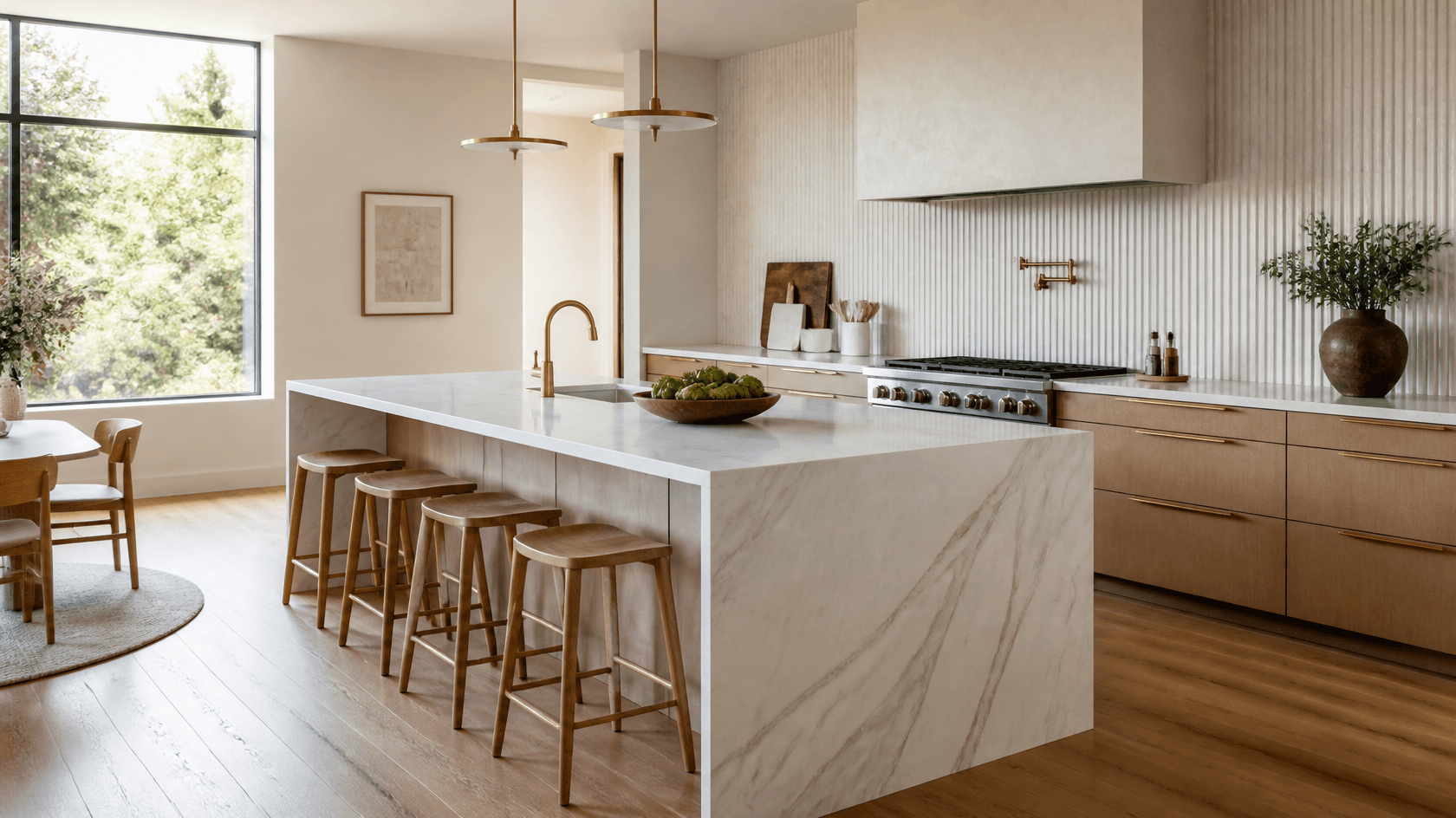
Here: “Taj Mahal quartzite slab with soft gold veining” as the backsplash of another kitchen. The small things on the counter were cleared too.
Backsplash & countertop visualizer FAQ
What the tool changes, what it keeps and what it costs.
- You sign in with Google or e-mail — no card — and get 6 free credits, enough for 3 designs. Each design costs 2 credits. Free results carry a small genroom.io watermark. One-time packs remove it: Start $9.99, Basic $19.99, Pro $39.99. There is no subscription.
- “Backsplash” offers light matte tiles, zellige, subway tiles and a stone slab; “Countertop” offers light quartz, white marble, solid oak, concrete and black granite. You can also type any material in your own words — herringbone, hexagon mosaic, a named stone like Taj Mahal quartzite, terracotta.
- No. “Backsplash” changes the wall between the counters and the wall cabinets; “Countertop” changes the worktop. Cabinets, handles, appliances and the floor stay. Small loose items on the counter may be tidied away, as in the slab example above; if something else moved, fix it in the editor with a few words or the brush.
- Yes: add “Countertop” next to “Backsplash” in the same Studio form and both change in one design. Write “a stone slab matching the countertop” to get a backsplash in the same stone.
- Describe it in the field — size, color, finish and pattern, for example “white 2×8 matte tile, vertical stack”. A named product is not reproduced exactly; the result shows the look. For one wall section only, select it in the editor with the brush and describe the tile.
- Daylight, taken as straight on to the cabinet wall as you can, with the whole backsplash in the frame and not much on the counters. A phone photo is fine.
- Yes. Commercial use is allowed on every plan, Free included. Upload the client's kitchen and show three or four backsplashes on the same photo before the quote.
- It is a visual preview of the look, the color and the pattern scale. It does not measure the wall, count tiles or reproduce a specific slab, so see a physical sample — for natural stone, the actual slab — before you order.
More tools for your kitchen
The same photo can get new cabinet colors, a new layout or a full remodel.
Kitchen cabinet color visualizer
Repaint the cabinet fronts and keep the countertop.
AI kitchen remodel
Fronts, countertops, backsplash and lighting redesigned together.
AI kitchen planner
L-shaped, U-shaped, galley or island layout ideas on your photo.
Bathroom tile visualizer
New wall and floor tiles on a photo of your bathroom.
AI material swap
Change the material of any surface on a photo.
AI flooring visualizer
Try wood, tile or stone floors under the same kitchen.
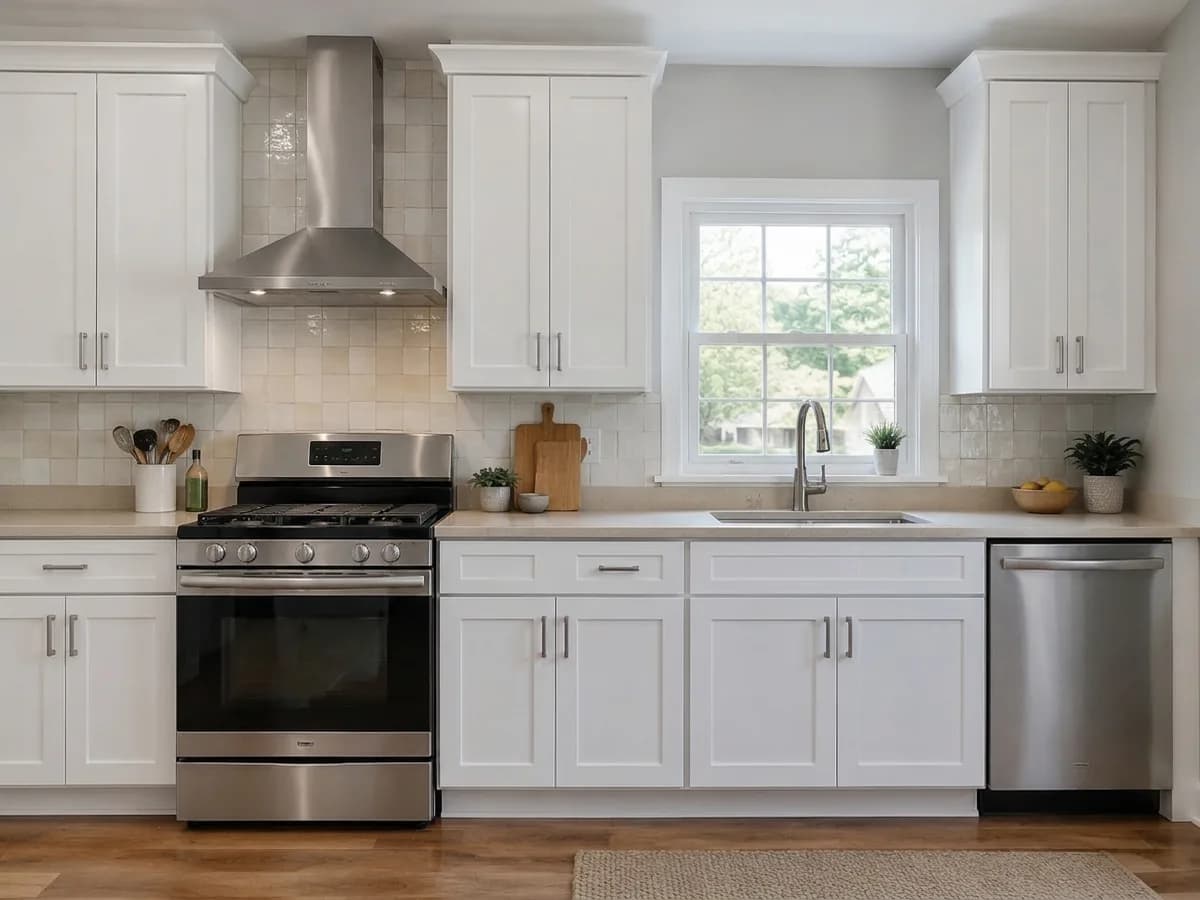
Your kitchen with a new backsplash, in under a minute
Upload a photo of your kitchen and try the first tile. 6 free credits after sign-in — that is 3 designs.
Try a backsplash on my kitchen