How to Furnish an Empty Room with AI Before Buying Anything
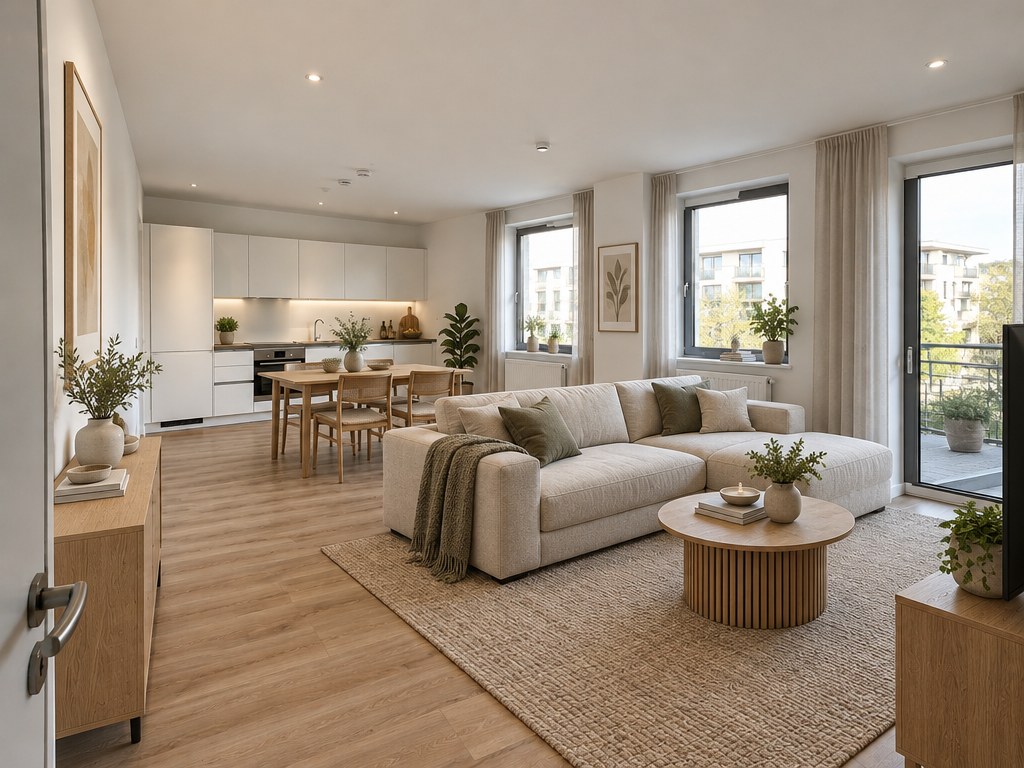
A real GenRoom result: the empty open-plan room from our test, furnished with the "Furnish empty room" mode in the Scandinavian style. The kitchen, windows, radiators and floor are the ones from the photo.
You can furnish an empty room with AI by uploading one photo of it and asking for furniture that fits the room's purpose. The AI keeps your walls, floor, windows and camera angle and adds a sofa or bed, tables, a rug, curtains and lamps in the style you pick. A result takes about 20–25 seconds, and you can compare up to three styles from a single run before you spend anything on real furniture.
This guide shows exactly how that works in the GenRoom Studio, on three empty rooms we tested: a living room in a new-build apartment, a small bedroom and an open-plan living-kitchen. You will see the default results, the same room in three styles, the difference between the "For living" and "For a listing" options, a test with real furniture sizes, editor touch-ups and the places where the AI got it wrong. It is written for owners and tenants who are moving in. If you are selling an empty property, read our pre-listing staging guide instead.
What do people actually ask for when the room is empty?
An empty room is one of the most common reasons people open an AI design tool. Between 2 March and 14 October 2026, 2,308 GenRoom users described this exact situation in their own words: a new flat, a new-build after handover or a room left empty after a move. Paraphrased and anonymised, the requests look like this:
- "Furnish this empty living room in a modern style."
- "New apartment, empty bedroom, I need furniture ideas."
- "Empty room: add a sofa, a TV and a dining table."
- "We just got the keys. Show me how the living room could look."
- "Small bedroom: a double bed, a wardrobe and a desk. Will it fit?"
- "Kitchen and living room in one space. Where does the table go?"
Three patterns stand out. First, people name the purpose of the room, because an empty box can be anything. Second, many list the exact pieces they plan to buy (sofa, TV, dining table, wardrobe), sometimes with sizes. Third, the goal is not a pretty picture but a decision: what to buy, in which style and where to put it. We tested the Studio against exactly those three needs.
How do you furnish an empty room with AI in GenRoom, step by step?
In short: upload a photo, confirm what the room is for, choose the "Furnish empty room" mode with "For living", pick up to three styles and press "Create design". Here is each step with what to watch for.
- Take one wide photo at eye level. Stand in the doorway or a corner, hold the phone upright at about chest height and include as much floor as possible. Avoid the ultra-wide (0.5×) lens: in our tests the one photo that came back slightly reframed was a wide corner shot (more on this below).
- Upload it in the Studio. Open Design from a photo and drop the picture in. The Studio analyses the space first: what kind of room it is and whether it is empty.
- Tell it what the room is for. A furnished room tells the AI its purpose. An empty one often does not, so the Studio may ask "What room is this?" with chips such as Living Room, Bedroom, Kitchen, Kids Room, Office, Dining Room and Studio (36 room types in total). Our empty bedroom was recognised automatically; the living room was not. Our open-plan space was read as Kitchen. You can change the type at any time from the "Type" chip above the photo, and describing both zones in the brief works too.
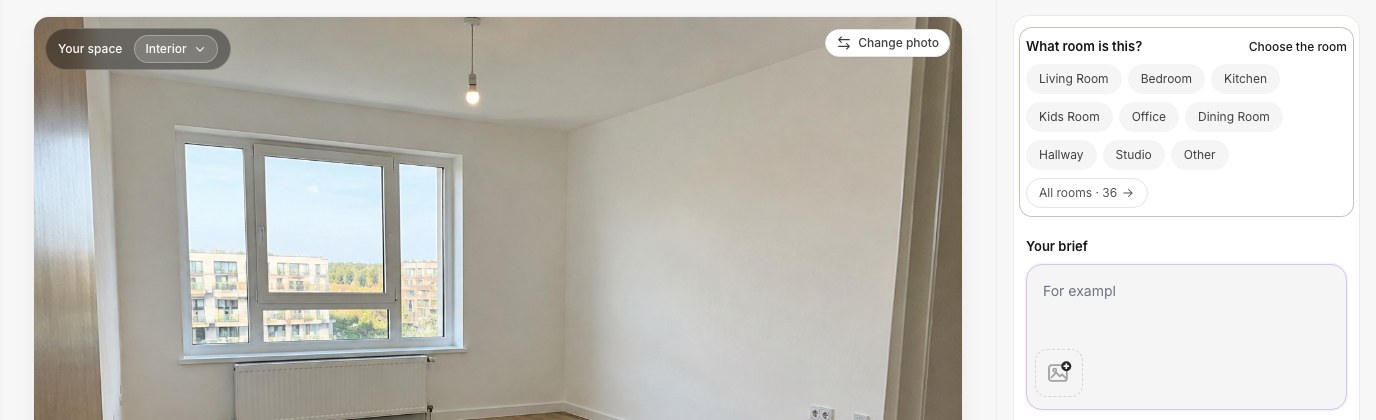 For an empty room, the Studio asks what the room is for. Pick the purpose you have in mind, not what the developer's plan calls it: a second bedroom can just as well be an office.
- Choose "Furnish empty room". This mode only appears when the room looks empty or partly empty. Its brief to the AI is narrow on purpose: furnish the room for its purpose and size, group the main pieces into functional zones, keep walkways to the doors and windows clear, use a realistic scale, and keep the wall, floor and ceiling finishes as they are.
- Pick "For living" or "For a listing". Two chips appear under the mode. "For living" is the default and the one you want for your own home. "For a listing" is for a sale or a rental ad (see the comparison below).
- Pick up to three styles. A short list is shown first; All styles opens the full list of 21 interior styles. Each style you tick becomes its own result, at 2 credits each, so three styles cost 6 credits.
- Add your own wishes (optional). Type what you already know: "a dining table for four near the kitchen, a sofa and a TV by the windows". Under the mode, Ideas for this photo suggests extra tasks for your exact room. For our open-plan room it offered "Place dining table", "Add sideboard" and "Add textiles"; for the bedroom, "Bed and workspace" and "Chest of drawers". Keep to a budget is there as an addition too.
- Press "Create design". Our runs finished in 19–23 seconds, including runs with three styles at once. Compare each result with the empty photo using Before/After.
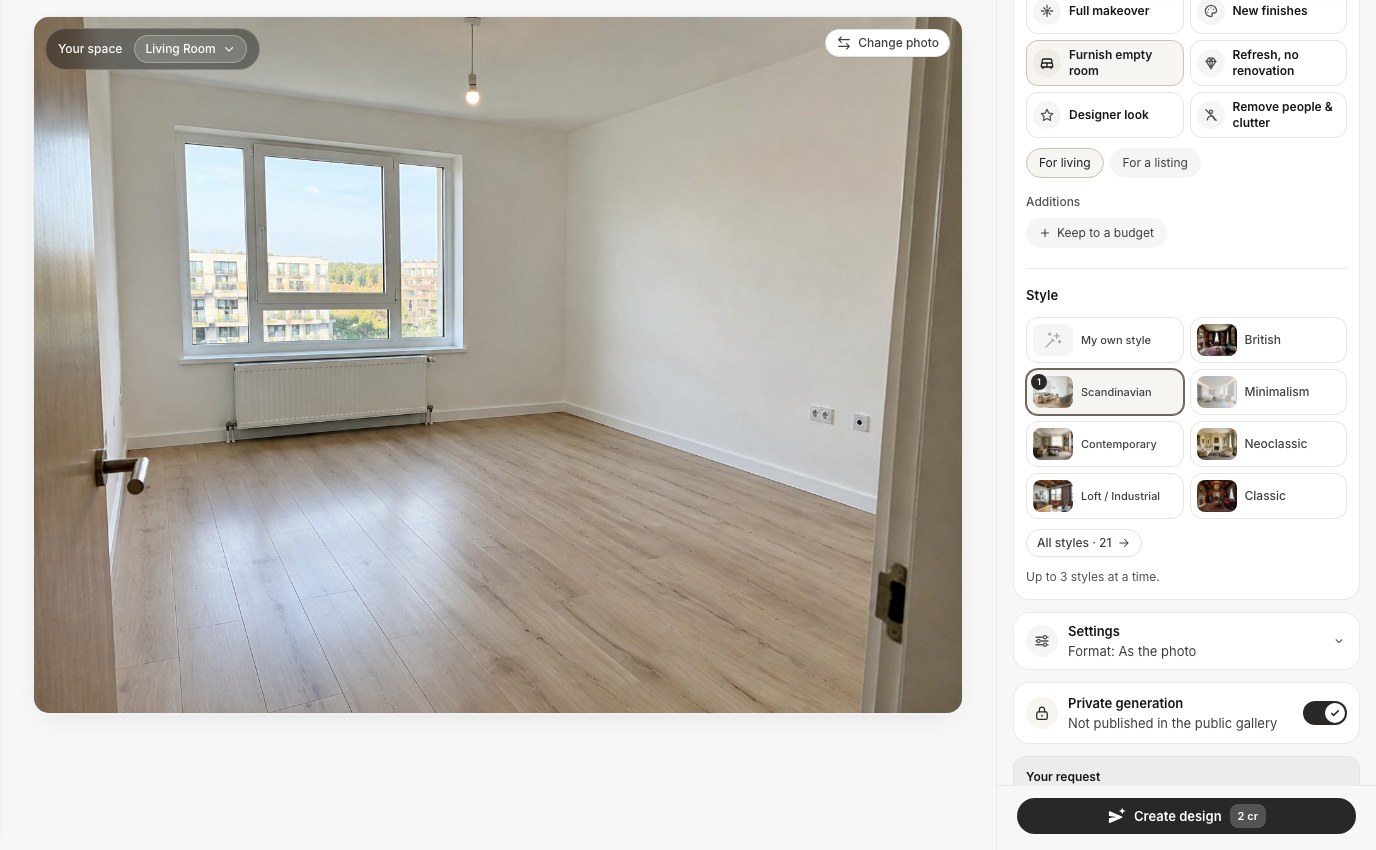 The mode, its two variants and the style grid. "Up to 3 styles at a time" means one run can answer "Scandinavian or loft?" in one go.
One habit worth knowing: your brief, mode and wishes stay in place for the next run of the same photo. That is handy when you only switch styles; clear the brief when you want a completely fresh take.
What does AI put in an empty new-build living room?
With no wishes typed in, the AI chose a full living room set for our first test room: a three-seat sofa along the side wall, two armchairs, a round coffee table on a large jute rug, a TV on a low console, linen curtains, a floor lamp, a drum pendant in place of the bare bulb, framed prints and plants. The radiator, sockets, window and door stayed where they were.
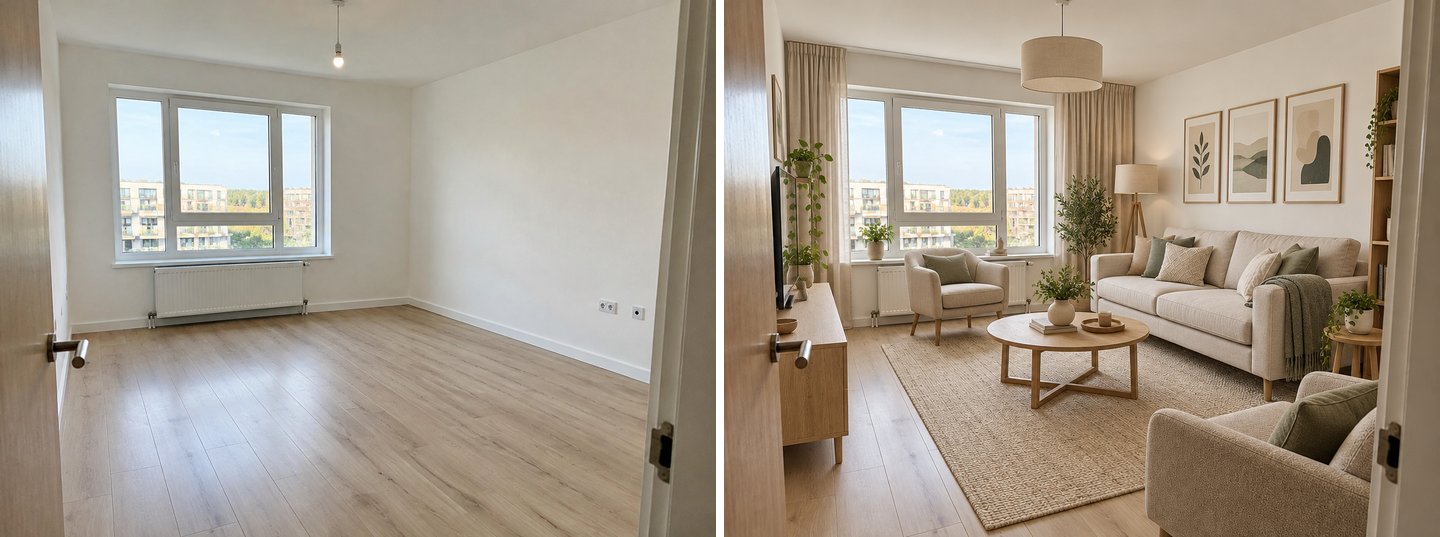 Before and the default "For living" result in Scandinavian. Look at the left wall: the AI put the TV console right next to the door, in the space the door leaf needs to open fully. That is exactly the kind of detail to check before you copy a layout.
The result is useful in three ways. It shows a scale you can judge: how much of a wall a three-seat sofa takes and how big a rug the seating area needs. It shows which zones the room can hold: here, a conversation area and a TV wall, but not a dining table as well. And it gives you a shopping list in a fixed order: the sofa first, then the rug and the lamp, then curtains and decor.
It also shows the first trap. The AI does not know which way your door opens. A console behind a door leaf looks fine in a photo and blocks the door in real life. If something like that happens, fix it in the editor with Move or Remove an object (see below) instead of generating a whole new room.
How does one empty room look in three different styles?
The most common question after "what fits?" is "which style?". In GenRoom you answer it in a single run by ticking up to three styles. We used our open-plan living-kitchen and the same written wish for every style: keep the kitchen, put a dining table for four near it and a living area with a sofa, a TV and a rug by the windows.
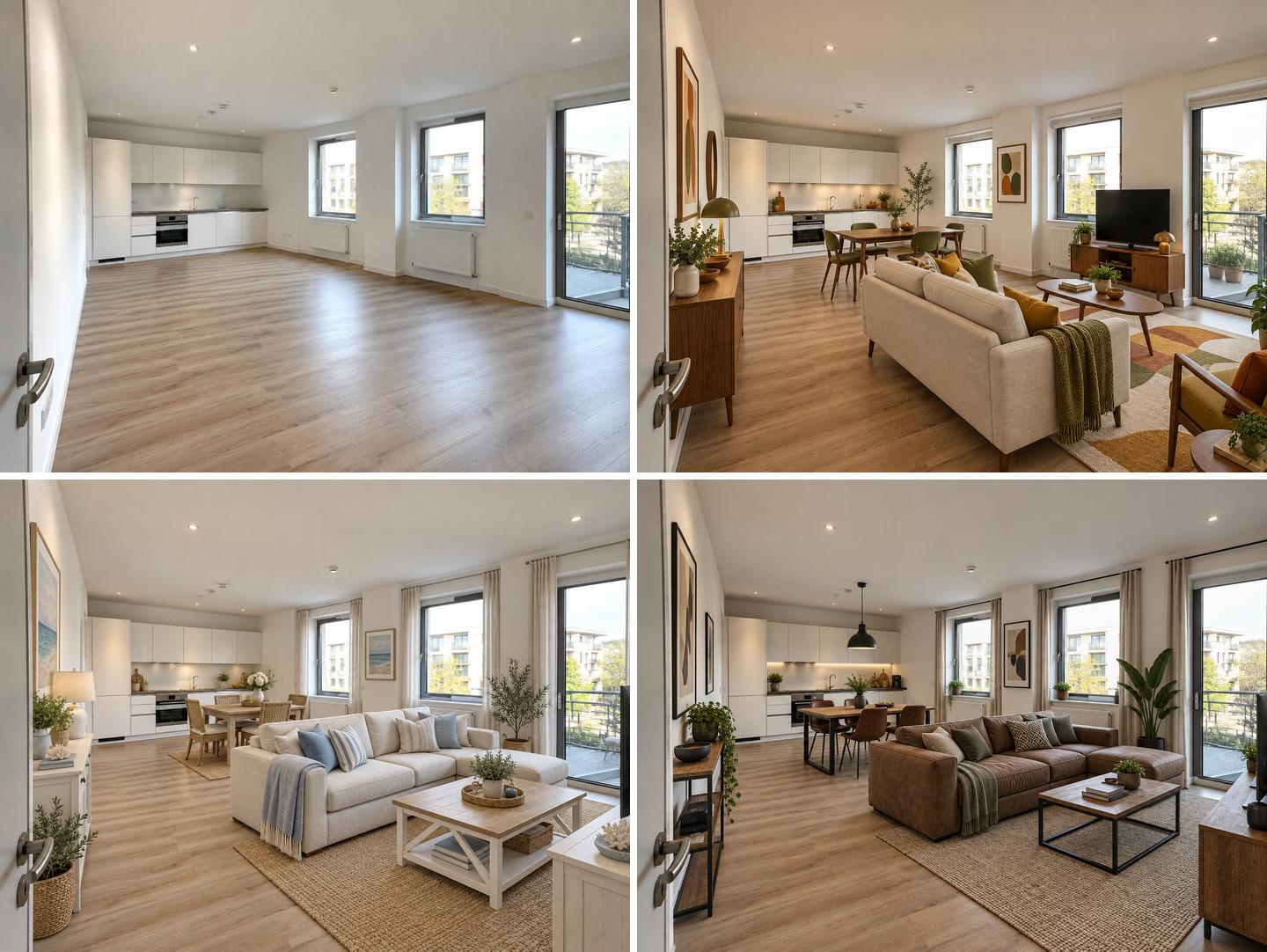 Top left: the empty room. Then Mid-Century Modern, Coastal / Hamptons and Loft / Industrial, all from the same brief. The kitchen units, windows, radiators and floor were left alone in every result.
The brief was followed in all three: a dining table for four next to the kitchen, a sofa facing the windows, a rug defining the living zone. What changed is everything you would actually buy:
| Style | Sofa | Dining set | Rug and lighting | Overall feel |
|---|---|---|---|---|
| Mid-Century Modern | Light fabric three-seater on tapered legs | Walnut table, olive upholstered chairs | Patterned rug in ochre and rust, brass lamps | Warm, a little retro, colourful |
| Coastal / Hamptons | White sectional with blue and striped cushions | Light oak table, rattan-back chairs | Jute rug, ceramic table lamp | Light, airy, casual |
| Loft / Industrial | Cognac leather sectional | Dark wood table, leather chairs, black metal | Flat-weave rug, black dome pendant | Darker, masculine, high contrast |
Two practical notes. First, styles in the warm-beige family (Scandinavian, Japandi, Minimalism, Contemporary) came out close to each other in every room we tried. If you want a real choice, mix one of them with something further away, such as Mid-Century Modern, Coastal, Loft or Classic. Second, look at the layout, not just the colours: in Mid-Century Modern the AI put the TV on a console by the windows, facing the sofa, while in the other two styles it ended up at the edge of the frame. Sometimes a style swap shows you a better layout too.
If your space is a studio or a long living room that needs clear zones, our guide to room dividers and zoning goes deeper on shelving, screens and curtains.
"For living" or "For a listing": what is the difference?
"For living" furnishes the room as a home: more personal objects, throws, books, plants and pieces placed for daily use. "For a listing" adds an extra instruction to keep the look bright, neutral and broadly appealing, with tidy surfaces and no personal items, family photos or brand logos. Both keep the same room, finishes and camera.
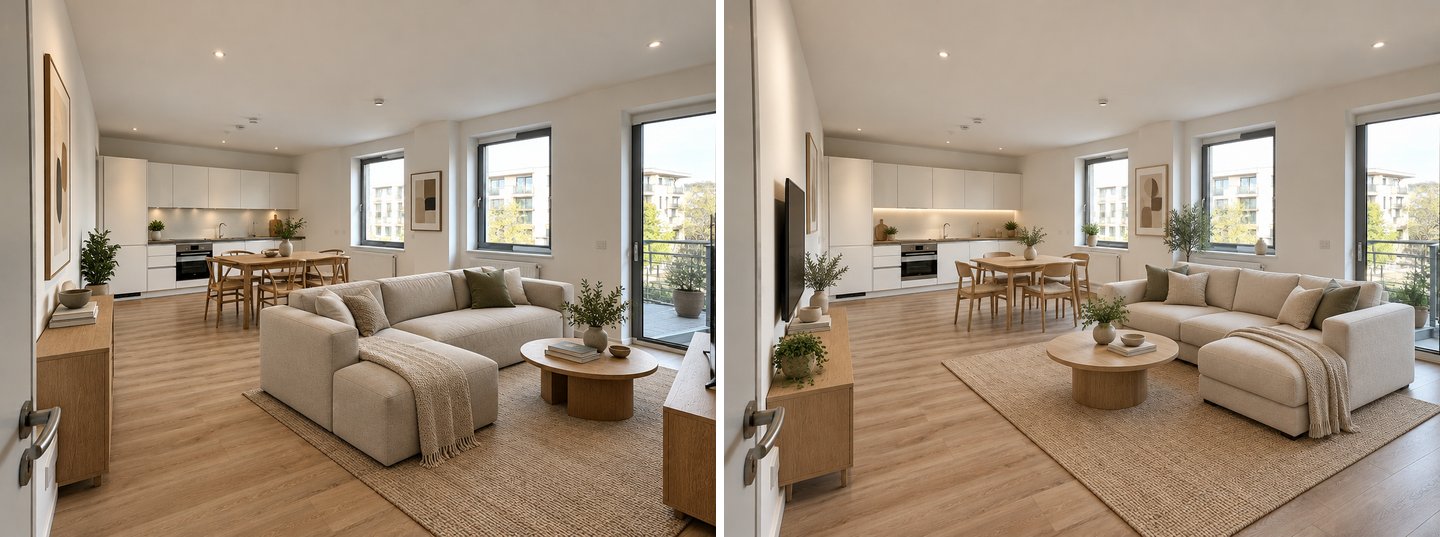 Japandi, "For living" (left) and "For a listing" (right), same photo and brief. The listing version leaves more open floor and fewer objects; the living version is the one to plan your own purchases from.
In our tests the difference was real but modest: the listing variant cleared floor space, pushed the sofa back and dropped some of the smaller objects. That is what a buyer's photo needs, because it should show space, not someone's life. For your own home, "For living" is closer to how you will actually use the room.
Use "For a listing" if you are selling or renting out the flat. For that case we have a full workflow with disclosure rules in the pre-listing staging guide, and the virtual staging page explains the tool for agents.
Small bedroom: will my bed, wardrobe and desk really fit?
The default result for an empty small bedroom is a sensible starting point. The AI put a double bed against the long wall, two nightstands with lamps, a chest of drawers on the opposite wall, a rug, curtains and a rattan pendant. The window, radiator and door kept their places.
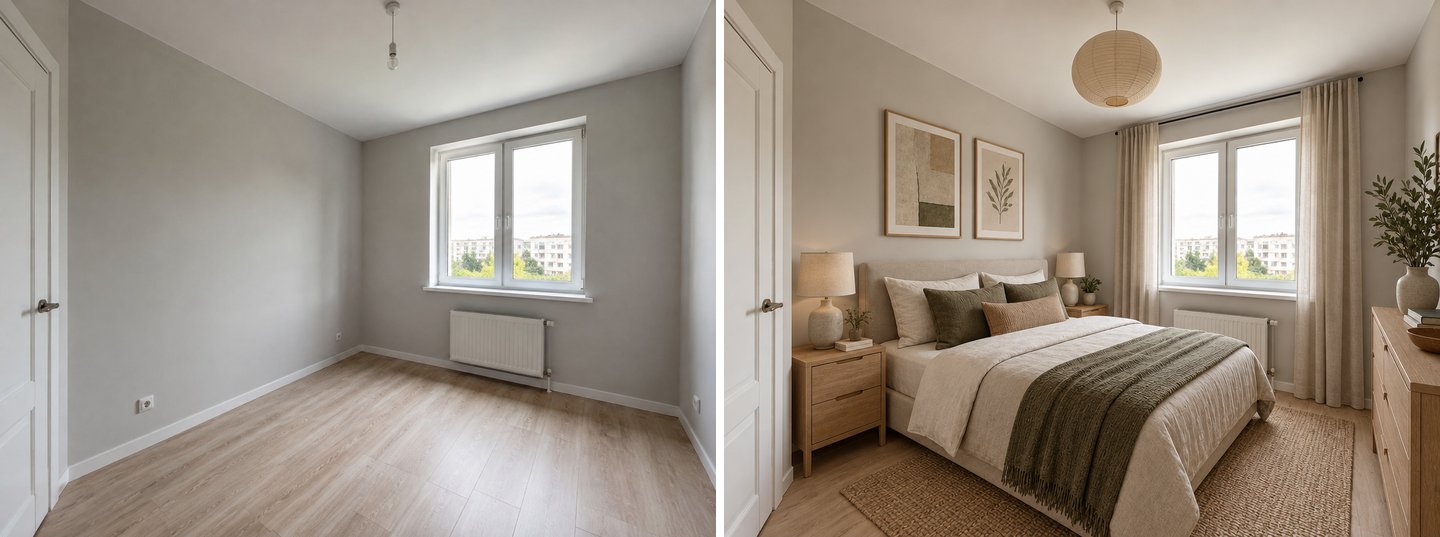 Default "For living" result in Japandi. Note what is missing: no wardrobe and no desk, because nobody asked for them.
Most people moving into a new flat already know what they need in that room, often down to the centimetre. For that, there is a ready task called "Fit my furniture" under Ready tasks → Furniture & decor. It opens a "Pieces and sizes" field where you list the pieces with their dimensions. You can combine it with the "Furnish empty room" mode: add the task first, then pick the mode, and both appear in your brief.
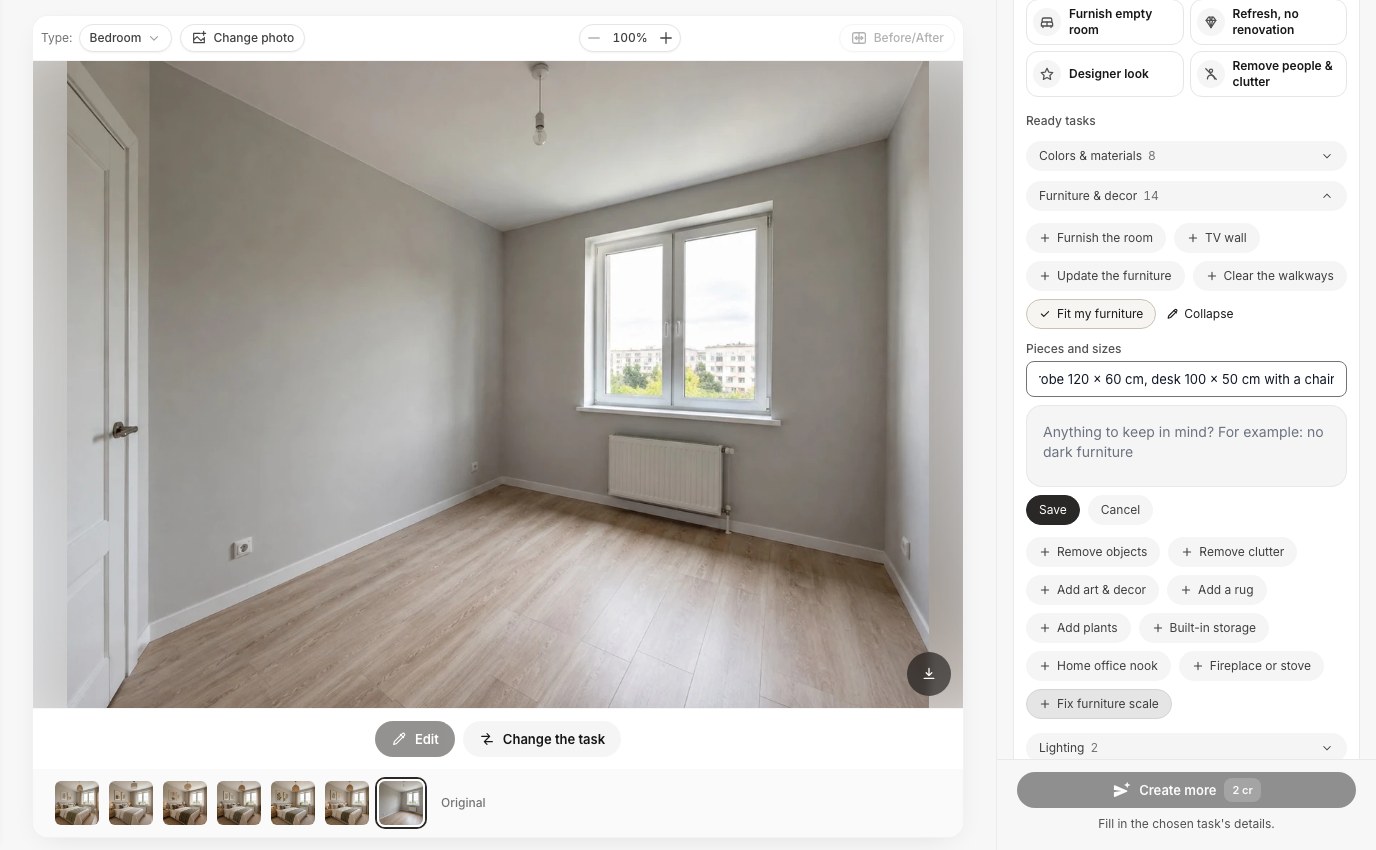 "Fit my furniture" takes a list of pieces and sizes. Nearby in the same group is "Fix furniture scale", which brings oversized pieces back to realistic proportions while keeping their positions.
We asked for "double bed 160 x 200 cm, wardrobe 120 x 60 cm, desk 100 x 50 cm with a chair" in the Scandinavian style. All three pieces appeared, in sensible places: the bed on the long wall, the wardrobe in the corner by the window and the desk next to it.
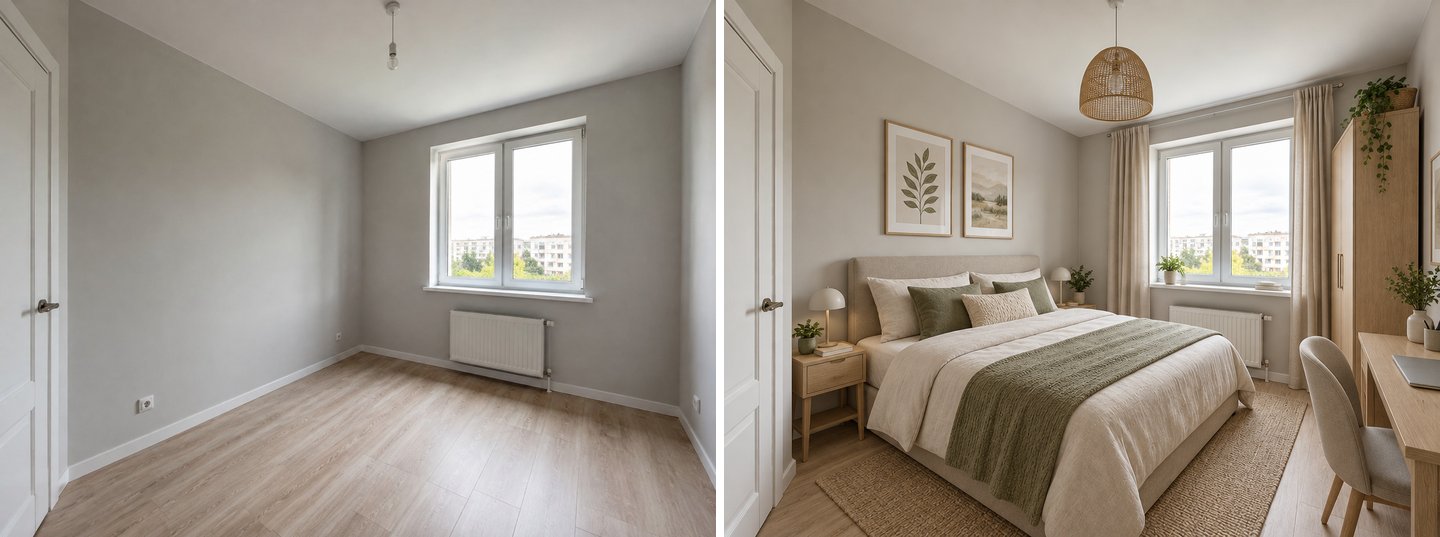 "Fit my furniture" with three listed pieces. Everything fits in the picture, but the desk chair sits right where the wardrobe doors open. On paper you would need roughly the depth of a door leaf free in front of a hinged wardrobe.
This is where you should not trust the picture blindly. The AI does not measure your room; it estimates proportions from the photo. The result answers "can these three pieces share this room?" with a plausible yes. It does not prove that the wardrobe doors clear the chair or that 160 cm of bed leaves a walkway on both sides. Take those numbers to a tape measure before you order.
Create interior design with AI
Upload a photo of your room and get a professional design in 30 seconds. First generation is free.
How do you fine-tune the result: replace, add, move and light?
Once a layout is close, do not regenerate the whole room. Open the result with Edit and use Quick actions: Replace furniture, Move, Rotate, Add, Remove an object, Curtains, Lighting, Evening light, Wall color, Floor material & color and Use my reference for a product photo. Each edit costs 2 credits and changes only what you name.
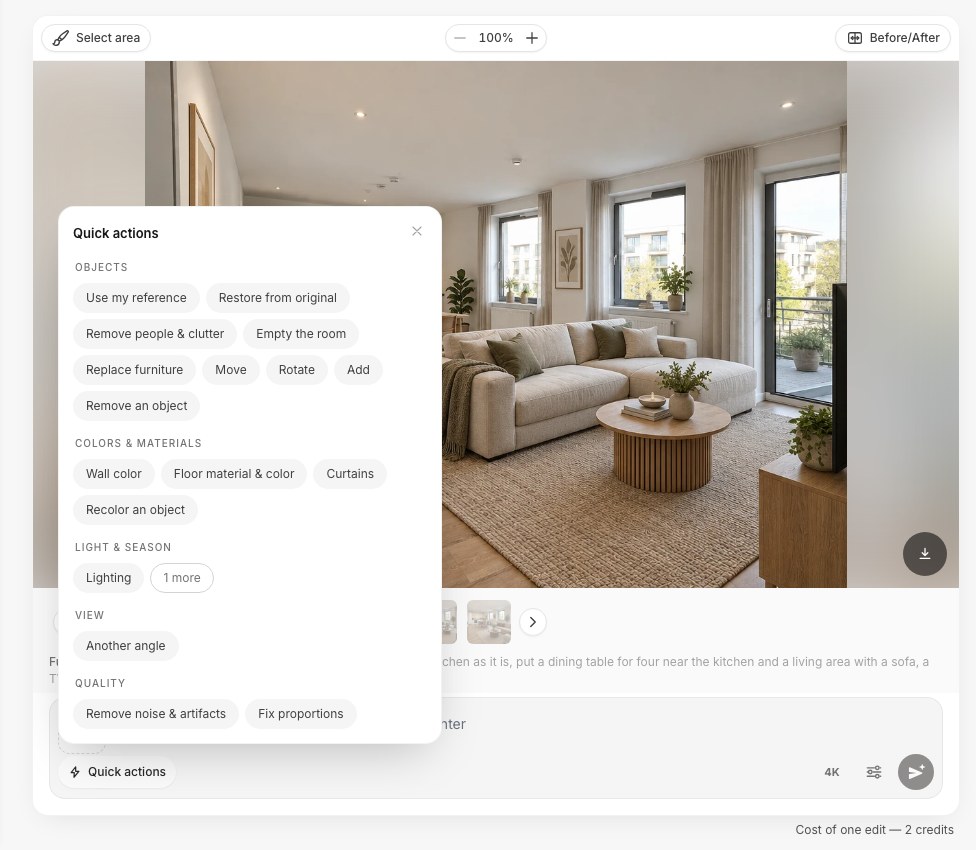 The editor's Quick actions. Each chip opens a short field, for example "What to replace, and with what".
We ran three edits in a row on the Scandinavian open-plan result:
- Replace furniture: "the round wooden coffee table with a low rectangular travertine coffee table".
- Add: "a tall floor lamp with a linen shade behind the left end of the sofa".
- Evening light: one click, no text.
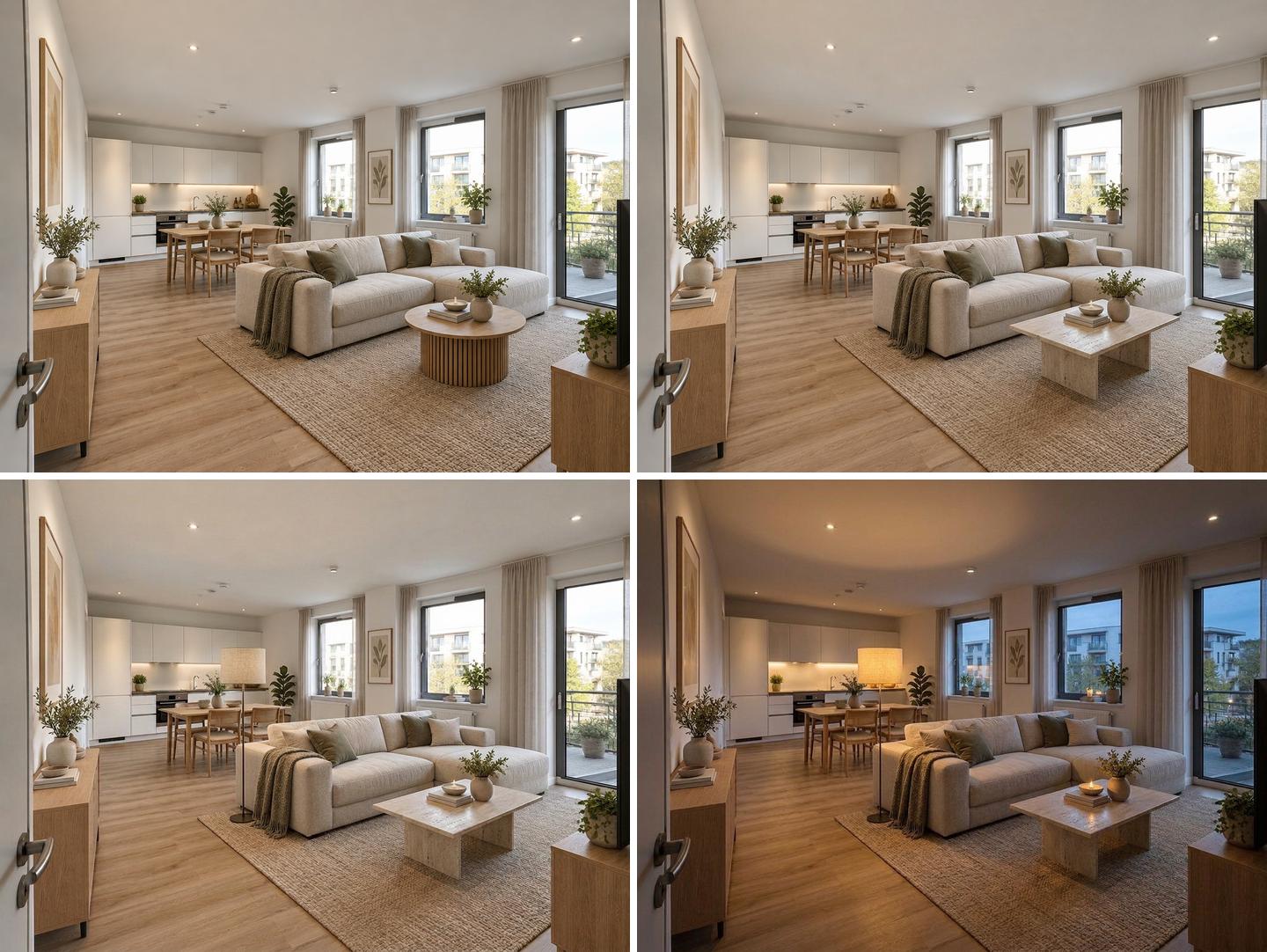 Original, then Replace (travertine coffee table), Add (floor lamp) and Evening light. Each edit changed only the named object or the light; the rest of the room stayed the same.
Each edit kept the rest of the picture intact. That is what makes it useful before shopping: you can test the exact coffee table you are considering without losing the sofa you already like. If you have a product photo from a store, our guide to visualizing furniture in your room shows how to place that specific piece with Use my reference.
Move was the weakest of the edits. Our request "the dining table and chairs to the right, in front of the first window" moved the set only by about a chair's width. Small moves work; long moves across a room usually need a new generation or the dedicated rearranging workflow.
For the soft layer, we have separate guides for curtains and window treatments, lighting and art and decor. In an empty room, those come last: buy the big pieces first, then layer.
Which layout numbers should you check against the AI result?
An AI picture shows proportions, not dimensions. Before you buy, check the layout against a few standard clearances. The kitchen and dining numbers below come from the NKBA Kitchen Planning Guidelines; the living-room ones are common designer rules of thumb.
| What to check | Typical target | Source |
|---|---|---|
| Walkway through a kitchen area | At least 36″ (914 mm) | NKBA |
| Behind dining chairs, nobody passes | 32″ (813 mm) from table edge to wall | NKBA |
| Behind dining chairs, people edge past | At least 36″ (914 mm) | NKBA |
| Behind dining chairs, people walk past | At least 44″ (1118 mm) | NKBA |
| Sofa to coffee table | About 35–45 cm (14–18″) | Designer rule of thumb |
| Sofa width on its wall | About two-thirds of the wall | Designer rule of thumb |
| Rug in a living area | Large enough for the front legs of every seat | Designer rule of thumb |
| Doors and wardrobe fronts | Free swing, nothing in the arc | Common sense, often missed by AI |
In our open-plan results, the dining table sat close to the kitchen units. That is fine if nobody walks behind those chairs, but if it is your route from the hall to the kitchen, NKBA's 44″ rule says the table needs to move further into the room.
What does the AI not do well when furnishing an empty room?
AI furnishing is a fast way to decide, not a floor plan. These are the limits we ran into across 35 furnish results and four edits on four empty rooms (the three above plus a fourth living room we added as a stress test).
Scale is approximate. The AI has no measurements, only a photo. It estimates the room's size from doors, windows and floorboards and picks furniture that looks right. Usually it is close; sometimes a sofa is a size too big. "Fit my furniture" with real sizes and the "Fix furniture scale" task help, but always confirm with a tape measure. Painter's tape on the floor in the shape of the sofa or bed is still the cheapest reality check.
The camera can move on wide-angle photos. The mode tells the AI to furnish inside the exact frame, including the stretched lines near the edges of a wide photo. To check, we overlaid every result on its source photo and measured how far the room's corners moved. In 19 of 35 results the shift was under 1% of the frame width, essentially the same picture. But one room, a wide corner shot with large floor tiles, came back slightly reframed in all eight tries: the walls were straightened and the ceiling line dropped, a shift of 3.5–6%.
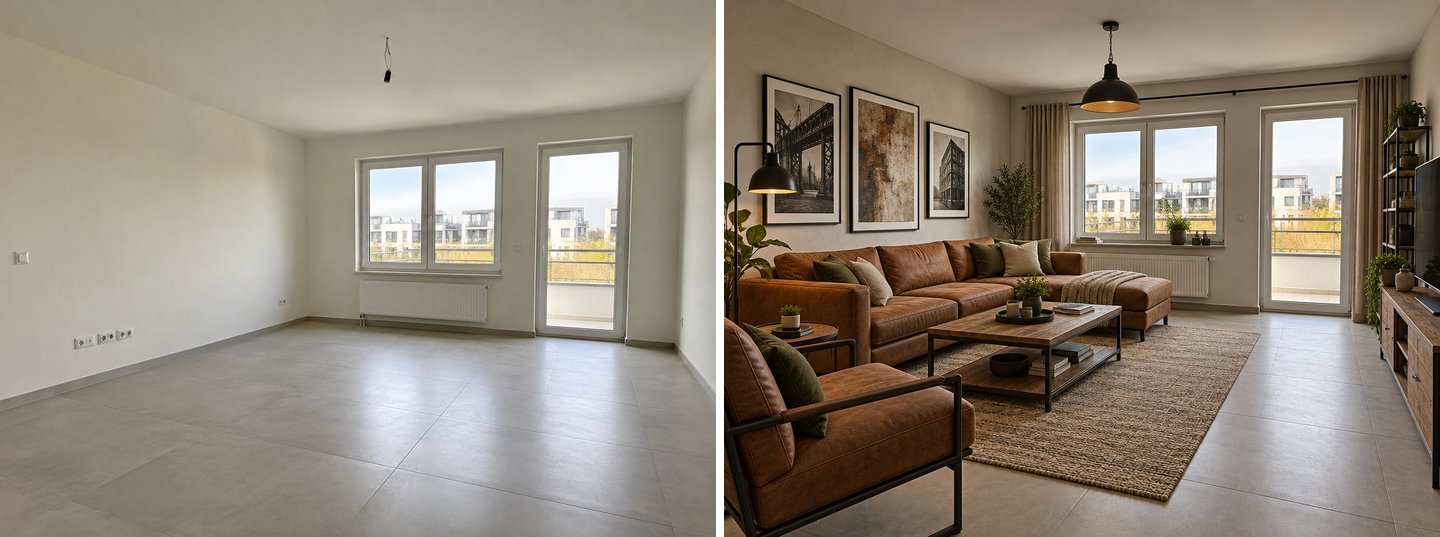 Our worst case. Furniture and style are fine, and the window and balcony door stayed in place, but the picture is slightly recomposed compared with the photo. Fine for choosing a style, less useful for judging exact distances.
If this happens to you, take the photo from the doorway with the main lens instead of the ultra-wide one, and generate two or three styles at once: in the open-plan room, every one of 16 results kept the frame almost exactly.
The furniture is generic. The sofa in the picture is not a product you can buy. Use the result to decide on type, size, colour and placement, then shop for real pieces. If you have a specific product photo, use Use my reference in the editor.
It ignores the practical details of your room. The AI does not know where your TV cable outlet is, which way the door opens or where the air vent is. In our living room it put the TV console behind the open door. Check sockets, door swings and radiators against every result.
Similar styles look similar. Scandinavian, Japandi, Minimalism and Contemporary all leaned warm beige in our tests. If you want a clear choice, compare styles that are further apart.
AI from a photo, a room planner or tape on the floor?
Each method answers a different question, and they work best together.
| Method | What you see | Exact measurements | Time to first result | Best for |
|---|---|---|---|---|
| AI from a photo of your room | Your real room, light and finishes, fully furnished | No, proportions only | About 20–30 seconds | Style, mood, which zones fit |
| 3D room planner | A model of the room from your measurements | Yes, if you enter them | Longer: you draw the room first | Exact layout, clearances |
| AR app on your phone | One product placed in the live camera view | Roughly, at true scale | Minutes per item | Checking a single piece |
| Painter's tape on the floor | Footprints of pieces at real size | Yes | One afternoon | Walkways, door swings |
A good order for a new flat: AI first to choose the style and the zones, then tape on the floor or a planner for the two or three big pieces whose size really matters.
What does it cost to furnish a room with AI in GenRoom?
New accounts get 6 free credits, enough for three designs (free results carry a watermark). Paid packs are one-time purchases, not subscriptions, according to the pricing page:
- Start: $9.99 for 36 credits, about 18 designs and edits, no watermark.
- Basic: $19.99 for 100 credits.
- Pro: $39.99 for 300 credits.
A design, an edit or a top view costs 2 credits; three styles in one run cost 6. Credits are valid for 180 days, and a failed generation returns its credits automatically. Furnishing one room with three styles and three edits costs 12 credits.
If you have a floor plan from the developer instead of photos, the floor-plan flow can furnish every room from the plan; see our guide to design from a floor plan.
FAQ
Can AI furnish an empty room from a photo?
Yes. Upload a photo of the empty room, choose a mode such as "Furnish empty room" and a style, and the AI adds furniture, a rug, curtains and lighting while keeping your walls, floor and windows. In our tests a result took about 20–30 seconds.
Is there a free AI to furnish my room?
GenRoom gives 6 free credits at sign-up, which is three designs, with a watermark. That is enough to furnish one room in three styles and see if the approach works for you before buying a credit pack.
How can I see furniture in my empty room before buying it?
Take one wide photo at eye level, upload it and let the AI furnish it in the style you like. To test a specific product, open the result in the editor and use "Replace furniture" with a description, or "Use my reference" with a store photo of that piece.
Will the furniture in the AI picture be the right size?
Approximately. The AI estimates proportions from the photo and does not measure. List real sizes in "Fit my furniture" to get closer, then confirm walkways and door swings with a tape measure before you order large pieces.
What should I buy first for an empty living room?
Start with the piece that anchors the room: the sofa in a living room, the bed in a bedroom. Then the rug and lighting, then curtains, and decor last. An AI result helps you decide the size and colour of that first piece in the context of your room.
What is the difference between furnishing a room and virtual staging?
The technology is the same; the goal differs. Furnishing for living plans your own home, with pieces placed for everyday use. Virtual staging prepares listing photos to sell or rent, so it keeps the look neutral and impersonal. In GenRoom these are the "For living" and "For a listing" options of the same mode.
The Bottom Line
To furnish an empty room with AI, photograph it from the doorway at eye level, tell the Studio what the room is for, choose "Furnish empty room" with "For living" and compare up to three styles in one run. Use "Fit my furniture" when you already know your sizes, and the editor to swap one piece or try evening light. Treat the result as a decision tool, not a plan: it shows style, zones and proportions well, but you still check doors, sockets and clearances yourself. Upload your empty room in the Studio and see it furnished before the first delivery arrives.