See Your House and Garden in Every Season With AI: Real Tests
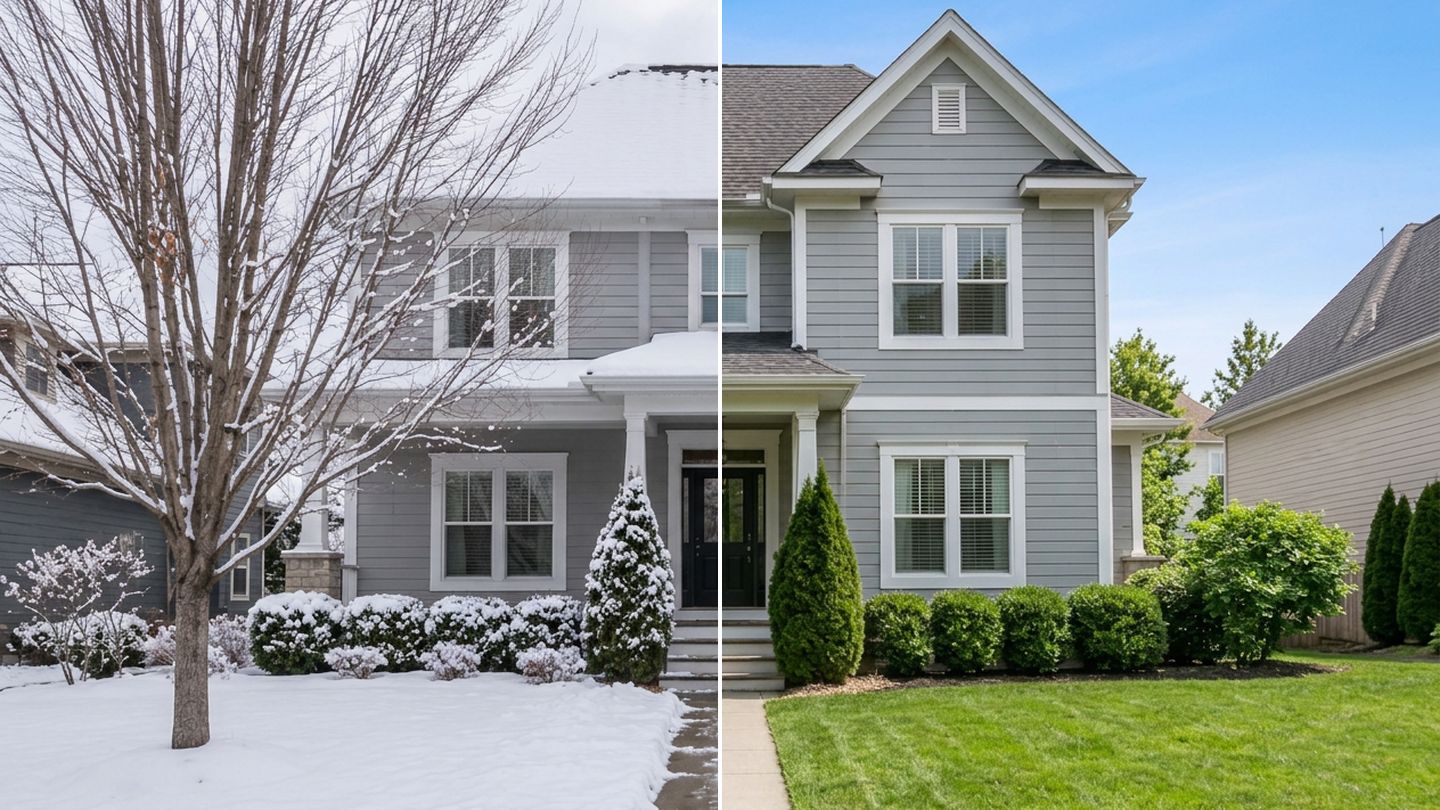
One photo, two seasons: the left half is the Studio's Winter result, the right half is Summer. The house itself is untouched.
To see your house or garden in another season, upload one photo, then apply a season to it: Winter, Spring, Summer or Autumn. The AI keeps the building, the layout and the camera angle and changes only what the season changes: snow, foliage, flowers, the lawn and the sky. Each season costs one edit, so a full year for one photo takes four edits and about two minutes.
That is exactly what people ask for in their own words. Between March and October 2026, 42 people in GenRoom's Studio typed this kind of request instead of using a button: "what will this look like in winter?", "it must look good in winter, autumn, summer and spring", "make it snowy, but do not change the shapes of the houses". Some went further and corrected the AI plant by plant: "the trees along the back fence are evergreen", "the fig should be bare".
This guide shows the exact Studio path, two real tests (a house front and a back garden, each in all four seasons), the plant mistakes the AI still makes, and the rules for using a season-swapped photo in a property listing.
Why look at one photo in four seasons?
A single photo shows your property on one day. The seasonal view answers three practical questions that a summer photo cannot.
| What you are deciding | What the seasonal view shows | Which season to check first |
|---|---|---|
| Which plants to buy | Whether the garden still has shape when the leaves are gone | Winter |
| Facade, trim and door colors | How the color reads against snow, bare branches and orange foliage | Winter and Autumn |
| Listing photos taken in the "wrong" month | How the property looks in a greener season, for an honest, labeled visual | Summer or Spring |
Garden designers repeat the same advice: start with evergreens as the garden's "backbone", then layer seasonal plants on top (Garden Design). The seasonal view is a quick way to test that backbone on your own yard: if the winter version is a flat white field, the garden has no structure for four or five months of the year.
How do you see your house in another season with GenRoom?
You have two paths in the Studio. Both keep the original photo and save every season as a separate version of the same work.
Path 1: a task in the design brief.
- Open the Studio and choose Design from a photo.
- Upload a photo of the house front or the yard. The Studio recognizes the space as a facade or a yard.
- Under Ready tasks, open Time of day & season and pick one season.
- Press Create design (2 credits).
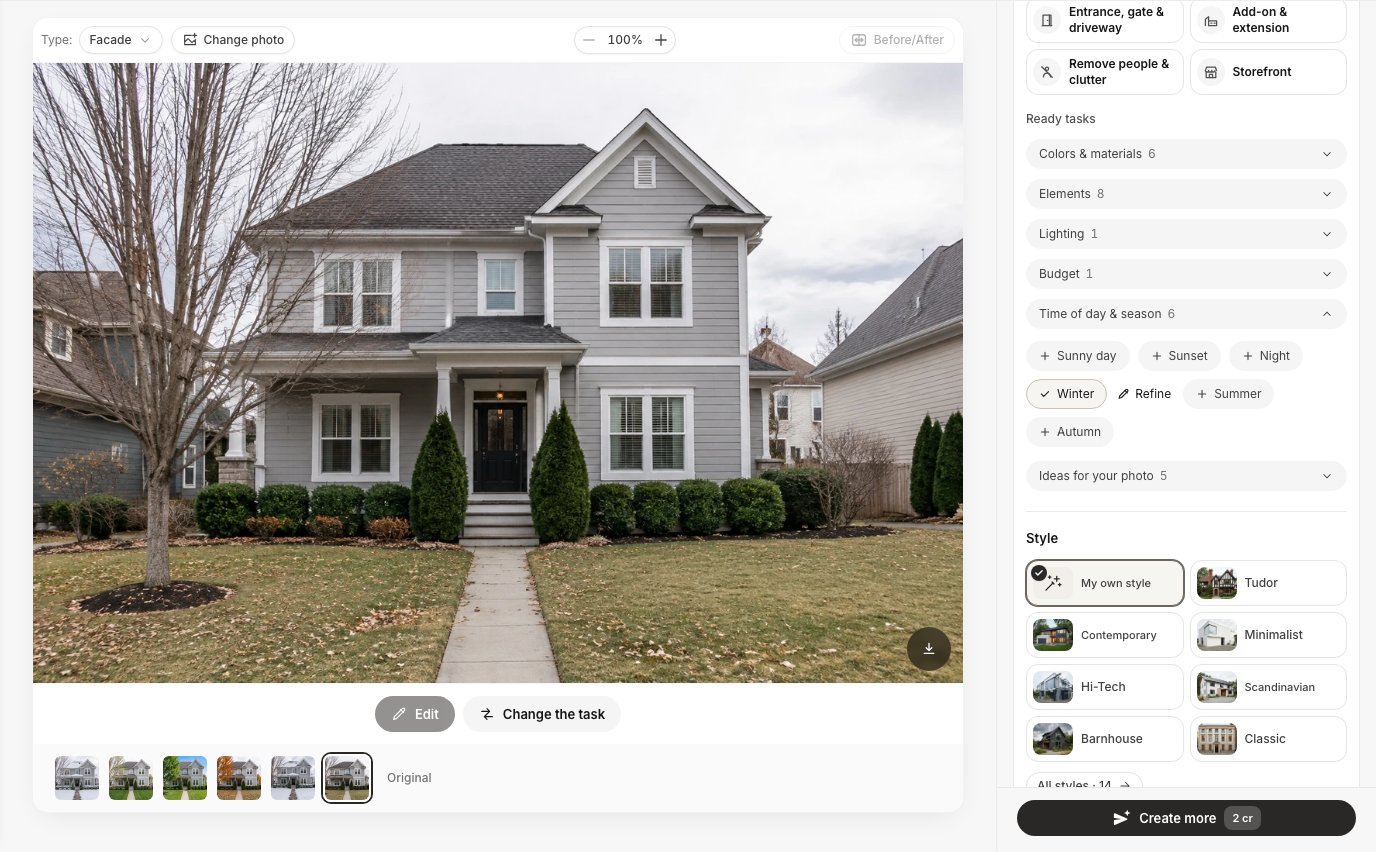 The facade brief: "Time of day & season" holds Sunny day, Sunset, Night, Winter, Summer and Autumn. Only one season can be picked at a time.
Path 2: Quick actions in the editor.
- On the same work, press Edit under the photo, or open the work from Home.
- Select the Original in the version strip under the photo.
- Press Quick actions and find the Light & season group. The seasons are folded at first: press "… more" to show them.
- Pick a season and press the send button. One edit is 2 credits.
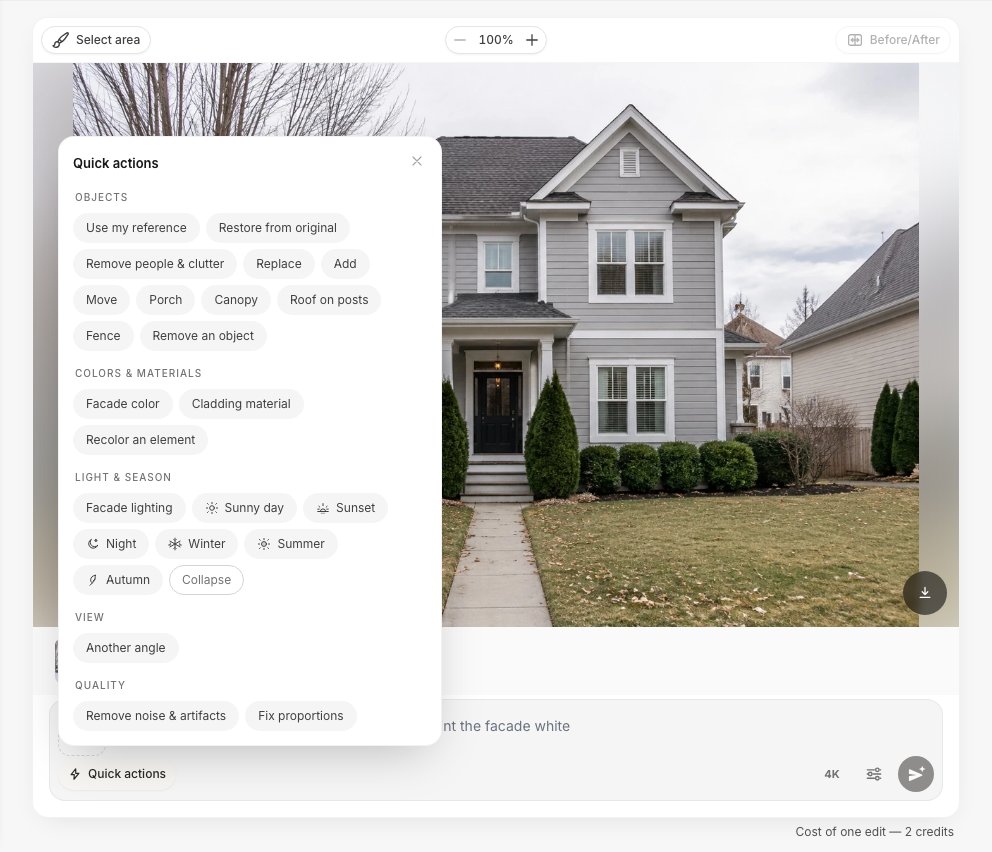 Quick actions on a facade photo. Spring is not in the facade list, so for a spring view of a house you type the request instead.
The buttons are not the same for a house and a yard:
| Space | Quick actions → Light & season | Design brief → Time of day & season |
|---|---|---|
| Facade (house front) | Facade lighting, Sunny day, Sunset, Night, Winter, Summer, Autumn | Sunny day, Sunset, Night, Winter, Summer, Autumn |
| Yard / garden | Summer, Autumn, Spring, Winter, Evening | Evening, Summer, Autumn, Winter |
Three rules from our tests save time and credits:
- Always start from the Original. If you apply Autumn to the Winter version, you get snow and orange leaves at once. Pick the Original in the strip before each season.
- Start with "Design from a photo". That is where the Studio recognizes a facade or a yard, and the facade and yard buttons above come from that.
- Add a short note next to the chip when something must stay. A picked chip and your typed note go together in one edit, for example Winter plus "Keep the concrete path to the porch."
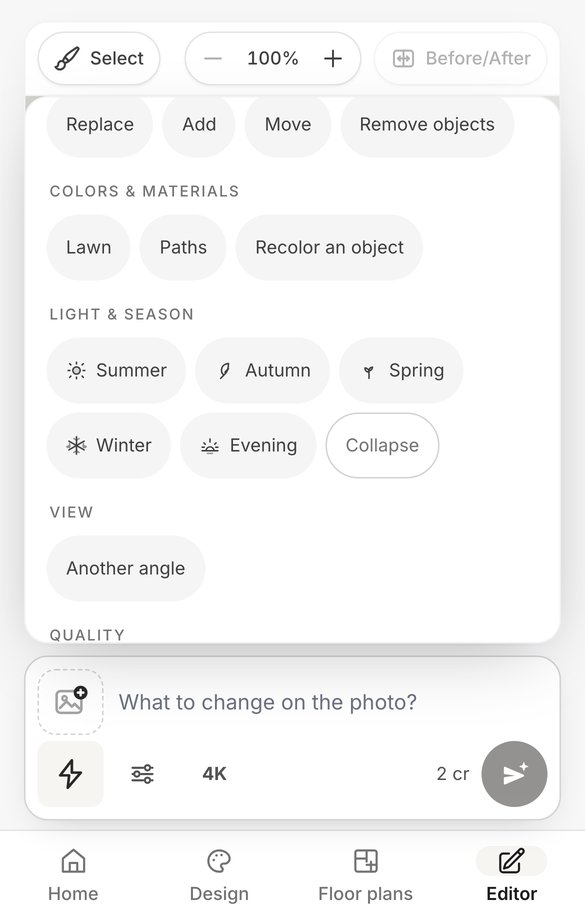 On a phone, Quick actions open from the lightning icon. A yard photo gets Summer, Autumn, Spring, Winter and Evening.
Test 1: a house front from a grey November day to four seasons
We started with an ordinary photo of a two-story house shot on an overcast November day: a bare maple on the lawn, two arborvitae by the steps, clipped boxwood along the front, a tired lawn with fallen leaves.
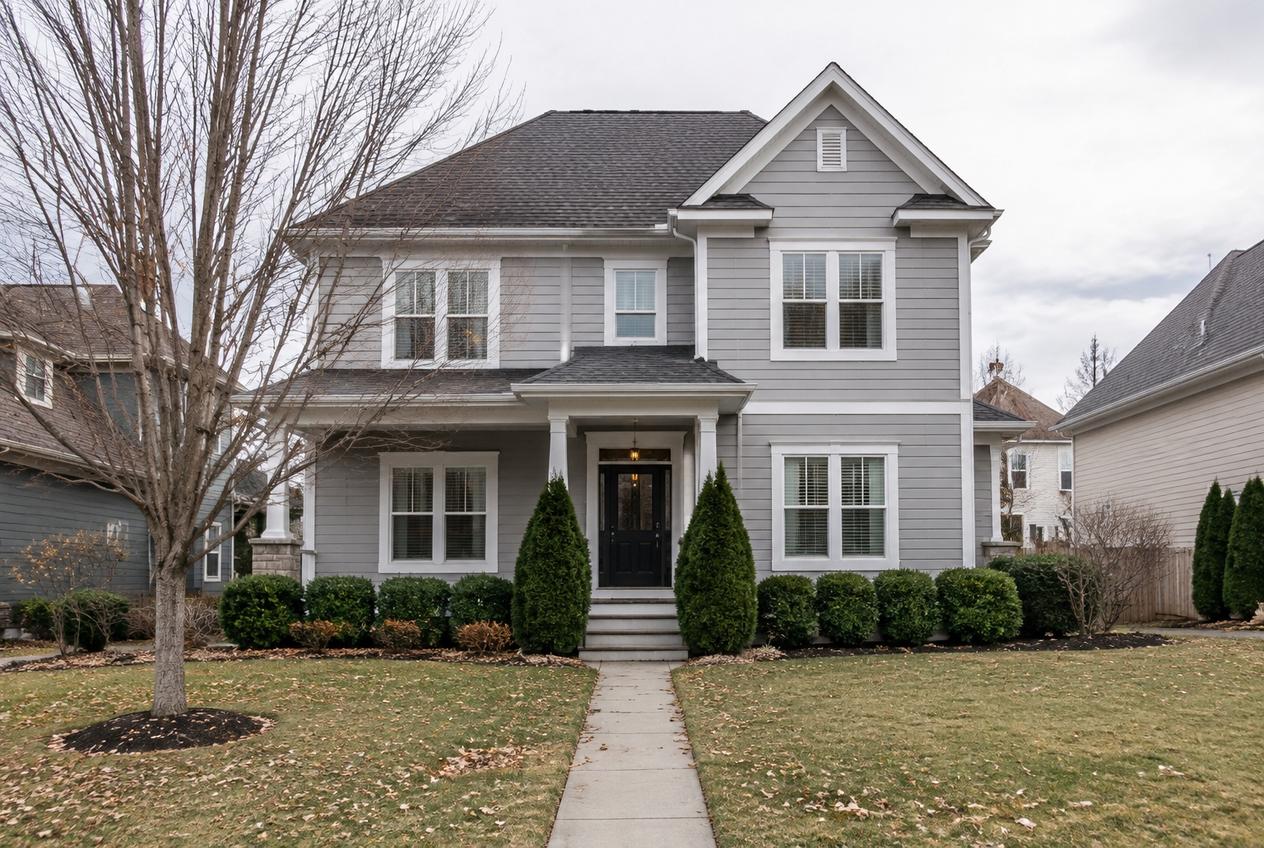 The original: November, flat light, bare maple. This is the photo every season below was made from.
We applied Winter, Summer and Autumn as quick actions to the Original, and typed Spring because the facade list has no Spring button. Every result kept the siding, the windows, the door, the porch and the roofline.
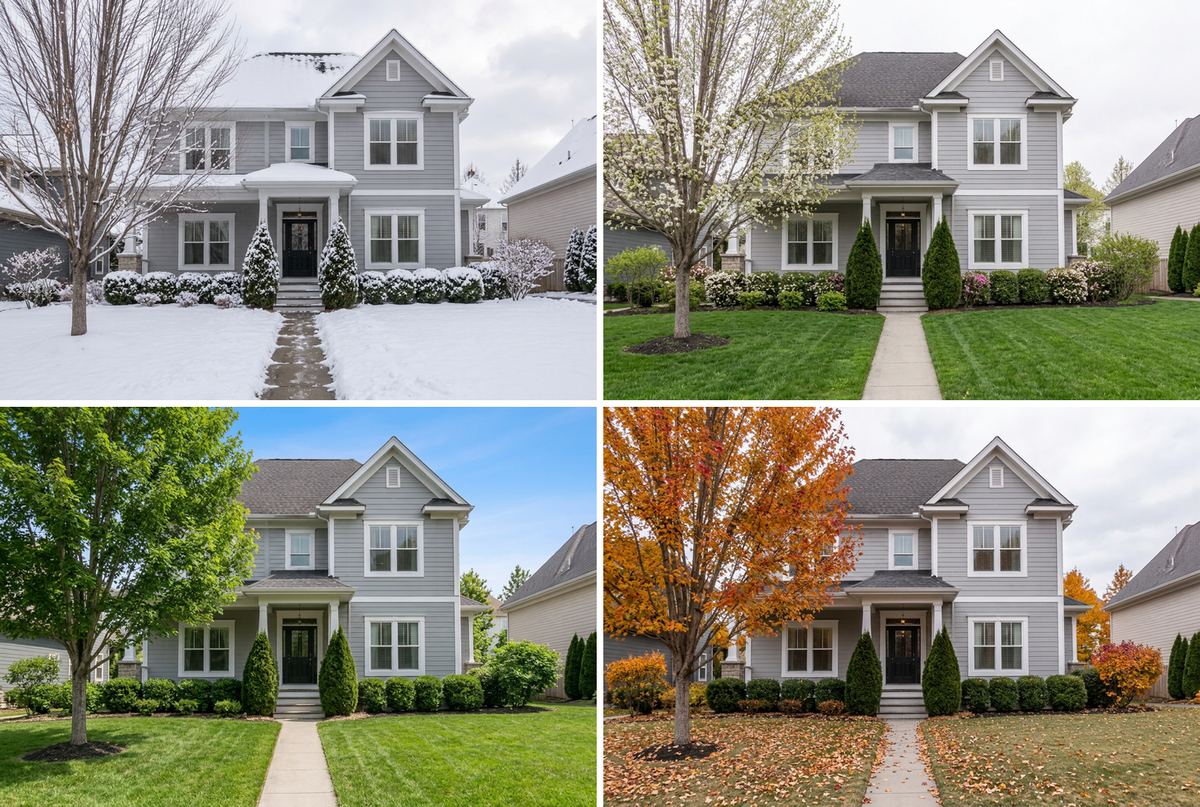 Top left Winter, top right Spring (typed), bottom left Summer, bottom right Autumn. The arborvitae and boxwood stay dark green in all four.
What we saw, season by season:
- Winter. Snow on the roof, the porch roof and the lawn; the arborvitae and boxwood stayed green under a layer of snow, and the maple stayed bare. On the first try the AI also turned the concrete path into stepping stones. We ran Winter again with the note "Keep the concrete path to the porch", and the second result kept the path. This is the version shown above.
- Spring. We typed "Make it spring: fresh young leaves and white blossom on the trees, green lawn, flowering shrubs. Keep the house unchanged." The Studio first offered to change only a selected area ("Change only this place?"). We chose Edit the whole photo. The maple came back covered in white blossom, because we asked for blossom; a real maple does not flower like that. The AI paints what you write, so describe the plants you actually have.
- Summer. A full green canopy, a striped lawn, a blue sky. This is the version a seller usually wishes they had.
- Autumn. The maple turned orange-red, leaves covered the lawn, and the evergreens stayed green. A small orange shrub appeared where a bare one stood, which is plausible for autumn.
For the facade itself, the winter version was the most useful. Against the snow, the white trim almost merged with the ground, and the black door and dark window sashes became the strongest lines on the front. If you are choosing a new siding or trim color, that is the moment to check contrast; our house paint color visualizer guide shows how to try colors on the same photo.
Test 2: a back garden through the year
The second photo is a typical back garden in early June: a lawn, two tall columnar conifers, a red-leaved Japanese maple, a young birch, an olive tree, lavender, clipped boxwood and a boxwood ball in a terracotta pot.
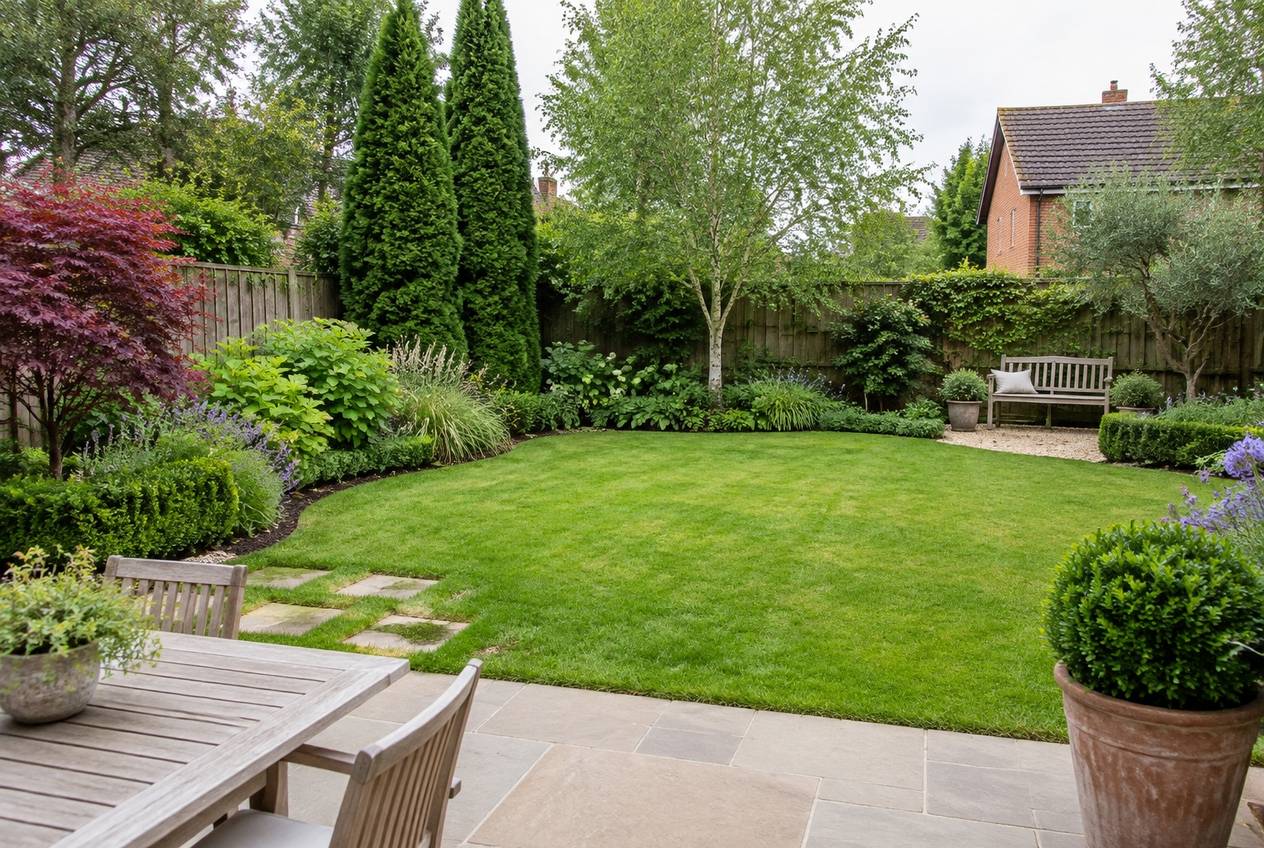 The original: a mixed garden with evergreens (conifers, olive, boxwood) and deciduous plants (birch, Japanese maple).
This time all four seasons came from yard quick actions: Winter, Spring, Summer and Autumn, each applied to the Original.
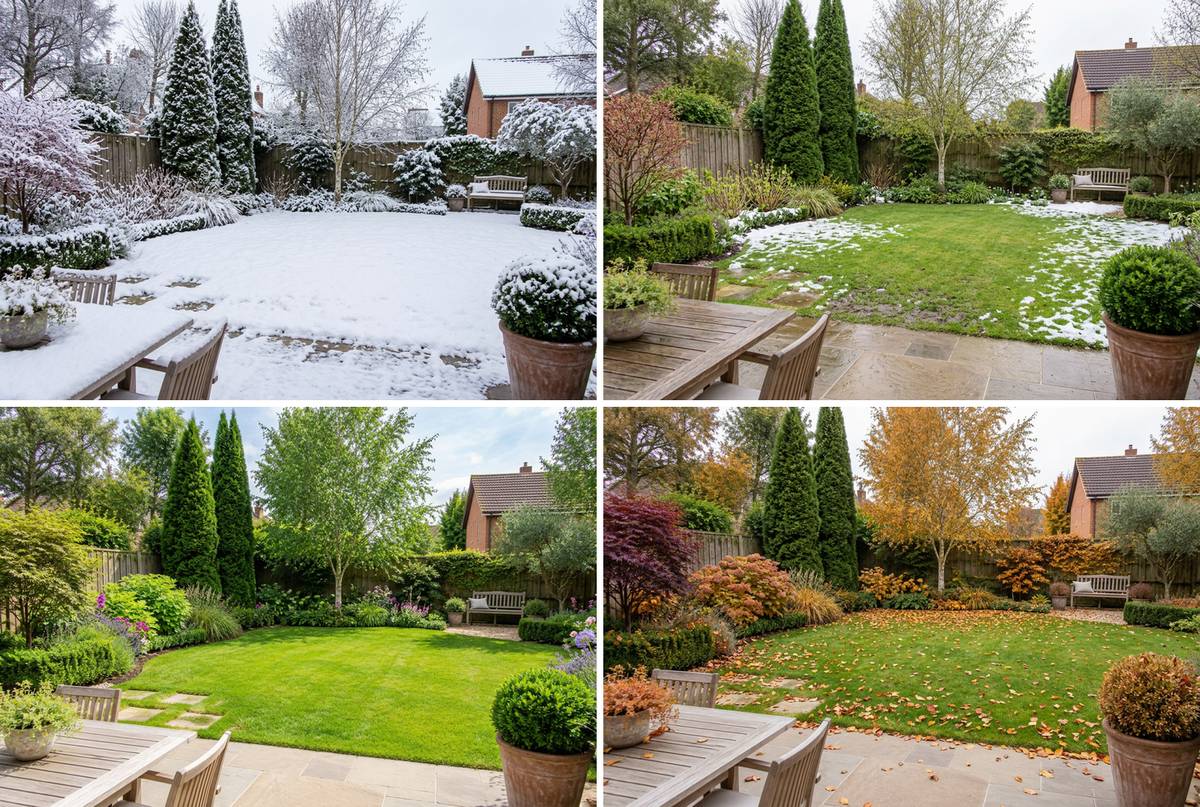 Top left Winter, top right Spring, bottom left Summer, bottom right Autumn. Same camera, same bench, same table, same pot.
The winter result was the best of the whole test. It matched what real users kept asking for: the conifers, the olive and the boxwood stayed green under snow, while the birch and the maple stood bare, and the lavender turned into dry grey stems. That is the view to show anyone who asks whether the garden "has winter structure". If the seasons tell you the garden needs a new plan rather than new plants, start a full redesign with AI garden design on the same photo.
Spring on the yard means early spring: the button asks for young greenery, the first blossoms and melting snow. Our result had bare trees and patches of snow on the lawn. If you want the May version with tulips and blossom, type it instead. Summer brought the lavender into flower and a blue sky; Autumn turned the birch golden and covered the lawn with leaves.
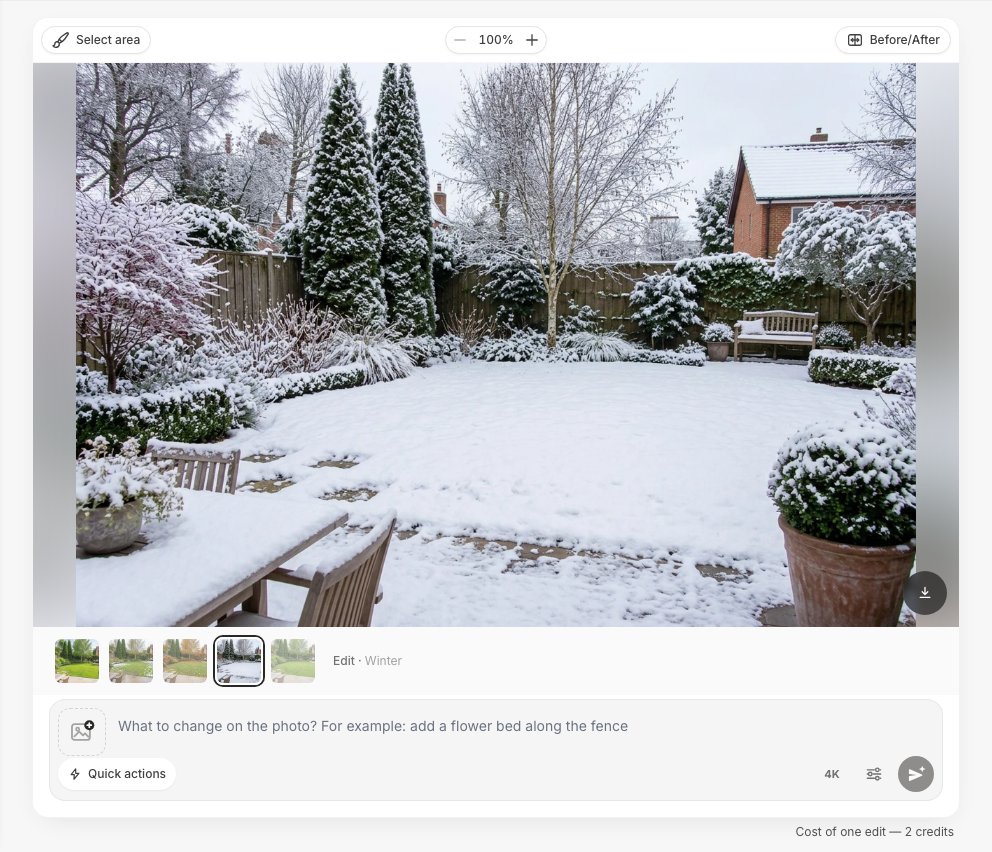 All seasons live in one work. The strip under the photo switches between them, and Before/After compares the chosen version with the original.
Where does the AI get plants wrong?
The AI knows what a season looks like in general, but it does not know your plant varieties. It guesses from the shape and color in the photo, and the guess is sometimes wrong. We caught two mistakes in the garden test alone.
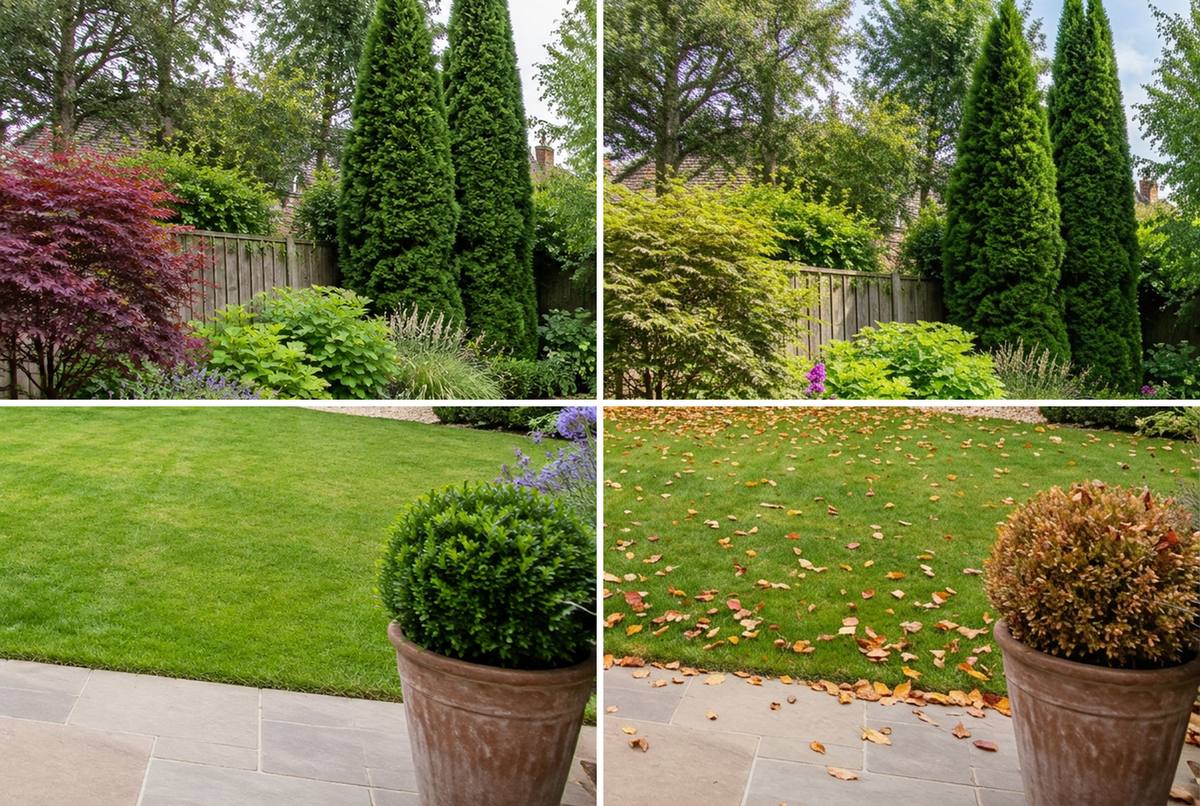 Top: the red Japanese maple became green in the Summer version. Bottom: the evergreen boxwood ball in the pot turned bronze in the Autumn version.
- The red Japanese maple turned green in Summer. Red-leaved varieties keep their color through the summer, so this result shows a different plant.
- The boxwood ball in the pot turned bronze in Autumn. Boxwood is evergreen. The AI treated it like a deciduous shrub.
Real users hit the same problem and wrote corrections like "the trees on the side and back are evergreen" or "the fig is bare, the trees around still have their foliage". You can do the same:
| Plant in your photo | What should happen in winter | Common AI error | Note to add |
|---|---|---|---|
| Conifers, boxwood, holly, olive | Stay green, snow on top | Turns bronze, loses needles | "The conifers and boxwood are evergreen" |
| Birch, maple, fig, fruit trees | Bare branches | Keeps leaves, or blossoms in the wrong season | "The birch and the fig are bare" |
| Red- or purple-leaved shrubs | Same color in summer | Turns green | "The Japanese maple keeps red leaves" |
| Lavender, ornamental grasses | Dry stems and seed heads | Disappear, or stay in bloom | "Keep the grasses as dry stems" |
If one plant is wrong and the rest is good, you do not need to redo the season. Use Restore from original in Quick actions, or press Select area, brush over the plant and describe the fix. Only that area changes.
Create facade design with AI
Upload a photo of your home and get a new facade in the chosen style in 30 seconds. First generation is free.
How to use the seasonal view to choose plants and facade colors
Use the seasonal versions as a checklist, not a mood board. Look at each one with a specific question:
- Winter: is there anything left? If the winter garden is all white with no green shapes, add an evergreen "skeleton" first: a hedge, two or three conifers, a clipped shape near the path. Check that the plants suit your climate; the USDA Plant Hardiness Zone Map and our AI garden planner by climate help with that.
- Spring: where is the first color? Early spring shows which beds stay bare the longest. That is where bulbs and early shrubs go.
- Summer: is it too much of one green? A summer view often shows that everything flowers at once and nothing is left for autumn.
- Autumn: does the facade fight the foliage? Orange maple leaves next to a warm beige or terracotta facade can look muddy; next to grey, white or dark siding they read clearly.
Facade colors read differently with the season, too. In a snow scene, white and near-white details lose their outline, while dark doors, window frames and roofs stand out. If you are stuck between two siding colors, run Winter on both versions before deciding. For more yard work on the same photo, see our guides on a low-water lawn replacement, an overgrown yard clean-up and garden ponds and water features. If you want to see the yard after dark, the Evening action pairs well with our outdoor lighting guide.
Can you use season-swapped photos in a property listing?
Yes, but label them. A season swap adds and changes elements in the image, so in many places it counts as a digitally altered photo, not a simple color correction.
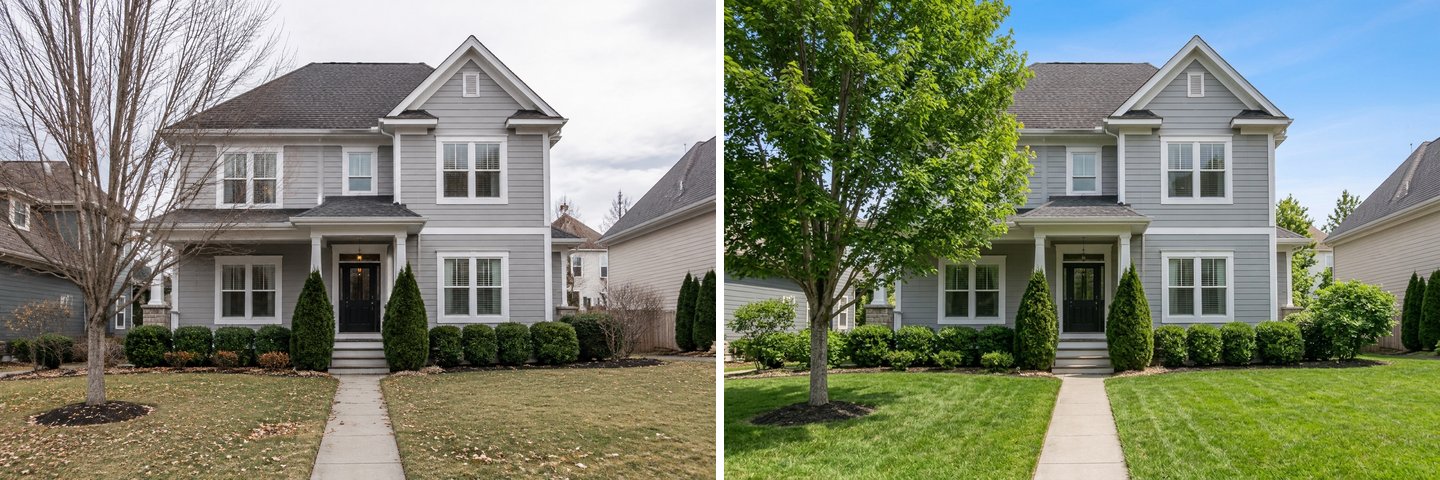 A listing photo shot in November (left) and the same frame as Summer (right). Useful, but it has to be labeled as altered.
In California, AB 723 (Chapter 497, Statutes of 2025) covers this case. It applies to real estate licensees and anyone acting on their behalf. An image altered with photo editing software or AI "to add, remove, or change elements" needs a reasonably conspicuous statement on or next to the image saying it was altered, plus a link, URL or QR code to a public page with the unaltered original. Lighting, white balance, color correction, cropping, straightening and exposure are excluded (bill summary on Digital Democracy). Many MLS boards outside California have their own photo rules, so check yours before publishing.
A simple, honest setup works anywhere:
- Put the real photo first and the seasonal version after it.
- Add a caption such as "Digitally altered: shown in summer".
- Keep the original file and link to it.
- Never use snow or leaves to hide what a buyer should see: a damaged roof, a bare yard, a crack in the path.
If you mainly need a better sky on a gloomy day, sky replacement is a lighter edit; see our guide to AI sky replacement for listing photos.
What if you live where it never snows?
Then do not use Winter. The AI does what the button asks, even when it makes no sense for your climate. We tested it on a house with coconut palms and bougainvillea, and the AI covered the palms in snow.
 Winter on a tropical house: technically clean, botanically impossible. Use dry and wet season descriptions instead.
In the interface languages of hot-climate countries (Thai, Vietnamese, Indonesian, Malay, Arabic and Hebrew), the Winter task is hidden from the design brief for this reason. The quick action is still there, so it is easy to tap by accident. In a hot climate, the useful seasons are wet and dry. Type what you actually see, for example "the end of the dry season: yellowed lawn, dusty leaves, no flowers", and check the plants with the same checklist as above.
FAQ
Can AI show what my house will look like in winter?
Yes. Upload a photo of the house front in GenRoom, open Quick actions → Light & season and pick Winter, or pick Winter in the Time of day & season task group. The AI adds snow to the roof, the ground and the trees and keeps the building unchanged. One result takes about 30 seconds.
How much does it cost to see all four seasons?
Each season is one edit, and an edit costs 2 credits, so four seasons of one photo cost 8 credits. A new account gets 6 free credits, which covers three seasons. Paid plans are one-time packs from $9.99 for 36 credits, with no subscription.
Will the AI change my house or my garden layout?
In our tests, the house, the windows, the paths, the furniture and the camera angle stayed the same in every season. Small surprises happen: one winter result turned a concrete path into stepping stones. Add a short note such as "Keep the concrete path" and run it again.
Why is there no Spring button for my house photo?
The facade list has Sunny day, Sunset, Night, Winter, Summer and Autumn. Spring is in the yard list. For a house, type "Make it spring" with the plants you want; if the Studio asks "Change only this place?", choose Edit the whole photo.
Does the AI know which of my plants are evergreen?
Not reliably. In our garden test, it kept the conifers, olive and boxwood hedge green in winter, but turned a potted boxwood bronze in autumn and a red Japanese maple green in summer. Check every season and name your evergreens in the note when you run it.
Can I put a season-swapped photo in my listing?
You can, if it is labeled as altered and the original is available. California's AB 723 requires a statement next to the image and a link to the unaltered photo for agents' ads; other markets and MLS boards have their own rules.
The bottom line
To see your house or garden in every season, upload one photo, start each season from the Original, and use Winter, Spring, Summer and Autumn from Light & season or the Time of day & season tasks. The building stays the same; snow, foliage and light change. Treat the results as a checklist: winter shows whether the garden has structure, autumn shows whether the facade color fights the foliage, and summer gives a seller a labeled "better season" view. Check the plants by eye, because the AI still guesses evergreens. Try it on your own photo in the GenRoom Studio.