AI Room Decorator: Add Art, Rugs and Plants to Your Room Photo
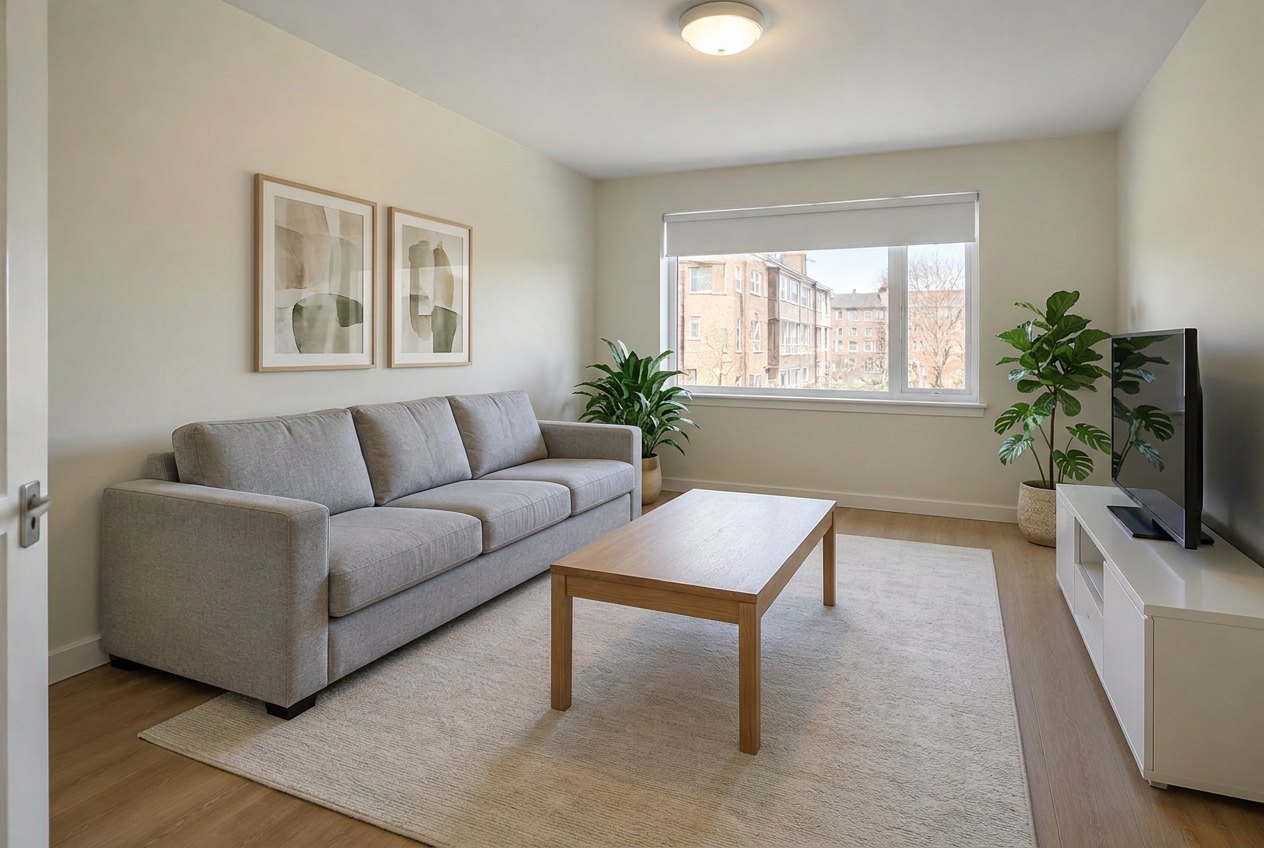
A real result from the GenRoom Studio. The sofa, coffee table, TV unit, floor, walls and window are from the original photo. The prints, the rug and the two plants were added by three ready tasks.
An AI room decorator adds what a room is missing (art, a mirror, a rug, plants, cushions, curtains, a styled shelf) to a photo of the room you already have, and leaves the furniture and finishes alone. In the GenRoom Studio you upload the photo, tick ready tasks such as Add art & decor, Add a rug and Add plants, and get the same room with the same camera about 20–40 seconds later. For a single piece, such as one painting above the sofa or one mirror above the sink, you paint over that spot with the brush and type what to add. Each result costs 2 credits, and a free account starts with 6.
This is the most common thing people ask GenRoom to do with an interior photo. Between March and October 2026, 2,816 people described this exact job in their own words: not "redesign my room", but "it's finished and it still looks empty". Below you'll find the Studio path for each kind of request, real before-and-after results on three test room photos, the places where the AI adds too much, and the styling rules worth checking before you buy anything.
What Do People Mean by "Decorate My Room"?
Most of the time they mean adding things, not replacing them. The sofa, the bed and the floor stay. The walls and surfaces need something on them. Here are typical requests, paraphrased and anonymized:
| What people write | What they actually want | Best Studio tool |
|---|---|---|
| "Add a painting behind the sofa" | One piece of art, in one spot | AI editor: brush the spot, then Quick actions → Add |
| "One piece of art on the back wall and a macramé hanging" | Two specific wall pieces | Add, twice, one item per edit |
| "The wall needs frames or mirrors" | A wall that looks finished | Add art & decor → Framed art, or the Wall mirror task |
| "Small decorations on the shelves: candles, plants, pictures" | Styled shelves | Add art & decor → Books on shelves, plus your own words |
| "Keep the room as it is; floating shelves, a mirror above the sink, hand towels, small plants" | Small additions to a bathroom | Add with the brush, one item per edit |
| "Change the rug under the dining table to a round one" | A rug swap | Add a rug → Round jute |
| "An area rug, indoor plants, accent lighting" | A general softening of the room | Add a rug + Add plants + Warm lighting |
The pattern is clear: people know what is missing, and they don't want the AI to touch what they already own. That is a different job from a full makeover, which replaces furniture and finishes. If you want to change the furniture itself, read our guides to trying new furniture in your room and rearranging the furniture you have.
Three Tools in the Studio, and When to Use Each
GenRoom gives you three ways to decorate a photo. They differ in how much the AI is allowed to decide.
| Tool | Where | What changes | What stays | Use it when |
|---|---|---|---|---|
| Ready tasks (Add art & decor, Add a rug, Add plants, Wall mirror, Curtains & blinds) | Design from a photo → Ready tasks | Only the items you tick | Furniture, walls, floor, ceiling, camera | You know the categories, not the exact pieces |
| Designer look mode | Design from a photo → Modes | Textiles, decor, plants, lighting, curtains, often the wall color | Large furniture (it may be moved, not replaced) | You want a magazine look and don't mind new paint |
| Add + brush | AI editor → Select area → Brush, Quick actions → Add | One item, in the area you painted | Everything outside the selection | You want one specific piece in one specific place |
There is also a dedicated AI decor staging page if you want to see more examples of restyling a furnished room before you start.
How to Add Decor With Ready Tasks, Step by Step
Ready tasks are the fastest way to decorate a whole room. You tick what's missing, and the rest of the photo is protected.
Step 1: Take a photo that shows the empty spots
Shoot in daylight from a doorway or a corner, at standing eye level, so the bare wall, the floor in front of the sofa or bed, and the window are all in frame. The AI can only decorate surfaces it can see. A photo with the sofa cropped at the edge gives it nowhere to hang art above.
Step 2: Upload it with "Design from a photo"
In the Studio, choose Design from a photo and upload the image. The Studio reads the photo, recognizes the room type (it labeled ours "Living Room", "Bedroom" and "Bathroom" correctly) and opens a panel with Your brief, Modes and Ready tasks.
Step 3: Open Furniture & decor and tick what's missing
Under Ready tasks, open Furniture & decor. Three tasks do the decorating:
- Add art & decor: adds decor at a realistic scale for the room. Tap Refine to choose what: Vases and textiles (the default), Framed art, Books on shelves or Cushions and a throw.
- Add a rug: lays a rug under the seating area. Refine offers Light beige, Patterned wool, Round jute and Dark.
- Add plants: adds two or three houseplants in planters, by the window and in a free corner.
Two more live in other groups: Wall mirror (under Lighting, with places such as Above the console, On a free wall or Full-height floor mirror) and Curtains & blinds (under Colors & materials).
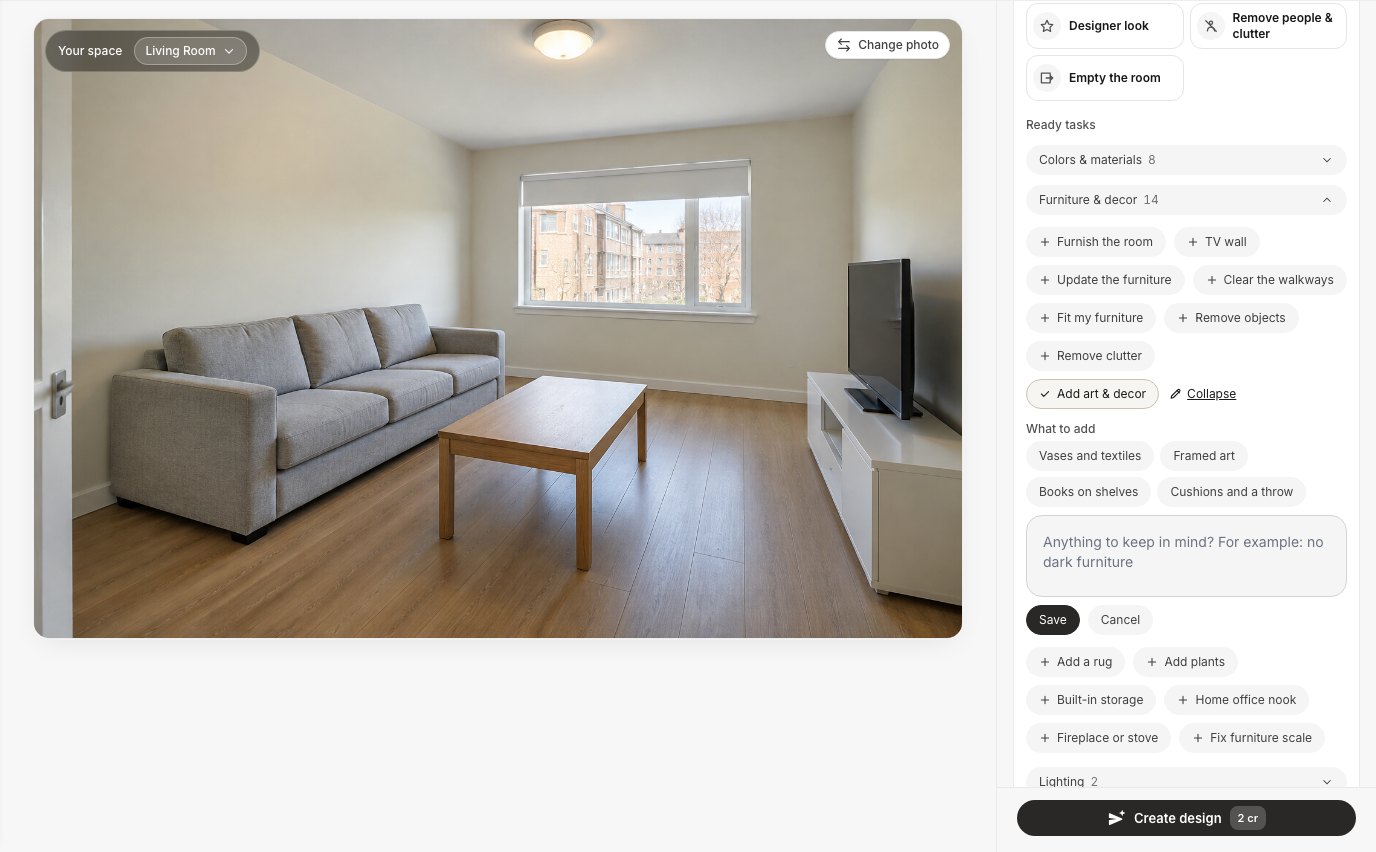 Add art & decor with Refine open. Pick one choice, or type your own wishes in the field below it.
Step 4: Add your own words if you have a picture in mind
Anything you type in Your brief is passed along with the tasks: "one large framed print above the bed", "a round jute rug", "linen curtains". Your words go to the AI together with the ticked tasks, so be specific about the number of items and where they go.
Step 5: Create the design and compare
Press Create design (2 cr). Our results took 23–41 seconds from click to image. The result opens next to the original, and the Before/After button lets you drag a slider across the photo.
Here is our test living room, an ordinary rental-style room with nothing on the walls, after one run with Add art & decor → Framed art, Add a rug and Add plants ticked together:
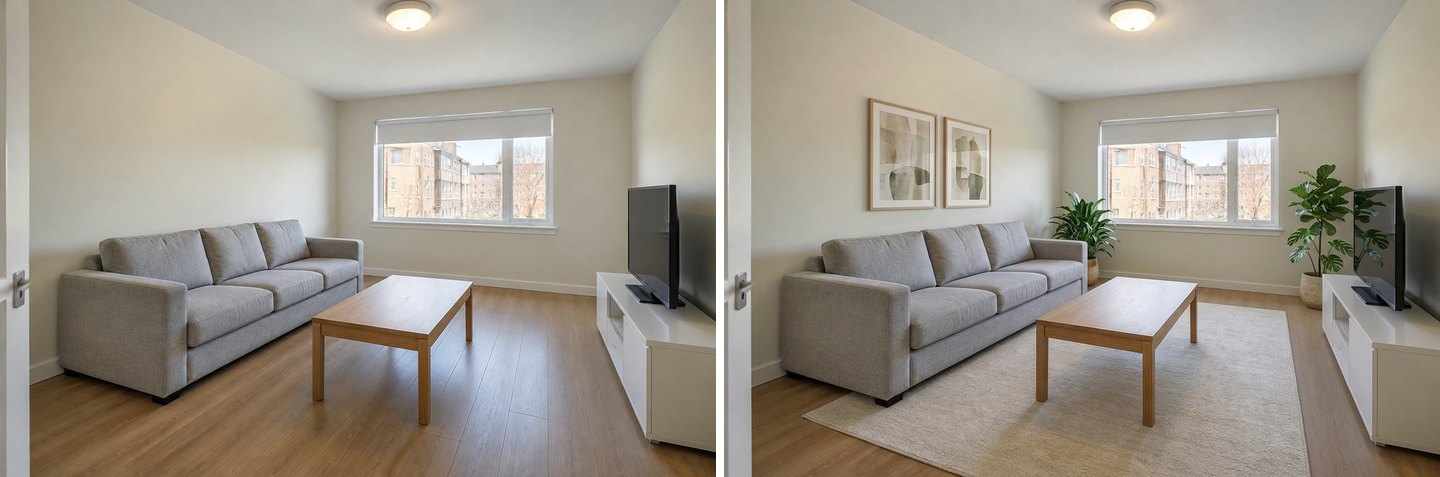 Left: the original photo. Right: three ready tasks in one run. Same sofa, coffee table, TV unit, roller blind, ceiling light and floor.
What changed: a pair of framed prints centered over the sofa, a cream rug that slides under the front of the sofa and the whole coffee table, a plant by the window and a large-leaf plant beside the TV. What didn't: the sofa (same fabric, same shape, no new cushions because we didn't ask for them), the table, the TV, the blind and the laminate floor. This is the result most people are hoping for when they ask an AI to "decorate my room".
What Happens if You Don't Say What You Want?
The AI fills the gap with its own guess, and the guess is usually "more textiles". We ran Add art & decor on the same living room with nothing changed, so it used the default choice, Vases and textiles:
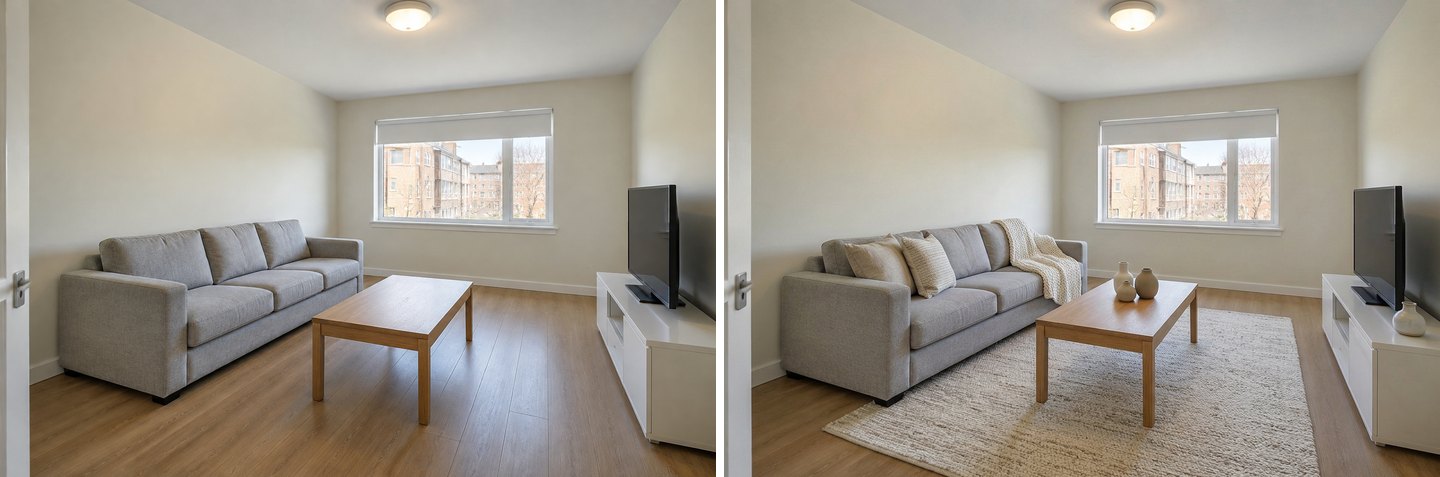 The default "Vases and textiles" choice: cushions, a throw, vases, and a rug we never asked for. The walls stayed empty.
Two lessons. First, the default doesn't touch the walls at all, so if the bare wall is your problem, choose Framed art or say "art above the sofa". Second, the AI read "textiles" broadly and added a rug. That rug happens to look good here, but it shows the general rule: an open instruction gets you more items than you expected. Name the categories you want and leave out the ones you don't.
How Did the Bedroom Turn Out?
The bedroom is where our test went slightly too far, and where the fix took one more edit. The photo is a plain bedroom with a grey upholstered bed, white bedding, two white nightstands, a roller blind and an empty wall above the headboard. We ticked Add art & decor → Framed art and Add plants, and typed "one large framed print above the bed, a soft wool rug under the bed, linen curtains".
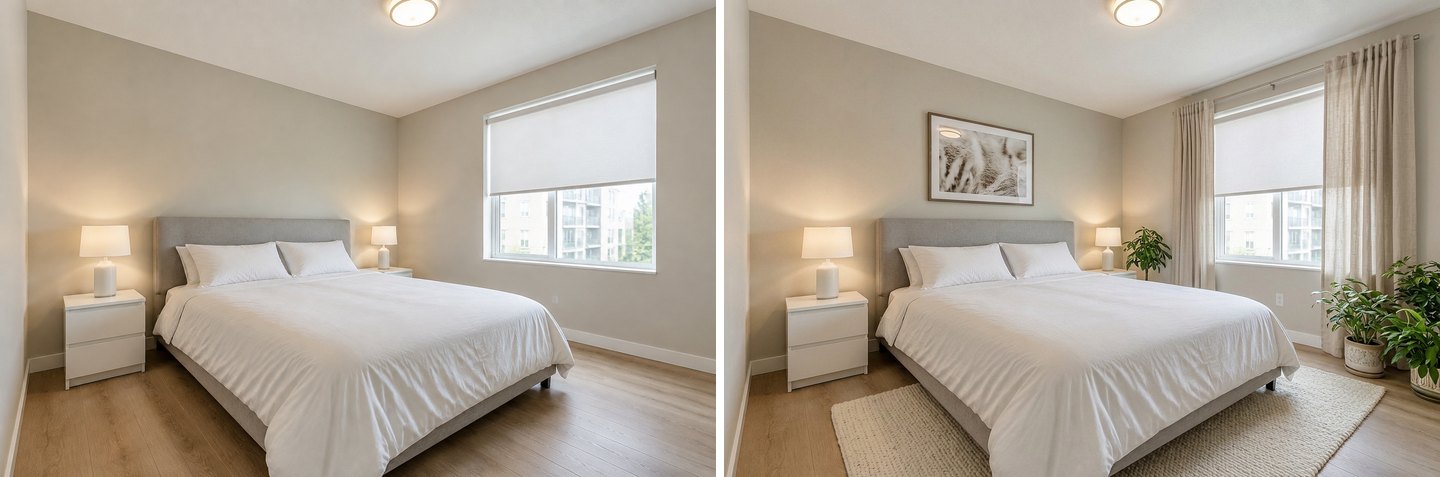 The bed, bedding, nightstands and lamps are unchanged. The print, rug, curtains and plants are new.
The print, rug and curtains came out as written. The plants are the problem. The task asks for "two or three", and we got three, two of them crowded into the corner by the window, where they partly block the curtain. In a real room you'd move them; in the Studio you remove them.
Remove what you didn't ask for
Open the result in the AI editor (the Edit button under the image), choose Quick actions → Remove an object and type what to take out. The Remove field also offers chips such as Rug, Coffee table and Extra decor.
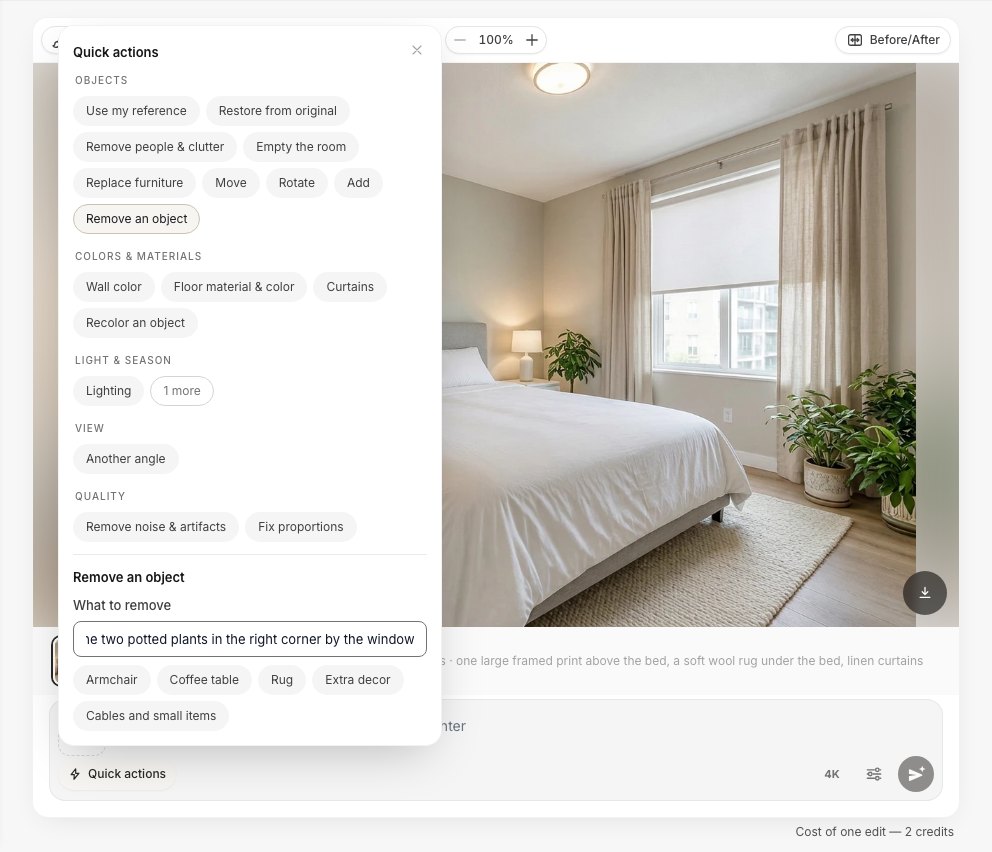 Quick actions → Remove an object. Name the item and where it is, so the AI removes the right one.
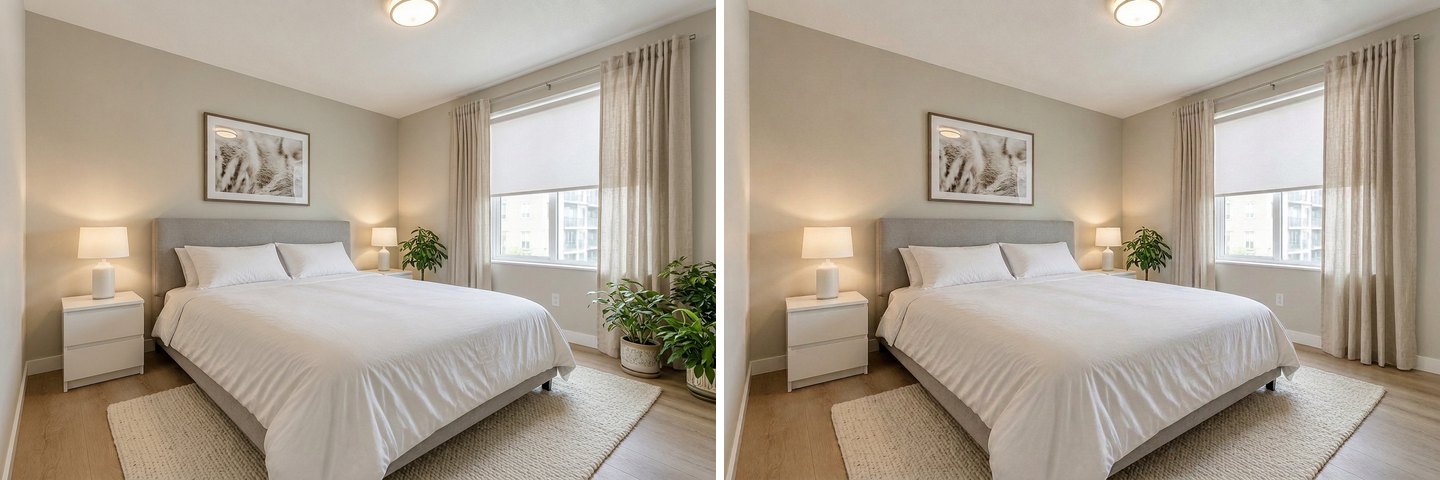 After "Remove an object": the corner plants are gone, the curtain and floor behind them are filled in, and the small plant by the nightstand stays.
The removal was clean: the curtain folds and the floor were filled in naturally, and nothing else in the room moved. This "decorate, then remove the extras" loop costs 4 credits in total, and in our experience it gets you to a calmer room faster than trying to write a perfect prompt first.
Designer Look: When You Want the Magazine Version
Designer look is a mode, not a task, and it is allowed to do much more. It analyzes what makes the room look plain and carries out one design concept: palette, lighting, wall finish, textiles, curtains, a rug, decor, plants and small furniture. The rule built into it is that the large furniture (sofa, bed, wardrobe, table, dresser, armchairs) stays the same pieces with the same shape and upholstery. They may be moved, but not replaced.
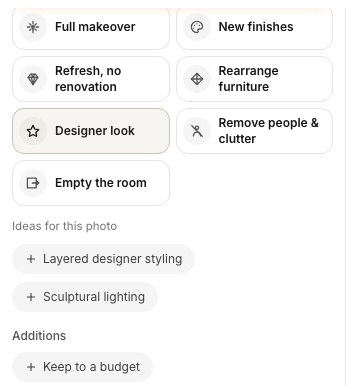 Designer look in the Modes panel. The Studio also suggests ideas for the specific photo.
We ran it on both rooms with no style selected and no wishes typed:
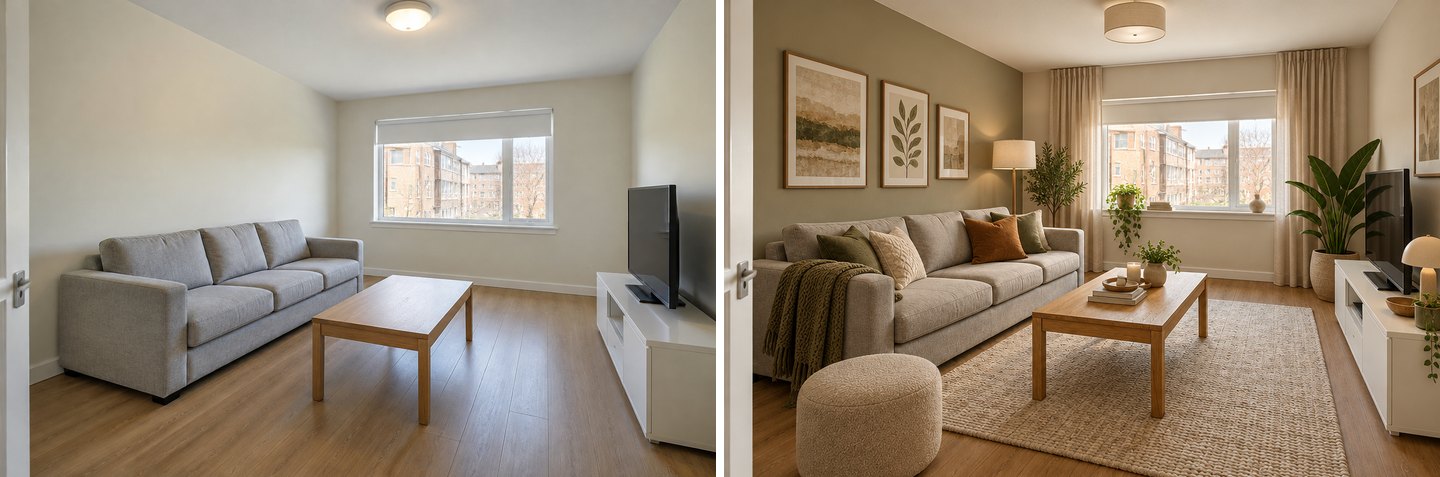 Designer look in the living room: the same sofa, coffee table and TV unit, but a new wall color, curtains, lamps, a pouf and a lot of decor.
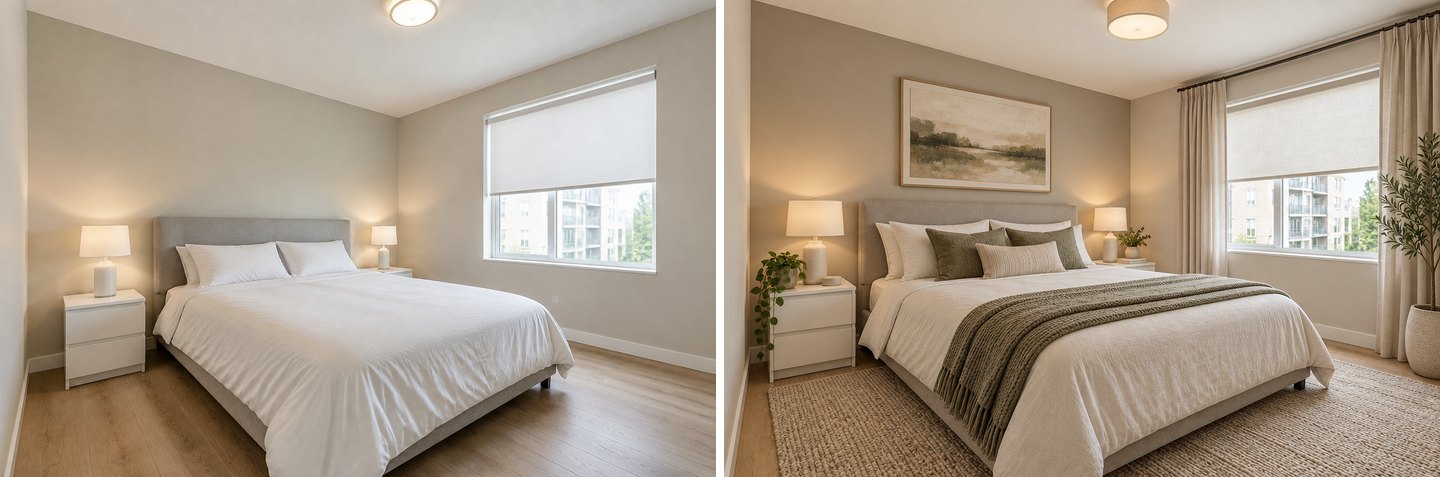 Designer look in the bedroom: the same bed and nightstands, with layered bedding, art, a rug, curtains and plants.
Both results look like a styled photo shoot. Be aware of what else changed, though:
- The walls were repainted. The living room's long wall turned sage green and the bedroom got a warmer greige. That's by design, since wall finish is part of the concept, but it's not "keep my finishes".
- The framing shifted a little. Both results are slightly closer than the original, and the grey sofa reads warmer, almost beige, under the new lighting and cushions.
- It adds a lot. The living room got five plants, four pieces of art, a pouf and two new lamps. That's attractive in a photo, but more than many people want to dust.
Use Designer look when you want ideas, or a target to shop toward. Use the ready tasks when you want to keep your walls and see only what you'd actually buy.
Create interior design with AI
Upload a photo of your room and get a professional design in 30 seconds. First generation is free.
How to Add One Specific Item With the Brush
For a single piece in a single place, the AI editor is more precise than any mode. This is how you'd act on "add a painting behind the sofa" or "a mirror above the sink".
- Open the photo in the AI editor (from the Studio home, or with Edit under any result).
- Press Select area, choose Brush, and paint over the spot where the item should go. The size of your painted area hints at the size of the item, so paint roughly the area you want it to cover. Press the check mark to keep the selection.
- Open Quick actions → Add and type the item. Use the word "one": "one large abstract painting", "one round mirror".
- Press Apply (2 cr).
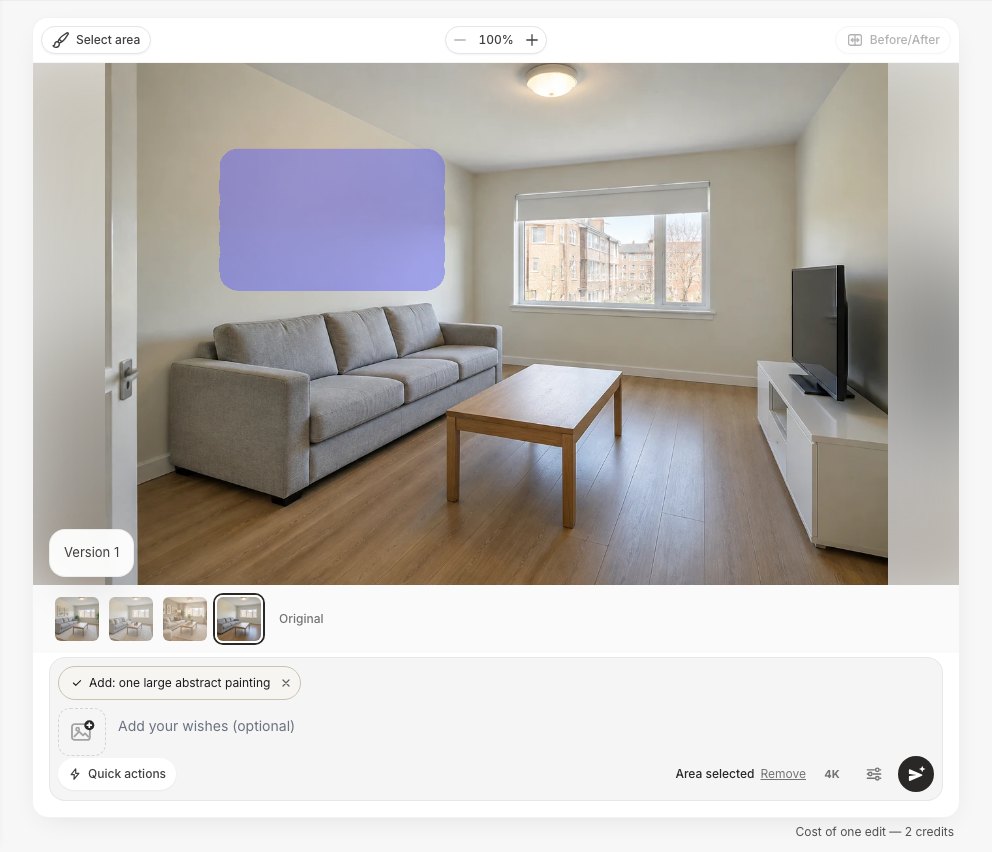 The brush selection on the wall above the sofa, with the Add request attached as a chip. "Area selected" confirms the edit is limited to that spot.
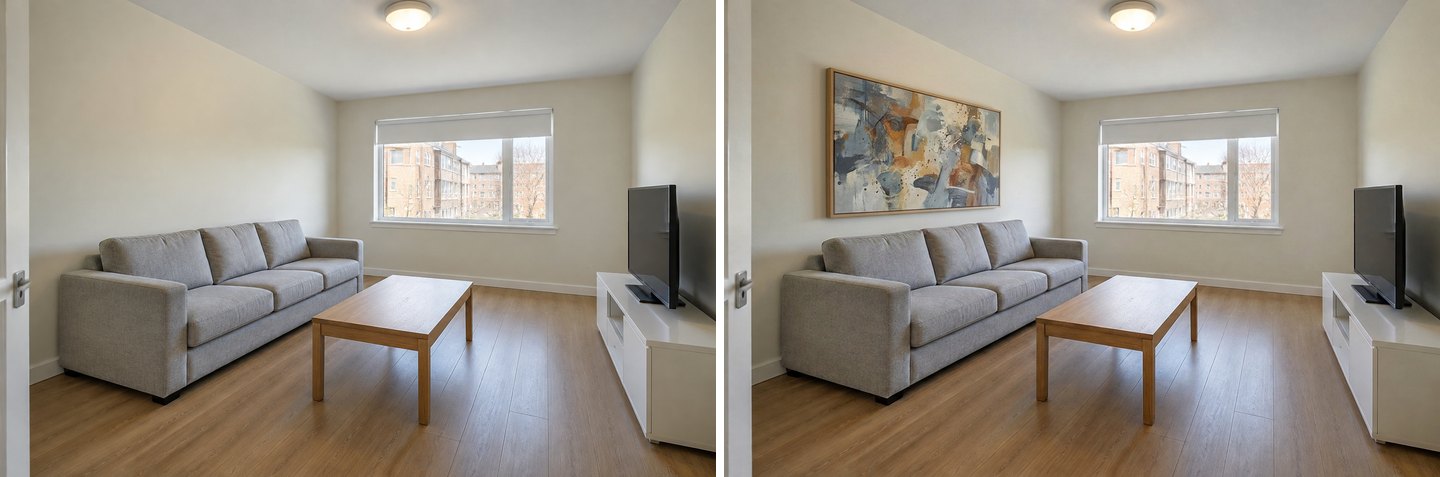 One brush selection, one word "one": a single painting, centered over the sofa, with nothing else added anywhere in the room.
Compare this with the ready-task result above: the task gave us a pair of prints plus a rug and plants, while the brush gave us exactly one painting and nothing else. The painting came out a little over half the sofa's width, with the bottom edge just above the sofa back, which is close to what stylists recommend (see the rules below).
The bathroom: mirror first, then a shelf
The bathroom request ("a mirror above the sink, a floating shelf, hand towels, small plants") is a good test, because it's several small items in specific spots. We did it as two brush edits, each on top of the last:
- Brush on the bare wall above the vanity → Add → "one round mirror".
- Brush on the side wall above the towel bar → Add → "one small floating wood shelf with a small plant and a folded hand towel".
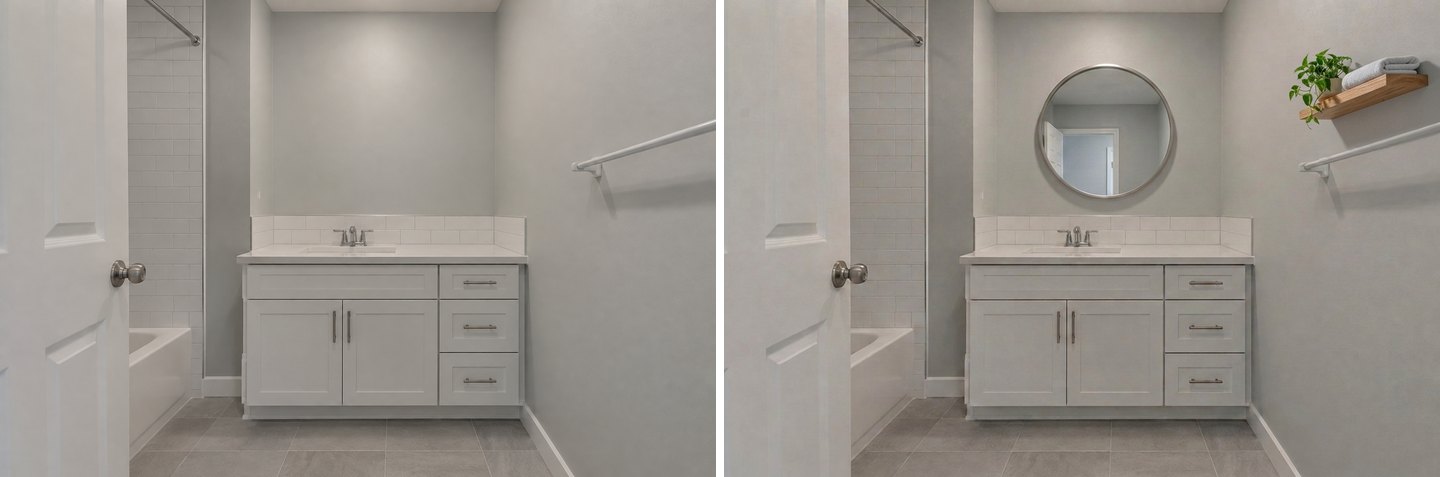 Two brush edits: a round mirror centered over the sink, then a small shelf with a plant and a towel. The vanity, tile, faucet, door and towel bar are untouched.
Both items landed where we painted. The mirror is centered on the faucet and sized well inside the vanity's width, and its reflection shows a plausible door behind the camera. That reflection is invented, of course, not your real hallway.
For contrast, here's the same bathroom with only the words "Decorate the bathroom", with no brush and no list:
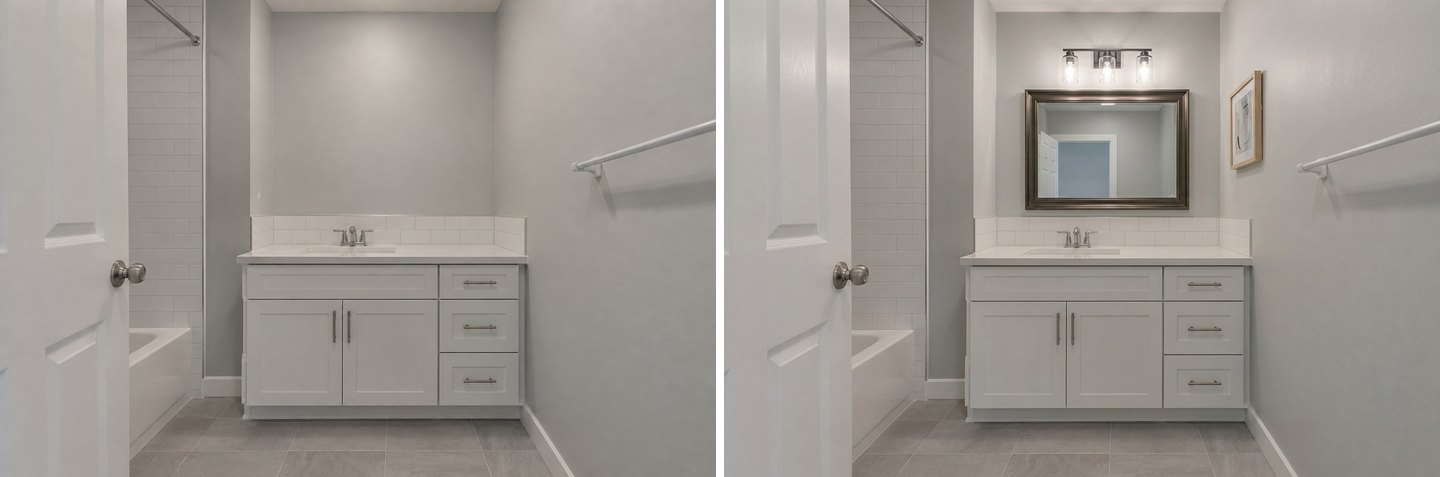 "Decorate the bathroom": the AI chose a framed mirror, added a three-light fixture you'd need an electrician for, and hung a print on the side wall.
It's a reasonable result, but the AI made three decisions for you, and one of them is a light fixture, not decor. Free text is fine for ideas; the brush and "one" are better for a shopping list.
Let the Studio Suggest What's Missing
If you're not sure what the room lacks, open Ideas for your photo at the bottom of the Ready tasks. The Studio analyzes the uploaded photo and proposes tasks for that specific room. For our living room it suggested Hang wall art, Add an area rug, Add curtains, Add throw pillows and Add a plant; for the bedroom, Add accent wall, Hang artwork, Add area rug, Hang curtains and Layer bedding.
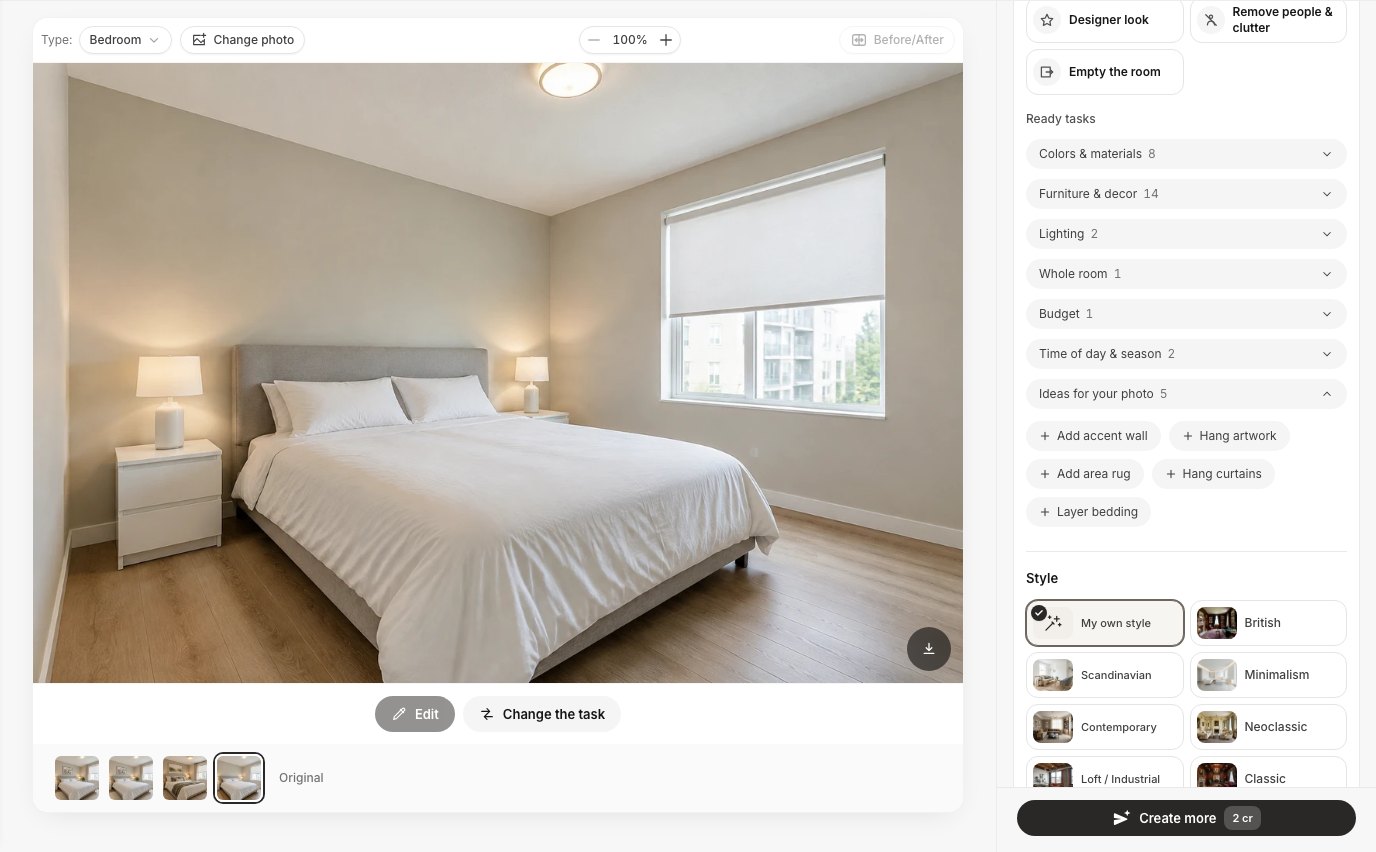 Ideas for your photo: suggestions generated for this bedroom. Tick one or several, the same way as ready tasks.
These suggestions matched what an interior stylist would say about both rooms: bare walls, bare floor and bare windows are the three things that make a furnished room look unfinished.
Styling Rules to Check Your AI Result Against
An AI result looks convincing, but it doesn't measure your wall. Before you buy, check the picture against the rules decorators actually use. These are rules of thumb, not standards, and the sources below disagree at the edges.
| Item | Rule of thumb | Source |
|---|---|---|
| Art height | Center of the piece about 57–60 in (145–152 cm) from the floor | Livingetc |
| Art above a sofa or bed | Bottom edge about 6–12 in (15–30 cm) above the furniture; the gap wins over the 57-in rule | Livingetc |
| Art width | About two-thirds of the furniture below it | Widely used decorator guideline |
| Living-room rug | At least the front legs of the sofa and chairs on the rug | Homes & Gardens |
| Bedroom rug | Extends roughly 18–24 in (45–60 cm) beyond the sides and foot of the bed | Common rug-guide recommendation |
| Groupings | Style accessories in odd numbers: three, five or seven | Homes & Gardens |
| Color balance | 60% main color (usually walls), 30% secondary, 10% accent in cushions, art and small decor | Homes & Gardens |
| Curtains | Rod about 4–6 in (10–15 cm) above the window frame, wider than the frame | Homes & Gardens |
| Vanity mirror | Slightly narrower than the vanity, about 70–90% of its width | Homes & Gardens |
How our results scored: the brush painting is a bit narrower than two-thirds of the sofa and hangs close to the sofa back, which is in range. The ready-task rug slides under the front of the sofa, as the rule asks. The bedroom rug reaches past the sides and foot of the bed, though by less than 18 inches on the nightstand side, so for a real purchase, measure and consider one size up. The bathroom mirror is well inside the vanity's width. The 60-30-10 rule is easy to apply to an AI result: if the accent color (the rust cushion, the ochre in a painting) shows up in more than two or three places, the room starts to look busy.
A quick way to translate a picture into a shopping list: measure the sofa or bed, take two-thirds of its width for the art, measure the seating area plus 6–12 in each side for the rug, and count your accessories in threes. Then put painter's tape on the wall to mark the frame before you drill.
What an AI Room Decorator Doesn't Do Well (Yet)
We'd rather you know this before you spend credits:
- It overdecorates open requests. "Add plants" gave us three plants; "Decorate the bathroom" added a light fixture; Designer look gave the living room five plants and four pieces of art. Name the number ("one", "two") and the place.
- The default decor choice ignores the walls. Vases and textiles won't hang art. Pick Framed art or say so.
- It doesn't know real dimensions. Art and rug sizes are judged by eye from the photo. Check them against the table above before ordering.
- Artworks are generic. You get a plausible abstract or botanical print, not your favorite artist. To see a specific piece you own or want to buy, attach a photo of it as a reference; our furniture visualizing guide shows how references work.
- Mirror reflections are invented. They look right, but they won't show your actual room.
- Designer look changes more than decor. Expect new wall paint and a slightly different framing. If you want to keep your walls, use ready tasks. If you want to compare paint as a separate decision, see how to try paint colors on your room photo.
- Many edits on top of each other soften detail. For each new idea, start again from the original photo, and use the version strip under the image to switch between results.
How Much Does It Cost?
GenRoom sells one-time credit packs, not a subscription. Every design or edit costs 2 credits.
| Plan | Price | Credits | Decor results (2 credits each) |
|---|---|---|---|
| Free | $0 | 6 on sign-up, no card | 3 (watermarked) |
| Start | $9.99 | 36 | about 18 |
| Basic | $19.99 | 100 | about 50 |
| Pro | $39.99 | 300 | about 150 |
Ready tasks, Designer look, the brush, Add and Remove are in every plan, including Free. Credits come back automatically if a generation fails, and purchased credits are valid for 180 days. Our whole test for this article (three rooms, two modes, five ready-task runs and five editor edits) used 20 credits. A typical session for one room, with one ready-task run, one removal and two single-item adds, costs 8. For other free and paid tools, see our roundup of free AI room design tools.
FAQ
Is there an AI that can decorate my room from a photo?
Yes. Upload a photo to an AI room decorator such as GenRoom, choose what to add (art, a rug, plants, a mirror, curtains) and the AI returns the same room with those items placed. In GenRoom the ready tasks keep your furniture, walls and floor as they are.
Can AI add decor without changing my furniture?
Yes, if you use tasks rather than a full redesign. GenRoom's Add art & decor, Add a rug and Add plants tasks change only the items you ask for. In our tests the sofa, bed, tables and floors stayed the same. Full makeover and Designer look modes are allowed to change more.
How do I add just one painting or one mirror?
Open the photo in the AI editor, choose Select area → Brush, paint the spot, then Quick actions → Add and type "one round mirror" or "one large painting". The edit stays inside the area you painted.
Why did the AI add things I didn't ask for?
Open requests like "decorate" or "add decor" let the AI choose, and it tends to add several items. Name the category (Framed art, not the default Vases and textiles), the number ("one", "two") and the place. Remove anything extra with Quick actions → Remove an object.
How high should I hang art above a sofa?
Designers aim for the center of the art at about 57–60 inches from the floor, with the bottom edge about 6–12 inches above the sofa back, and a width of about two-thirds of the sofa. Over a sofa, the gap matters more than the center height.
What size rug should go under a sofa?
Big enough for at least the front legs of the sofa and chairs to sit on it. In a bedroom, the rug should reach roughly 18–24 inches past the sides and foot of the bed.
Is it free?
A free account gets 6 credits with no card, which is three decorated results (watermarked). Paid packs start at $9.99 for 36 credits, with no subscription.
The Bottom Line
An AI room decorator works best when you treat it like a stylist who needs a clear brief. Tick the ready tasks for what's missing (art, a rug, plants), name the number and the place, and remove anything extra in one more edit. For one specific piece, paint the spot with the brush and type "one". Use Designer look when you want the magazine version and don't mind new paint. Then check the picture against real measurements: two-thirds of the sofa for art, front legs on the rug, accessories in threes. Upload your room in the Studio and see what it's missing.