Make Your Room Look Like a Picture: AI From an Inspiration Photo
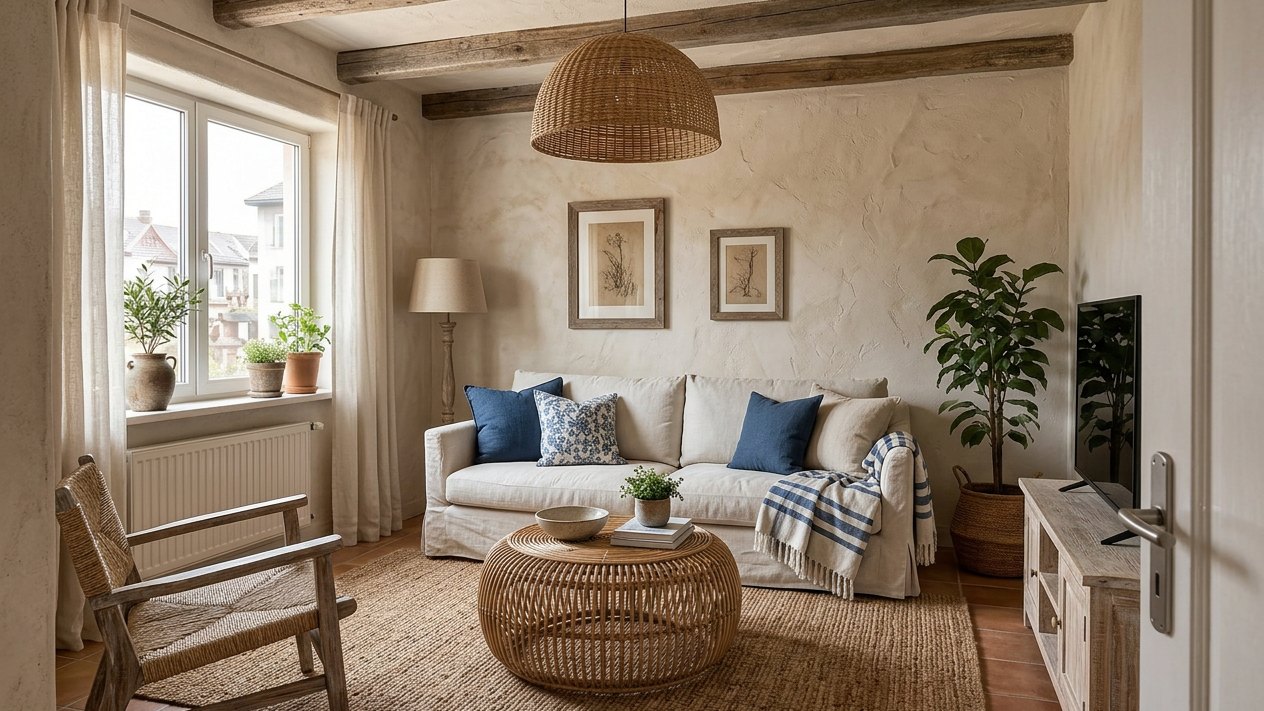
A real result from the GenRoom Studio. The window, radiator, door and the shape of the room come from the owner's photo; the colours, materials and mood come from one inspiration photo.
To make your room look like a picture with AI, upload a photo of your own room, attach the inspiration photo as a reference, and tell the AI what to take from it: the whole mood, or one thing. In the GenRoom Studio that is Design from a photo → Add a photo → Add as a reference, the My own style option and one sentence, then Create design (2 credits). About 20 seconds to a minute later you get your room, with your windows and doors, in the palette and materials of the picture. To copy a single item instead, such as a headboard or an armchair, the editor has a Use my reference action.
We tested this on one ordinary living room with three very different inspiration photos, a bedroom where only the headboard wall was copied, and a house facade restyled after a reference house. Below you'll find the exact steps, every result unedited, what carried over and what didn't, and the limits we hit.
What Are People Actually Asking For?
Most people who want this don't think in style names. They have a picture: a pin, a hotel room they stayed in, a page from a magazine, a friend's kitchen. Between March and mid-October 2026, 366 GenRoom users described this exact job in their own words.
Paraphrased and anonymised, their requests sound like this:
- "Put the kitchen from the reference in here, and do the ceiling in the same material."
- "Like the reference photo, but in lighter colours."
- "I sent a picture. Please design ours in a similar way."
- "I want the feel of the second photo."
- "Apply this same design to the photo I just uploaded."
- "An exterior facade according to the attached picture."
- "Make my room like the one in the photo, with that vibe, and remove the unnecessary things."
Two different jobs hide in that list. Some people want the whole mood: palette, materials, lighting, the overall feeling. Others want one specific thing: that headboard, that ceiling, that armchair. The Studio handles them with two different tools, so it pays to know which job you have before you start.
How Do You Make Your Room Look Like an Inspiration Photo? (Step by Step)
The short answer: start a Design from a photo, add the inspiration picture as a reference, choose My own style, and write one sentence about what to take from it. Here is the full path, exactly as it appears in the Studio.
- Open the Studio and choose "Design from a photo". Upload a photo of your room. Shoot it at eye level, from a corner or a doorway, in daylight. The Studio recognises the type of space (living room, bedroom, facade and so on). If it gets it wrong, change it in the Type menu above the photo.
- Add your inspiration photo. In Your brief, press the photo icon. A small menu opens with three choices: Add as a reference, Put on the picture and Choose from the library. For an inspiration photo, choose Add as a reference.
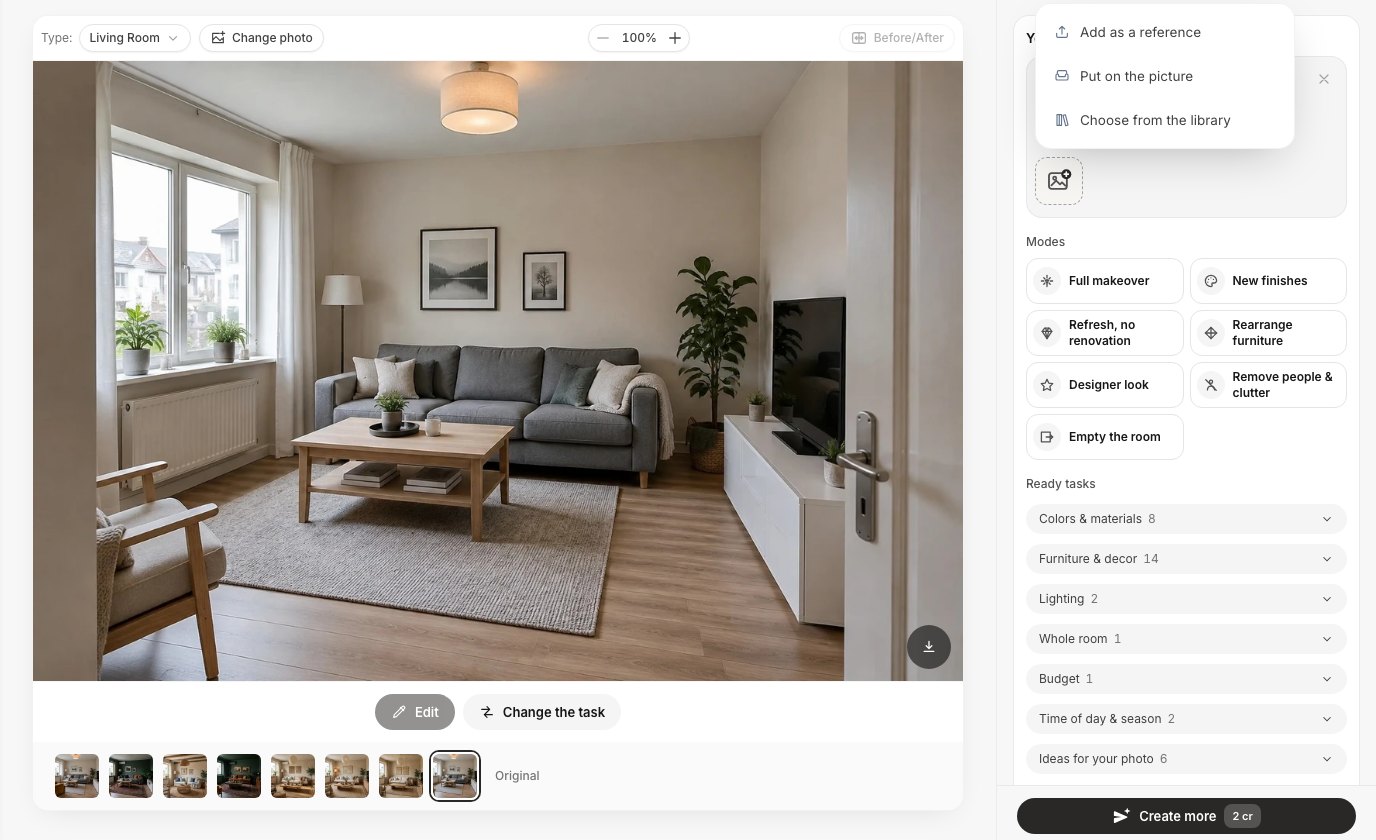 The Add a photo menu in Your brief. "Add as a reference" is for inspiration; "Put on the picture" is for placing a cut-out object into your photo.
- Check the reference in the brief. The picture appears as a thumbnail with a number. Your own room is photo 1, so the first reference is photo 2, the next one photo 3, and so on. Under the thumbnails the Studio shows how many references you have and the maximum for your plan (on a Pro account, "References · 1/5").
- Write one sentence. Something like "Make my living room like the reference photo: same colours, materials and mood". You don't have to describe the picture. The AI sees it.
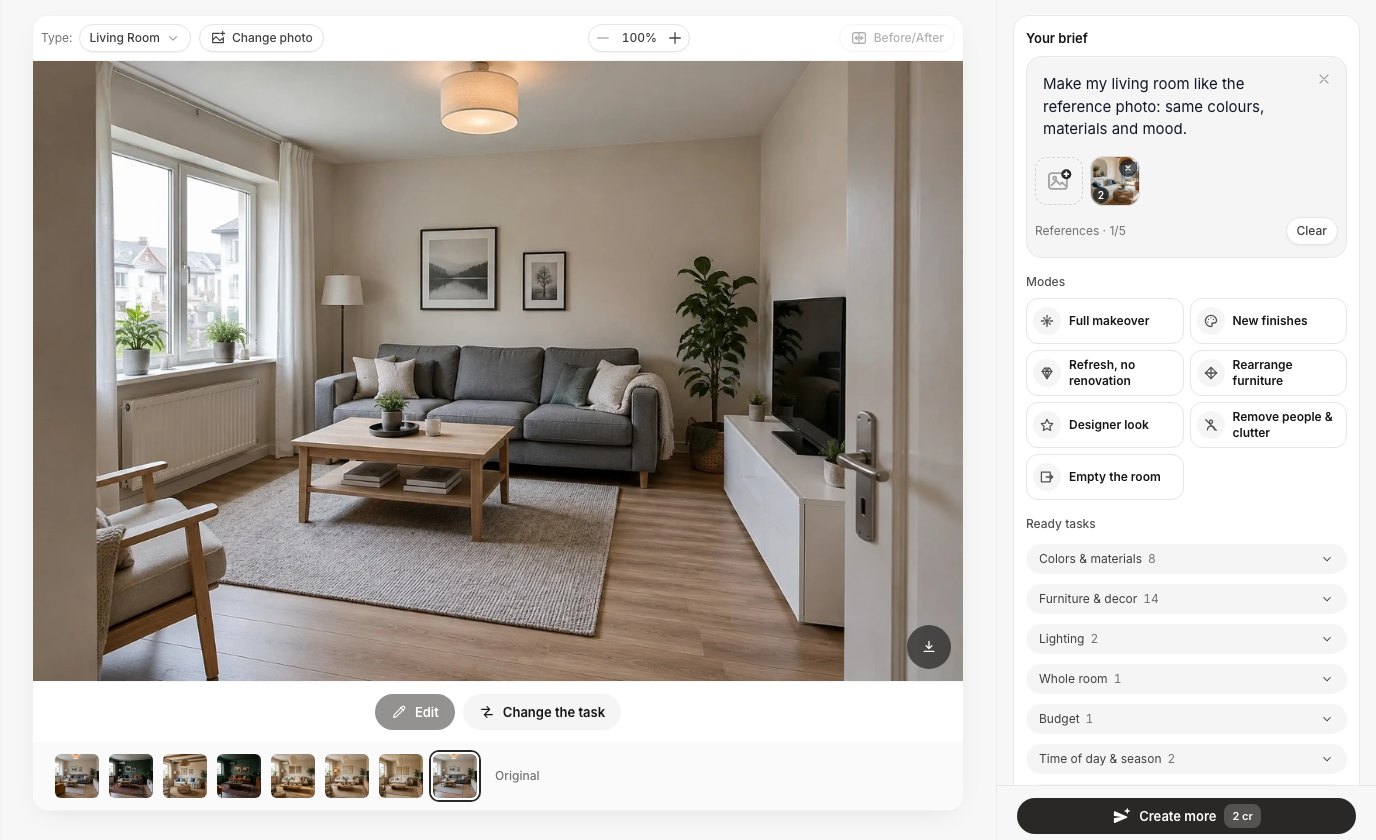 The inspiration photo sits in the brief as reference 2. The counter shows how many references the plan allows.
- Choose "My own style". Scroll to Style. The first tile, My own style, means "no preset template": the Studio follows your brief and your references only. Pick a catalogue style instead (Scandinavian, British, Minimalism and others) if you want a mix; more on that below.
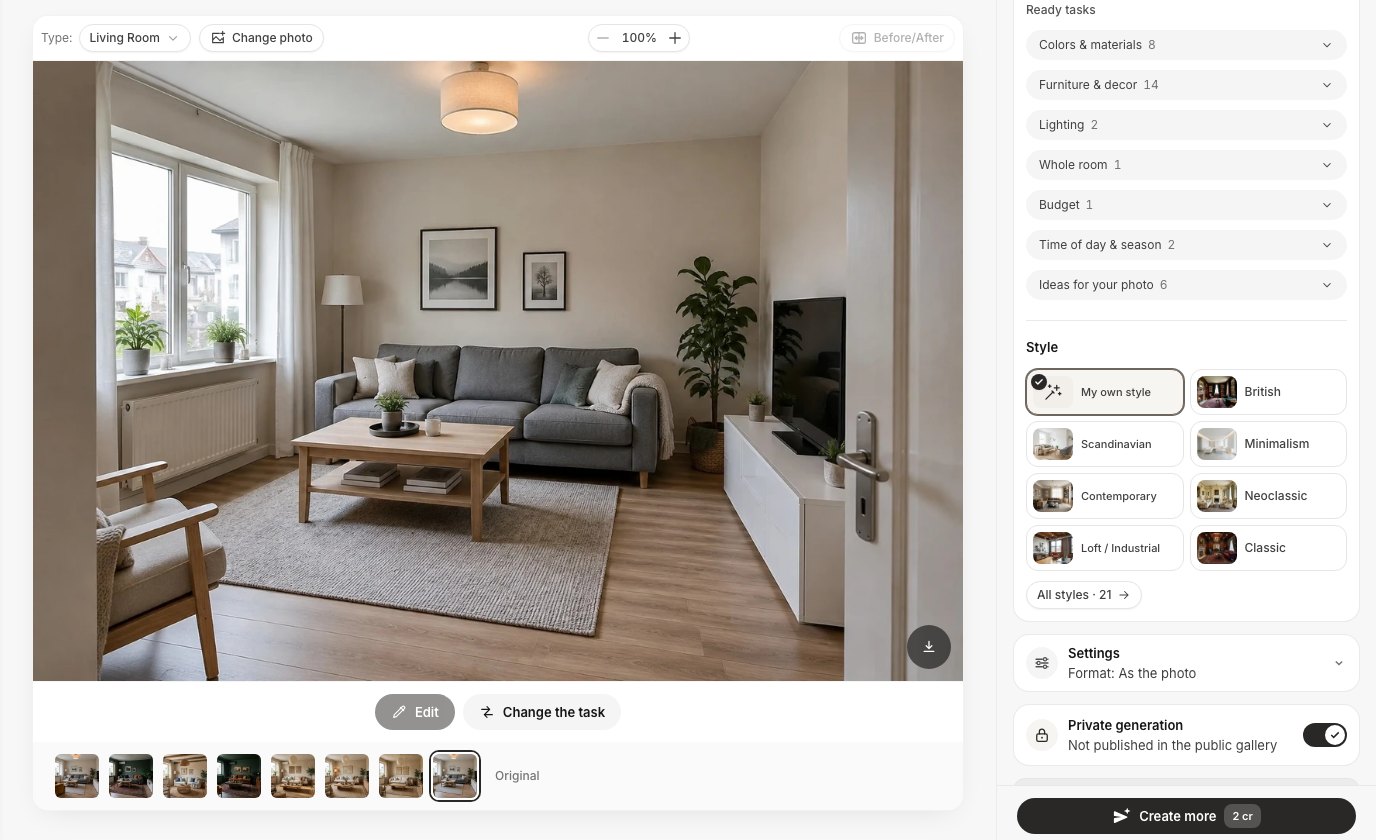 My own style is the first tile in the Style section. With it, the design follows your sentence and your reference instead of a preset style.
- Press "Create design". Each design costs 2 credits. In our tests the result arrived in 20 to 60 seconds. Every new design appears as a new version in the strip under the photo, so you can try another inspiration picture and compare them with the before/after view.
One thing that tripped us up: references stay in the brief after you create a design. If you then add a second inspiration photo for a new try, both are sent. Press Clear next to the reference counter before you switch pictures (see the limits section for what happened when we forgot).
One Room, Three Inspiration Photos: What Carried Over?
We took one plain apartment living room (grey sofa, oak laminate, white TV unit, beige walls) and ran the same sentence with three magazine-style inspiration photos: a warm Japandi room, a dark green library-style room and a Mediterranean coastal room. All three inspiration rooms have a different layout from ours. These are unedited results.
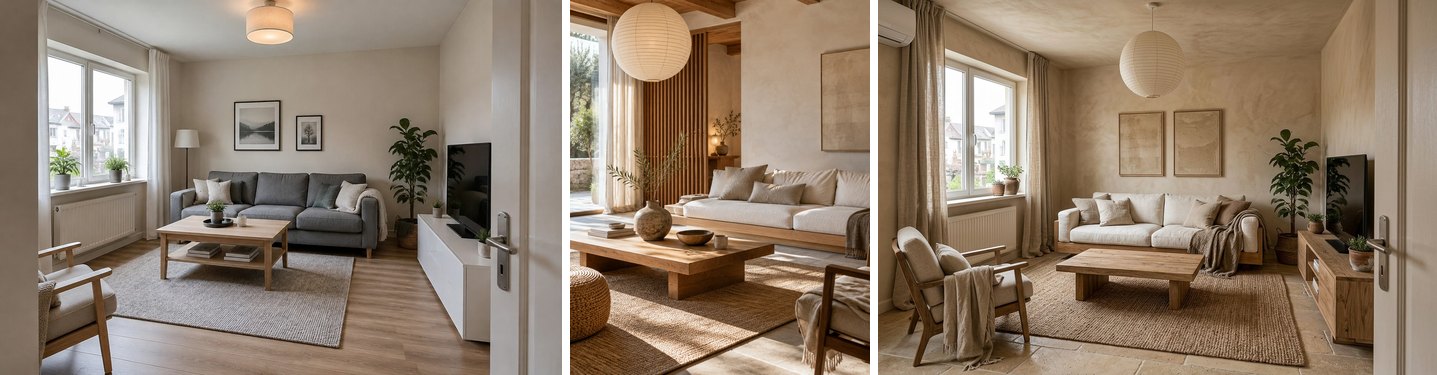 Japandi: the result took the paper lantern, the limewash-style walls, oak, linen and jute. The window, radiator, door and TV wall stayed where they are.
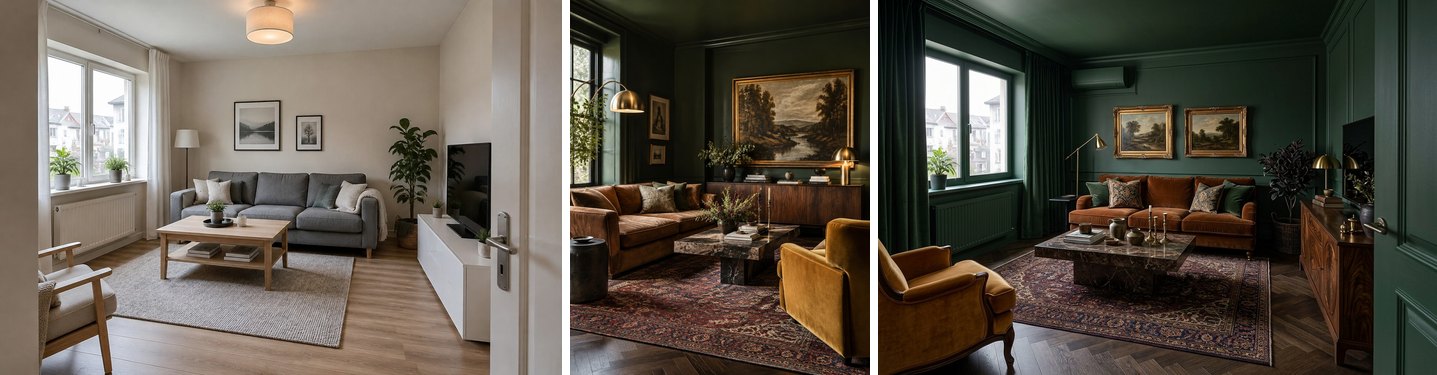 Dark green: the strongest change of the three. Walls, ceiling, floor, sofa, rug, art and lamps all followed the picture.
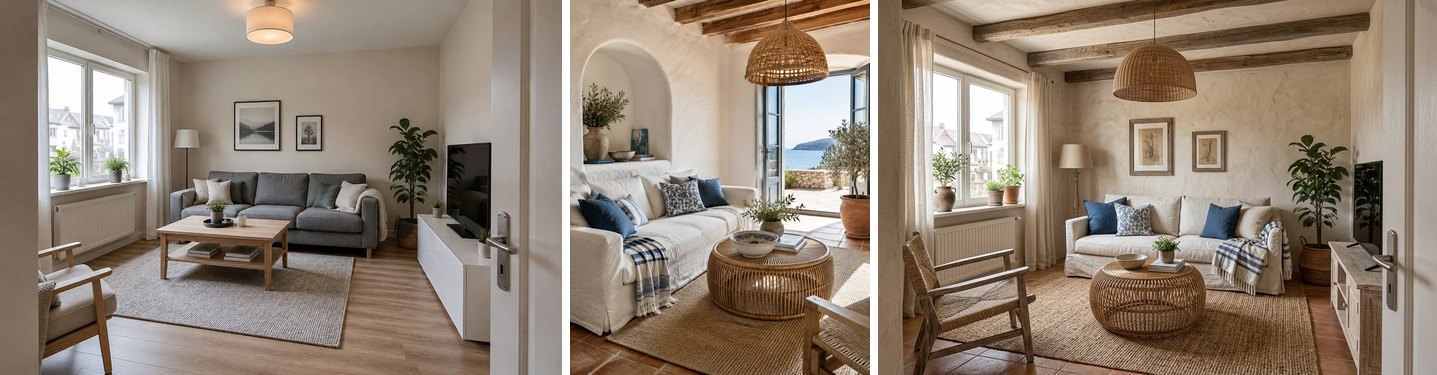 Coastal: rattan, terracotta, white plaster and blue-and-white textiles carried over. The arched niche and the sea-view doors did not, because our room has no place for them. The ceiling beams were added.
Here is what moved from the picture into the room, and what stayed from the room:
| Japandi | Dark green | Coastal | |
|---|---|---|---|
| Wall colour and texture | ✅ limewash-style plaster | ✅ deep green, ceiling too | ✅ rough white plaster |
| Floor | ✅ pale stone tiles | ✅ dark herringbone | ✅ terracotta |
| Signature light | ✅ paper lantern | ✅ brass lamps | ✅ rattan pendant |
| Sofa and coffee table | ✅ similar types, new pieces | ✅ cognac sofa, marble table | ✅ slipcovered sofa, rattan table |
| Art and textiles | ✅ beige abstract art, linen | ✅ gilded landscapes, Persian rug | ✅ blue-and-white cushions, jute |
| Window, radiator, door | kept | kept | kept |
| Furniture positions | kept | kept | kept |
| Things the room can't hold | slatted screen dropped | brass arc lamp moved | arch and sea doors dropped |
That's the rule worth remembering: the AI copies mood, palette and materials far better than it copies a room. Your walls, windows, door and camera angle stay; the inspiration room's architecture mostly does not. It is also why the request "make my room exactly like this photo" can't be fully met when the two rooms have different shapes. The Studio redraws your room in the picture's language; it doesn't move your window.
This is built into how references work. When your sentence doesn't say what to take from a reference, the Studio tells the model to use only its mood, colours and materials, and never its room, background, camera angle or framing. In practice the model still picked very similar object types (a cognac sofa from a cognac sofa), so "only the mood" is loose, but you won't get the inspiration room pasted over yours.
My Own Style or a Catalogue Style With a Reference?
Pick My own style when the picture is the whole brief. Pick a catalogue style and add the reference when you want a recognisable style with the picture's colours on top. Both are allowed at once, and they give very different strength of change.
We ran the dark green picture twice: once with My own style, once with Scandinavian selected and the sentence "Take the colours and the mood from the reference photo".
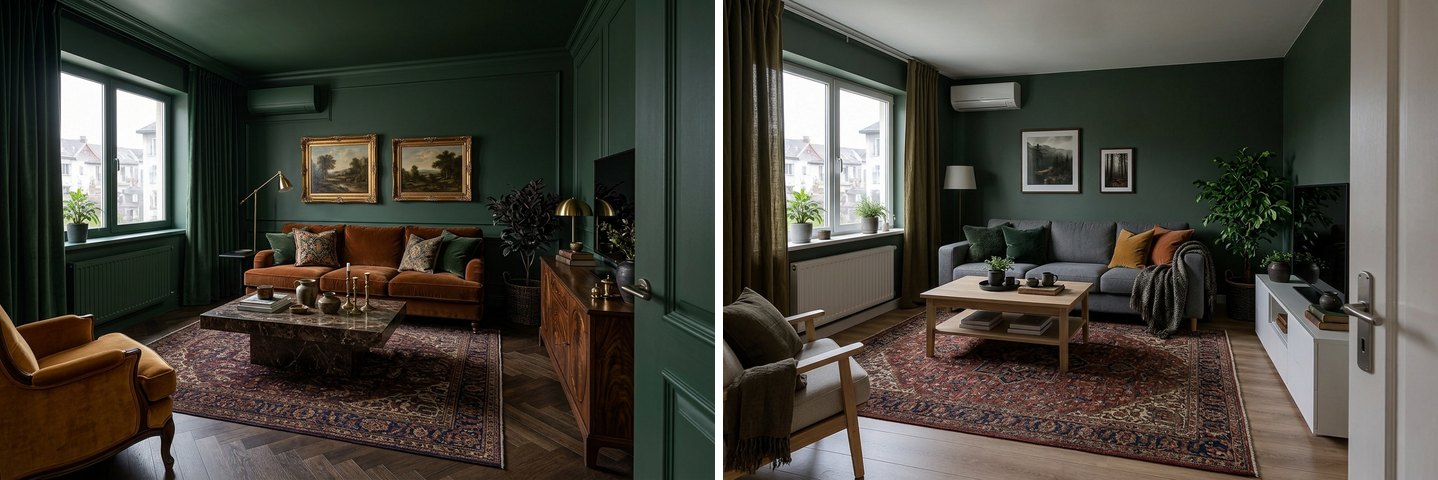 Left: My own style plus the reference. Right: Scandinavian plus the same reference. The catalogue style held the furniture closer to the original and took mainly the colours.
The Scandinavian version kept the grey sofa, the oak coffee table and the white TV unit, then brought in green walls, olive curtains, the Persian rug and mustard cushions. If you like your furniture and only want the colour story of a picture, this mix is the gentler route. If you want the full transformation, My own style goes further. Unsure which style family your saved pins belong to? Our guide on how to choose an interior design style helps you name it.
How Do You Copy Just One Item From a Photo?
Use the AI editor, not a new design. Add the picture with Add as a reference, open Quick actions → Use my reference, and fill in What to take and where. The field's own example is "the armchair from photo 2, by the window", and that pattern (what, from which photo, where) is exactly what works.
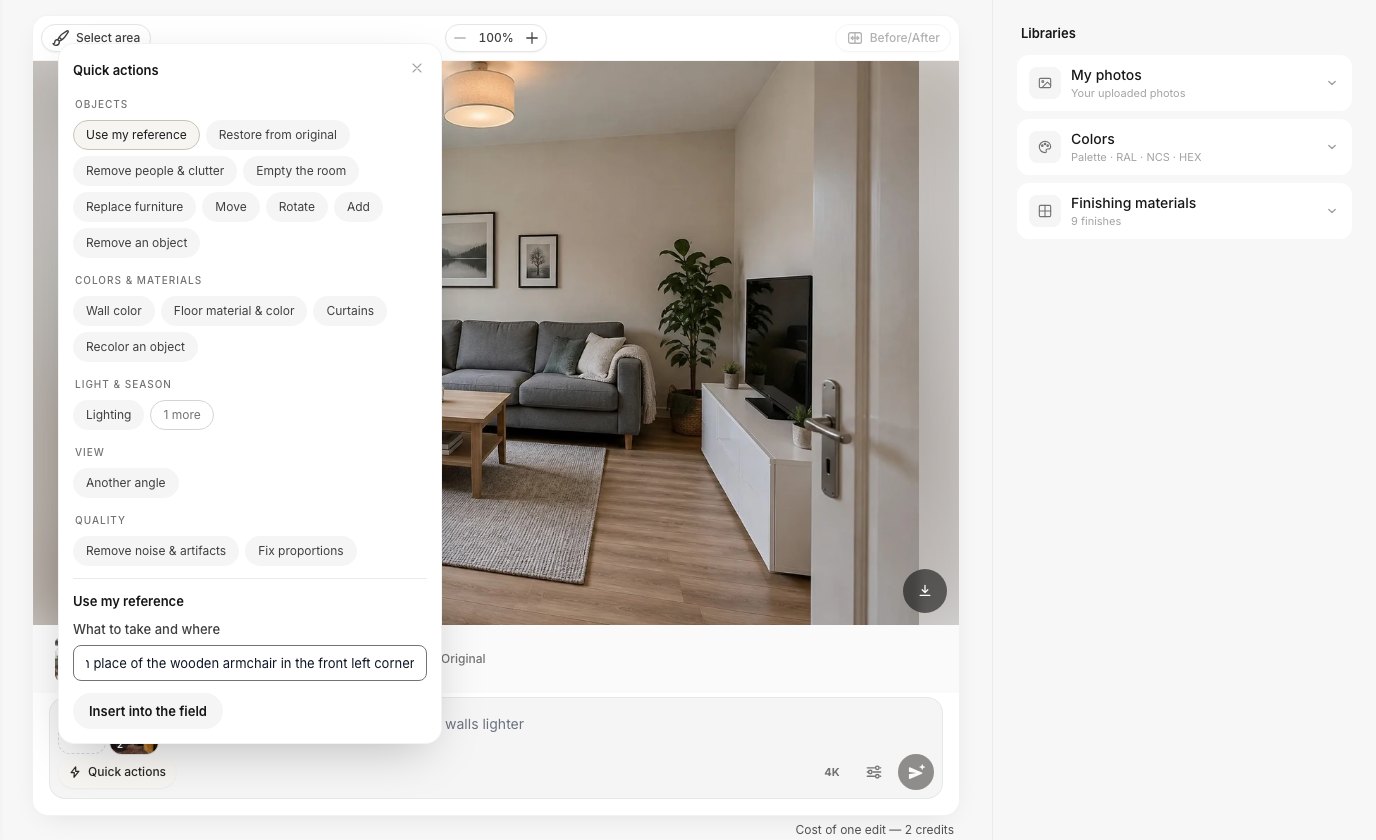 Quick actions → Use my reference → What to take and where. "Insert into the field" adds the request to the prompt above the photo.
Behind the scenes the action asks the model to reproduce the item's shape, material, pattern and colour, and to keep everything else unchanged. We asked for the mustard velvet armchair from the dark green picture, in place of our wooden armchair:
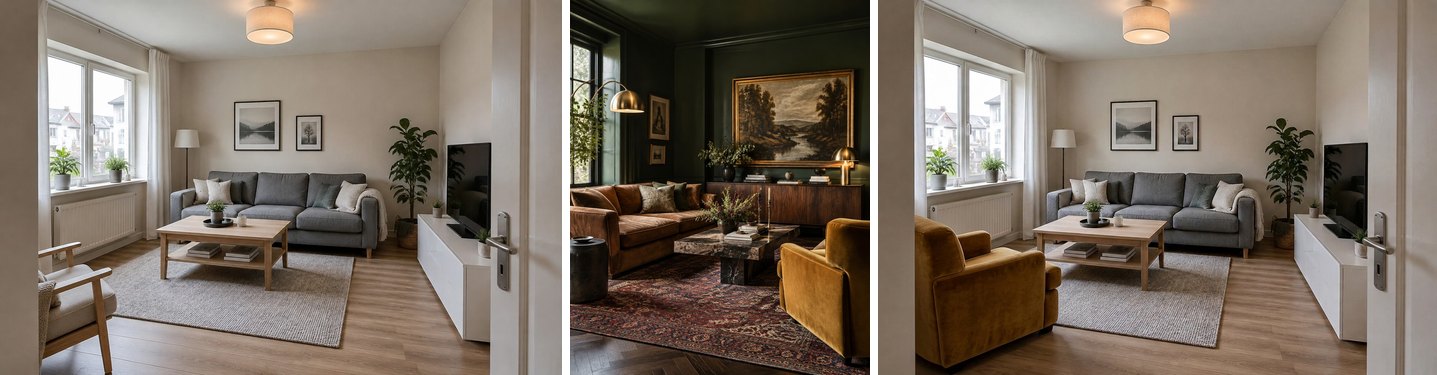 One item, nothing else: the sofa, coffee table, rug, art, TV unit and walls are untouched. Only the armchair came from the picture.
The same works for a whole surface. In a plain bedroom we asked for "the tall rust velvet channel-tufted headboard and the fluted walnut wall panels from photo 2, on the wall behind my bed":
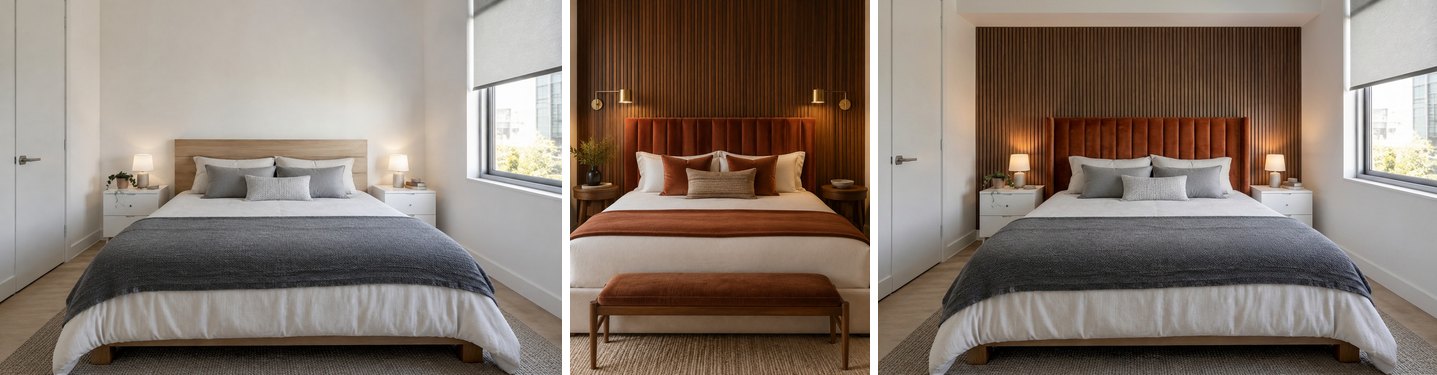 Only the headboard and the wall behind the bed changed. The grey throw, white nightstands, lamps, blind and door are from the original photo.
Notice what did not come over: the brass swing-arm wall lamps and the rust bed throw from the hotel photo. We didn't ask for them, so they stayed out. That's the advantage of naming the item: you get the headboard without the hotel. If you want the lamps too, add them to the sentence.
A few phrasing tips from our runs:
- Name the photo number. "From photo 2" removes any doubt about which picture you mean, especially when you attach more than one.
- Say where. "In place of the wooden armchair", "on the wall behind my bed", "on the ceiling". Without a place, the model picks one.
- Describe the item in plain words. "Mustard velvet armchair" works better than "that chair".
- One item per edit. Two or three changes in one request are possible, but checking them one by one is easier.
If the item you want is a product you're actually considering buying, our guide on trying furniture in your room before you buy covers that job in detail.
"Add as a Reference" or "Insert on the Picture"?
Both buttons take a photo, but they do opposite things. A reference is something the AI looks at; an inserted object is something it places. In the editor the photo menu offers both.
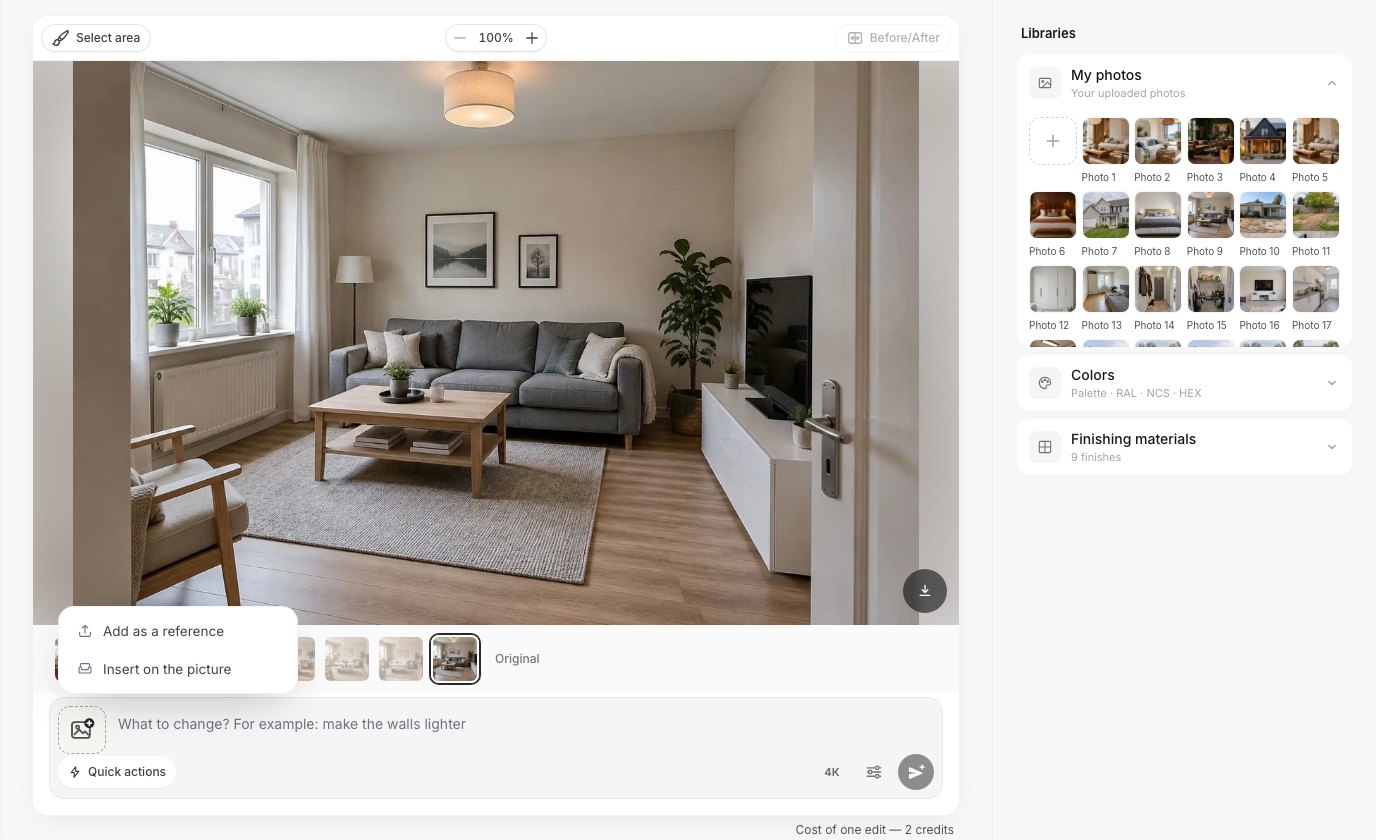 In the editor, the photo button offers Add as a reference and Insert on the picture.
| Add as a reference | Put / Insert on the picture | |
|---|---|---|
| What the Studio says | "repeats the style, color and materials" | "the object goes into the frame, we cut the background" |
| Best for | Inspiration photos, a finish, a mood, one item you describe | A product photo of one object (a chair, a lamp) |
| What you control | What to take, in words | Where the object sits, by moving it on the photo |
| Typical source | Pinterest pin, magazine page, hotel photo | Shop photo on a plain background |
| Label in Design from a photo | Add as a reference | Put on the picture |
| Label in the AI editor | Add as a reference | Insert on the picture |
For inspiration pictures, use Add as a reference. A full room photo is a poor candidate for "Insert on the picture", because the Studio would try to cut one object out of a busy scene.
Does It Work for a House Facade?
Yes. The same Design from a photo flow takes a house photo and a reference house. We used an ordinary two-storey house with beige vinyl siding and a reference of a modern farmhouse with charcoal board-and-batten, cedar porch posts and a black metal roof.
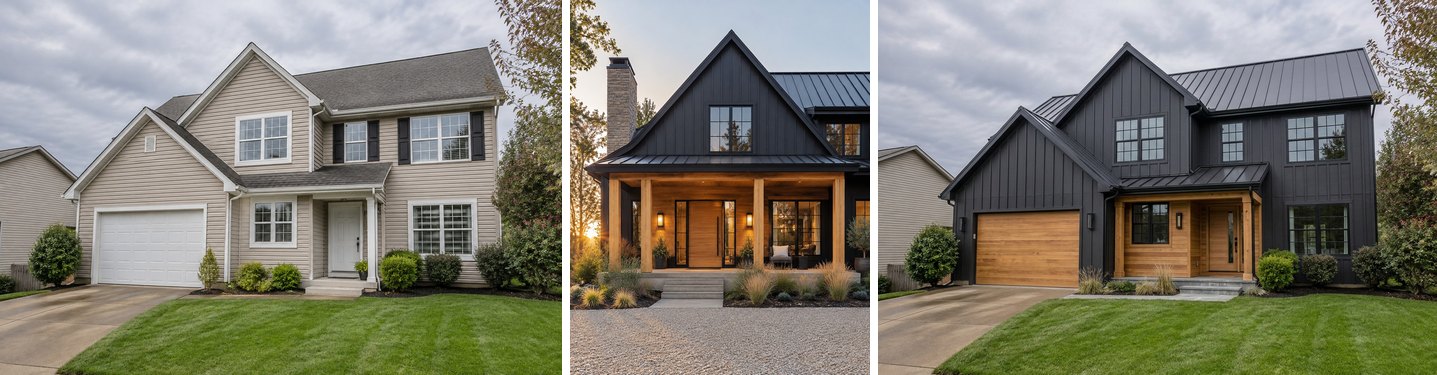 The siding, colour, metal roof, black window frames, cedar porch and wall lanterns came from the reference. The lawn, driveway, shrubs and neighbouring house stayed.
The materials transferred cleanly. The house itself did not stay quite the same: the roof gained a second front gable and the upper windows were redrawn. We ran it again with "Keep the shape of my house, the roof lines, the windows and the garage where they are" added to the sentence:
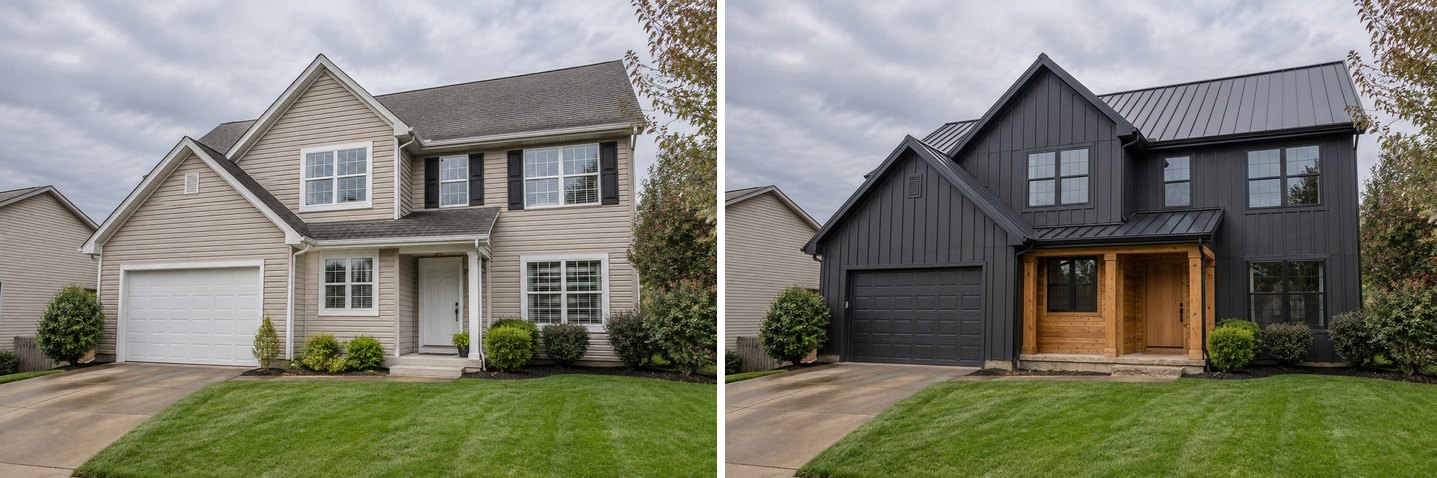 Even with "keep the shape" in the sentence, the second run also added a gable. Treat a facade result as a materials and colour study, not as a drawing of your roof.
So for a facade, use a reference to decide on siding, colours, roof material and porch details, then check the roof line against your real house before you show it to a contractor. For more on exterior projects, see our facade design page.
Create interior design with AI
Upload a photo of your room and get a professional design in 30 seconds. First generation is free.
What Happens When the Reference Room Has a Different Layout?
Your layout wins. In every interior test the window, the radiator, the door and the position of the sofa and TV stayed as in the owner's photo. The Studio's reference instructions forbid copying the reference's room, background, camera angle or framing.
What the AI does with the parts of the picture that don't fit your room varies:
- Dropped: the arched plaster niche and the open doors to the sea in the coastal picture; the slatted wood screen in the Japandi picture.
- Moved: the brass arc lamp from the dark green picture ended up as a floor lamp beside the sofa.
- Added from the picture's language: exposed wooden beams appeared on our flat ceiling in the coastal result. Nothing in our room asked for them; the picture did.
If an architectural feature matters to you (beams, an arch, panelling), name it in the sentence and say where. If you don't want one, say that too: "keep the ceiling flat".
What the AI Doesn't Do Well (Honest Limits From Our Tests)
These are the problems we hit while shooting this article, not general caveats:
- Exact copies are close, not identical. The armchair and the headboard look like the ones in the pictures, not like the same product. If you need the exact model, use the picture to decide, then check the real item's dimensions and fabric.
- It invents small things. In three of our four final living room designs an air-conditioning unit appeared on the wall. There is none in the original photo. Fix it with an edit ("remove the air conditioner") or see our guide to removing objects from a room photo.
- Two references: the first one won. When we left the Japandi picture in the brief and added the dark green one, the result was almost pure Japandi with no green at all. Use one inspiration picture per design unless you name what to take from each ("the colours from photo 2, the rug from photo 3").
- Facade roof lines change. See the facade section above.
- Lighting follows the picture. The lamp-lit dark green picture gave the darkest result, even though our room photo was taken in daylight. If you want daylight, say so in the sentence.
- Resolution. Our 1536 × 1024 photos came back at 1264 × 848. For a larger file, use 4K quality on the result (free on Basic and Pro; Free and Start include one free 4K).
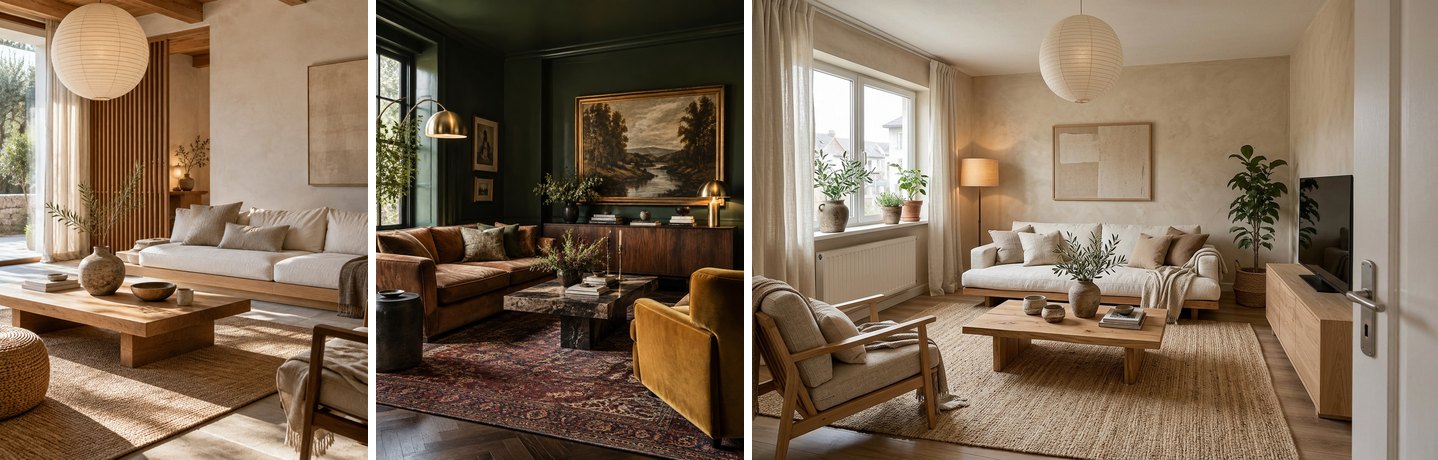 Both pictures were attached to one design without saying what to take from each. The result followed the first (Japandi) and ignored the dark green one.
Using Someone Else's Photo: Inspiration, Not Your Own Image
Using a pin or a magazine photo as private inspiration for your own room is the whole point of a mood board. Publishing that photo, or passing it off as your work, is a different matter.
The US Copyright Office puts the line clearly: "Copyright does not protect ideas, concepts, systems, or methods of doing something", while a photograph itself is protected (copyright.gov). A look (green walls, a cognac sofa, brass lamps) is an idea you're free to borrow. The photographer's picture of that room is not yours to repost.
In practice:
- Use the inspiration photo as a reference, privately. Don't post it as "my room" or "my design".
- Share your result, not their picture. Images you generate in GenRoom belong to you and can be used for any purpose, including commercially, on every plan. That covers your redesigned room, not the reference photo.
- Credit the source if you show the inspiration next to your result on a blog or social media, and follow the platform's rules for reposting.
All inspiration photos in this article were generated for this test. None is a real Pinterest or magazine image.
How to Pick an Inspiration Photo That Works
From our runs, the pictures that transfer best share a few traits:
- A clear palette. Three or four strong colours (deep green, cognac, brass) carry over better than a mix of everything.
- Visible materials. Plaster, rattan, terracotta, velvet, oak: the AI picks up surfaces it can see up close.
- One story. A room with a single mood gives a single result. A busy picture full of different ideas gives a busy result.
- The right room type. A bedroom picture for a bedroom, a house for a house. The model adapts across rooms, but a living room picture for a bathroom forces it to guess.
- Your own photo matters as much. Shoot your room straight, in daylight, with the whole wall you care about in frame. Our step-by-step guide to AI room design from a photo covers good source photos.
If the picture is mainly about one colour, you may not need a reference at all: our guide on trying paint colours on a photo of your room shows how to pick exact paint codes. And if it's about a wallpaper pattern, the wallpaper visualizer is the more direct route.
What Does It Cost, and How Many References Can You Use?
| Free | Start | Basic | Pro | |
|---|---|---|---|---|
| Price | $0 | $9.99 | $19.99 | $39.99 |
| Credits | 6 | 36 | 100 | 300 |
| Designs and edits (2 credits each) | ≈3 | ≈18 | ≈50 | ≈150 |
| Reference photos per design | 1 | 1 | 1 | up to 5 |
| My own style, Use my reference, Put on the picture | ✅ | ✅ | ✅ | ✅ |
| Watermark | yes | no | no | no |
| 4K | 1 free | 1 free | free | free |
Credits are one-time packs, not a subscription, and purchased credits are valid for 180 days. If a generation fails, the credits come back automatically. One reference is enough for everything shown in this article except mixing several pictures; full details are on the pricing page.
FAQ
Can I make my room look like a Pinterest picture with AI?
Yes. Upload a photo of your room in GenRoom's Design from a photo, attach the pin with Add as a reference, choose My own style and write one sentence such as "make my room like the reference photo". The result keeps your room's shape and takes the picture's palette, materials and mood.
Can AI copy a room from a photo exactly?
Not exactly, and that's mostly a good thing. The AI keeps your windows, doors and camera angle, so the inspiration room's layout can't come over as it is. Mood, colours and materials transfer well; individual items come out close to the originals, not identical.
How do I copy just one thing from a picture, like a headboard?
Use the AI editor: Add as a reference, then Quick actions → Use my reference, and fill in What to take and where, for example "the rust velvet headboard from photo 2, on the wall behind my bed". Everything you don't mention stays as it is.
How many inspiration photos can I use at once?
One reference per design on every plan, including Free. The Pro plan allows up to 5 reference photos per design. With several references, name what to take from each by its photo number. Otherwise one picture can dominate, as happened in our test.
Does it work for a house exterior or a patio?
It works for facades: our reference house transferred siding, colour, roof material and porch details, though the roof line changed. The same Design from a photo flow accepts yards and outdoor spaces. We didn't test a patio reference for this article, so check the result as you would any facade.
Is it legal to use someone's Pinterest photo as a reference?
Using a photo as private inspiration for your own room is normal practice; a style or idea isn't protected by copyright, the photo itself is. Don't repost the inspiration photo as your own, and credit the source if you show it. Your generated result is yours to use.
Why did my result ignore my new inspiration photo?
Check the brief for older references. References stay attached after you create a design, so a second picture is sent together with the first. Press Clear next to the reference counter, add the new picture and create again.
The Bottom Line
A picture you love is a better brief than any style name, and AI can now read it. Attach it as a reference to a photo of your own room and you get your room in its palette, materials and mood in under a minute, for 2 credits. Name one item with Use my reference and you get just that headboard or that armchair, with the rest left alone.
Expect your layout to stay, small inventions to appear and exact products to come out as close cousins. Use the result to decide, then shop and measure for real. Start with one room photo and one inspiration picture in the GenRoom Studio.