AI Furniture Removal: Empty Any Room Photo for Staging (2026)
AI Furniture Removal: Empty Any Room Photo for Staging & Redesign
AI furniture removal is a tool that digitally erases furniture, decor, and clutter from a room photo and reconstructs the walls, floor, and shadows behind them, producing a clean, empty-room image in about 30 seconds. You upload a photo, the AI detects movable objects, removes them, fills in the surfaces that were hidden, and returns a photorealistic empty space you can list, restage, or redesign. What used to take one to three hours of manual Photoshop masking now happens in a single click.
This guide explains why you would want to empty a room before staging or redesigning it, shows real before-and-after results from two removal modes, walks through the exact workflow, sets honest expectations about quality (shadows, floor reconstruction, and where AI still struggles), and breaks down the use cases for real estate agents and homeowners. If you want to try it on your own photo while you read, GenRoom has two one-click modes for this in its design Studio — "Empty the room" and "Remove people & clutter" — plus a furniture removal page with more examples.
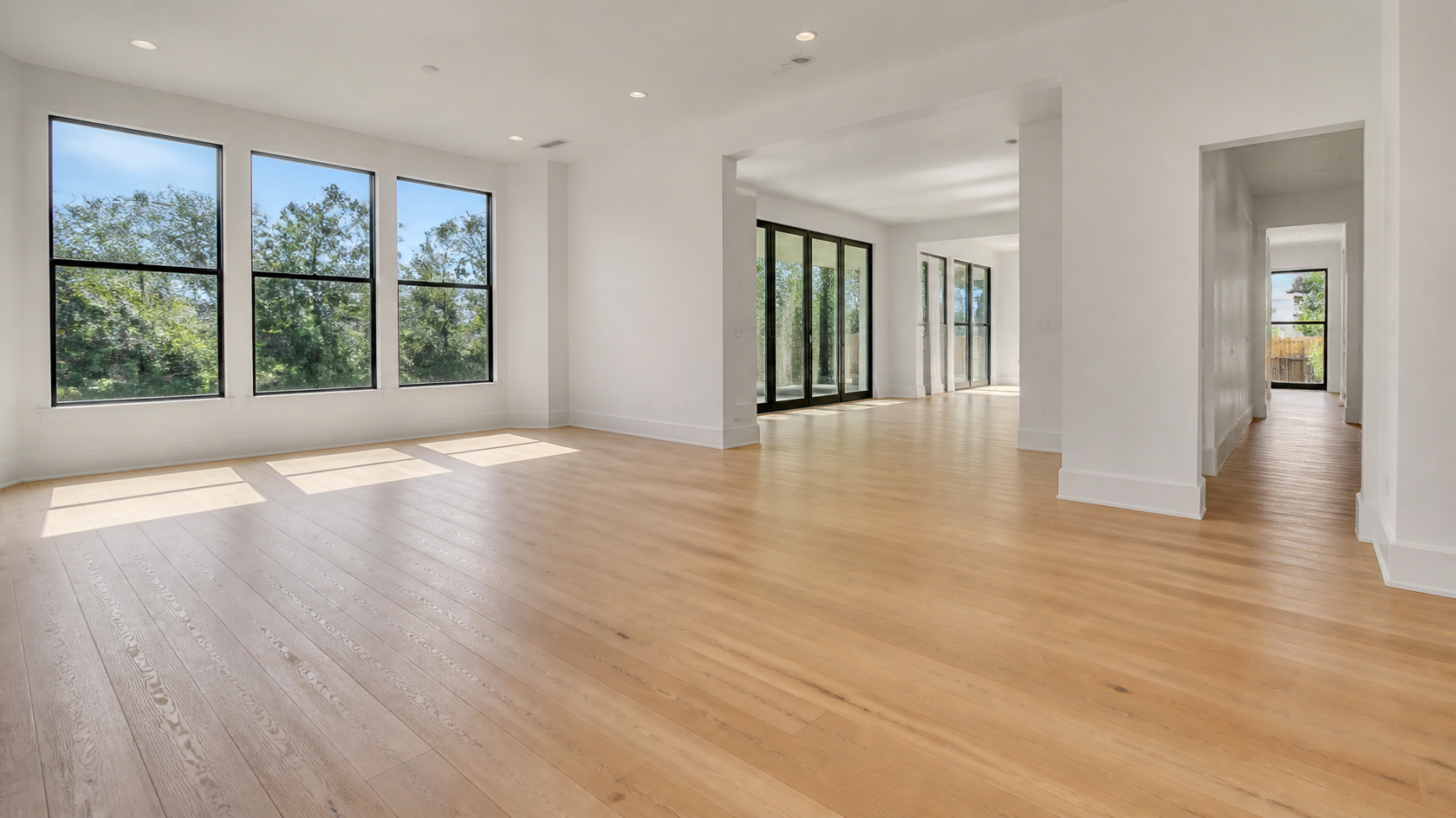
An empty living room produced by AI furniture removal — the floor, baseboards, and corners are reconstructed as if the furniture was never there.
What Is AI Furniture Removal?
AI furniture removal uses a computer-vision technique called inpainting: the model recognizes furniture and objects in a photo, deletes them, and then intelligently paints the revealed background using texture and color cues from the surrounding pixels. The result is an empty room that keeps the same architecture, lighting, and perspective as the original — only the movable objects disappear.
The distinction that matters is what stays and what goes. Walls, floors, ceilings, windows, doors, and built-in fixtures are preserved exactly where they are. Sofas, tables, rugs, lamps, wall art, boxes, and personal clutter are removed. A good tool also erases the shadows the furniture cast and rebuilds the ambient lighting, because a floating shadow with no object above it is the fastest way to make an edited photo look fake.
Quotable definition: AI furniture removal is virtual decluttering — it turns an occupied or messy room into a clean, empty canvas without moving a single physical object.
This is the first step of a larger workflow. Once a room is empty, it becomes a blank slate you can furnish with virtual staging, redesign in a new style, or publish as-is to emphasize a property's square footage.
Two Modes in GenRoom: "Empty the Room" and "Remove People & Clutter" (Real Examples)
GenRoom splits removal into two modes because people usually want one of two very different things: an empty room, or the same room without the mess.
| Mode | What it removes | What it keeps | Best for |
|---|---|---|---|
| Empty the room | Furniture, rugs, curtains and decor | Walls, floor, windows, doors and built-ins | Virtual staging, showing square footage, starting a redesign |
| Remove people & clutter | People, toys, bags, shoes, laundry, boxes, bins | The furniture and the room as they are | Listing photos of occupied homes, cleaning up a real photo |
Both are one tap in the list of design modes, with no selection or prompt needed, and each run costs 2 credits. We tested both on ordinary, lived-in photos — not staged showroom shots. The pictures below are the real output.
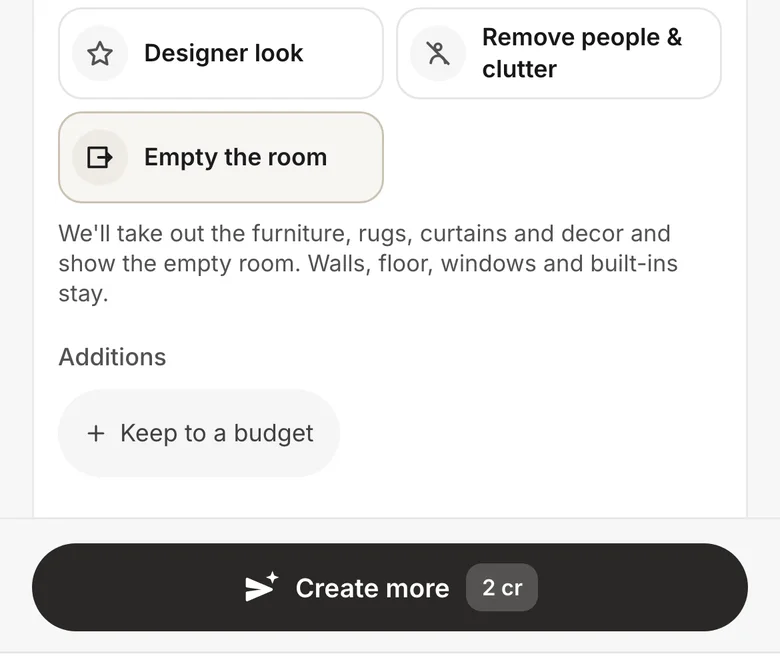 The two removal modes sit next to the other design modes. The description says exactly what stays.
"Empty the room": a lived-in bedroom
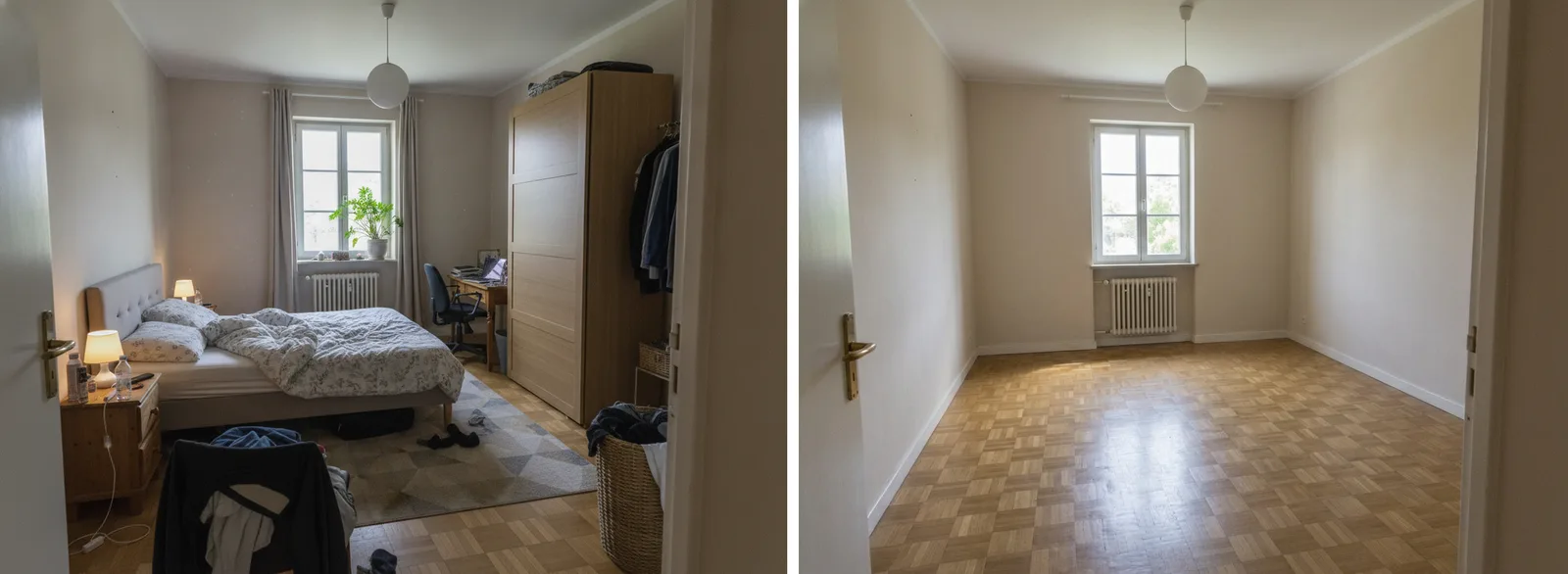 Before and after "Empty the room". The bed, wardrobe, desk, rug, lamps and clothes are gone; the parquet is rebuilt under them; the door, window, radiator and ceiling lamp stay where they were.
This is the kind of photo agents actually get from occupied rentals — and the kind that is hardest to edit by hand. The mode removed everything movable in about 30 seconds and rebuilt the parquet pattern where the bed and rug had been. The frame moved slightly closer, but the room is clearly the same room.
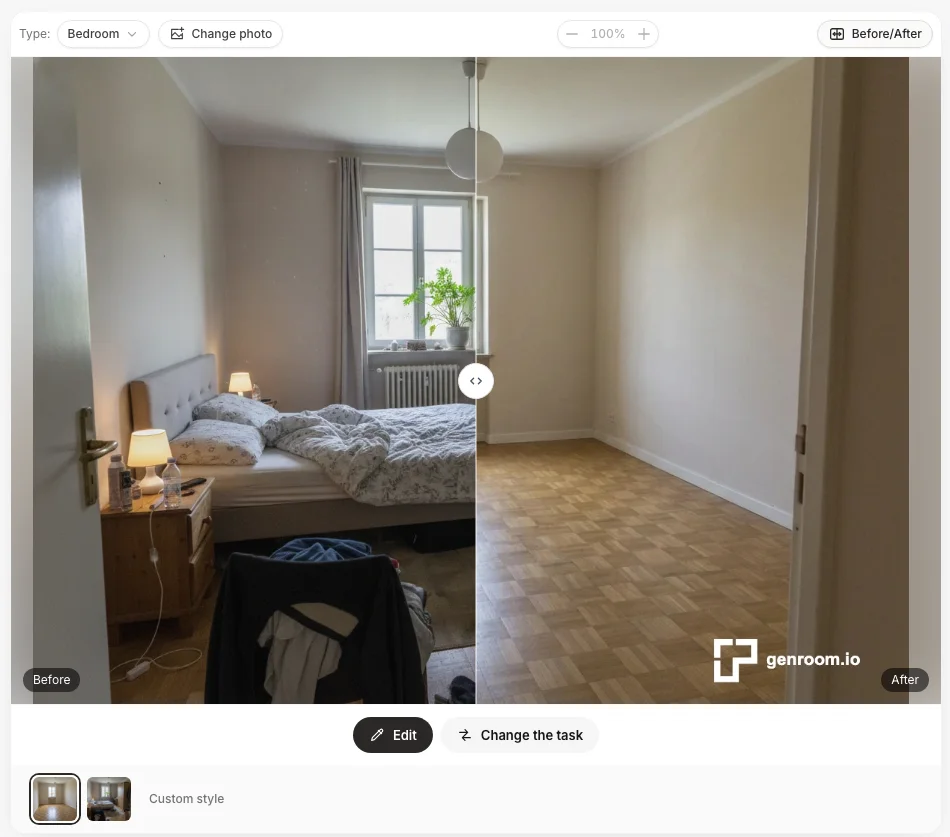 The built-in before/after slider makes it easy to check the floor and corners before you download.
"Remove people & clutter": a family living room
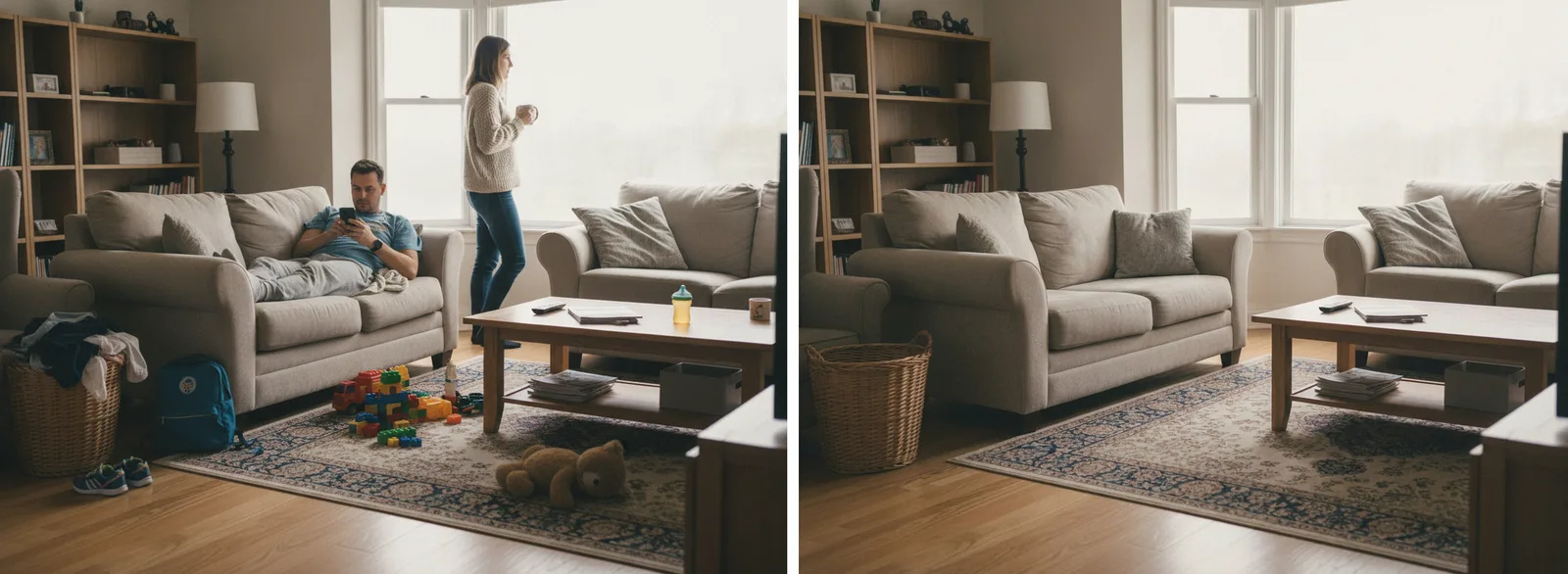 Before and after "Remove people & clutter": both people, the toys, the backpack, shoes and laundry are gone — the sofas, shelves, coffee table, rug and camera angle are untouched.
This mode keeps the room and takes out only what shouldn't be in a listing photo. In our test it removed both people and every scattered object and kept all the furniture in place; the only invented detail was an extra cushion on the sofa.
Why Empty the Room First?
You empty the room first because a clean slate produces better staging, better listing photos, and better redesigns than trying to work around furniture that is already there. There are three distinct reasons to reach for furniture removal, and they map to three different goals.
Reason 1 — Virtual staging needs a blank canvas
Virtual staging adds photorealistic furniture to a space. But if the room already contains a tenant's mismatched couch or the previous owner's dated dining set, the new AI furniture has to compete with — or awkwardly overlap — what is already in the frame. Removing the existing furniture first gives the staging model a clean, empty room to furnish, which is exactly what it was trained to do. In GenRoom the next step is the "Furnish" mode, which furnishes an empty room for its purpose and size — with an option to stage it bright and neutral for a listing. This is why professionals describe furniture removal as "the first step to creating perfect virtual staging." For the full furnishing side of this workflow, see our guide on turning an empty room into a furnished listing before you list.
Reason 2 — Decluttering listing photos sells space
Empty and decluttered rooms photograph as more spacious, modern, and inviting. When a buyer scrolls a listing on Zillow, Redfin, or Rightmove, a clean room lets them focus on the layout, light, and flow instead of a stranger's belongings. Agents routinely use furniture removal to declutter occupied homes — pulling out the personal photos, the oversized recliner, the stack of moving boxes — so the online photos look listing-ready even while the sellers still live there. Our full breakdown of the listing side lives in the AI virtual staging for real estate guide.
Reason 3 — Redesign starts from a clean slate
If you are planning a renovation or a style change, an empty room is the honest starting point. Trying to imagine a Japandi living room while a bulky brown sectional dominates the photo is hard. Remove the furniture, and you can drop in a completely new style — flooring, wall color, and furniture — without the old room fighting you. Homeowners use this to A/B different layouts and design directions before spending a dollar on real furniture.
How to Remove Furniture From a Photo With AI: Step-by-Step
Removing furniture from a photo with AI takes four steps and under a minute. The workflow below is deliberately simple, because the quality of the output is bounded far more by your source photo than by the number of settings you tweak.
 The "before" state: an occupied room full of movable objects and shadows the AI will need to remove and reconstruct.
Step 1 — Photograph the room correctly
Garbage in, garbage out applies absolutely. Shoot with a wide-angle lens (16–24mm equivalent) from a corner toward the opposite corner to capture maximum floor area. Keep the camera level — no tilt — at roughly chest height. Use natural light with all interior lights on and blinds open, and shoot at 12 megapixels or higher. A clear, well-lit, sharp photo gives the AI the most surface texture to reconstruct from.
Step 2 — Upload the photo
Upload the photo to the GenRoom Studio. The Studio detects the room type on its own. Common spaces all work — living rooms, bedrooms, kitchens, bathrooms, patios and yards.
Step 3 — Empty the room, remove the clutter, or select specific objects
Pick the job that matches your goal:
- "Empty the room" — one tap clears the furniture, rugs, curtains and decor in one pass. Best when you want a fully empty space for staging or a listing.
- "Remove people & clutter" — one tap takes out people and the mess but keeps the furniture. Best for occupied homes and family photos of a room.
- Selective removal — select an object with the brush (the recliner, the boxes, one piece of wall art) and ask to remove it. Best when only one or two things have to go.
Then press "Create design". Each run costs 2 credits.
Step 4 — Review, iterate, and download
The AI processes the image in roughly 30 seconds and returns the result next to the original in a before/after slider. Inspect the reconstructed floor and corners. If an area looks off — a smudged baseboard, a lingering shadow — regenerate or run a second pass. Because AI generation is fast and cheap, iterating two or three times to get a clean result is normal and expected. Then download the empty-room image and move on to staging or redesign.
What Quality Can You Expect? Shadows, Floors, and Limits
Modern AI furniture removal is genuinely good on clean, well-lit rooms with simple furniture, and noticeably weaker on complex scenes. Setting the right expectations up front saves you frustration.
Floor and surface reconstruction
The AI extends visible flooring patterns — hardwood grain, tile lines, carpet texture — seamlessly into the areas revealed by removed furniture. It matches color and texture from the visible parts of the same surface, then rebuilds baseboards, wall sections, and ceiling areas that were hidden. On a room with continuous hardwood and a plain wall, reconstruction is usually clean enough to publish.
Shadow handling
A quality tool removes not just the object but the shadow it cast, then recreates appropriate ambient lighting so the empty space looks naturally lit. Leftover shadows are the classic tell of a rushed edit, so always check the floor where furniture used to sit.
Where AI still struggles
Honesty matters here. Even in our own tests not every run was clean. In this living room "Empty the room" removed all the furniture — but also redrew the room: the camera moved back and the window shifted toward the center.
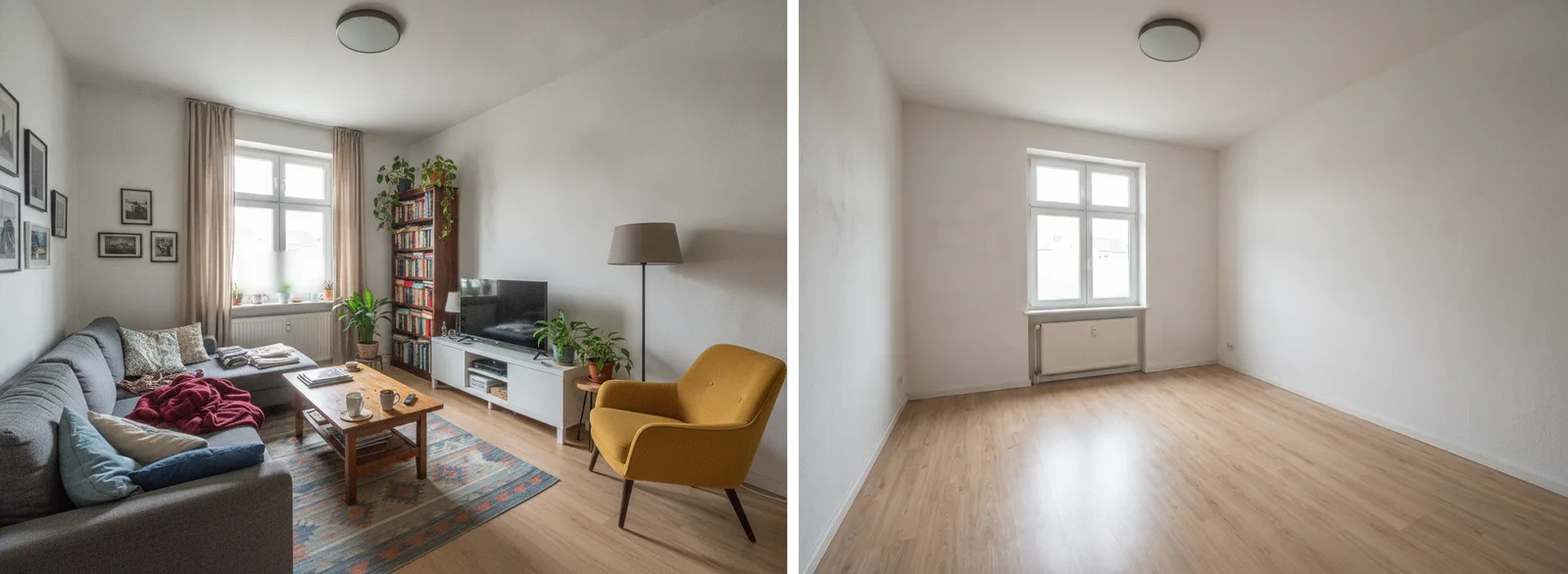 A failed run, shown on purpose: the room is empty, but the window and the angle changed. A result like this is not usable for a listing — run it again or remove the pieces one by one with the brush.
Performance also drops on:
- Harsh, directional shadows and strong reflections (glossy floors, mirrors, glass tables).
- People and pets — use a dedicated mode such as "Remove people & clutter" rather than a general "empty" pass; on outdoor photos the frame can shift slightly, so check the edges.
- Heavily patterned or complex floors where the AI has to invent a lot of texture behind a large object.
- Built-in-versus-movable ambiguity — occasionally the model treats a movable island or shelf as architecture, or vice versa.
- The frame itself — a full "empty" pass can redraw windows or move the camera slightly, as in the example above. Compare the window and door positions in the before/after slider every time.
The realistic summary from testing across tools: sometimes excellent, occasionally clearly artificial in a way a careful viewer will notice. That is why the review-and-iterate step matters, and why for a high-stakes listing photo you should look closely before publishing rather than trusting the first pass blindly.
Create interior design with AI
Upload a photo of your room and get a professional design in 30 seconds. First generation is free.
Use Cases: Real Estate Agents vs Homeowners
AI furniture removal serves two audiences with different priorities. Here is how each one actually uses it.
For real estate agents and photographers
- Declutter occupied listings so photos look move-in ready while sellers still live in the home.
- Empty then restage rental units and dated interiors to show buyers a clean, modern space.
- Speed up turnaround — 30 seconds per image beats hours in Photoshop or days waiting on an editing vendor.
- Cut cost per photo dramatically versus physical decluttering, which industry sources put at roughly $50–$200 per session, and versus traditional photo editing at around $30–$300 per image.
One rule that never changes: if you publish a staged or edited photo to an MLS, disclose it as virtually staged. Removing the seller's clutter for a cleaner shot is normal; misrepresenting the property is not. Check your local MLS and disclosure rules before you list.
For homeowners and renters
- Plan a renovation by emptying the current room and testing new flooring, paint, and layouts.
- A/B design directions — see the same room as Scandinavian, modern, or minimalist from a clean slate.
- Declutter for a fresh look without physically moving heavy furniture just to visualize an idea.
- Sell your own home with cleaner photos if you are listing for-sale-by-owner.
AI Furniture Removal vs Manual Editing vs Physical Decluttering
Furniture removal used to mean either paying a photo editor, hiring a decluttering crew, or spending hours in Photoshop yourself. Here is how the AI approach compares.
| Method | Time per photo | Typical cost | Quality | Best for |
|---|---|---|---|---|
| AI furniture removal | ~30 seconds | Low (credits) | Good on clean rooms; iterate for tricky ones | Fast listings, staging prep, redesign |
| Manual Photoshop | 1–3 hours | Your time or ~$30–$300/image | High if skilled | One hero shot where perfection matters |
| Photo editing vendor | 12–48 hours | ~$8–$300/image | High, but slow | Agencies with volume and lead time |
| Physical decluttering | Half a day+ | ~$50–$200/session | Real, not edited | Homes where you also need the room physically clear |
The AI advantage is speed and cost at scale; the trade-off is that complex scenes may need a second pass or, occasionally, a human touch-up. For most listing and redesign work, that trade is overwhelmingly worth it.
Free vs Paid: What "Remove Furniture From Photo AI Free" Really Means
Many tools advertise free furniture removal, and it is a legitimate way to test quality — but "free" almost always means a limited number of credits, watermarks, lower resolution, or a signup wall. Understand the tiers before you commit.
On GenRoom, the model is credit-based, starts free and has no subscription — every run of "Empty the room" or "Remove people & clutter" costs 2 credits:
- Free — 6 credits with a free account (enough for 3 runs), no credit card required. Results carry a watermark; one free 4K.
- Start — $9.99 for 36 credits (about 18 runs), no watermark.
- Basic — $19.99 for 100 credits (about 50 runs), 4K included free.
- Pro — $39.99 for 300 credits (about 150 runs), 4K included free, private designs.
Edits with words or a brush — for example removing one more object after an "empty" pass — are included in every plan. Purchased credits are valid for 180 days.
The practical advice: use the free tier to check whether the tool handles your room — your floor, your lighting, your furniture — before paying for anything. If the empty-room result looks clean on your hardest photo, the paid credits will handle the easy ones effortlessly. See current details on the pricing page.
Frequently Asked Questions
Can I remove furniture from a photo with AI for free?
Yes. Most AI furniture removal tools, including GenRoom, offer a free tier — GenRoom gives 6 credits with a free account and no credit card, enough for three runs of "Empty the room" or "Remove people & clutter". Free results carry a watermark, so use them to test quality on your own photo, then buy a one-time pack if you need clean images or volume.
Does AI furniture removal look realistic?
On clean, well-lit rooms with simple furniture and plain floors, yes — the AI reconstructs flooring, baseboards, and shadows convincingly. Realism drops on harsh shadows, reflections, people, and heavily patterned surfaces. Always review the reconstructed floor and corners, and regenerate if anything looks smudged or if a shadow lingers.
How do I virtually remove furniture from a picture?
Upload a clear, well-lit photo to an AI tool, choose a mode that empties the room (in GenRoom, "Empty the room") or select specific objects to erase with a brush, wait about 30 seconds while the AI removes the items and rebuilds the surfaces behind them, then compare before and after and download. In GenRoom this all happens in the Studio.
Can AI remove people from a room photo?
Yes. GenRoom's "Remove people & clutter" mode takes people, toys, bags, shoes and other clutter out of a room or yard photo while keeping the furniture and the room unchanged. Check the edges of outdoor photos — the frame can shift slightly — and run it again if anything looks off.
What is the difference between furniture removal and virtual staging?
Furniture removal empties a room — it deletes existing furniture and clutter and reconstructs the background. Virtual staging fills a room — it adds photorealistic furniture to an empty space. They are two halves of one workflow: remove first to get a clean canvas, then stage to make the room buyer-ready.
Can I use empty-room photos in a real estate listing?
Yes, but disclose edits. Emptying or decluttering a room for cleaner photos is common practice, and empty photos that emphasize square footage are fine. If you add virtual furniture, most MLS rules require a "virtually staged" label. Always check your local MLS and disclosure requirements before publishing.
Which rooms work best for AI furniture removal?
Living rooms, bedrooms, and dining rooms with continuous flooring and plain walls give the cleanest results. Kitchens and bathrooms work but have more built-in fixtures and reflective surfaces to handle carefully. Rooms with glossy floors, large mirrors, or complex patterns are the hardest and may need a second pass.
The Bottom Line
AI furniture removal has turned a slow, expensive editing chore into a 30-second first step. Empty the room to give virtual staging a clean canvas, to declutter listing photos that sell space, or to start a redesign from an honest blank slate. Expect clean results on simple, well-lit rooms, iterate on the tricky ones, and always review the floor and shadows before you publish. Ready to try it on your own room? Upload a photo to the GenRoom Studio, pick "Empty the room" or "Remove people & clutter", and see the result in about 30 seconds — a free account's 6 credits are enough to judge the quality yourself.