Storefront Design AI: See a New Shopfront on Your Own Photo
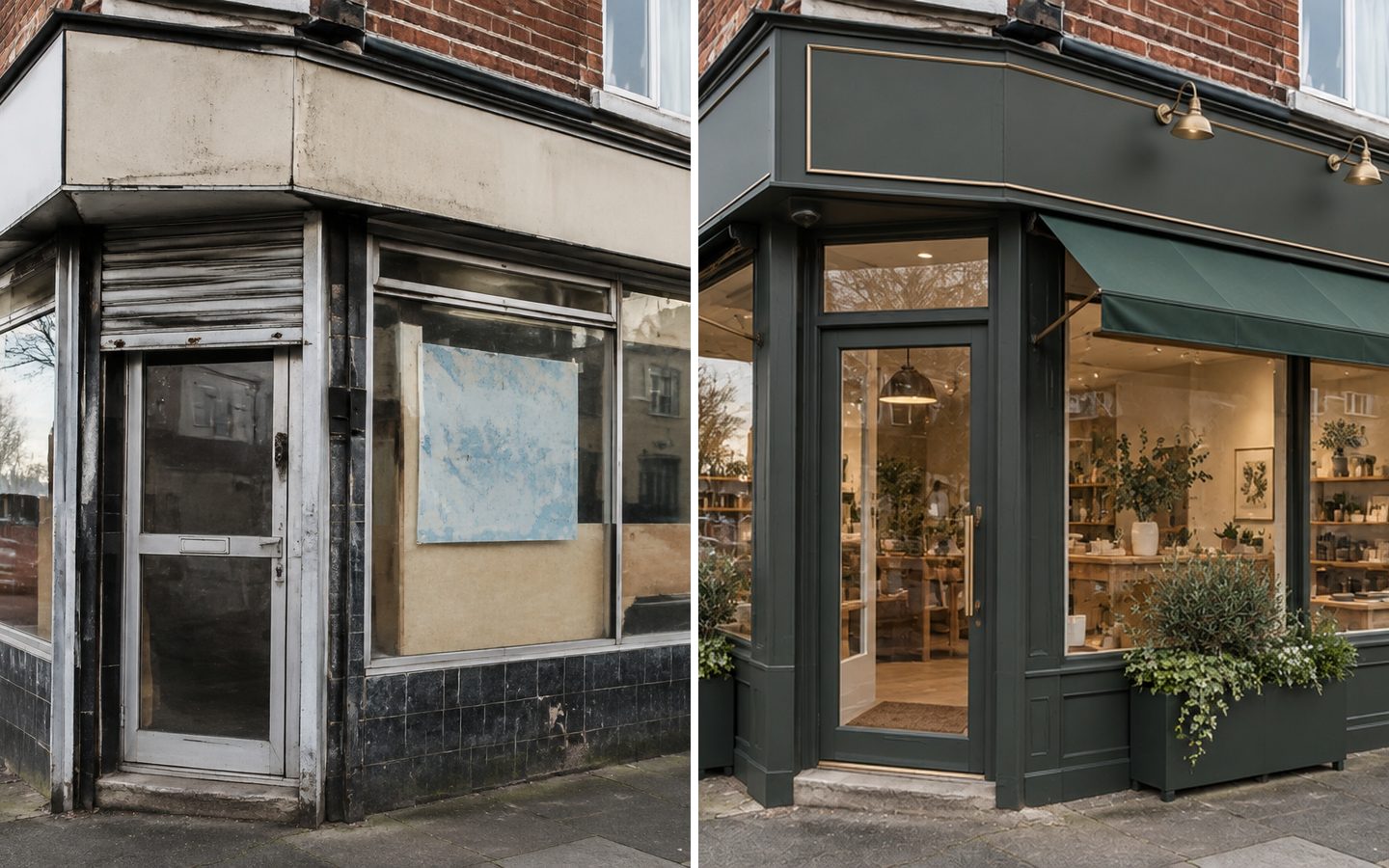
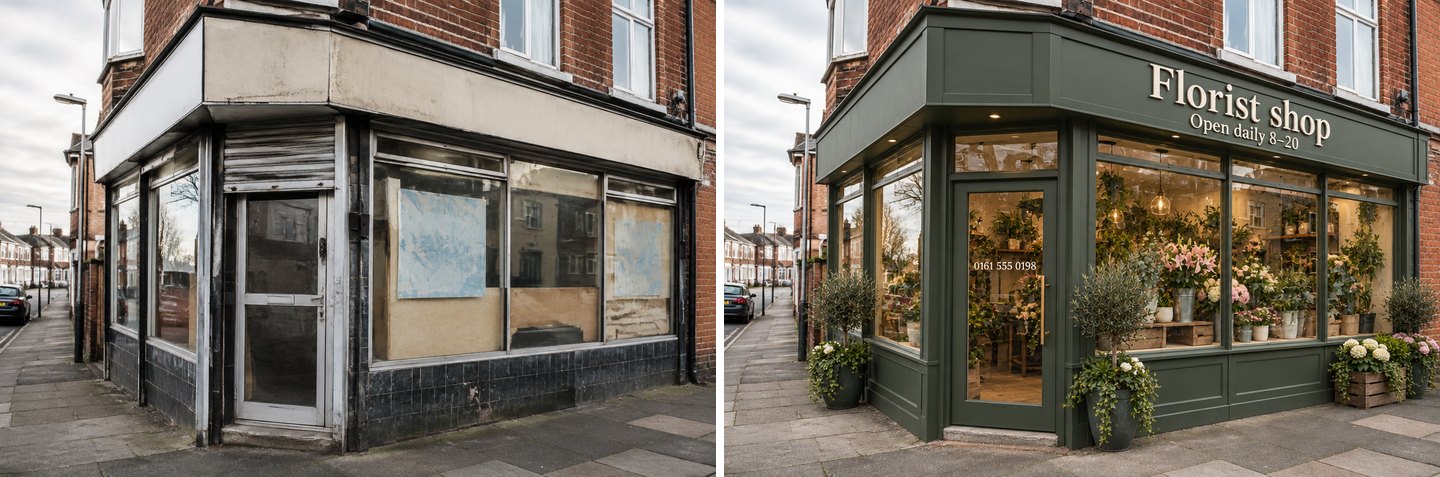
Same photo, same camera: a run-down corner unit (left) and the Storefront mode result (right). Generated in GenRoom Studio, unedited.
Storefront design AI lets you upload a street photo of a shop, café, salon or small commercial building and see it with a new shopfront in about half a minute: new glazing, entrance door, sign board, awning, lighting and planters, while the upper floors and the neighbours stay as they are. You can type the business name and see it on the fascia, switch the scene to night to check how the frontage reads after dark, and fine-tune any part with a brush.
We tested this on three ordinary buildings in GenRoom Studio: a dated corner shop, an empty unit on the ground floor of an apartment block and a single-storey standalone building with a parking lot. Below you will find the exact steps, every before/after from the same photo, the sign-lettering test (including a phone number and Arabic script), the night view, and the places where the AI got things wrong.
What do shop owners actually ask an AI for?
Between March and October 2026, 455 people described a storefront or small commercial facade task to GenRoom in their own words. The requests are concrete, and most are about being seen from the street. Paraphrased and anonymised, they sound like this:
- "A facade for an auto parts store that catches attention from far away, with lighting and clean square lines."
- "The door on the right will be the entrance to a wine shop. Make it elegant and as visible as the porch next door, with proper signage."
- "This will be a boutique clothing store. Give it a more French look."
- "A gym with a coffee shop on the ground and first floor. Keep the exposed brick."
- "Upgrade the exterior of this commercial building so it looks modern and hip, but reasonably priced."
- "Put our name on the facade in black metal letters, spelled exactly like this."
- "Remove the old lettering on the showroom and make the lighting warm."
- "A simple, minimal front for a small phone top-up kiosk, with a canopy over the entrance."
Three needs repeat in almost every request: visibility (sign, light, contrast), the business name spelled correctly, and not rebuilding the whole building. Those are exactly the things we checked.
What can a storefront visualizer change on your photo?
A storefront visualizer redraws the street-level frontage of a commercial building while keeping the rest of the photo. In GenRoom the dedicated Storefront mode works on six parts of a shopfront, plus anything else you ask for in words or with a brush.
| Shopfront element | What the AI changes | What you decide |
|---|---|---|
| Fascia / sign board | New sign band, plain or with your business name | Name, wording, letter style in your wishes |
| Shop windows (glazing) | Frames, mullions, size and rhythm of the glass | Keep the openings or allow larger ones |
| Entrance door | New door, often glazed, with handle and threshold | Position stays unless you say otherwise |
| Awning or canopy | Fabric awning, metal canopy or none | Color, fabric, fixed or retractable look |
| Lighting | Gooseneck lamps over the sign, downlights, warm interior glow | Night or sunset view to check it |
| Stallriser and cladding | Panelled base, tiles, wood, stone or render | Pick a finish from the materials library |
The building's shape, the upper floors and the neighbouring buildings are kept as in the photo. That matters for a ground-floor unit in an apartment block, where you can only change your own frontage.
How to design a storefront with AI, step by step
The whole flow takes four steps, and each design costs 2 credits. A free account gets 6 credits without a card, enough for three designs (Free results carry a watermark).
- Take a straight-on street photo. Stand across the street at eye level so the whole frontage and a bit of the building above it are in frame. Daylight without harsh shadows works best. Avoid people and parked cars in front of the door, or remove them first with the Remove people & clutter mode (more on that in our guide to removing clutter and people from photos).
- Upload it in the Studio and check the type. Open /studio, choose Design from a photo and upload. The Studio recognised all three of our photos as Facade on its own; if it guesses wrong, switch the type in the top-left corner.
- Pick the Storefront mode. It sits among the facade modes next to Exterior makeover, Exterior colors, New siding & roof and Entrance, gate & driveway. A field appears: Business name on the sign (optional). Type the name exactly as it should be written, or leave it empty for a blank sign board.
- Add wishes and a style, then Create design. Under the mode you get photo-specific ideas (for our corner shop: Boutique storefront, New glass door) and a Keep to a budget addition. Write anything else in plain words ("florist, dark green, striped awning") and press Create design.
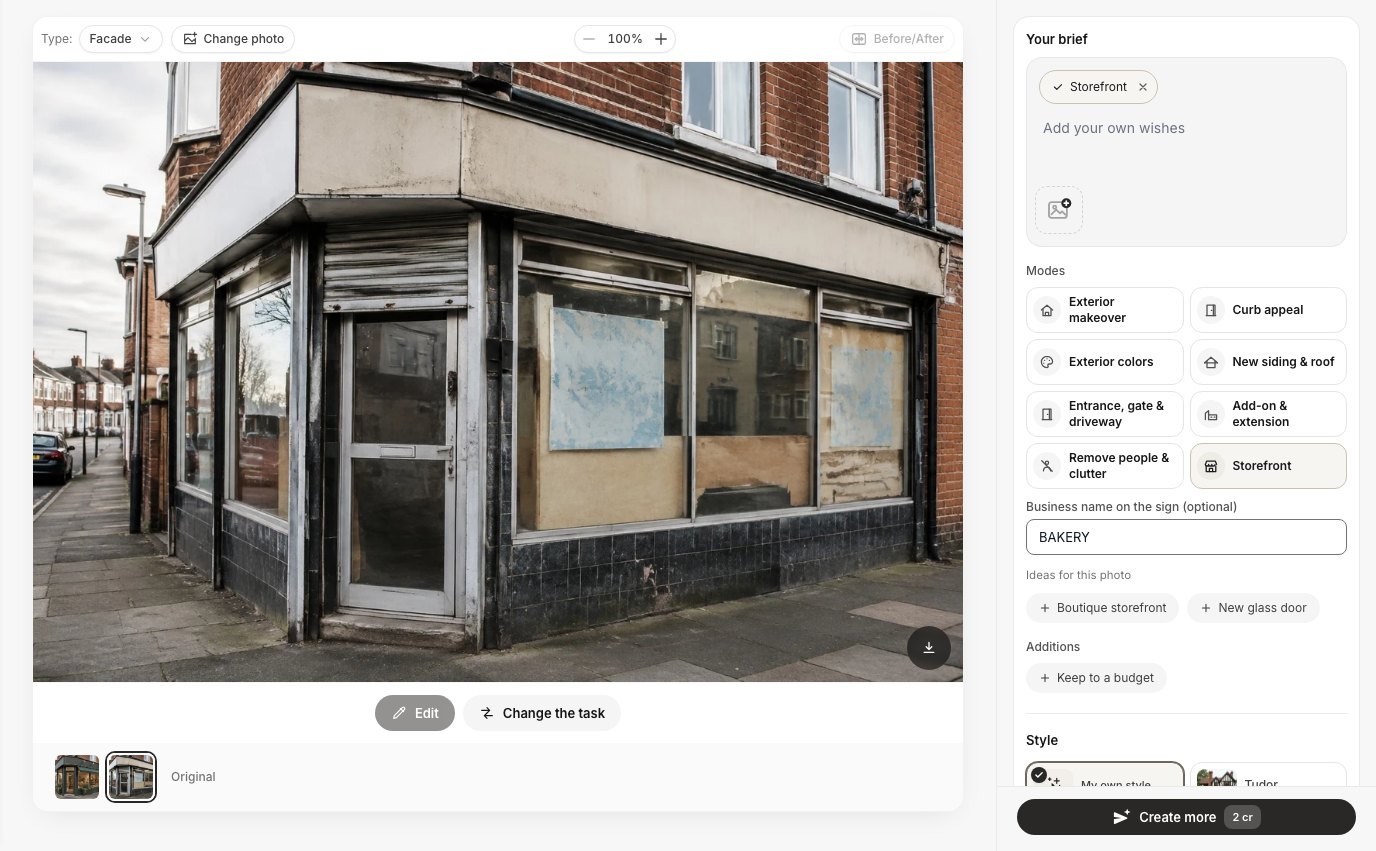 The Storefront mode with the business name field filled in. The ideas under it are generated for each photo.
In our runs a Storefront design took 23–32 seconds from click to result. Edits in the editor took 25–80 seconds. The Edit button under any result opens it in the editor, where you can keep refining it with words, a brush or the quick actions.
Three real storefronts: before and after from the same photo
All "after" images below are unedited Studio results from the same photo, same camera position. We used the Storefront mode with no style picked and no wishes unless stated, so you see the default behaviour.
A dated corner shop on a brick terrace
The "before" is a typical tired corner unit: a stained fascia, aluminium frames, a roller shutter over the door, boarded window backs and broken black tiles under the glass. We left the business name empty.
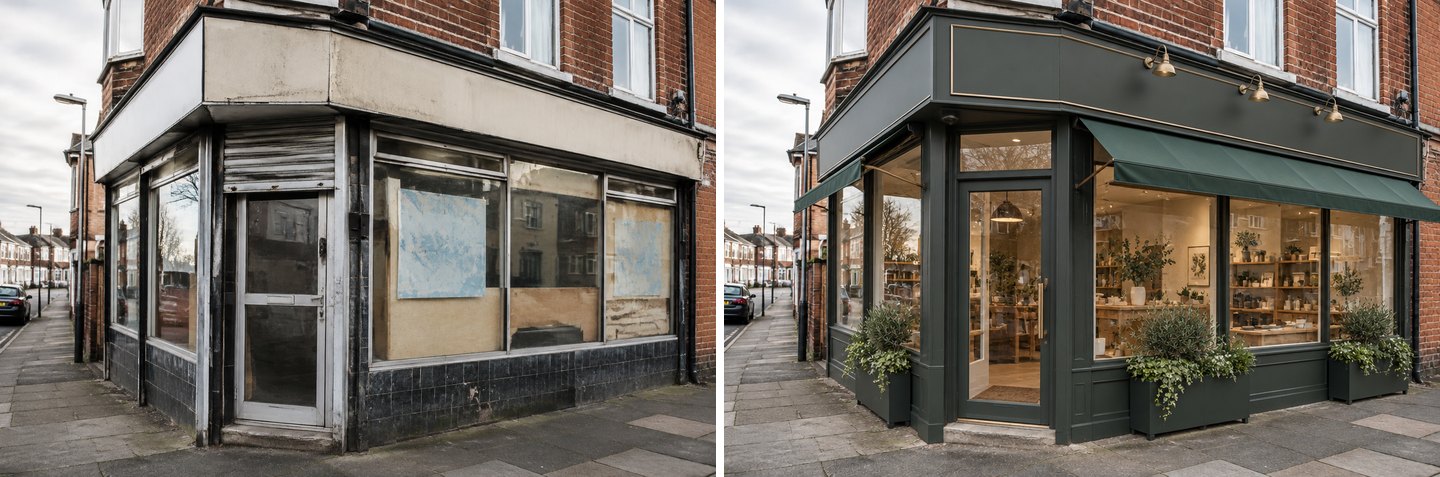 Storefront mode, no name, no wishes. The brick upper floor, windows and the street are unchanged.
The AI kept the corner geometry and the bay of the fascia, replaced the frames with painted timber-style joinery, added a retractable awning on the long side, three brass gooseneck lamps, a panelled stallriser and planters. The sign band stays blank, because the name field was empty. That is the right default: you get a clean board to show a sign-maker, not invented lettering.
A café in the ground floor of an apartment block
This empty unit sits under five floors of flats with balconies. The owner can only touch the shopfront, so the test is whether the AI leaves the residential part alone. We typed CAFÉ in the name field.
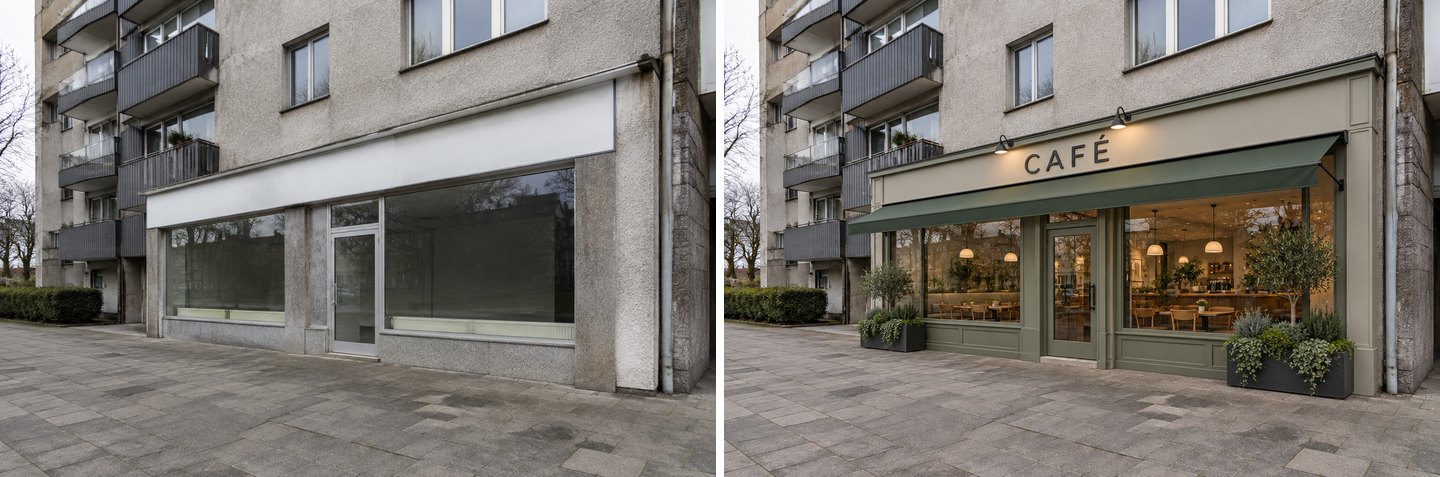 Storefront mode with the name CAFÉ. Balconies, windows and the render above stay as in the photo.
The balconies, the upper windows and the drainpipe are untouched. The frontage became a sage-green framed shopfront with the accent on the É spelled correctly, a full-width awning, two wall lamps, a furnished interior visible through the glass and two planters on the pavement. If you plan a café in a mixed-use building, this is the kind of picture that helps a landlord or a residents' board say yes.
A small standalone commercial building
The third photo is a single-storey stucco box with a flat roof, small tinted windows, a steel door and a parking lot. It's the "make it look modern but reasonably priced" case.
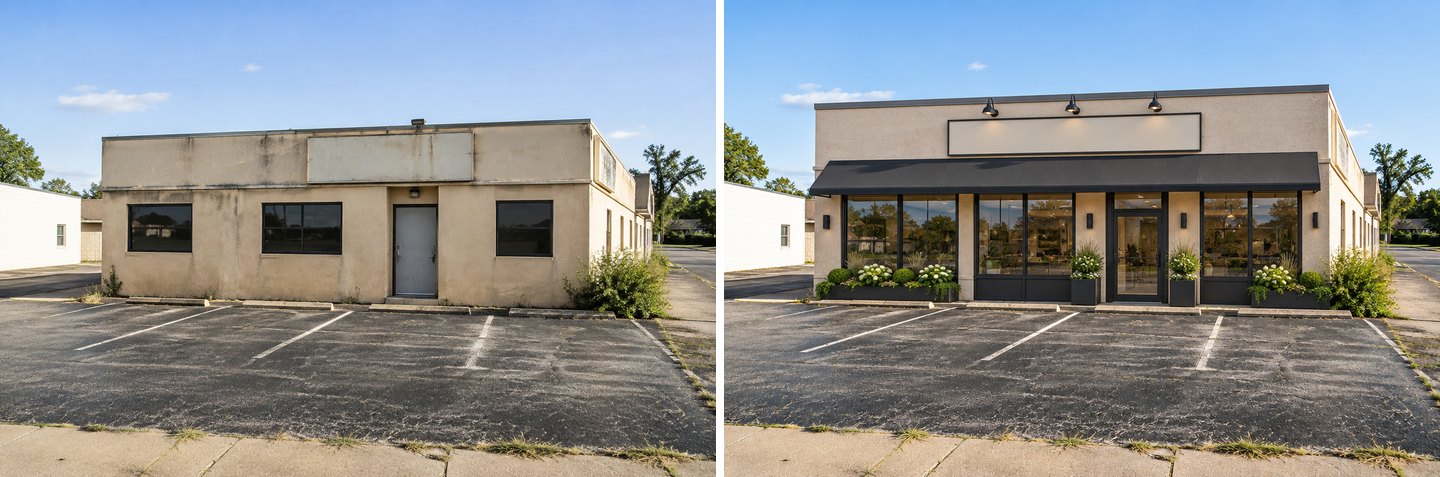 Storefront mode, no name. The parking lot, sidewalk and neighbouring building are unchanged.
This is the most dramatic result, and also the most expensive one to build: the AI replaced three small windows with full-height glazing along the whole front. In real life that means cutting new openings in a wall, which is structural work. If you only want to refresh the existing openings, say so in the wishes ("keep the window openings as they are").
Can the AI put your business name on the sign correctly?
Yes, in our tests every sign came out spelled exactly as typed. The Storefront mode passes your name to the image model with an instruction to render it letter for letter, and if the field is empty it keeps the board plain.
AI lettering has a reputation for garbled letters, so we pushed it. Here are all eight texts we tried:
| Text we asked for | Where | Result |
|---|---|---|
| BAKERY | Storefront mode, name field | Correct |
| CAFÉ (with accent) | Storefront mode, name field | Correct |
| FLOWERS & PLANTS + "Open daily 8–20" + a phone number on the door glass | Name field + wishes | All three correct |
| A four-word tailoring studio name | Name field | Correct |
| TAILOR & ALTERATIONS | Name field | Correct |
| مقهى (Arabic for "café") | Name field | Correct script, right to left |
| HAIR SALON | Editor, brush on the sign board | Correct |
| A three-part tagline along an awning edge | Editor, words only | Correct |
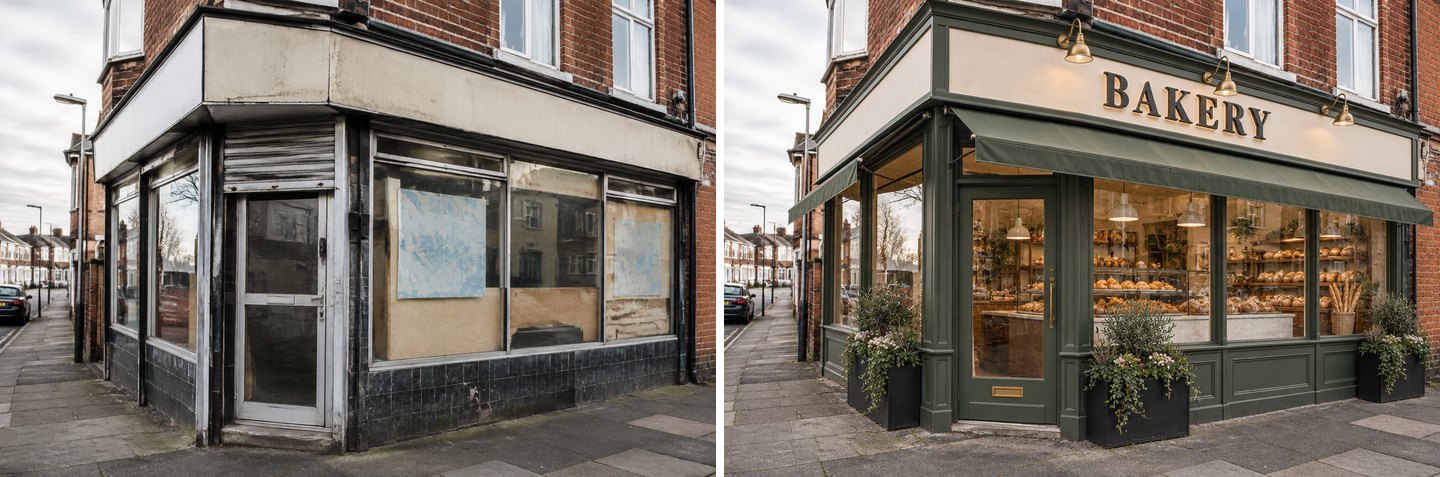 Name field: BAKERY. The AI also filled the windows with bread and pastries, matching the name.
The small-print test is the one that usually fails in image AI. Here the second line and the phone number on the door glass came out exactly as written:
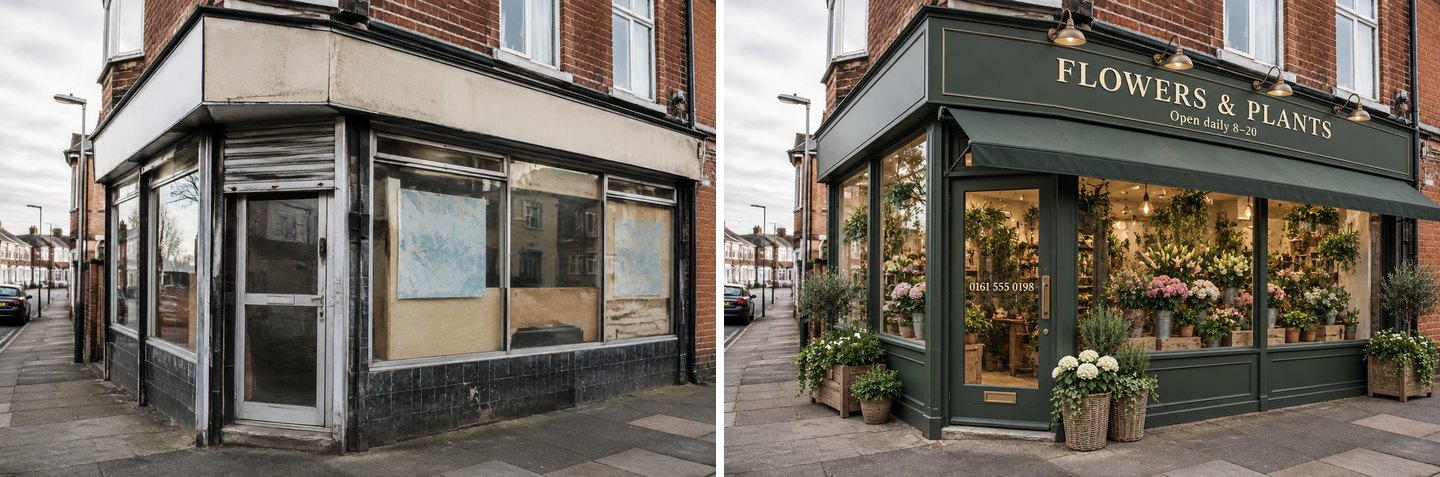 Name FLOWERS & PLANTS plus a wish for a second line and a phone number. All three texts are letter-perfect.
Arabic searches are among the most common shop-design queries that reach GenRoom, so we also tried a name in Arabic script on the café unit:
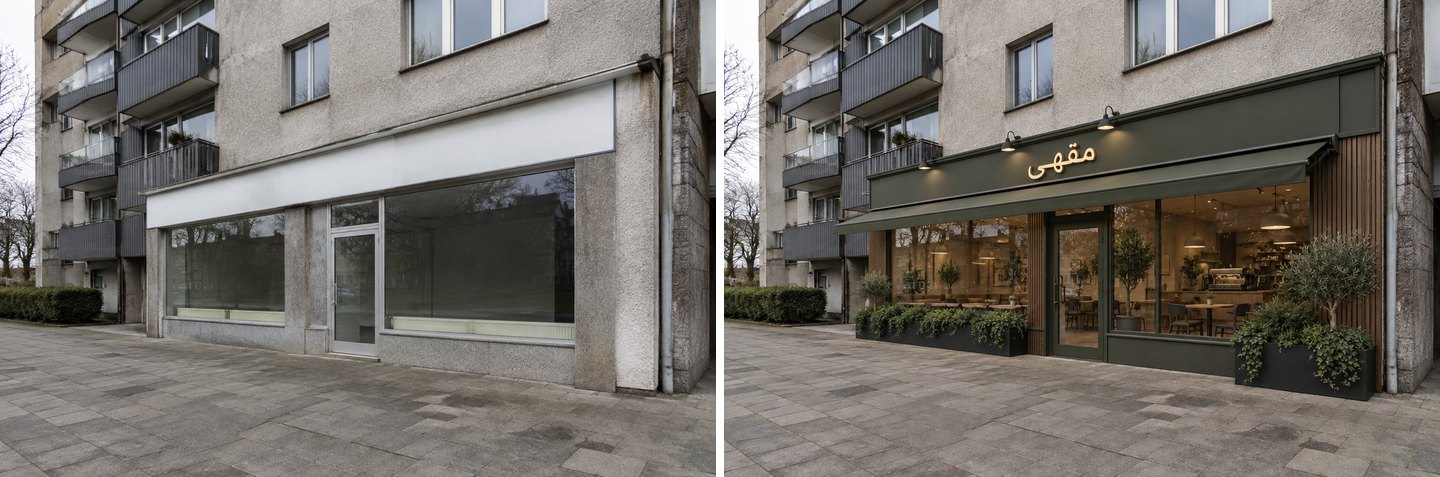 The Arabic word for "café" in the name field. A different design from the first café run: each generation is a new variant.
Two practical notes. First, type only the name in the name field and put descriptions in the wishes; see the limitation below for what happens otherwise. Second, a rendered name is a preview, not artwork: the font, spacing and logo still need a sign-maker or a designer, and a real logo will not be reproduced.
How does the storefront look at night?
Open any result in the editor, click Quick actions, expand Light & season and choose Night (there are also Sunny day, Sunset and three seasons). The editor relights the scene with architectural lighting on the facade and the entrance while keeping the building.
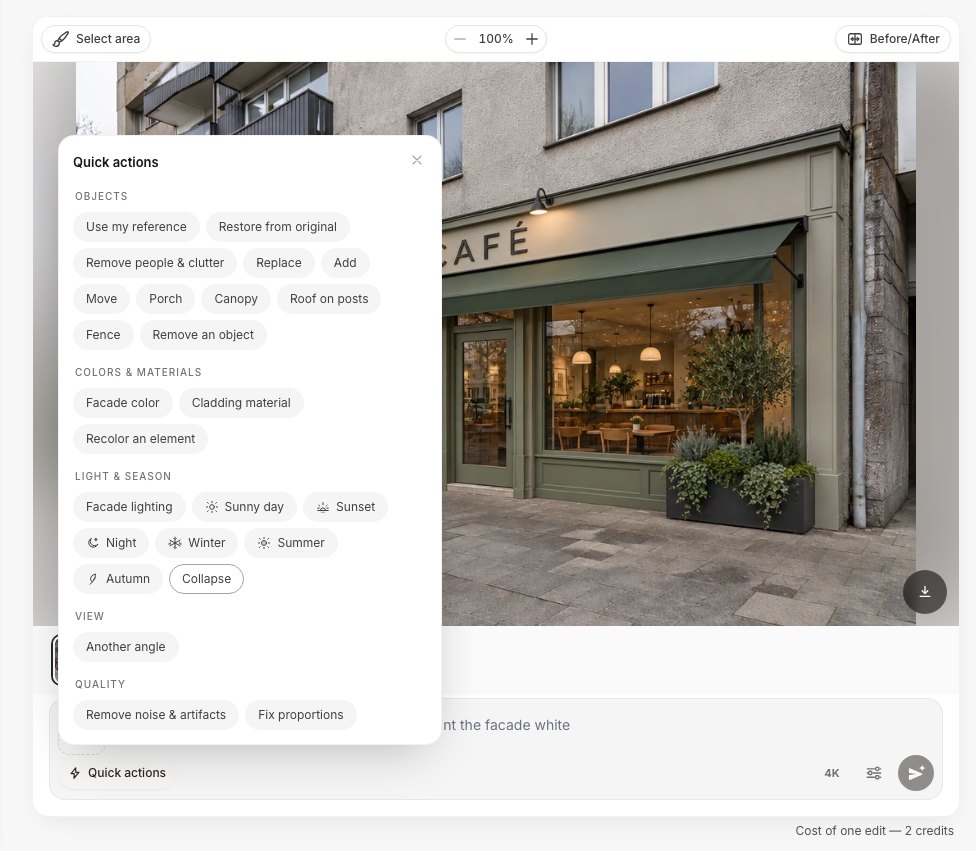 Quick actions on a facade. The time-of-day presets sit under Light & season.
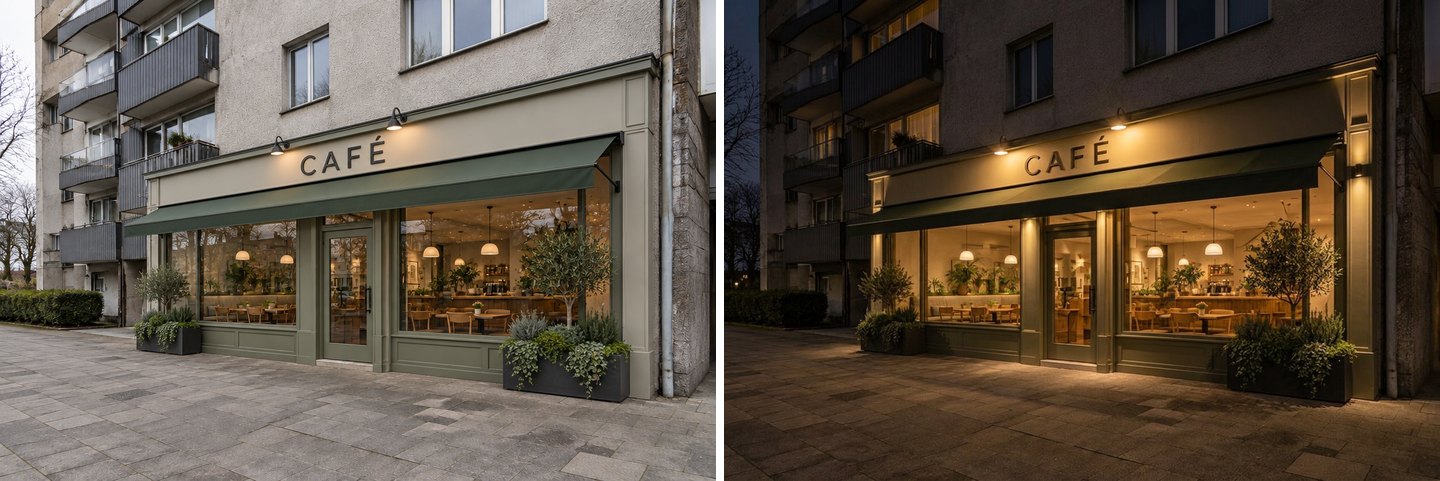 Night preset on the café result. The CAFÉ lettering, the awning and the planters stay unchanged.
This is the fastest way to answer a question most owners only ask after the sign is installed: is the name readable after dark, and is the glow inviting or harsh? Here the two gooseneck lamps wash the sign evenly and the warm interior does most of the work. If your result looks dark, the Facade lighting quick action adds lamps to the frontage itself. For the lighting side of a design in more depth, see our guide to outdoor lighting design with AI.
Create facade design with AI
Upload a photo of your home and get a new facade in the chosen style in 30 seconds. First generation is free.
How do you change one part of the storefront?
Use the brush. In the editor click Select area, choose Brush or Lasso, outline the part you want to change, confirm the selection and describe the change. Everything outside the selection is kept.
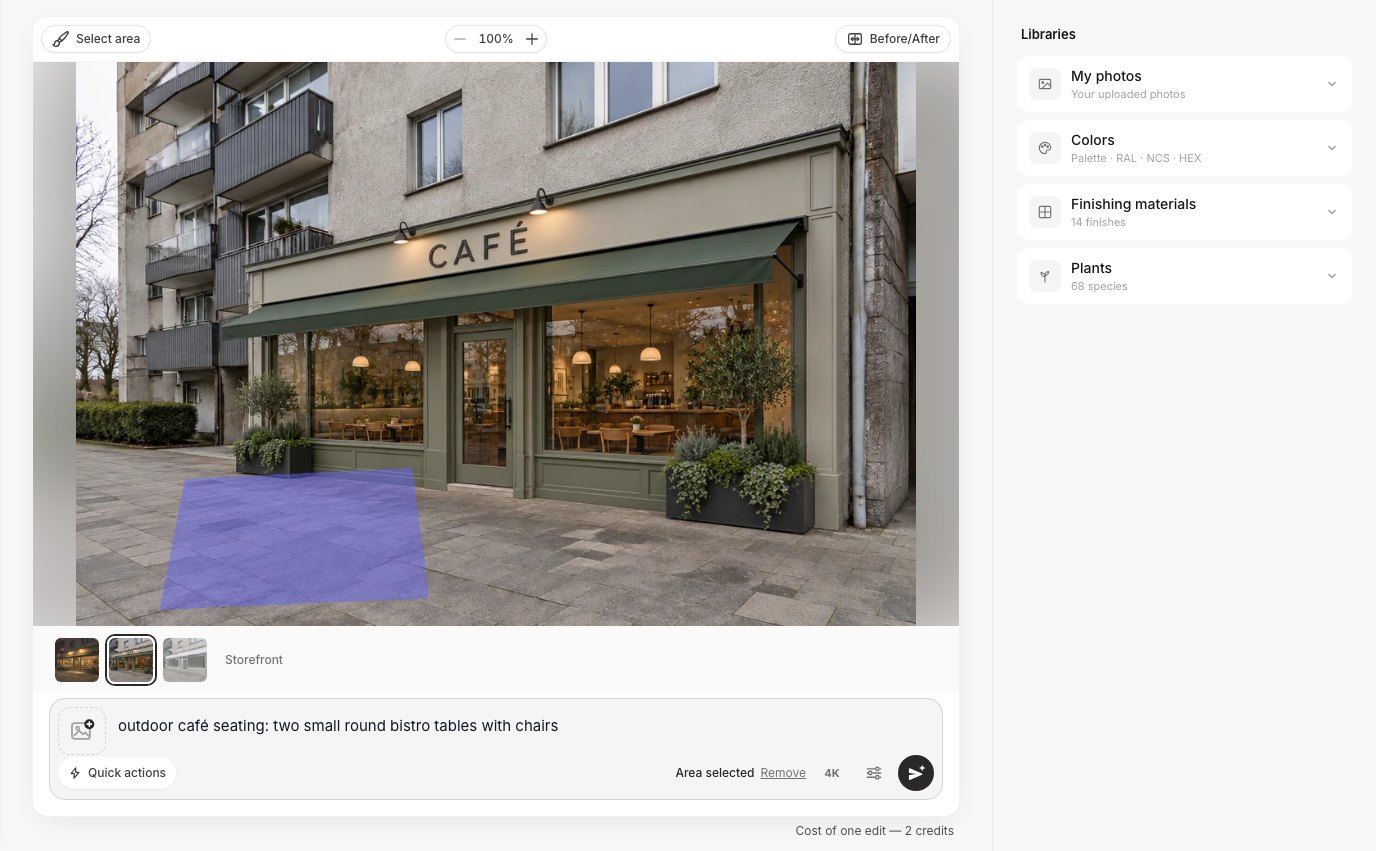 A lasso selection on the pavement and a short request. "Area selected" confirms the edit is local.
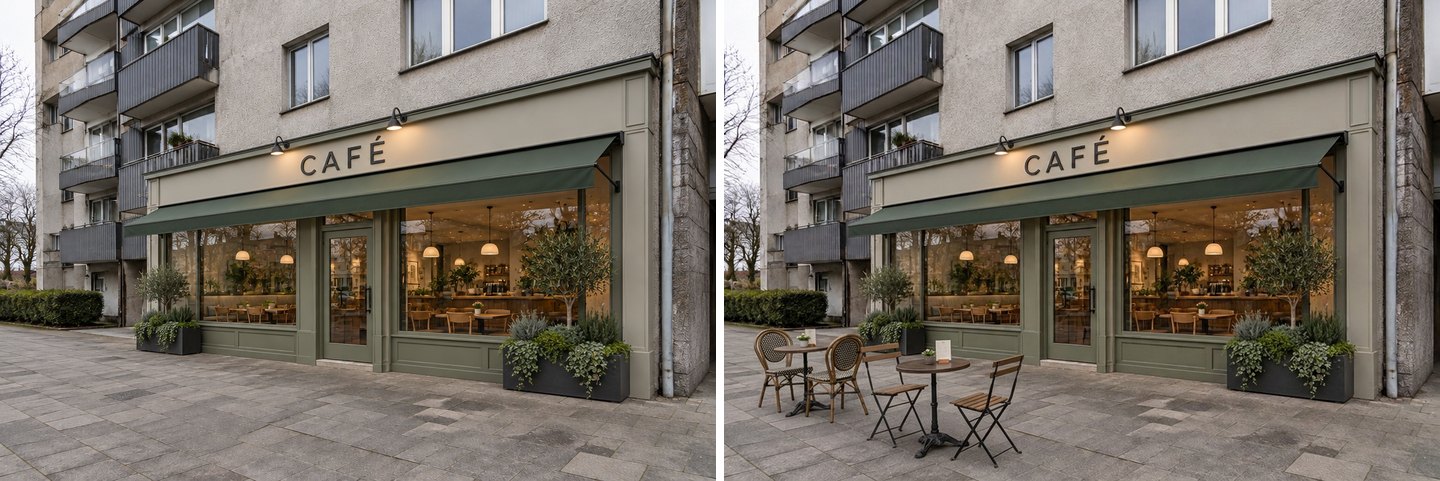 Brush edit: "outdoor café seating: two small round bistro tables with chairs". The rest of the frontage is identical.
For cladding, open Finishing materials in the Libraries panel on the right. There are 14 finishes, including klinker and handmade brick, smooth stucco, larch planken, thermowood, fiber-cement panels, natural stone, slate, porcelain stoneware and standing-seam metal. Click a finish, write where it goes ("the facade walls between the windows and the sign band") and apply.
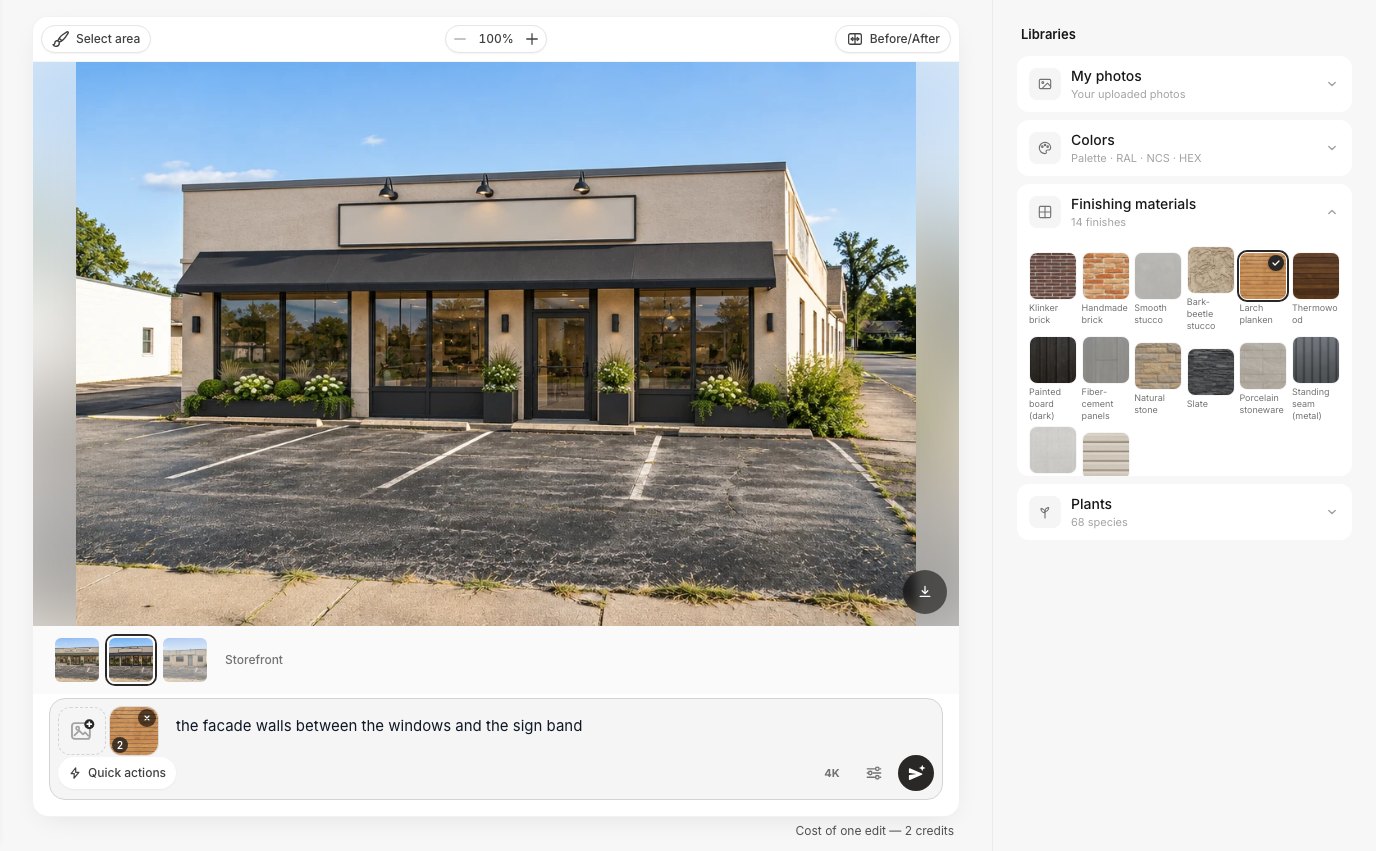 The materials library. The picked finish attaches to the request as a reference.
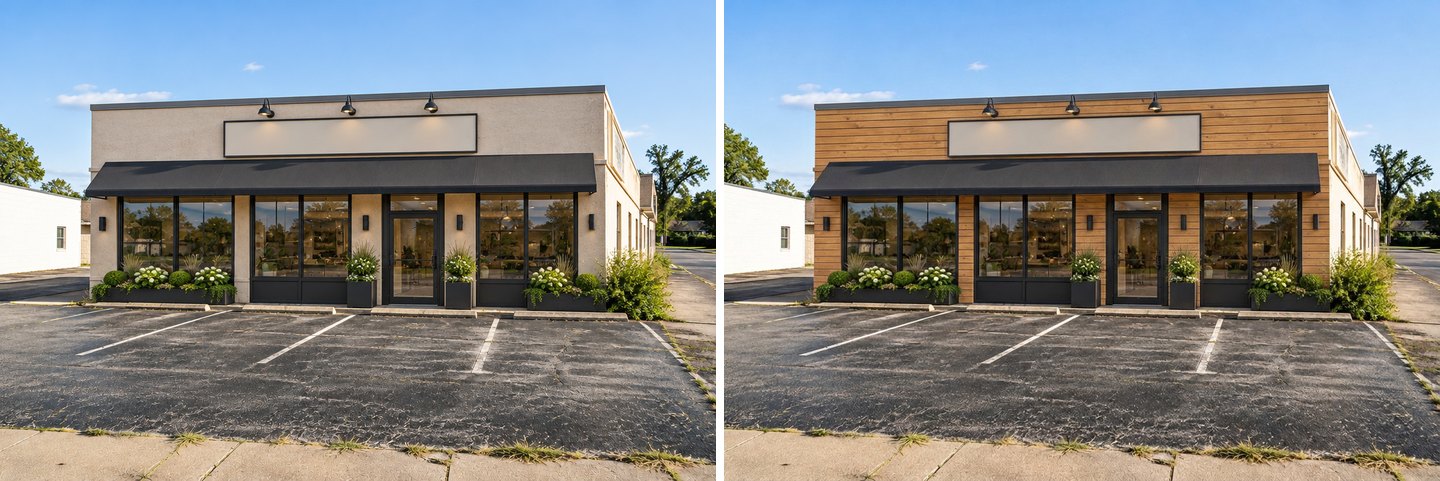 Larch planken applied to the walls. Glazing, awning, lamps and the parking lot are unchanged.
The same editor can add a name to a blank sign later, so you can design first and decide on wording afterwards:
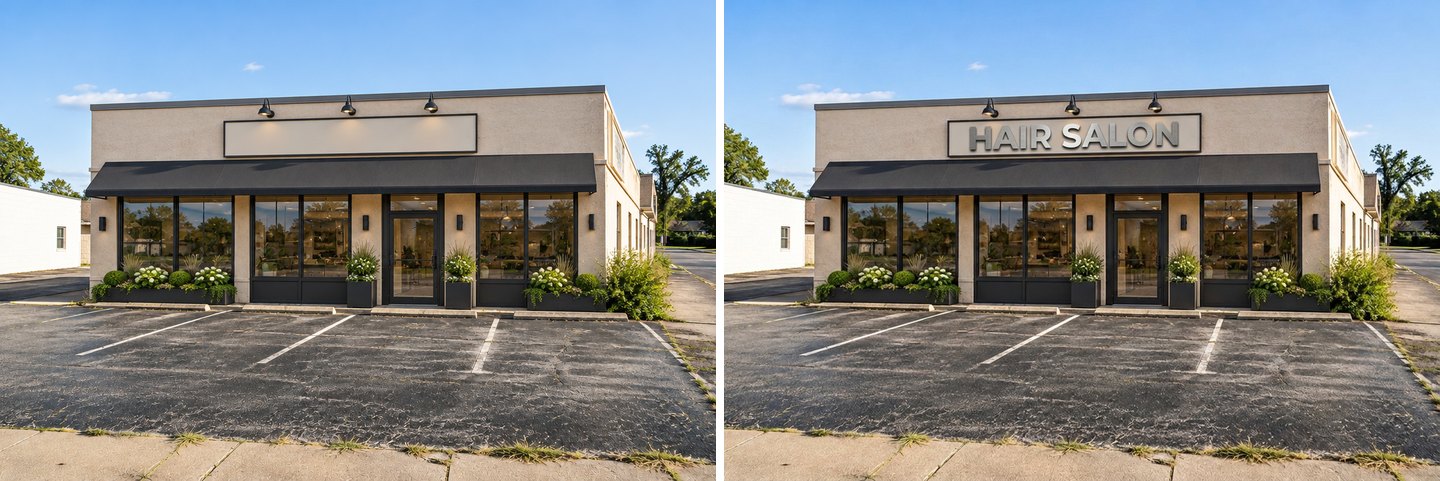 A brush selection on the sign board and the request "write HAIR SALON in brushed steel letters".
If you want to compare more cladding options on one photo, the material swap page and our siding visualizer guide go further.
Storefront mode or Exterior makeover: which one to pick?
Pick Storefront when the goal is a shop that sells: it always works on the sign board, glazing, entrance, awning and lighting. Pick Exterior makeover when you want new materials across the facade without a retail "kit". On the same corner shop the difference is clear:
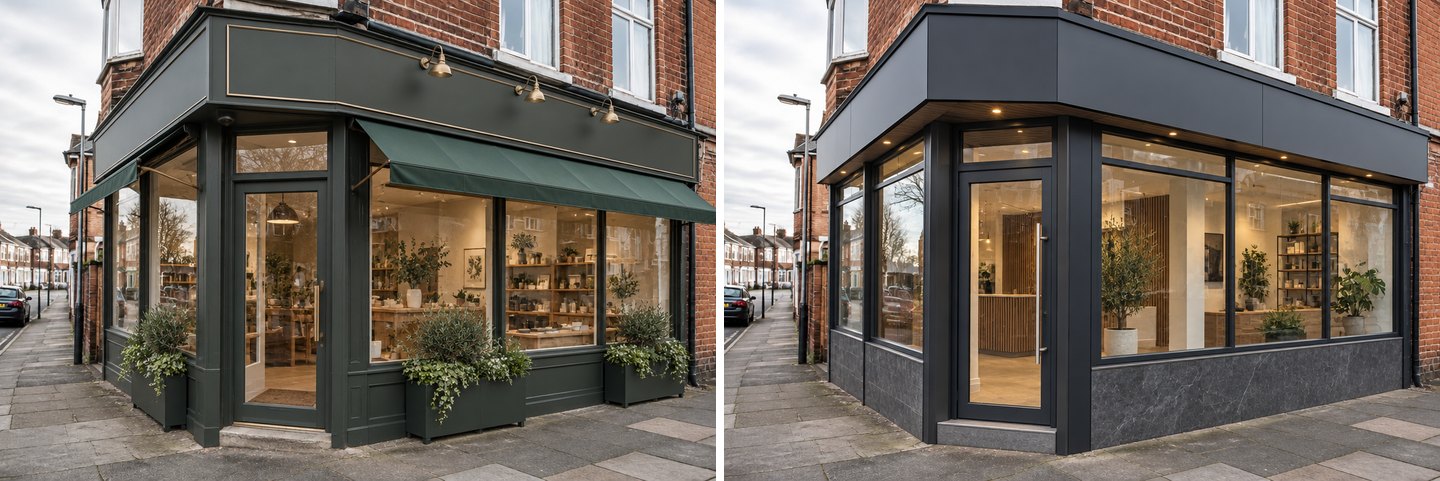 Left: Storefront mode. Right: Exterior makeover on the same photo. In both runs the upper brick floor was kept.
| Your goal | Mode or tool in GenRoom |
|---|---|
| New shopfront with sign, awning and lighting | Storefront |
| New look for the whole facade, no signage | Exterior makeover |
| Just repaint, with an exact RAL, NCS or HEX color | Exterior colors, or Colors in the editor |
| New wall cladding or roofing only | New siding & roof, or Finishing materials in the editor |
| Clean photo for a listing (no cars, bins, people) | Remove people & clutter |
| A new entrance, canopy or ramp only | Entrance, gate & driveway, or Canopy and Porch in Quick actions |
| Evening or night check | Quick actions → Light & season |
For residential facades the same Studio has more modes; our overview of AI curb appeal design and the AI facade design page cover them.
Where does storefront AI go wrong?
The results above are good, but we saw five problems in our runs, and you should know them before you show a picture to a landlord or a contractor.
1. Words from your wishes can end up on the sign. In one run we left a florist description in the brief ("Florist shop. Under the name, a smaller second line…") and switched to Exterior makeover, which has no name field. The AI lettered "Florist shop" on the fascia. The Studio keeps your typed wishes when you switch modes, so clear the brief before a new run and keep the exact sign wording in the name field.
 A leftover description in the brief became sign text. Clear the wishes when you change mode.
2. It may enlarge the openings. On the standalone building the AI replaced small windows with full-height glazing. That looks great and costs a lot. Ask for "keep the window openings" if the budget is tight, or add Keep to a budget.
3. The interior is invented. The bread, flowers, café tables and clothing racks behind the glass are made up to match the business. Treat them as mood, not as a fit-out plan.
4. It tidies the surroundings. On the standalone building a scruffy bush became neat planters. Small changes like this are usually welcome, but check the edges of the photo before you rely on them.
5. It is a picture, not a drawing. You get no dimensions, sign sizes, mounting details or lighting specs. A sign-maker, shopfitter or architect still has to turn the idea into something buildable and compliant.
Do you need permission for a new shop sign or shopfront?
Often, yes, and the AI does not check this. Rules are local, so confirm them before you order a sign. Two reliable starting points:
- England (UK): the Planning Portal's guidance on advertisement consent lists "the majority of illuminated signs" and signs positioned above 4.6 metres among the adverts that normally need consent, and says councils judge applications only on amenity and public safety. Some adverts have "deemed consent", so check which group your sign falls into.
- United States: the U.S. Small Business Administration notes that local governments set permitting requirements and that zoning is typically controlled at the local level, so your city or county decides on sign and facade permits.
If you rent the unit, your lease will usually have its own rules for signage and alterations. A clear before/after image is a good way to start that conversation, and images you create in GenRoom are yours to use, including commercially, on every plan.
A quick checklist for a storefront that works from the street
Use the AI result to check these points before you spend money:
- Can you read the name from across the street? Zoom out on the result. If the letters disappear, ask for larger letters or a contrasting color.
- Is the entrance obvious? The door should be the clearest element at street level. If it blends in, try New glass door or a canopy over it.
- Does it read at night? Run the Night preset. Lit lettering and a warm interior pull people in more than a bright but empty window.
- Does it fit the building? On a period terrace a painted timber front looked natural; on the stucco box, black frames and an awning did. Try two styles side by side; every run costs 2 credits.
- Can you build it in stages? Paint, sign and lighting are cheaper steps than new glazing. Ask the AI for a version that keeps the openings, and compare.
FAQ
Can AI design a storefront from a photo of my shop?
Yes. Upload a street photo to GenRoom Studio, pick the Storefront mode and press Create design. In our tests each design took 23–32 seconds and kept the building's shape, upper floors and neighbours, while changing the glazing, entrance, sign board, awning, lighting and planters.
Is there a free storefront design tool?
GenRoom gives 6 free credits when you create an account, no card needed. A design or an edit costs 2 credits, so that is three tries; free results carry a watermark. Paid packs are one-time purchases, not a subscription, starting at $9.99 for 36 credits (see pricing).
Will the AI spell my business name correctly on the sign?
In our tests all eight texts came out letter for letter, including an accented CAFÉ, a phone number, a small "Open daily" line and an Arabic word. Type the name in the Business name on the sign field exactly as it should look, keep descriptions out of it, and still check every letter before you send the image to anyone.
Can I see my shopfront at night?
Yes. Open the result in the editor, go to Quick actions → Light & season and choose Night or Sunset. The building stays the same and the sign, facade and entrance get evening lighting, so you can judge readability after dark.
Can I change only the sign or only the awning?
Yes. Use Select area with a brush or lasso around the sign or awning and describe the change, for example "write HAIR SALON in brushed steel letters". Only the selected area changes.
Does it work for a café or shop in an apartment building?
Yes. In our café test the Storefront mode changed only the ground-floor frontage; the balconies, flats and render above were unchanged. That makes the picture useful for a landlord or a building management approval.
Do I need permission for a new shop sign?
Often. In England most illuminated signs normally need advertisement consent, and in the US sign and facade permits are set by your city or county. The AI does not check local rules, so confirm with your council or permit office before ordering.
The Bottom Line
Storefront design AI is most useful before you call a sign-maker: one photo, the Storefront mode, your business name typed exactly, then a night check and a few brush edits. In our three buildings it kept everything above the shop, spelled every sign right and produced frontages you could show a landlord the same day. Watch the openings it enlarges, clear old wishes between runs and confirm the sign rules locally. Try it on your own frontage in GenRoom Studio; see what other facade tools can do in our comparison of AI facade generators.