Free AI Room Generator: How to Design a Room From a Photo
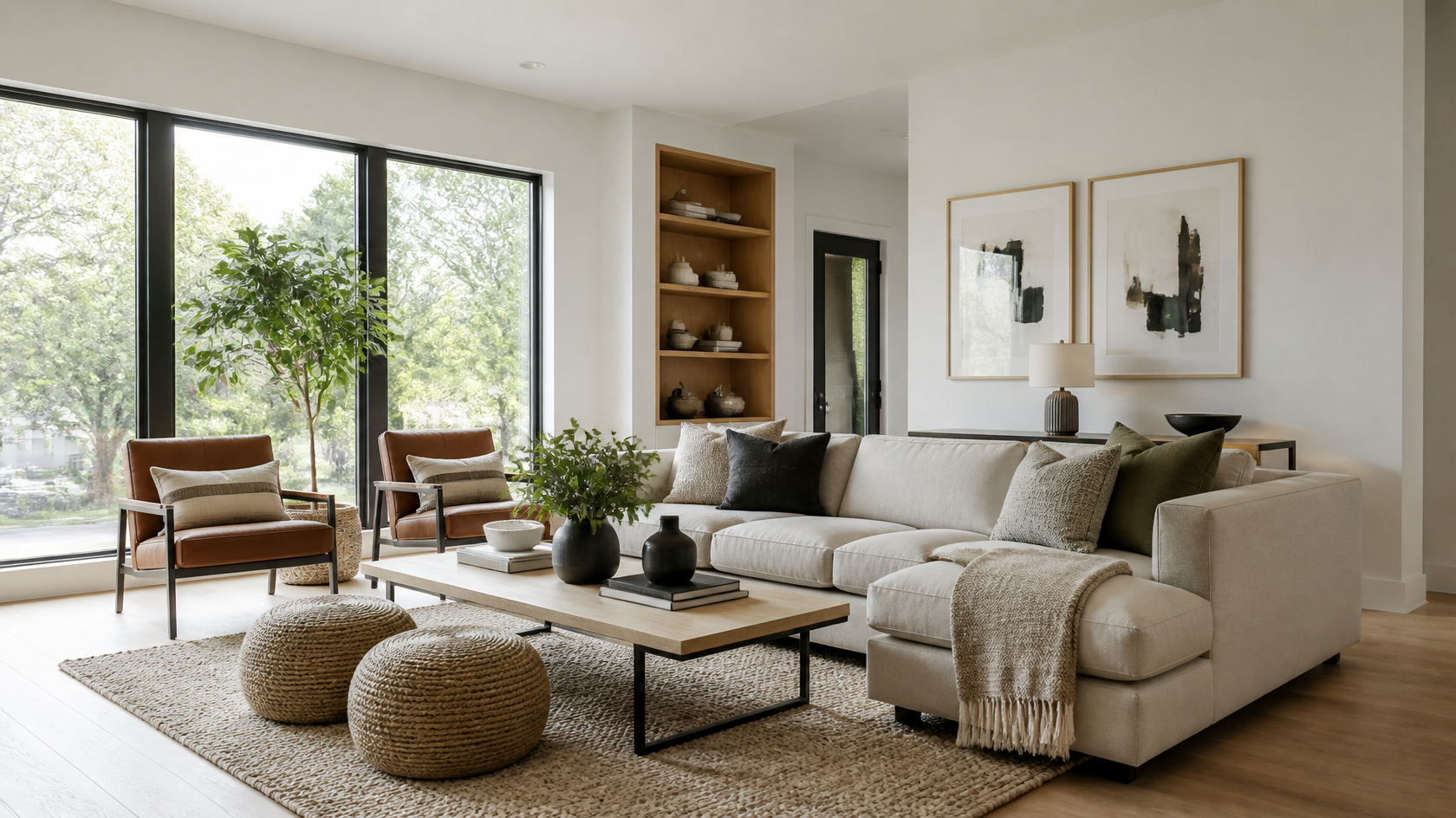
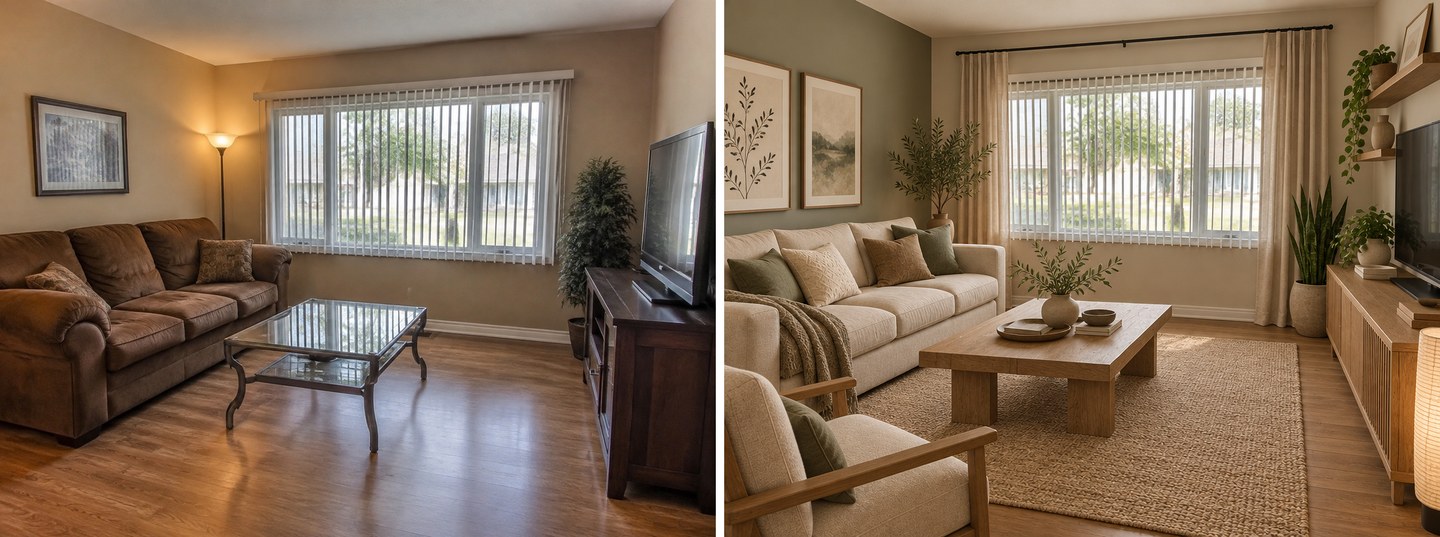
An AI room generator is a tool that turns a photo of your room into a photorealistic redesign in seconds. You upload a picture of the space you already have, pick a style, and the AI shows you what that same room could look like — new furniture, colors, materials, and lighting — while keeping the walls, windows, and proportions of the original.
You do not need design skills, expensive software, or a decorator's fee to try it. Several tools, including GenRoom, let you generate your first designs for free without entering a credit card. This guide explains what an AI room generator actually is, how it works under the hood, how to get a good result from a single photo, which free options are worth your time, and — just as importantly — what these tools still get wrong so you know what to expect.
What is an AI room generator?
An AI room generator is software that takes an image of an interior and produces a redesigned version of it in a chosen style. Think of it as "before and after" on demand: your current living room goes in, and a Scandinavian, Japandi, or modern-farmhouse version of the same room comes out.
It is different from a text-to-image art tool. A generic image model invents a room from scratch. A dedicated AI room generator is trained to preserve the architecture of your actual space — the ceiling height, the window on the left wall, the doorway — and only change the decor and finishes. That constraint is what makes the result useful for planning a real makeover instead of just pretty inspiration.
Most tools cover the common rooms people redecorate: living rooms, bedrooms, kitchens, bathrooms, home offices, and dining rooms. Better ones also handle exteriors, facades, and yards. GenRoom, for example, works on interiors, building facades, and outdoor spaces from the same photo-upload flow, with 60+ styles to choose from.
How does an AI room generator work?
An AI room generator works in three stages: it reads the geometry of your photo, keeps the structural "shell," then repaints everything inside that shell in the style you picked. Here is the plain-English version of what happens in the roughly 30 seconds between clicking "generate" and seeing a result.
First, computer vision analyzes the photo. The model detects walls, floors, the ceiling, windows, doors, and the vanishing lines that define perspective. This is how it understands that a room is a 3D box seen from a particular angle, not just a flat grid of pixels.
Second, the tool identifies what should stay fixed. The architectural shell — room shape, window positions, ceiling height — is treated as a constraint the redesign must respect. Techniques in this family (often built on diffusion models with structure-guidance layers) let the AI regenerate the contents of the room while holding its outline in place.
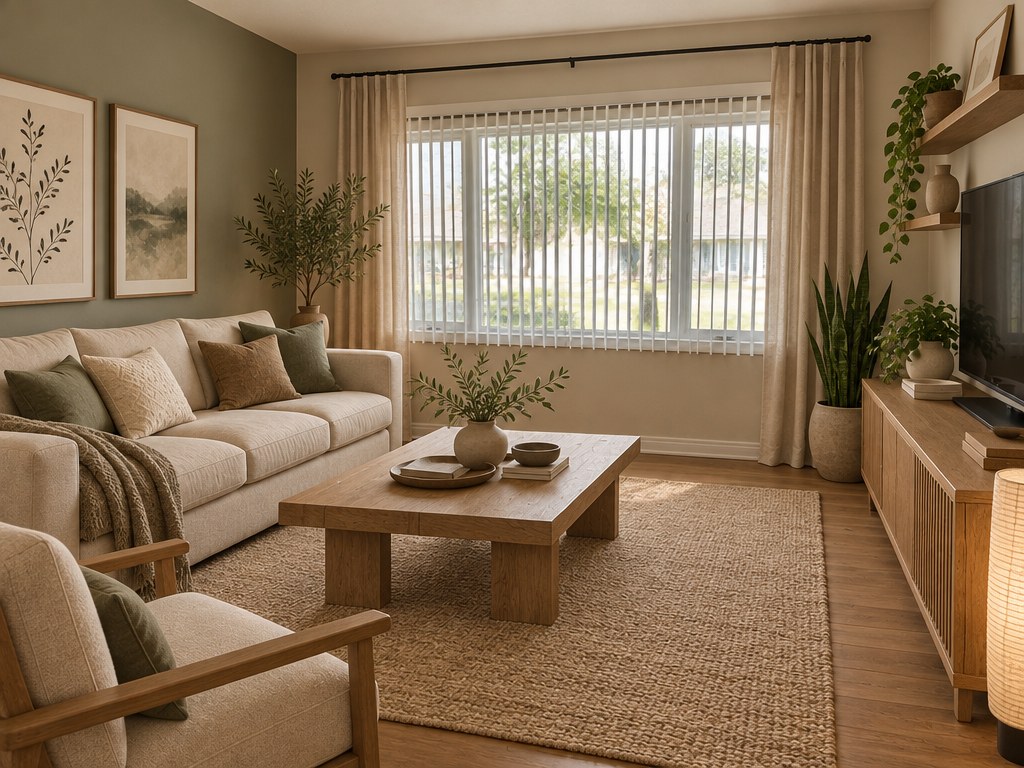
Third, the model generates new surfaces and objects in the requested style. Guided by millions of interior photos it learned from, it replaces the sofa, adds a rug, changes the wall color, swaps the flooring, and relights the scene so shadows fall in believable directions. The output is a fresh photorealistic image, not a filter laid over your original.
The important takeaway: the tool is pattern-matching against what "a modern living room" typically looks like, then fitting that pattern into your room's geometry. It is not an architect and it does not measure anything. That distinction matters when we get to realistic expectations below.
This is also why photo quality has such an outsized effect on the result. Everything downstream depends on that first computer-vision read of the room. If the model misjudges where a wall ends because a shadow hid the corner, the redesign inherits that mistake. Give it a clean, well-lit, straight-on photo and the geometry it locks onto is accurate — so the styling it layers on top lands where it should.
How to generate a room design from a photo (step by step)
Generating a room design from a photo takes four steps and about a minute. The process is nearly identical across tools, so learning it once carries over everywhere.

Step 1 — Take or choose the right photo
The photo you feed in matters more than any other single factor. For the best result:
- Shoot the whole room, not a corner. Stand in a doorway or against a wall and capture as much of the space as you can. The AI needs to see the room's shape.
- Use even, natural light. Open the curtains and shoot during the day. Harsh shadows and dim, yellow lamplight confuse the model.
- Hold the camera level. Tilted or fisheye phone shots produce warped redesigns. Keep verticals straight.
- Declutter first. Clear the floor and surfaces where you can. The AI redesigns what it sees, and a pile of laundry can end up "reinterpreted" oddly.
- Go high resolution. A sharp, well-lit photo gives the model more to work with than a small, blurry one.
Step 2 — Upload it to the generator
Open the tool and upload your image. On GenRoom you drop the photo into the generator and it is ready in a second — no plugins, no desktop install. Most free tools accept standard JPG and PNG files up to around 10 MB.
Step 3 — Choose a room type and style
Tell the tool what the space is (living room, bedroom, kitchen) and pick a style. GenRoom detects the room type from the photo and only asks "What room is this?" if unsure; you then pick a style or a ready-made mode. Style range is where tools differ most: some offer a dozen presets, while GenRoom provides 60+ styles including Scandinavian, Japandi, modern, mid-century, industrial, coastal, and farmhouse. If you are unsure, generate the same room in two or three styles and compare.
Step 4 — Generate, compare, and refine
Click generate (on GenRoom, "Create design") and wait. Good tools return a photorealistic redesign in under 30 seconds. From there you can regenerate for a different take, try another style, or — on tools with an editor — refine the result with plain-text instructions ("make the sofa darker," "add a large plant"). GenRoom also lets you brush over an area and describe the change, in every plan. Download the version you like and use it as a reference for shopping, painting, or briefing a contractor.
For a deeper walk-through of the whole workflow, see our guide on how to redesign any room with AI and our breakdown of AI room design from a photo.
How to pick a style that actually suits your room
The style menu is where most people get stuck, because everything looks good in a thumbnail. A faster way to choose: start from what your room already has. If it gets strong natural light and has warm wood tones, Scandinavian or Japandi will feel effortless. If the space is small and you want it to breathe, minimalist and light-toned styles read as more open. If you have tall ceilings or exposed brick, industrial and mid-century lean into those bones instead of fighting them.
Then generate the same photo in two or three of those candidates and put the results side by side. Seeing your own room in each style — rather than a generic showroom — is the single fastest way to know what you actually like. It costs you a few credits and five minutes, and it prevents the far more expensive mistake of buying furniture for a look that does not suit the space.
Best free AI room generators: what "free" actually gets you
The best free AI room generator is the one that gives you enough generations to make a real decision without a watermark or a credit card wall. "Free" is not one thing, though — it comes in three flavors, and knowing the difference saves frustration.
| "Free" tier type | What you get | The catch |
|---|---|---|
| Genuinely free | A set number of generations or daily credits, no card | Limited quantity; you upgrade if you want volume or 4K |
| Freemium with watermark | Unlimited previews | A logo stamped across the image until you pay |
| "Fake" free | A demo you can start | Blocked at download or behind a signup/paywall |
GenRoom's free tier sits in the first, honest category: 6 free credits — about three designs — when you create a free account, with no credit card required. That is enough to test a couple of rooms or one room in a few styles before deciding whether to continue. Paid credit packs start at $9.99 (one-time, no subscription) and add more credits without a watermark; edits with words and a brush are included in every plan, and Basic and Pro add 4K for free.
When comparing free tools, check three things before you invest time: how many free generations you actually get, whether the output carries a watermark, and whether you can download the full-resolution image without paying. For a full side-by-side of the leading options, see our roundups of free AI room design tools and the best AI room design tools, plus our tested ranking of AI interior design generators.
Create interior design with AI
Upload a photo of your room and get a professional design in 30 seconds. First generation is free.
AI room generator vs AI room planner: what's the difference?
An AI room generator redesigns a photo of a real room; an AI room planner builds a room layout from scratch on a grid. They solve different problems, and the "room generator" search results mix them together, which trips people up.
- AI room generator (photo-to-design). You start with a photo of an existing space and get a restyled version of it. Best for "what would my room look like in a different style?" It answers a decorating question fast, with no measuring.
- AI room planner (floor-plan tool). You draw walls, drag furniture, and set dimensions to produce a scaled 2D or 3D floor plan. Best for "will this sofa fit and how should the room be arranged?" It answers a spatial question but takes real effort to build.
Use a generator when you want inspiration and a realistic preview quickly. Use a planner when you need accurate measurements and furniture placement. Many people use both: a generator to lock in the look, a planner to confirm it fits. GenRoom also supports floor-plan based design so you can generate from a plan when you do not have a finished room to photograph.
Realistic expectations: what AI room generators get right (and wrong)
AI room generators are excellent for inspiration and terrible as construction documents — and knowing where the line falls prevents disappointment. Here is an honest account after generating hundreds of rooms.
What they get right:
- Speed and volume. You can explore ten style directions in the time it used to take to make one mood board.
- Photorealism. Modern outputs genuinely look like professional interior photos, not cartoons.
- Style translation. They are very good at showing you what "Japandi" or "mid-century" means for your specific room.
- Low-risk experimentation. Trying a bold wall color costs nothing and undoes nothing.
What they get wrong:
- Small structural drift. A window may shift, a doorway may narrow, or a straight wall may bend slightly. Always compare against your original.
- Impossible furniture. Occasionally a chair has too many legs or a shelf floats. Regenerate when this happens.
- No real measurements. The AI does not know your room is 3.2 meters wide. It will place a sofa that may not physically fit.
- Perspective quirks. A tilted or ultra-wide input photo can produce a warped redesign.
The right mental model: treat the output as a high-quality visualization to guide decisions, not a blueprint to hand a builder. Use it to pick a palette, choose a style, and shop with confidence — then verify measurements yourself and bring in a professional for structural work. Used that way, an AI room generator is one of the most useful free tools a homeowner or renter has.
A practical workflow that plays to these strengths: generate several style directions for your room, pick the two you keep coming back to, then use those images as a shopping and painting reference and as a clear brief for a contractor or designer. The AI does the exploring and the convincing; you and the professionals handle the measuring and the building. Nothing about the tool is wasted, and nothing about it is over-trusted.
Frequently asked questions
Is there a completely free AI room generator?
Yes. Several tools give you free generations with no credit card. GenRoom offers 6 free credits — about three designs — with a free account and no card. The trade-off across all free tiers is quantity: you get enough to test the tool and design a room or two, then pay if you want volume, higher resolution, or watermark-free output.
Can AI really design a room from just a photo?
Yes. A single well-lit, whole-room photo is all a modern AI room generator needs. It reads the room's geometry from that one image and repaints the interior in your chosen style while keeping the walls and windows in place. A better photo produces a better result, which is why lighting and framing matter.
How long does an AI room generator take?
Most tools return a redesign in 10 to 30 seconds. GenRoom generates photorealistic results in under 30 seconds with no queue. The bulk of that time is the model regenerating the room's surfaces and relighting the scene.
Do free AI room generators add watermarks?
Some do, some do not — it varies by tool, so check before you invest time. Watermark-free downloads are common on paid tiers. GenRoom's free generations let you preview the tool honestly, and watermark removal comes with any paid credit pack, while 4K is free on Basic and Pro (Free and Start include one free 4K).
Do I need design experience to use one?
No. The entire point of an AI room generator is that it removes the need for design skills. You upload a photo and pick a style from a menu; the AI handles composition, color, and furniture selection. If a result is not to your taste, you regenerate or pick a different style.
Can I use AI room generator designs for real estate or commercial projects?
Often yes, but usage rights depend on the tool and plan — always check the terms. Free tiers are frequently limited to personal use, while paid plans typically allow commercial use such as virtual staging for listings. Confirm the specific tool's license before using an image commercially. On GenRoom, images you generate are yours to use for any purpose, including commercial, on every plan — Free included.
The bottom line
A free AI room generator is the fastest, cheapest way to see your space in a completely new style before spending a cent on furniture or paint. Upload a clear photo, pick a style, and you get a photorealistic preview in seconds — no design skills, no software, no waiting on a decorator.
Keep expectations calibrated: these tools are built for inspiration and confident decision-making, not exact measurements or structural plans. Within that lane they are genuinely powerful. Want to try it on your own room? Upload a photo to the GenRoom AI room generator and generate your first designs free — no credit card required.