How to Redesign Any Room with AI in 30 Seconds (Step-by-Step Guide)

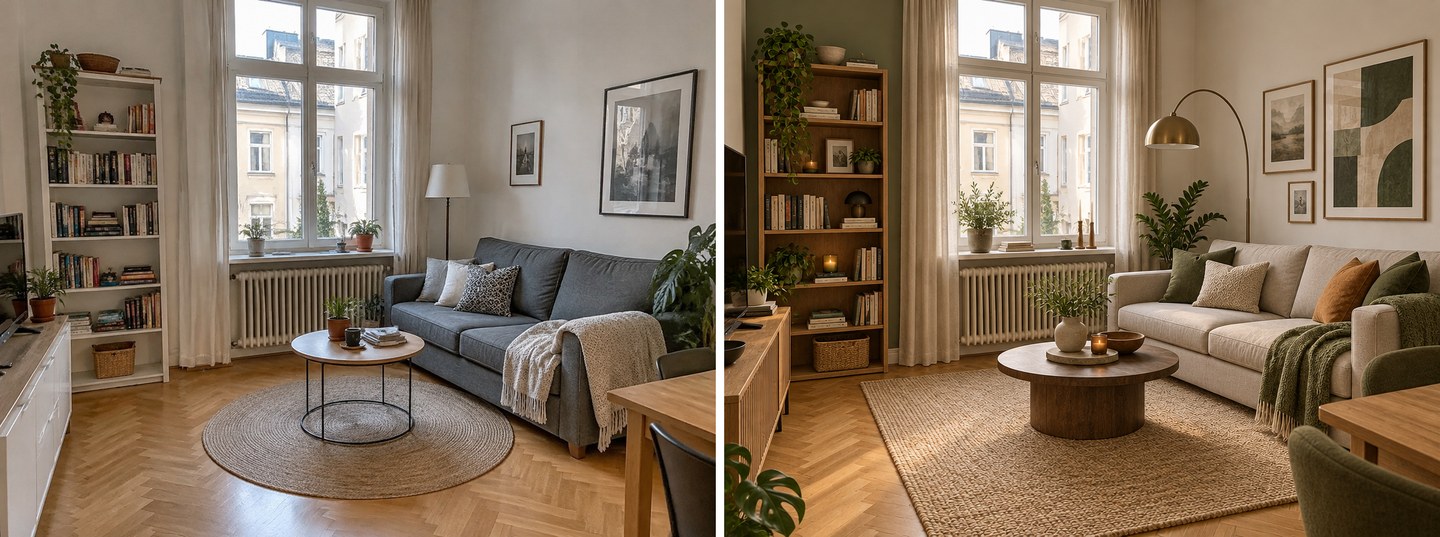
You can redesign any room with AI in under 30 seconds: upload a photo, pick a style, and get a photorealistic visualization of your space transformed. No design experience, no expensive software, no waiting weeks for a consultant's mood board.
GenRoom is one of the tools that makes this possible — it supports 60+ design styles, works for interior rooms, building facades, and outdoor yards, and gives you 6 free credits to start without entering a credit card. In this guide, we'll walk through the exact process step by step, share tips that produce dramatically better results, and cover the most common mistakes that leave people disappointed with their AI redesigns.
Whether you're a homeowner planning a renovation, a renter visualizing what's possible, or a real estate agent who needs virtual staging in minutes — this process works for all of it.
What Is AI Room Redesign and How Does It Work?
AI room redesign uses computer vision and generative AI models to analyze your existing room photo and recreate it in a new style, with different furniture, materials, colors, and lighting — all while preserving the basic layout and proportions of your space.
The underlying technology works in two stages. First, the AI identifies the room's structure: walls, floor, ceiling, windows, and major furniture placements. Second, it generates a new version of the space based on the style you choose, using its training on millions of professionally designed interiors. The result is a photorealistic image that shows what your room could look like — typically in 20–40 seconds.
This is fundamentally different from 3D room planners or mood board apps. You don't need to rebuild your room from scratch in a virtual environment. You just upload what exists and tell the AI what you want instead.
What AI room redesign can do:
- Show you a room in a completely different style (Modern, Japandi, Industrial, Art Deco, etc.)
- Replace furniture, flooring, wall colors, and decor
- Visualize facades and outdoor spaces, not just interiors
- Generate multiple design directions from a single photo in minutes
- Produce 4K quality renders suitable for presentations and sharing
What it cannot do:
- Provide construction blueprints or precise measurements
- Guarantee exact product matches for furniture items shown
- Replace a full interior designer for complex multi-room projects
Step 1: Take (or Find) the Right Photo
The quality of your AI redesign result depends heavily on the quality of your input photo. A bad photo produces a mediocre result, even with the best AI tool. Follow these rules before you upload anything.
Shoot from the corner, at eye level. Position your camera in a corner of the room and shoot diagonally toward the opposite corner. This captures as much of the space as possible and gives the AI the clearest sense of the room's depth and proportions.
Use natural daylight. Open all blinds and curtains before shooting. Dark or unevenly lit photos produce muddy results — the AI struggles to understand the surfaces when they're in shadow. Midday light through windows is ideal.
Keep the room tidy, but not empty. You don't need to move all your furniture out. The AI is designed to work with furnished rooms. However, remove visual clutter: stacks of books, laundry, cables, and scattered items confuse the model and produce artifacts in the output.
Use landscape orientation. Vertical (portrait) photos capture less of the room and produce narrower results. Always shoot horizontally.
Resolution matters. Modern smartphones take excellent photos. Use your phone's standard camera (not the ultra-wide lens, which distorts proportions). 12 megapixels or higher is more than sufficient.

A well-lit, clearly composed room photo produces detailed, realistic AI redesign results like this.
Step 2: Choose Your AI Room Redesign Tool
Several tools offer AI room redesign, and they differ meaningfully in style variety, output quality, pricing, and features. Here's a quick comparison of the landscape:
| Tool | Styles | Free Credits | AI Editor | Facade/Yard | 4K Output |
|---|---|---|---|---|---|
| GenRoom | 60+ | 6 (no card) | ✅ | ✅ | ✅ |
| RoomGPT | ~20 | 3 (limited) | ❌ | ❌ | ❌ |
| Interior AI | ~35 | 2 (watermark) | ❌ | ❌ | Paid |
| ReimagineHome | ~25 | Limited | ❌ | ✅ | ❌ |
| Decoratly | ~30 | 1–2 | ❌ | ❌ | ❌ |
For this guide, we'll walk through the process using GenRoom, which offers the most complete feature set for free and paid users alike. The steps are largely transferable to any similar tool.
To get started with GenRoom:
- Go to genroom.io and click "Start Free"
- Create a free account (email or Google sign-in)
- You'll receive 6 free credits instantly — no credit card required
- Open the Studio
Step 3: Upload Your Photo and Pick a Mode or Style
Once you're in the Studio, the workflow is straightforward.
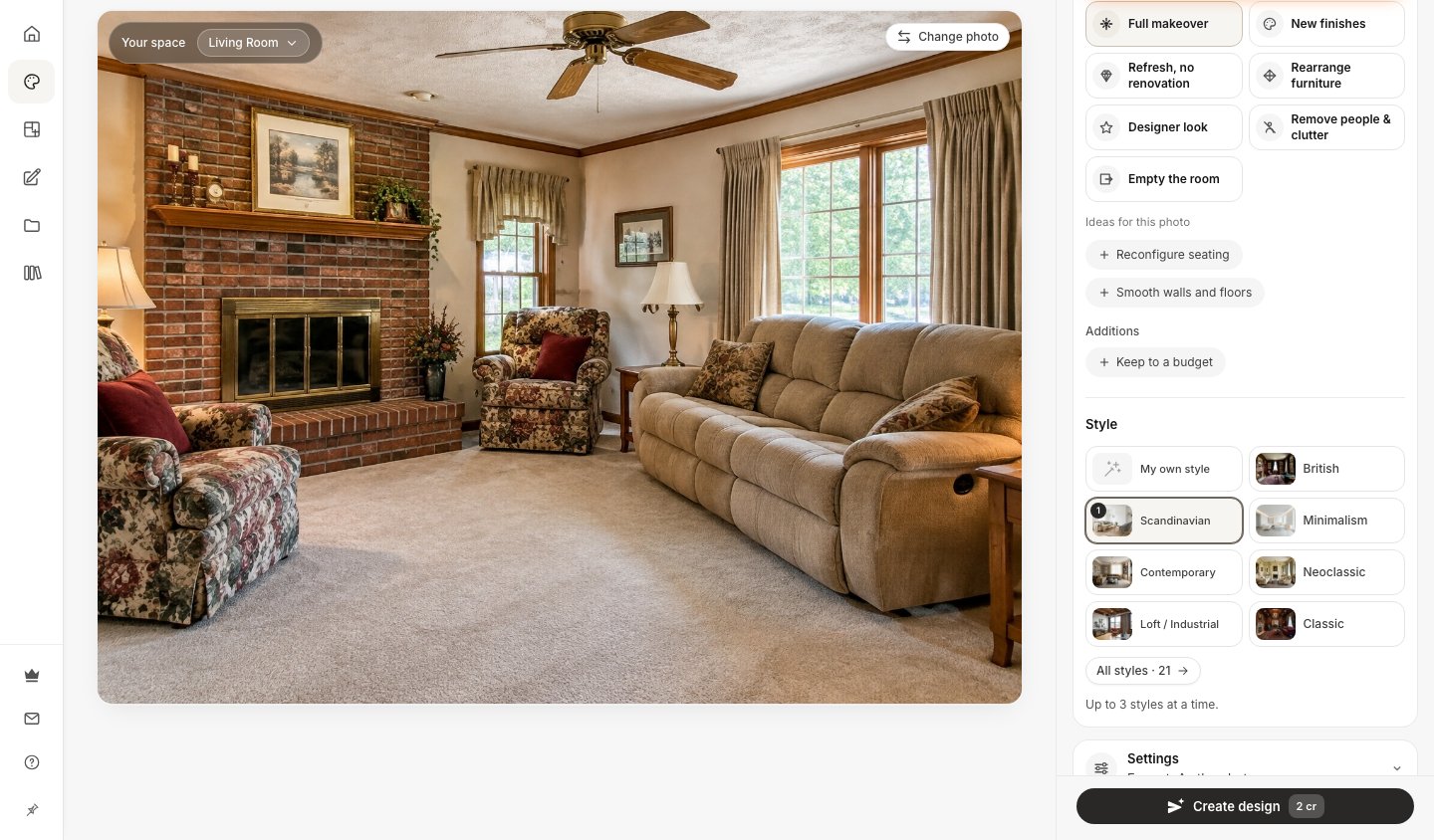
GenRoom Studio: upload a room photo, pick a mode and a style, then create the design.
Upload your photo. Drag and drop your room photo directly onto the upload area, or click to browse your files. GenRoom accepts JPEG and PNG files up to 10MB. The upload typically completes in 2–3 seconds.
Check the room type. The Studio detects it from your photo — an interior (living room, bedroom, kitchen, bathroom, home office, etc.), a facade (exterior of a house or building), or a yard (garden, patio, outdoor spaces) — and asks "What room is this?" if it's unsure. The correct room type is important — it tells the AI which surfaces and elements to focus on.
Pick a mode or a design style. Modes are ready-made tasks like furnishing an empty room or a designer makeover; a style is where you define the direction of your redesign. GenRoom offers 60+ styles, organized into categories:
- Minimalist & Clean: Scandinavian, Japanese, Wabi-Sabi, Minimalist
- Warm & Natural: Bohemian, Rustic, Cottagecore, Mediterranean
- Bold & Urban: Industrial, Art Deco, Loft, Cyberpunk
- Classic & Elegant: French Country, Victorian, Baroque, Colonial
- Modern & Luxurious: Contemporary, Hollywood Regency, Modern Luxury
Browse the style gallery to see examples of each. Hover over any style to see a preview render before committing.
Pro tip: If you're unsure which style suits your space, generate 2–3 different styles before choosing. Each design costs 2 credits. You can regenerate the same photo in a completely different direction at any time.
Step 4: Generate and Evaluate Your Result
Click "Create design" and wait approximately 20–30 seconds. When the result appears, evaluate it critically before downloading or sharing.
What to look for in a good result:
- The room's proportions are preserved (walls, floor, ceiling haven't changed shape)
- Furniture placement looks physically plausible
- Lighting is consistent with the original photo's direction
- Textures are detailed and realistic, not blurry or over-smoothed
- The style matches what you intended to explore
What to do if you're not satisfied:
Don't download and give up. Regenerate the same photo in the same style — AI results have natural variation, and a second or third generation often produces a noticeably better output. Most experienced users generate 3–5 variations per room before settling on a direction.
You can also try a closely related style: if "Scandinavian" gave flat results, try "Japandi" or "Minimalist" — they share similar principles but may produce better results for your specific room.
Step 5: Refine with the AI Editor
This step sets GenRoom apart from most competitors. Once you have a generation you like — or almost like — the AI Editor lets you make targeted changes using plain language instructions or a brush, in every plan including Free.
Each edit costs 2 credits, the same as a design.
How to use the AI Editor:
- Open your generated design
- Optionally select an area with the brush to limit the change to it
- Type a specific instruction: "Make the sofa navy blue," "Add a floor lamp in the corner," "Change the flooring to dark oak," "Remove the plant on the left"
- The editor generates a new version with only your requested change applied
This is significantly more powerful than regenerating from scratch. You preserve the overall design direction while fine-tuning specific elements — exactly how a real design process works.
AI Editor best practices:
- Be specific and concrete: "Replace the rug with a geometric black and white pattern" outperforms "change the rug"
- One instruction at a time works better than multiple changes in a single prompt
- Reference location: "the lamp on the right side," "the wall behind the sofa"
- Use material names: "brushed brass," "matte concrete," "herringbone wood"
Create interior design with AI
Upload a photo of your room and get a professional design in 30 seconds. First generation is free.
Step 6: Download, Save, and Use Your Results
When you're happy with a design, download it at the highest resolution available. GenRoom offers standard and 4K quality downloads (4K is included on Basic and Pro; Free and Start get one free 4K).

4K-quality AI-generated kitchen redesign — detailed enough for client presentations and contractor briefings.
How people use AI room redesigns:
- Planning a renovation: Share the image with contractors to communicate your vision precisely. Many users say an AI render reduces back-and-forth with contractors by 60–70%.
- Furniture shopping: Use the redesign as a reference when searching for actual furniture online. Filter by color, material, and style to find real pieces that match the AI visualization.
- Real estate listings: Virtually staged properties attract significantly more online viewing. AI staging takes minutes, not days.
- Rental spaces: Show potential tenants how a currently empty or dated apartment could look with different furnishing.
- Client presentations: Interior designers use GenRoom to show clients multiple directions before committing to detailed design work.
Saving designs: Your generation history is accessible anytime in your GenRoom account. All designs are stored in your history — you can revisit, download, or edit any previous generation without re-uploading the original photo.
Common Mistakes That Ruin AI Room Redesigns
Based on analyzing thousands of user results, these are the patterns that consistently produce poor outputs — and how to avoid them.
Mistake 1: Using a dark or poorly lit photo. AI struggles to understand surfaces it can't clearly see. A dimly lit room produces results that look smudged or artificially brightened in unnatural ways. Always shoot in good light, or turn on every light in the room before photographing.
Mistake 2: Shooting with an ultra-wide lens. The barrel distortion from ultra-wide phone lenses (the "0.5x" zoom option) makes walls appear curved and proportions strange. The AI reads this as the actual shape of your room, producing bent or warped results. Use the standard lens (1x zoom).
Mistake 3: Choosing a style that doesn't match your room's architecture. A Victorian ornate style applied to a low-ceiling 1970s apartment will look incongruous regardless of how good the AI is. The AI works with what exists — choose styles that complement your room's bones. Use the style preview hover to check before generating.
Mistake 4: Generating only once and giving up. AI outputs vary. The first result is rarely the best. Experienced users generate 3–5 variations of the same photo before evaluating results. This uses 6–10 credits but produces dramatically better outcomes.
Mistake 5: Using a cluttered or messy photo. AI room redesign works by understanding existing structures and replacing surface materials. Clutter in the original photo makes it harder to identify the room's real layout. A cleaner source photo always produces a cleaner redesign.
Mistake 6: Expecting the AI to fix structural problems. If your room has a poorly placed window, an awkward structural column, or an unfortunate layout — the AI won't redesign the architecture. It redesigns the materials, furniture, and decor within the existing structure. For layout changes, a different approach is needed.
GenRoom Pricing: What You Get at Each Tier
GenRoom offers a straightforward pricing structure with no subscription lock-in. Credits are purchased as needed and are valid for 180 days from purchase.
| Plan | Price | Credits | Key Features |
|---|---|---|---|
| Free | $0 | 6 credits | All styles, Interior + Facade + Yard, watermark |
| Start | $9.99 | 36 credits | All features, no watermark |
| Basic | $19.99 | 100 credits | All features, 4K included |
| Pro | $39.99 | 300 credits | 4K, 5 reference photos, private designs |
A design or an edit costs 2 credits. The free tier's 6 credits are enough to try 3 different rooms or 3 variations of a single space — a genuinely useful amount to evaluate whether the tool works for your needs.
For homeowners doing a single room renovation, the Start or Basic plan typically covers everything needed. For real estate agents or interior designers working with multiple properties, the Pro plan offers the best value per credit.
Visit genroom.io/pricing to compare plans and start with the free tier.
Beyond Interior Rooms: Facade and Yard Design
Most people discover AI room redesign through interior spaces, but the same technology works equally well for exteriors — and the visual impact can be even more dramatic.
Facade redesign: Upload a photo of the front of your house or building. Choose from styles like Modern Minimalist, Scandinavian, Colonial, Mediterranean, or Contemporary. The AI redesigns the exterior cladding, windows, doors, roofline details, and landscaping in front of the house. This is particularly useful for homeowners considering exterior renovation and real estate agents wanting to improve curb appeal in listings.
Yard and garden design: Photograph your backyard, patio, or garden area. Choose a landscape style — Zen Garden, English Cottage, Modern Patio, Tropical — and see how your outdoor space could be transformed with different planting, paving, furniture, and structural elements.
GenRoom handles all three categories (Interior, Facade, Yard) within the same account and with the same credits. This makes it one of the most versatile AI design tools available — most competitors focus exclusively on interior spaces.
FAQ: AI Room Redesign
What is the best AI tool for room redesign in 2026?
GenRoom is among the strongest options based on style variety (60+), output quality, and feature depth. It covers interiors, facades, and yards, includes an AI Editor for refinement with words or a brush in every plan, and offers 6 free credits with no credit card required. Other well-regarded options include Interior AI and ReimagineHome, though they offer fewer styles and no AI Editor.
Can I redesign a room with AI for free?
Yes. GenRoom gives you 6 free credits when you sign up — enough to generate 3 room redesigns without entering payment details. Other tools like RoomGPT and Interior AI also offer limited free generations, typically 2–3 with a watermark.
How accurate is AI room redesign?
AI redesigns are accurate at the style and mood level — they give a clear, photorealistic impression of how your room would feel in a different design direction. They are not precise in product terms: the specific furniture, fixtures, and materials shown are AI-generated interpretations, not actual available products. Use the results as visual direction for renovation planning and furniture shopping, not as exact specifications.
How many credits do I need to redesign one room?
A thorough exploration of one room typically takes 10–20 credits (2 per design or edit): 3–5 initial generations in different styles to find the right direction, then 2–5 refinements using the AI Editor. The Basic plan (100 credits, $19.99) is sufficient for redesigning an entire apartment or house.
Does AI room redesign work for every room type?
Yes. AI tools work for living rooms, bedrooms, kitchens, bathrooms, home offices, dining rooms, and more. They also work for commercial spaces like cafes, offices, and salons. The main requirement is a clear, well-lit photo that shows the room's structure. Very small spaces (like closets) or rooms with complex architectural features may produce less accurate results.
Will AI redesign change the layout of my room?
No. AI room redesign works within the existing layout of your space. It changes materials, surfaces, furniture style, and decor — but it won't move walls, change window placement, or alter the room's footprint. If you want to explore layout changes, that requires a different type of tool (3D floor planners like Planner 5D).
Is it worth using AI for room design before renovating?
Absolutely. Renovation mistakes are expensive — incorrect style choices, mismatched materials, and furniture that doesn't suit the space cost thousands to correct. Visualizing the result before committing any budget takes minutes with AI and costs less than $5. Many users report that AI redesign changed their renovation plans significantly — in ways that saved them money.
The Bottom Line
AI room redesign has removed the biggest barrier to visualizing your home's potential: the need for design skills, expensive software, or professional consultants just to see what's possible.
The process is straightforward: take a clear photo, upload it to GenRoom, choose a style, and get a photorealistic result in 30 seconds. The free tier gives you 6 credits (3 designs) to start — enough to explore multiple directions for a room without spending anything.
The key to getting excellent results is input quality (good photo, good lighting, clear composition) and iteration (generating multiple variations, using the AI Editor to refine). Don't treat the first result as final. Treat it as a starting point.
For anyone planning a renovation, staging a property, or simply curious about what their space could become — AI room redesign is the fastest way to find out.